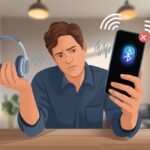
We’ve all been there—ready to blast our favorite playlist or jump into a call, and suddenly our Bluetooth headphones just won’t connect to Windows 10. Usually, this happens because the headphones aren’t in pairing mode, Windows has Bluetooth turned off, or some old device connection is causing chaos. It’s annoying, right? But hey, it doesn’t mean we’re doomed to listen to our PC fan forever.

Sometimes, our computers just need a gentle nudge. Turning Bluetooth off and back on, forgetting the device, or rebooting everything can sometimes work like magic.
Other times, things get a bit weird—maybe another device (like our phone) is still holding onto the headphones, or Windows just won’t cooperate for no clear reason.
We’ve rounded up some of the easiest fixes and a few oddball tricks, so let’s see why our headphones and computers are giving each other the silent treatment.
If you’re ready to play Bluetooth detective, you’re in the right place.
Understanding Bluetooth Headphone Connectivity on Windows 10
Bluetooth headphone issues on Windows 10 can feel like a mystery with way too many suspects. When we get how our computers and headphones talk to each other, plus what kinds of headphones we have, it’s easier to spot where things go sideways.
How Bluetooth Works with Windows 10
Let’s be real, Bluetooth is like that friend who sometimes just bails on plans. On Windows 10, Bluetooth needs a few things to work.
First, our computer needs a working Bluetooth adapter—either built-in or plugged in with a USB dongle. If we’re using a desktop without Bluetooth, we’ve got to add one.
To connect, we turn on our headphones and put them into pairing mode. Next, we jump into Windows Settings > Devices > Bluetooth & other devices.
Clicking “Add Bluetooth or other device” should show our headphones—unless they’re feeling shy today.
If our computer and headphones don’t see each other, maybe they’re too far apart, another device is interfering, or the Bluetooth driver is acting up. Sometimes, airplane mode is the culprit.
Turning Bluetooth off and back on can help, even if it feels silly. Need more troubleshooting? Check out this guide.
Types of Bluetooth Headphones
Bluetooth headphones come in all shapes and sizes, and not just in looks. Some use old Bluetooth versions, some have the latest.
We’ve got over-ear, on-ear, and in-ear headphones. What really matters for connection is the Bluetooth profile.
You’ll see terms like A2DP (music) and HSP/HFP (calls). If our headphones only support certain profiles, Windows might connect but not play sound or use the mic.
Sometimes, headphones just get stubborn if they’ve been paired with all our other devices and need to be unpaired first.
Compatibility depends a lot on whether our headphones and computer use the same Bluetooth version. When picking new headphones, it helps to check if they mention “built-in support for Windows 10,” and keeping drivers updated never hurts. For more details on connecting, check this detailed guide.
Preparing Your Bluetooth Headphones for Pairing
Before our headphones can do anything cool, we’ve got to make sure they’re ready to pair. If they’re not in the right mode or we hit the wrong buttons, Windows 10 will act like they’re invisible.
Enabling Pairing Mode Correctly
Every Bluetooth headphone has its own secret handshake for pairing mode. Some want us to hold the power button for a few seconds, others need a dedicated Bluetooth button, and a few make us guess.
Look for a flashing LED light when we get it right. Most headphones blink blue and red, or just flash blue quickly.
This little light show means our headphones are basically waving at Windows 10, saying, “Pick me!”
Not sure what button to press? It’s usually best to check the manual or do a quick search for our brand and model.
Keeping the headphones close to the computer helps too.
If our headphones are already paired with something else, like our phone, we might need to disconnect them first. Some models want us to clear old pairing info before adding a new device.
Keeping our headphones in fresh pairing mode is a good way to dodge frustration.
Common Mistakes with Pairing Mode
Let’s be honest, we’ve all messed up pairing mode at least once. The most common mistakes?
- Not holding the button long enough (seriously, five seconds is usually safer than two).
- Trying to pair while the headphones are still connected to another device—they can be loyal, for better or worse.
- Skipping the manual and just guessing which button to push.
Our headphones need to be ready, not just turned on. Sometimes, Windows won’t even see our headphones if they’re just powered on instead of in pairing mode, as folks mention on Microsoft Community forums.
If pairing info is out of date or mixed up, it helps to forget the old device and start fresh. Don’t be afraid to try again—just with the right button this time.
Configuring Windows 10 for Bluetooth Connections
Before we dive into a playlist or that meeting we can’t skip, we need to make sure our Windows 10 setup is actually ready. Connecting Bluetooth headphones isn’t magic—it just takes a few steps.
Accessing Bluetooth Settings in Windows 10
First, let’s find where all the Bluetooth action happens. We click the Start button and head to Settings (that little gear).
Next, we hit Devices. Our headphones deserve to be more than “other devices,” right?
On the left, we go to Bluetooth & other devices. Here, we check the Bluetooth toggle. If it’s off, our headphones might as well be talking to a brick.
Let’s turn it on.
Under Related settings, we check the Bluetooth settings. We should see a list of paired devices.
If our headphones show up but refuse to connect, we can remove them and add them again—sometimes, a little tough love works.
If Bluetooth still plays hard to get, toggling it off and back on or restarting the computer can help. If the Bluetooth adapter is missing or grayed out, it’s probably time for new drivers.
Making Windows 10 Discoverable
We need our PC to wave “hello” so our headphones know where to go. Windows 10 is usually discoverable when we’re in the Bluetooth & other devices window.
To be sure, we look for a message that says our PC is now discoverable.
Sometimes, our PC hides. If devices can’t find it, we check out troubleshooting steps. Make sure Airplane mode is off—unless we’re pretending to be on a flight from our couch.
If our headphones and PC still aren’t finding each other, we go to Device Manager, look for the Bluetooth adapter, and make sure it’s enabled.
Outdated or missing drivers can turn our setup invisible, so updating them can save us from a silent disco.
When nothing else works, we try pairing everything again after a quick restart. Sometimes, everyone just needs to start over.
Troubleshooting Bluetooth Connection Issues
When our Bluetooth headphones refuse to connect, it honestly feels like they’re mad at us. Usually, though, it’s just a problem with the Bluetooth adapter, or we need to reset a few things to get back on track.
Checking the Bluetooth Adapter Status
Before we blame our headphones (or threaten to toss them), we check if our Bluetooth adapter is even working.
First, we open Device Manager with Win + X, pick “Device Manager,” and look under “Bluetooth.” If we spot a yellow warning or exclamation mark, there’s definitely an issue.
If there’s no Bluetooth adapter at all, either we don’t have one, or it’s hiding. A USB Bluetooth dongle could be a quick fix.
And yes, we should double-check that Bluetooth is actually on in the settings—because forgetting that is way too easy.
If the adapter shows up but acts weird, updating or reinstalling the drivers can help. We right-click on the device, pick “Update driver,” and let Windows do its thing.
If Windows can’t help, we grab fresh drivers from the manufacturer’s website. For more help, here’s an HP Bluetooth troubleshooting page.
Resetting Bluetooth Connections
If the adapter seems fine but our headphones still ghost us, it’s time for a reset. Turning Bluetooth off and on can sometimes clear up whatever’s stuck.
Still not connecting? We unpair the headphones and remove them from Windows.
Head to Settings > Devices > Bluetooth & other devices, tap the headphones, and hit Remove device.
Then we restart the PC—because somehow, that’s still the go-to tech fix.
Next, we pair the device like it’s brand new—put the headphones in pairing mode, and select them in Windows. If that doesn’t work, we uninstall the Bluetooth driver from Device Manager, restart, and let Windows reinstall it.
Apparently, this fixes a lot of those “paired but not connected” headaches, according to folks on Microsoft’s forum.
If all else fails, we check that Airplane mode is off, Wi-Fi and Bluetooth are on, and maybe try a different Bluetooth adapter if ours is just being moody.
Fixing Bluetooth Driver and Software Problems
When our Bluetooth headphones stop working on Windows 10, the issue usually comes down to the Bluetooth driver or software. These stubborn problems can make tech life a little less fun, but honestly, most of them aren’t too hard to fix with a few steps.
Updating Bluetooth Drivers
Sometimes our Bluetooth adaptor just refuses to work, like it’s on vacation. Usually, this happens because the Bluetooth driver is outdated or missing important updates.
To fix it, let’s jump into Device Manager. Here’s what you do:
- Right-click the Start button and pick Device Manager.
- Find “Bluetooth,” then right-click on your Bluetooth device.
- Choose “Update driver.”
- Select “Search automatically for updated driver software.”
If things go well, Windows grabs an update and our headphones spring back to life. Sometimes they even start playing music right away.
If the adaptor still acts stubborn, we can head to the laptop or adaptor maker’s site and grab the latest drivers there. Updating drivers often solves those annoying Bluetooth connection problems.
Dealing with Corrupted Driver Files
Every now and then, the Bluetooth driver glitches or just throws a digital tantrum. You’ll probably notice this when the Bluetooth device disappears from Device Manager or just won’t connect to anything.
Try uninstalling the driver:
- Right-click the Bluetooth device in Device Manager.
- Select “Uninstall device.”
- Restart the computer so Windows can reinstall the driver automatically.
If that doesn’t help, do a clean install from the manufacturer’s website or use Windows Update. Plenty of people have fixed issues by deleting the corrupted driver and letting Windows reinstall it after a reboot.
If nothing works, maybe it’s time to blame the adaptor and start thinking about a replacement.
Dealing with Stubborn Headphones That Won’t Connect
Sometimes our newest headphones just don’t want to play nice. Bluetooth headphones can get moody and refuse to connect until we give them some extra attention.
Unpairing and Re-Pairing Devices
When headphones give us the silent treatment, unpairing and re-pairing can help. It’s basically telling our devices, “Let’s start over.”
First, open Bluetooth settings on your Windows 10 computer. Click your headphones in the paired devices list and select Remove Device.
Next, put your headphones back in pairing mode. Usually, holding down the power button until you see flashing lights works. Then, in Bluetooth settings, select Add Bluetooth or other device, pick Bluetooth, and choose your headphones from the list.
With a bit of luck, the headphones reconnect. If not, well, we can always let them know we’re disappointed.
Removing Old Pairing Information
Sometimes, old pairing info confuses the computer—like an ex who won’t leave. Clearing out the old stuff can help make a fresh connection.
Go into Device Manager and expand the Bluetooth section. Uninstall any drivers or old headphone entries that look outdated or unused.
Deleting these “ghosts” tells Windows to forget the past. After a quick restart, try connecting the headphones again. For really stubborn cases, check out this Microsoft Community thread about Bluetooth headset problems.
Ensuring Proper Music Playback After Connection
Once we get our Bluetooth headphones connected, we want the music to actually play through them. Nobody wants their playlist going to the neighbor’s toaster.
Selecting Headphones as the Output Device
After pairing, Windows sometimes gets confused about where to send your audio.
Here’s a quick check:
- Click the speaker icon at the bottom right of the screen.
- A menu pops up—click the device name.
- Pick your Bluetooth headphones from the list.
If your headphones don’t show up, Windows might be playing hide-and-seek. Open Settings > System > Sound and pick your headphones from the dropdown menu.
Sometimes headphones connect for calls but not for music. If you still don’t hear anything, unpair and reconnect. It sounds silly, but honestly, it works more often than not.
Bluetooth settings can also trip us up. If the headphones say “connected” but nothing plays, check that they’re not already paired with another device like your phone or tablet. This happens more than you’d think.
Adjusting Windows Audio Settings
If you still hear nothing, poke around in Windows audio settings. Right-click the speaker icon and hit Sounds. Under the Playback tab, find your headphones.
Right-click and set them as default. Sometimes Windows just needs a reminder about who’s in charge.
If the headphones show as “disconnected” or “disabled,” right-click and enable them. Still no sound? Open Device Manager with Windows key + X, pick Device Manager, and check that your Bluetooth and audio drivers are up to date.
And don’t forget the volume! Sometimes everything works, but the volume slider is at zero. If you need a step-by-step fix, Soundcore has a solid guide for Bluetooth headphones connected but no sound. After all this, your music should finally come through.
Advanced Tips for Flawless Bluetooth Connections
Let’s be honest, Bluetooth sometimes feels like magic and sometimes like a curse. Even when we do everything right, gadgets can still refuse to cooperate.
Using External Bluetooth Adapters
Built-in Bluetooth can be weak or just plain stubborn. When nothing else works, a USB Bluetooth adapter can save the day.
These little dongles plug right in and usually give us a fresh connection that works better than the built-in one.
A lot of us have found that using adapters like the TP-Link Bluetooth Nano fixes issues built-in Bluetooth can’t. Plug it in, Windows usually sets it up automatically, and you can pair your headphones almost instantly.
If your PC never had Bluetooth or the original one is acting up, this method is especially handy.
Build quality and range matter, so check the specs before buying. Most adapters today support Bluetooth 5.0 or higher, which means a better, more stable signal.
If you use an external adapter, disable the built-in Bluetooth to prevent them from fighting over your headphones. You can find more tips in videos like this guide to using an external Bluetooth adapter.
Avoiding Bluetooth Interference
Interference is the sneaky villain in every Bluetooth story. Wi-Fi routers, microwaves, cordless phones, and thick walls all love to mess with your connection.
Sometimes just sitting near your router turns music into a guessing game.
Try these tricks:
- Move closer to your PC: Closeness really does help here.
- Keep Bluetooth and Wi-Fi on different frequencies: Many routers let you use 5GHz for Wi-Fi, while Bluetooth stays on 2.4GHz.
- Avoid USB 3.0 ports for your Bluetooth adapter: USB 3.0 can cause interference, so use a USB 2.0 port if you can.
Furniture, walls, and even other Bluetooth users can cause problems. If nothing else works, try shutting down nearby gadgets or moving to a different room.
Honestly, both classical music and good headphones deserve better than a “Bluetooth static remix.” For more help, check out this article on troubleshooting Bluetooth connection issues.
When to Seek Professional Help (Or Just Blame Gremlins)
Sometimes, we try every fix under the sun and our Bluetooth headphones still refuse to play nice with Windows 10.
Is it time to call in a pro, or should we just blame invisible tech gremlins for the chaos?
Here are a few signs it might be time to get help instead of just yelling at the screen:
- We’ve restarted, updated, reset, and even pleaded—nothing works.
- The Bluetooth icon? Gone. Nowhere to be found.
- Windows says “connected” but all we get is silence.
- Device Manager flashes yellow warnings or weird error codes.
What can the experts do that we can’t?
| Expert Powers | Our Usual Fixes |
|---|---|
| Advanced diagnostics | Turning it off and on |
| Hardware repairs | Googling frantically |
| Driver magic | Mashing random buttons |
Before we run to tech support, it’s smart to check out official troubleshooting from Microsoft Support.
If nothing works, maybe it’s time to call a repair shop—or just laugh and blame it on those mischievous gremlins. Sometimes, you just have to admit defeat and let someone else take over.

From a young age, I have always had a big interest in technology, and this blog is an extension of that interest. Through this blog, I hope to provide others with all of the information they need regarding tech options to consider, and things such as compatibility. Some of the different items I will be discussing include headphones, smartwatches, and how to fix common issues.
- How to Get Text Messages on Fitbit Versa 2 Android: Simple Guide for Users - October 13, 2026
- Why Doesn’t My Fitbit Record My Sleep? Quick Troubleshooting Guide - October 13, 2026
- How to Change Face on Fitbit Versa 2: Quick and Easy Guide - October 12, 2026
Related Posts: