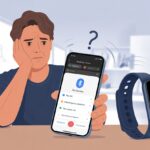
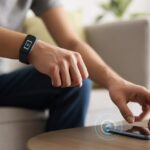
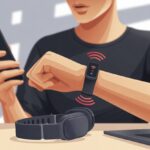
Is there anything more confusing than putting on a fitness tracker, only to find it refusing to connect to Bluetooth? We’re ready for a jog, but apparently our gadgets would rather take a nap.
Most of the time, our fitness tracker won’t connect to Bluetooth because of simple stuff like Bluetooth being off, interference, or the tracker just needing a quick restart.
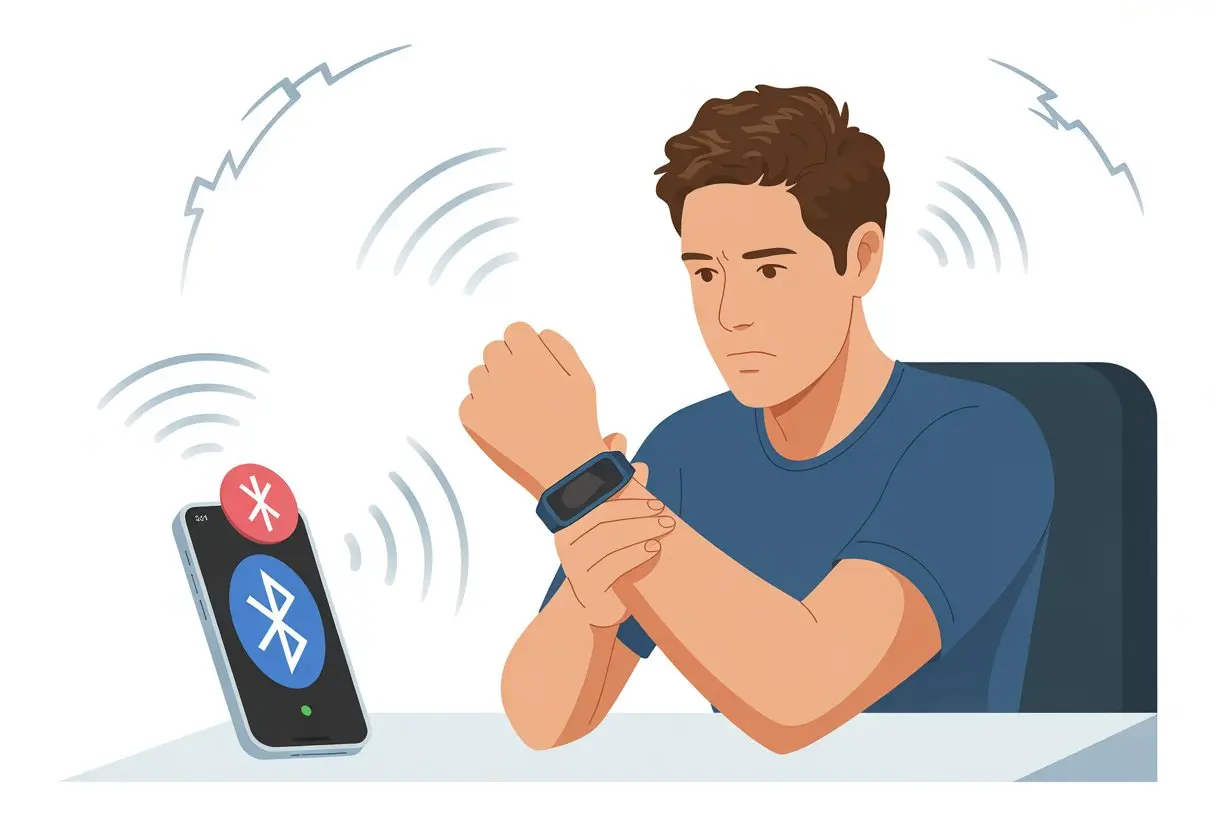
If you’ve ever wanted to throw your tracker out the window, you’re definitely not alone. Usually, it’s something as silly as having Bluetooth off (yep, been there), too many devices connected, or forgetting to update the app.
Sometimes, these stubborn little things just need a quick restart—so much for “advanced” technology.
Let’s be honest: we all need help sometimes, even if it’s just figuring out why our wrist-worn motivator isn’t cooperating. So, let’s see what’s up, so we can get back to counting steps instead of tech headaches.
Understanding Bluetooth Connectivity in Fitness Trackers
Fitness trackers use Bluetooth to send all our workout data to our phones or tablets. If the Bluetooth connection drops, syncing steps, heart rates, or sleep data suddenly becomes a weird game of patience.
How Fitness Trackers Use Bluetooth
Bluetooth is the behind-the-scenes wizard that lets our tracker and phone talk, laugh, and sometimes have a big argument. Most trackers use a special type called Bluetooth Low Energy, or BLE.
BLE works by constantly sending tiny signals between our tracker and phone. These signals are like secret handshakes, helping both devices know when to transfer data.
That’s why syncing usually feels instant—unless, of course, our devices are having a bad day and just won’t play nice.
Sometimes, we need to turn on Bluetooth settings on the phone or tracker. Software glitches, outdated apps, and just plain stubbornness can cause connection drama.
If you want more tips, check out this guide on Bluetooth pairing problems.
Types of BLE Devices
Not all BLE devices are created equal. BLE gadgets fall into two main roles, kind of like actors in a school play.
We’ve got “central” devices (usually our phones or tablets) and “peripheral” devices (our fitness trackers). A fitness tracker acts as a peripheral because it’s always sending out signals, kind of like shouting, “Pick me! Pick me!”
Our phone is the central device, calmly listening and deciding which tracker to connect with.
Pairing depends on these roles matching up, and if they don’t, our tracker just becomes the wallflower at the Bluetooth dance. Compatibility, software updates, and device settings all play a part in making sure our fitness gadgets and phones actually get along.
For more advice on connection issues, see why a Bluetooth smartwatch might not connect to your smartphone.
Common Reasons Your Fitness Tracker Won’t Connect
Staying active is already tough—so when our fitness tracker stops talking to us, it’s just plain annoying. Sometimes, the culprit is something simple, like a dead battery, pairing mode confusion, or a sneaky setting.
Battery Troubles: Is Your Tracker Napping?
First things first—don’t blame Bluetooth just yet. If our tracker has no battery, it’s not doing anything, let alone connecting.
Sometimes, charging cables wiggle out or adapters just stop working. Even a tracker that looks “on” can act lazy if the battery’s super low.
It’s worth plugging it in for at least 30 minutes before trying any Bluetooth magic. If it still won’t wake up, maybe it’s time for a power nap… or a new battery.
A half-awake tracker drops the Bluetooth connection every few minutes, leaving us wondering if it’s haunted. If the screen won’t light up at all, charge it or try a different charger—no shame in borrowing a friend’s cable for science.
Incorrect Pairing Mode Mishaps
Bluetooth is picky. Our tracker needs to be in pairing mode before our phone can find it—otherwise, the two just ignore each other like grumpy cats.
On most trackers, we press and hold a button, tap the screen, or poke around in settings until we see “Pairing.” It helps to put our phone’s Bluetooth into searching mode right after getting our tracker ready.
If we skip a step, we end up making faces at our phones, wondering what went wrong. Device instructions are surprisingly helpful—each model gets a little bossy about how to enter pairing mode.
Sometimes, our tracker still thinks it belongs to another phone. In that case, we un-pair it from all previous devices.
A factory reset works too, but that usually wipes out all the steps we pretended to take for the past week.
Device Settings That Ruin the Party
Our phones love hiding important Bluetooth settings just for fun. If Bluetooth is off, nothing’s connecting.
Airplane mode is another sneaky villain—it shuts off all wireless radios until we turn it off. Wi-Fi and cellular data help the Fitbit app sync, so keep those on while pairing.
Sometimes, old info hangs around in Bluetooth settings. Clearing the Bluetooth cache, forgetting the device, and restarting the phone can work wonders.
We might also have too many devices paired at once. When in doubt, un-pair anything suspicious and keep just our tracker and phone on the dance floor.
If things are still jammed up, a quick reboot of everything—tracker, phone, and maybe even ourselves—is a solid place to start.
Troubleshooting Steps That Actually Work
When Bluetooth syncing acts up, the fix is usually way simpler than we expect. Our fitness trackers (and our patience) just need the right moves to snap back into action.
Restarting Your Fitness Tracker and Phone
Let’s start with the classic: turning it off and on again. We might roll our eyes, but a quick reboot really does fix a lot.
First, power off the tracker—check its manual if you’re not sure how. Give it a minute to chill before powering back up.
Next, restart your phone too. Restarting clears up minor software hiccups and resets stubborn Bluetooth signals.
Sometimes, our gadgets just need a quick nap. After both devices are back on, open up the app and check the connection.
If syncing is back, do a little happy dance. If not, there’s more to try.
Forget Device and Re-Pair Like a Pro
If our tracker is still ignoring us, it’s time for a breakup and make-up. In our phone’s Bluetooth settings, we find the tracker under “paired devices” and tap “forget” or “remove.”
This wipes away any weird glitched connections. After that, turn Bluetooth off and on again for good measure (why not?).
Put the tracker and phone super close together—like they’re besties again—and start the pairing process from scratch in our fitness app.
This method tackles the most stubborn syncing issues by resetting the connection. Sometimes, all our devices need is a fresh start.
Verifying App Permissions
Permissions sound boring, but they’re sneaky little settings that can ruin our plans. Without the right permissions, our tracker and app can’t talk to each other.
We need to double-check that the app has access to Bluetooth, location, and anything else it asks for. On most phones, we head to settings, find the app, and review permissions.
We make sure everything’s switched on—no privacy drama allowed. If we skip this step, syncing could fail no matter how many times we reboot or re-pair.
So, let’s let our app in on the fun, and hopefully, the tracker will start talking again.
Interference and Connection Obstacles
Sometimes it feels like our fitness tracker has a mind of its own. But it’s usually just struggling with all the wireless noise and barriers in our world.
Let’s look at why Bluetooth connections can be so stubborn, especially when we’re depending on them.
Bluetooth Interference From Other Gadgets
Let’s be real—our homes are full of Bluetooth gadgets. If we have wireless headphones, a smart speaker, or even a neighbor with a bunch of BLE devices, they’re all fighting for the same radio waves.
It’s like a family reunion where everyone tries to talk at once. Our fitness tracker is the quiet cousin in the corner, and sometimes it just can’t get a word in.
Bluetooth interference happens when too many devices try to connect at once, or when older devices keep trying to reconnect.
Here are some tips to cut down the chatter:
- Turn off Bluetooth on devices we’re not using
- Move other wireless gadgets away from our tracker during pairing
- Avoid pairing new devices when the room feels like a mini tech convention
If our tracker still won’t connect after clearing the crowd, there might be a device bug or an issue with our phone’s Bluetooth settings.
Never underestimate the power of a good restart for everything involved.
Range and Physical Barriers
Bluetooth isn’t a marathon runner. Most fitness trackers, especially BLE ones, only reach about 30 feet.
If our tracker is halfway across the house, behind two walls, a fridge, and a thick mystery book, it’s not going to win any connection awards.
Concrete, brick, and metal are notorious for blocking signals. Water—even in our own bodies—can mess things up too.
If we try to pair devices while one’s under a pile of laundry or in another room, it’s probably not going to work.
Here’s a quick list of common barriers:
- Walls (the thicker, the worse)
- Metal appliances
- Water (aquariums, sinks, people)
- Furniture (especially big stuff like cabinets)
Keeping the tracker and phone close together during pairing gives us the best shot. Let’s not make it harder by hiding our gear behind obstacles.
If we treat Bluetooth like an introverted friend and make things easy, it’ll be much happier to connect.
App and Device Settings You Should Check Twice
Sometimes, our fitness trackers throw a mini tantrum because of simple settings we overlook. We can often fix syncing issues by checking for app updates and making sure notifications work how we want.
App Updates and Compatibility
Let’s start here: is your fitness app up to date? An old app is like that friend who won’t upgrade their phone—unpredictable and kind of a pain. Updates usually squash bugs and help your app behave better with your devices.
So, pop into the app store and see if there’s an update waiting. If you skip these, you might run into weird compatibility issues with your tracker or phone. Some Bluetooth features just won’t work unless you’re on the latest version, so don’t ignore those update prompts.
Here’s a table for quick troubleshooting:
| Problem | What To Check |
|---|---|
| App crashes or won’t pair | Update app and phone OS |
| Tracker not recognized | Confirm app compatibility |
| Frequent Bluetooth disconnects | App version & permissions |
Also, don’t forget your tracker’s own firmware updates. You can usually find these in the app’s settings. If your tracker runs on old software, it might throw a Bluetooth tantrum.
Notification Settings for Syncing Success
Notification settings can be sneakier than you’d think. If you block notifications, syncing might fail—some trackers need permission to send updates and alerts. Open your phone settings and let the fitness app send notifications so syncing works right.
You should also enable background app refresh and location services, especially if you want real-time syncing and notifications. Turn those off, and your tracker might just stop talking to your phone. If you want more setup tips, check out this settings guide.
Here’s a checklist so you don’t lose track:
- Make sure fitness app notifications are on
- Enable background app refresh
- Check location permissions
- Allow alerts from Bluetooth pairing requests
Miss one of these, and you might wait forever for your step count to show up—like those socks that disappear in the laundry.
Special Cases: Health Data and Heart Rate Issues
Sometimes fitness trackers act like secret agents, locking down health data or hiding your heart rate. Syncing problems can sneak in, even if everything else looks fine.
Heart Rate Data Not Syncing
Let’s talk about the classic disappearing heart rate. Your tracker just shrugs and says, “No heart rate for you!” Usually, this happens because the sensors and Bluetooth aren’t playing nice, or maybe they’re just tired after your last workout.
Low battery, a misplaced sensor, or Bluetooth interference can all cause this. If your battery’s dead, that’s not “fitness”—that’s just a bracelet. Make sure your tracker and phone both have enough charge to sync.
Sensor placement matters. The heart rate sensor needs to sit snugly against your skin. If the band’s too loose, you’ll miss data. Even sweat or lotion can mess with the sensor.
Bluetooth can get overwhelmed if you’ve got headphones, speakers, and a smart fridge all connected at once. The tracker’s signal might get lost in the chaos. For more troubleshooting, here’s a guide on what to do if Bluetooth Fitness Sensor Data Is Missing or Not Correct.
Privacy Settings Limiting Connectivity
Our phones love privacy—sometimes a little too much. If you block your fitness app from accessing the heart rate sensor or health data, syncing just won’t happen.
Double-check your permissions for heart rate and fitness tracking in your phone’s settings. Here’s a quick table:
| Setting | iPhone | Android |
|---|---|---|
| Bluetooth | Enabled for tracker app | Allowed for app |
| Heart Rate | Permission granted to fitness app | App has sensor access |
| Health Sharing | Enabled for app and specific metrics | Health data sharing active |
It helps to turn off any super-strict privacy modes or battery savers. These can cut off your tracker’s access, even when it’s just trying to help. If you need more advice, check out Apple Watch heart rate monitor not working and Apple Watch & iPhone permissions.
When to Seek Help or Replace Your Fitness Tracker
Sometimes, no matter what you try, your gadget just won’t cooperate. If your fitness tracker refuses to pair with Bluetooth, you’ll have to decide: get help or move on.
Contacting Support Without Losing Your Mind
When your tracker keeps acting up and troubleshooting goes nowhere, it’s probably time to ask for help. Let’s be honest—no one loves waiting on hold, but you can make it easier if you’re ready with these:
- The tracker’s model and serial number
- The steps you’ve already tried (yes, even turning it off and on)
- Proof of purchase or warranty info, just in case
The goal is to keep the call short and painless, not turn it into a saga. If you can chat online, even better—no hold music. Sometimes the official site or forums like the Fitbit community forum have answers, so you don’t even have to call. If you do call, jot down what support says so you don’t have to repeat yourself again later.
How to Know If Your Tracker Needs Retirement
Every fitness tracker has a lifespan, just like our favorite sneakers. But how do you really know when it’s time to move on?
- Your tracker still refuses to sync, even after you’ve restarted, reset, and reinstalled the app more times than you care to admit.
- The device never pops up on any Bluetooth list, no matter which phone you try.
- The battery dies almost instantly, or maybe the screen stays black and just won’t wake up.
- You’ve dropped it, the dog’s chewed it, or it’s gone through the wash more times than your actual dishes.
You might want to check the warranty as a last-ditch effort. But honestly, if your watch has survived more chaos than a toddler’s favorite toy and nothing seems to help, it’s probably time to start looking for a new model.
Go for something with longer battery life and a less complicated relationship with Bluetooth. Your sanity—and your step goals—deserve it.

From a young age, I have always had a big interest in technology, and this blog is an extension of that interest. Through this blog, I hope to provide others with all of the information they need regarding tech options to consider, and things such as compatibility. Some of the different items I will be discussing include headphones, smartwatches, and how to fix common issues.
- Best Smartwatches for Elderly Care: Keep Grandma on Time and Grandpa Out of Trouble - September 7, 2026
- Why is my fitness tracker not showing incoming calls? Maybe It’s on a Silent Fitness Retreat! - September 7, 2026
- How to Use Bluetooth Headphones with Zoom Without Accidentally Broadcasting Your Playlist - September 6, 2026
Related Posts: