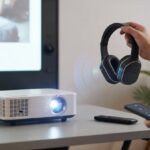
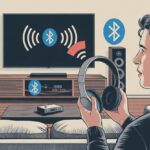
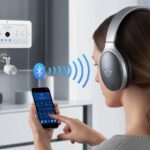
Let’s be real—sometimes we want those big movie moments without blasting the whole house (or risking a neighbor knocking on the door). That’s where Bluetooth headphones come in handy, letting us get home theater sound right in our ears. No more noise complaints, no more awkward “Can you turn that down?” from the next room.
We can use Bluetooth headphones with most home theater systems by either pairing them directly if our setup allows, or by adding a Bluetooth transmitter to the audio output.
No more fighting over the volume or missing plot twists because someone barged in and started talking. If you’ve ever wondered if your favorite headphones can really deliver that surround sound from your home theater, you’re in the right place.
Let’s figure out how to enjoy our next movie night in peace—at least for everyone else.
Understanding Bluetooth Technology For Home Theater
Bluetooth version numbers and codecs actually matter more than most people think. Let’s unravel this tech mystery together—hopefully with fewer headaches.
How Wireless Transmission Works
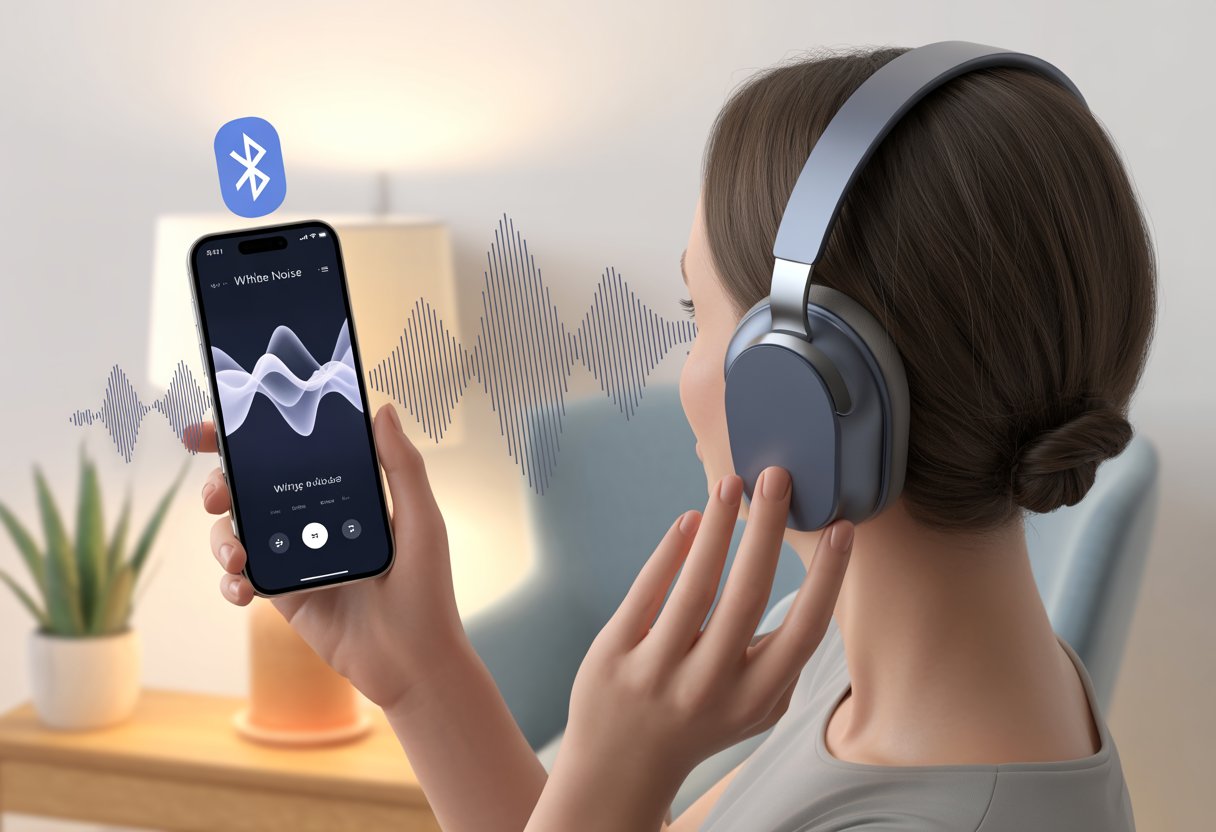
Bluetooth headphones connect to home theater receivers or transmitters by sending audio signals over short distances using radio waves. Unlike old-school infrared remotes, we don’t have to aim our heads in a certain direction—so no more pretending to be a satellite dish.
We need to pair the devices, which is just a fancy way of saying they “know” each other so nobody else can listen in.
Most wireless headphones work best within 10 meters (about 33 feet). Walls, microwaves, and even the family cat can mess with the signal, causing dropouts or lag.
It’s best to keep headphones and transmitter in the same room for a smoother experience. If you want to geek out about pairing, check out Bluetooth settings and pairing.
Bluetooth Versions And Their Impact On Audio Quality
Bluetooth has had more upgrades than some superhero movie franchises. Versions like Bluetooth 4.0, 4.2, 5.0, and newer bring better range, speed, and battery life.
For home theater, Bluetooth 5.0 and up is ideal. It usually means fewer dropouts, more stable connections, and less delay between what we see and what we hear.
Older versions can lag behind, making action movies feel like badly dubbed martial arts flicks. Some AV receivers and sound bars now support Bluetooth Out, so we can send audio straight to our wireless headphones.
Bluetooth codecs act like secret languages for sending audio. Each one compresses and transmits sound differently, and they all have their quirks.
If we use aptX or aptX HD, we get lower latency and better sound quality—perfect for keeping audio in sync during action scenes. AAC is common with Apple devices and offers a nice balance of quality and speed.
LDAC, mostly found on Sony products, goes for high-res audio with higher bitrates, but both headphones and source need to support it.
Here’s a quick comparison:
Codec
Audio Quality
Latency
Best For
aptX
Good
Low
TV, movies, gaming
aptX HD
High
Low-medium
High-res music lovers
AAC
Good (for Apple)
Medium
iPhone/iPad users
LDAC
Very high
Medium-high
Audiophiles, Sony fans
The best codec depends on what our gear supports. Pairing a receiver or transmitter with matching headphones gets the most out of our home theater—no lip-reading required.
Preparing Your Home Theater For Bluetooth Connections
Before we can settle in with wireless earbuds and a mountain of popcorn, we need to make sure our home theater is ready for Bluetooth. That means figuring out where to plug things in and picking the right Bluetooth transmitter or receiver.
Checking Audio Output Compatibility
First, take a peek behind your home theater system and see what audio output options you’ve got. Most systems offer an AUX (3.5mm jack), RCA, or optical (TOSLINK) output.
Some even come with a headphone jack. If you spot any of these, you’re halfway there.
If you only see speaker wire outputs, things get a bit trickier. Look for a line out or headphone out port—these are the easiest places to plug in a Bluetooth transmitter without making a mess.
If your AV receiver has settings for speakers and headphones, double-check that plugging in the transmitter won’t mute everything else.
Here’s a quick checklist:
AUX or Headphone Jack
RCA (red/white) Outputs
Optical (Digital Audio) Out
No outputs? Time to get creative or maybe consider an upgrade
Selecting A Bluetooth Transmitter Or Receiver
Now comes the fun part—shopping. If we want to listen wirelessly, we need a Bluetooth transmitter that takes the audio signal and sends it to our Bluetooth headphones.
Transmitter tips:
Make sure it matches your audio output (AUX, RCA, or optical).
Look for transmitters with aptX Low Latency—nobody wants voices arriving after lips stop moving.
Decide if you might want to connect more than one pair of headphones at once. Not all transmitters like to share.
If you accidentally grabbed a Bluetooth receiver, don’t panic—those bring audio into your system, not send it out to headphones. The real star here is a simple, plug-and-play Bluetooth transmitter, like the ones in this Reddit home theater Bluetooth guide.
Connecting Bluetooth Headphones To Your Home Theater
Getting Bluetooth headphones to work with a home theater system isn’t rocket science, but it can feel that way if we miss a step. The basics: put both the headphones and the theater system in pairing mode, then let them find each other on a device list.
It’s kind of like online dating, but for gadgets.
Activating Pairing Mode
First, let’s make sure our Bluetooth headphones are in pairing mode. Most headphones make this easy—just hold down the power button or a special Bluetooth button for a few seconds.
Usually, a flashing light (blue or red) lets us know the headphones are searching for a connection. If you’re not sure what buttons to press, check the manual or just Google the model.
Some headphones play a sound or say “pairing” so we’re not left guessing. Keep the headphones close to the home theater system—think “hovering parent” distance—for the best chance at a quick connection.
If we’re using a Bluetooth transmitter because the home theater doesn’t support Bluetooth, we also need to put the transmitter in pairing mode. Usually, that means pressing and holding a button until another blinking light appears.
Pairing Process And Device List Navigation
With both gadgets in pairing mode, it’s time for some digital matchmaking. On the home theater system, smart TV, or external Bluetooth transmitter, look for a menu called “Bluetooth Devices,” “Audio Output,” or something similar.
Most TVs and theater systems hide this somewhere in their settings. On LG TVs, for example, it’s under Sound Out → Bluetooth Devices.
Once you reach the device list, wait for your headphones to pop up—usually under their brand or model name. If you see a long list (your neighbor’s phone, or the mysterious “John’s AirPods”), pick your own and press connect.
If things don’t work on the first try, refresh the list or try pairing again. Sometimes it just takes a little patience.
Once connected, sound from your home theater should play through the headphones. Now you can enjoy action movies or guilty-pleasure TV without disturbing anyone else.
Bluetooth Settings And Audio Optimization
Let’s make sure our movie nights sound as epic as they look. Setting up Bluetooth headphones isn’t just about pairing them—it’s about getting the best sound and keeping everything in sync.
Adjusting Volume Levels And Audio Sync
Ever jumped out of your seat because the music blasted your ears, then missed a quiet line because it was too soft? Yeah, same here.
To keep things smooth, set the volume level on both the home theater and the headphones at mid-level, then tweak one at a time.
Some systems have their own Bluetooth settings menus with separate volume controls or balance adjustments. Go into your device’s sound settings and choose “Headphones” as the output before adjusting anything else.
This helps avoid surprises when the popcorn crunch is louder than the dialogue.
If you notice audio out of sync, try pausing your show, resetting the Bluetooth connection, or checking if your system offers an “audio sync” feature.
Addressing Latency Issues
Let’s talk about latency—that annoying delay where lips move but words come later. Usually, the Bluetooth audio codec is to blame.
Many systems default to SBC, which is slow. If your gear supports it, switch to aptX or LDAC for less lag and better sound.
Check your system’s settings to see which codec is in use—some apps and devices let you pick.
Here are a few tips to lower Bluetooth delay:
Keep headphones and home theater close (walls are the enemy).
Turn off unused Bluetooth devices.
Update device firmware.
Choose “Sound Quality” over “Stable Connection” if that’s an option, like in Sony’s Headphones App.
With these tweaks, dialogue, explosions, and dramatic pauses finally happen in sync—and we don’t have to pretend we’re expert lip-readers.
Using Apps And Remote Controls For Seamless Experience
With smart apps and handy remotes, we’ve got more ways than ever to make our home theater play nicely with Bluetooth headphones.
Let’s look at how these digital tools save us trips to the TV and keep movie night drama-free (unless, of course, we’re actually watching a drama).
Third-Party Apps Like The Bose App
Ever wish you could control your entire headphone experience from the couch, only moving when the pizza arrives? With apps like the Bose app, that’s not just wishful thinking.
These apps let us adjust sound modes, check battery life, and pair Bluetooth headphones right from our phones—no need to mess with confusing TV menus.
And it’s not just Bose. Sony, JBL, and other brands have their own apps that do pretty much the same thing.
We can fine-tune bass or treble, and even update firmware, which basically means making your headphones better without buying new ones.
Some apps let us switch headphone connections between devices, so we don’t have to fumble through endless Bluetooth lists every time.
Honestly, it’s nice not having to play “where’s the remote” just to pause a movie.
Utilizing Home Theatre Control Functions
Sometimes you just want that classic remote in your hand. Good news: Modern home theater remotes do way more than just change channels.
Many let us adjust audio output, switch to Bluetooth mode fast, or even pair new headphones with a button or two.
If you’re a bit techy (or just tired of juggling a pile of remotes), you can turn an old tablet or phone into a control center.
Home theater control apps let us create a master remote right on our screens. It’s basically the Swiss Army knife of remotes, and honestly, it’s way easier to find under the couch cushions.
Some home theater systems even support voice controls or work with smart home devices, so we can adjust the sound just by asking.
No more pausing the movie and squinting at tiny buttons—we can fine-tune our setup and pretend we’re living in the future, one device at a time.
Dealing With Copyright Protection And Connectivity Restrictions
Trying to use fancy Bluetooth headphones with a home theater setup can get weirdly complicated.
Copyright protection and wireless tech don’t always get along, so we have to watch out for a few gotchas if we want theater-quality sound in our ears instead of the neighbor’s TV drama.
HDCP And Limitations Of Wireless Audio
Movie studios want to stop pirates, but sometimes that means they also stop us from enjoying movies in peace.
Many modern home theater systems use something called HDCP (High-bandwidth Digital Content Protection) to keep digital content from being copied.
This works fine with TVs and soundbars, but it can put up a brick wall when we try to use Bluetooth headphones.
If our home theater system enforces HDCP, it might block Bluetooth audio from protected streams, like Blu-ray movies or streaming services.
So if we plug in a Bluetooth transmitter, we might just hear silence instead of surround sound.
Before blaming the headphones, check if the system has workarounds, like using an analog audio output or a special Bluetooth transmitter designed for HDCP content.
If nothing works, at least we know who to thank for the silence—Hollywood.
Issue
Why It Happens
What We Can Try
No sound/audio
HDCP blocks Bluetooth
Use analog outputs/transmitters
Choppy audio
Codec or compatibility
Try aptX or different devices
Tips For Maintaining Optimal Bluetooth Performance
When we settle down for movie night, we want crisp sound and zero technical drama.
Good Bluetooth habits keep our headphones happy, our audio smooth, and our popcorn uneaten (because we’re too busy fixing glitches otherwise).
Troubleshooting Common Issues
Let’s be honest, Bluetooth is both magic and mayhem. When our headphones disconnect or the sound skips, here’s how we can outsmart the gremlins:
Check Bluetooth mode: Make sure both the home theater and headphones are in pairing mode. It’s usually that simple, but even tech geeks forget.
Move closer: Walls, floors, angry pets—almost anything can block the signal. Try moving within 30 feet of the transmitter. If grandma’s old armoire is in the way, it might secretly be a Bluetooth villain.
Restart devices: Power down our headphones and the home theater receiver. Sometimes a fresh start is all it takes.
Pair only what’s needed: Too many paired devices can cause confusion. Unpair the fridge, the toaster, and your neighbor’s drone if it accidentally joined the party.
Check codecs: Some Bluetooth codecs are better for sound quality and reduce lag. For home theater bliss, switch to aptX or AAC if our setup allows. More on codecs can be found in this Bluetooth audio guide.
If things still don’t work, double check for software updates.
And hey, patience is a virtue—unless you’re about to miss the start of the movie.
Keeping Devices Updated And Interference-Free
Bluetooth technology keeps changing, right? It feels like there’s always some update nagging us, but honestly, hitting that update button really does matter. Updates squash bugs, make everything run smoother, and sometimes toss in cool new Bluetooth audio features.
Interference is a sneaky enemy. Other wireless gadgets, crowded Wi-Fi, or even a microwave stealing the spotlight during snack time can mess with your signal.
If you’re tired of choppy sound, try these quick fixes:
Don’t put your Bluetooth receiver right next to Wi-Fi routers or big metal stuff.
Turn off any Bluetooth or Wi-Fi devices you’re not actually using.
If you’re hearing static in your home theater, switch your router to a different channel or move Bluetooth gear farther away from other electronics.
These little tweaks are easy. They can help your sound stay buttery smooth, so you can just relax and enjoy that explosion-packed movie marathon.
Hi, my name is Garrett Jones, and I am a tech enthusiast. I enjoy researching the new tech that has been released, and have a vast knowledge of the best tech to purchase.
From a young age, I have always had a big interest in technology, and this blog is an extension of that interest. Through this blog, I hope to provide others with all of the information they need regarding tech options to consider, and things such as compatibility. Some of the different items I will be discussing include headphones, smartwatches, and how to fix common issues.