Honestly, who enjoys wrestling with headphone wires? I sure don’t. That’s why I reach for Bluetooth headphones and just hope my Chromebook is cool with my cable-free ambitions. Connecting Bluetooth headphones to a Chromebook can be fast and easy—no tech wizardry required.
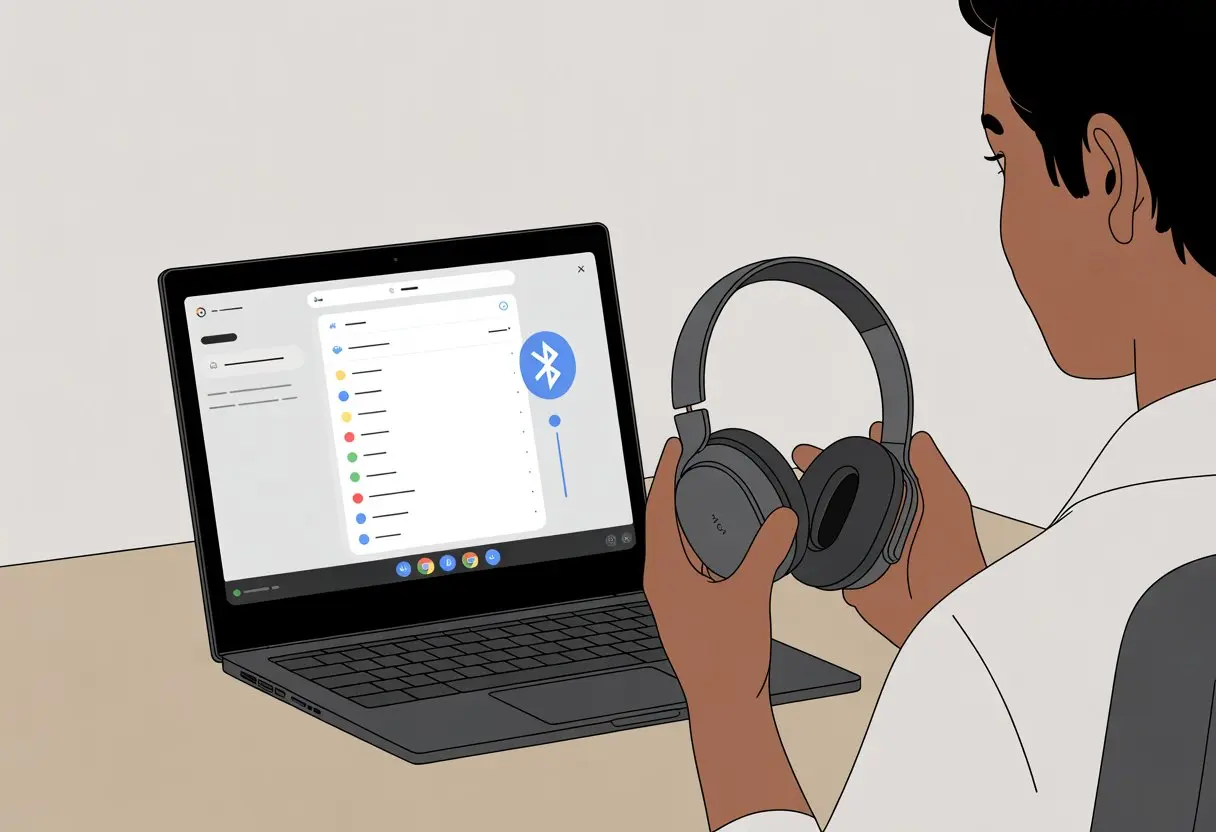
No more epic cable tangles or losing an earbud to the snack void. Once you know where to click, pairing headphones with the Chromebook’s Bluetooth settings takes maybe a minute.
Soon, you’ll have music, videos, or just sweet, sweet silence. Let’s ditch the wires and show the Chromebook who’s in charge.
Checking Chromebook Bluetooth Compatibility
Before we try to pair anything, let’s make sure the Chromebook even has Bluetooth and that it’s on. There’s nothing worse than hunting for a feature that doesn’t exist.
Verifying Bluetooth Support
First things first: does your Chromebook even know what Bluetooth is? Not all of them do, which is… annoying.
Look for a Bluetooth icon in the bottom right corner, hanging out with the Wi-Fi and battery icons. If it’s there, awesome. If not, your Chromebook might not have Bluetooth—time to play detective.
Open the Settings menu by clicking your profile picture or the clock, then hit the gear icon. In Settings, check for “Bluetooth” on the left or in the main list. If you see it, you’re golden. If not, you might need a USB workaround or maybe even a different device.
Enabling Bluetooth on Your Chromebook
If Bluetooth exists, let’s wake it up.
Click the clock at the bottom right. If you spot the Bluetooth icon (that angular “B” symbol), tap it and switch Bluetooth to “On.” If it’s already on, nice work. If you see “Pair new device,” you’re ready for headphone action.
Sometimes, the switch hides. Try restarting the Chromebook or updating Chrome OS if it’s missing. If you still don’t see Bluetooth, double-check your model—some Chromebooks just don’t have it. Here’s a Chromebook Bluetooth guide with screenshots if you need more help.
Preparing Bluetooth Headphones for Pairing
Before we get grooving, let’s prep those Bluetooth headphones. They need power, pairing mode, and a little patience—plus maybe some beeps or robotic voices.
Charging and Powering On Your Headphones
Let’s not forget the basics. Dead headphones won’t pair with anything, even if you beg.
Most headsets need a proper charge before they cooperate. Grab the charging cable, plug them in, and wait for that little light—usually red or orange—to turn green or blue.
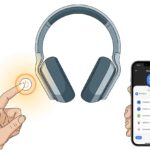
Once charged, turn them on. Look for a power button, usually marked with a circle and line. Some headphones use the same button for both power and pairing, so don’t be surprised by extra beeps.
Quick checklist:
- Charge the headphones for at least 30 minutes
- Watch for charging lights
- Hold the power button until you hear a beep or see a light change
Don’t waste time mashing the volume button and wondering why nothing happens.
Activating Pairing Mode
Headphones need to be in pairing mode so the Chromebook can see them.
Usually, you press and hold the power or Bluetooth button for a few seconds past “on.” Some headphones start blinking—sometimes blue and red—when pairing mode is active. Others might say “Pairing” or “Ready to Pair.” If the light just sits there, you probably didn’t hold the button long enough.
If you’re stuck, check the manual or search for “how to connect Bluetooth headphones to a Chromebook” on YouTube. The right sequence matters, or you’ll be stuck in silence.
Understanding Voice Guidance and Passkey Prompts
Some headphones talk to you. That’s voice guidance, and it’ll say things like “Power On,” “Pairing,” or “Connected.”
Others just beep. Listen up—double-beeps often mean pairing mode, single beep just means power.
Sometimes, your Chromebook asks for a passkey (usually 0000 or 1234). Just type it in. If your headphones start sending Morse code, maybe take a snack break and check the manual.
Connecting Bluetooth Headphones to a Chromebook
Pairing Bluetooth headphones with a Chromebook isn’t rocket science. Once both devices are ready, you just need to poke around a few settings and cross your fingers.
Accessing Bluetooth Settings on Chromebook
Before you can show off your wireless style, you’ll need to turn on Bluetooth.
Click the clock in the lower right corner to open Quick Settings. Look for the Bluetooth icon. If it’s gray, click it to turn Bluetooth on. Sometimes it takes a second, but it’ll light up and say “Bluetooth: On” if it’s working.
Now your Chromebook is ready to make new Bluetooth friends. If you want a step-by-step, here’s Google’s Bluetooth instructions.
Selecting and Pairing Your Headphones
With Bluetooth on, power up your headphones and put them in pairing mode.
Back in the Chromebook’s Bluetooth section, you’ll see a list of devices. Find your headphones—sometimes it’s obvious, sometimes it’s a jumble of letters and numbers. Click the name to start pairing.
If your headphones ask for a PIN, try 0000 or 1234. If it works, your headphones show as “Bluetooth connected” in the menu.
Now, audio should come through your headphones instead of the Chromebook speakers. For more details, check this how-to guide.
Completing Bluetooth Pairing Successfully
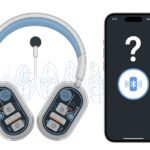
Sometimes, Bluetooth acts stubborn. If your headphones don’t show up, make sure they’re close to the Chromebook and not already paired to something else.
Turn Bluetooth off and on again—it’s the classic fix. Also, double-check that the headphones are charged. If you’re still stuck, forums like Reddit can help with troubleshooting or resetting both devices.
Once you see “Bluetooth connected,” you’re free to enjoy music, videos, or whatever you like—no wires in sight.
Just try not to dance too hard and fling your headphones across the room.
Troubleshooting Connection Problems
Bluetooth can get cranky. If your Chromebook and headphones refuse to cooperate, you’ll need to do some sleuthing.
Resetting Bluetooth Headphones to Factory Settings
If your headphones have too many old connections, they might need a reset. Usually, you hold down buttons—like power and volume—for about ten seconds to reset to factory settings.
Check the manual for your specific model. After resetting, pair your headphones with the Chromebook again. If they still won’t connect, maybe they’re just holding a grudge.
Updating Chromebook and Headphone Firmware
Outdated software can mess things up. Open Chromebook settings and check for updates. Installing updates can fix compatibility issues.
Some headphones need firmware updates too. Many brands have apps or websites for updates. Updating both devices can solve a lot of weird Bluetooth problems, according to Google support and tech forums.
Dealing with Bluetooth Interference
Bluetooth doesn’t like competition. Too many nearby Bluetooth devices, Wi-Fi routers, or even microwaves can mess with your signal.
Try moving away from interference. Here’s a quick checklist:
- Turn off other Bluetooth devices nearby
- Move away from Wi-Fi routers
- Don’t run the microwave while pairing
These tips usually help your Chromebook and headphones get along. If you still get choppy sound, just blame the wild world of wireless tech.
Switching Between Multiple Devices
Bluetooth headphones sometimes want to connect to more than just your Chromebook. Honestly, I get it.
You’ll want a quick way to pair and reconnect without a headache or a thousand clicks.
Pairing Headphones with More than One Device
Most Bluetooth headphones remember several devices these days. Multipoint pairing really changes the game for anyone who likes to bounce between gadgets. I mean, who doesn’t want to play music on their phone, hop into a class on a Chromebook, and then sneak in a cat video on a tablet—all without a hassle?
To pair with another device, put your headphones in pairing mode. Usually, you just hold a button until a light flashes. On your Chromebook, click the time in the bottom right, select Bluetooth, and then hit + Pair new device.
Pick your headphones from the list, and boom—you’re connected. If you want to pair with your phone, do the same steps there. Some headphones let you connect to two devices at once, but not all do. Check your manual or ask the manufacturer. You can find more details in this Google Help guide for Bluetooth pairing.
Here’s a tip: give your devices fun names. That way, you won’t accidentally blast your playlist through your neighbor’s speaker—unless you’re feeling generous.
Reconnecting to the Chromebook Effortlessly
Switching back to the Chromebook doesn’t have to be a headache. Headphones usually try to connect to the last device they talked to. If they’re still stuck on your phone instead of the Chromebook, you can nudge them over.
Open the Chromebook’s Bluetooth settings. Look for your headphones under “Paired devices” and hit Connect.
Some headphones have a button or tap gesture to cycle through paired devices, which helps you reconnect without even touching the screen. If nothing works, just turn Bluetooth off and back on—sometimes that really does the trick.
You can pair two sets of Bluetooth earbuds to a Chromebook, but you’ll usually only get audio in one set at a time. It depends on the headphone model and what Chrome OS supports. There’s more talk about this in a Reddit thread about pairing multiple earphones.
If you’re ever stuck, just power cycle things. Honestly, that fixes more than just tech.
Using Headphones with Other Compatible Devices
Bluetooth headphones aren’t picky. You can use them with all sorts of gadgets beyond your Chromebook. Want to jam out on your phone, watch a movie on the TV, or see if AirPods play nice with non-Apple stuff? There’s usually a way.
Connecting to Android and Cell Phones
Let’s be honest, our phones are basically extensions of ourselves. The good news: pairing Bluetooth headphones with an Android or cell phone is almost as easy as misplacing the phone itself.
Steps to connect:
- Turn on your Bluetooth headphones and make them discoverable. Usually, just hold the power button if you’re unsure.
- On your Android or cell phone, open Settings > Bluetooth and switch Bluetooth on.
- The device scans for nearby gadgets. Your headphones should pop up in the list quickly.
- Tap the headphone’s name. You might hear a beep or see a “Connected” message.
Pro tip: If your headphones don’t show up, try turning them off and back on. If that fails, let out a dramatic sigh and restart the phone.
Your headphones will remember paired devices, so next time, things should sync up faster. You can find more tips on connecting Bluetooth headphones to Android.
Pairing with TVs and Other Laptops
Sometimes you want to turn movie night into a private concert or avoid waking up the whole house with your late-night YouTube marathons. For most smart TVs and laptops, you’ll follow a similar Bluetooth ritual.
Smart TVs:
- Dive into the TV’s Settings menu.
- Find Bluetooth or Audio Devices.
- Switch Bluetooth on.
- Search for headphones, select your device, and pair.
Now you get all the sound, and nobody else has to hear it.
Other Laptops:
- Open the laptop’s Bluetooth settings (usually a little icon on the taskbar or in system preferences).
- Make sure Bluetooth is on.
- Scan and pick your headphones from the list.
- Accept the pairing request.
If your TV or laptop is a bit older and doesn’t have Bluetooth, you’ll need an external Bluetooth adapter. It’s one extra step, but honestly worth it for the freedom. Curious about pairing with multiple Bluetooth devices? There’s more info out there.
Special Steps for AirPods
AirPods definitely love Apple, but you can still invite them to the party with non-Apple gear. You just have to be a little persistent.
Connecting AirPods:
- Put AirPods in the case, open the lid, and press the setup button (on the back) until the light flashes white.
- On your Chromebook, phone, laptop, or TV, go into Bluetooth settings.
- Find and select “AirPods” in the list.
AirPods usually pair like any Bluetooth headphones, though sometimes they need a couple of tries. If they’re being stubborn, close the case, take a breath, and repeat the steps. Technology can be moody, right?
Alternatives to Bluetooth Connections
Sometimes Bluetooth just refuses to cooperate. Luckily, there are other ways to get sound from your Chromebook to your ears—no troubleshooting required.
Using the Headphone Jack
Sure, the headphone jack is old-school, but it’s reliable. Most Chromebooks have a standard 3.5mm audio port. Grab a pair of wired headphones—no pairing, no codes, no blinking lights.
Plugging in is easy:
- Find the round port, usually on the side of your Chromebook.
- Push the headphone plug in until you feel or hear a click.
- The Chromebook should switch audio automatically. If not, check the sound settings at the bottom right.
Wired headphones save the day when Bluetooth drops out or batteries run low. No static, no interference. The only real danger? Accidentally yanking the cord and nearly launching your Chromebook across the room.
When to Choose Wired Connections
Bluetooth isn’t always the hero. Go wired if you want zero sound delay. Gamers and movie fans will notice audio and video sync up perfectly, without that weird lag.
If your Bluetooth headphones die or refuse to pair, wired headphones are a lifesaver. They’re usually cheaper, come in more styles, and don’t make you read a pairing guide that feels like a novel. For video calls, wired connections help prevent echoes or audio dropouts.
And hey, if you ever want to make a dramatic exit by ripping out your headphones, only a wired connection really delivers.
Tips for Optimal Bluetooth Audio Experience
When your Bluetooth headphones sound fuzzy, the culprit is usually your location or what’s in the way. Even a strong Bluetooth connection can get tripped up by silly things, like a giant microwave or a brick wall.
Positioning for Better Bluetooth Signal
Bluetooth signals don’t love barriers. If you hide behind thick walls, big furniture, or even a fish tank, your headphones might start cutting out. For the strongest connection, keep your headphones and Chromebook within about 30 feet (around 10 meters) of each other.
Try to use your devices in the open, not behind closed doors—unless you really need privacy. Large metal objects and microwaves? They’ll mess with your Bluetooth. Keeping both devices on the same floor helps too.
If your audio drops out, it’s probably time to move a bit closer. Sometimes, just turning your body makes a difference. Who knew Bluetooth could be so picky?
Maintaining Clear Audio and Stable Connection
A stable Bluetooth connection isn’t just about signal. If you want to dodge static or lag, try closing extra browser tabs or apps running on your Chromebook.
Background activity can hog memory and make your Bluetooth headphones stutter like they’re learning to speak. I’ve seen it happen more times than I care to admit.
Keep your Chromebook’s software up to date. Updates usually help with Bluetooth stability.
Headphones might have firmware updates too. It’s worth checking the manufacturer’s website now and then, even if it feels like a chore.
To avoid glitches, disconnect any unused Bluetooth devices you’ve paired. If things still sound weird, try toggling the audio settings—switch between speakers and Bluetooth to refresh the connection.
For more tips on connecting headphones, you can check out steps on Google Chromebook’s support page.
Oh, and don’t forget: sometimes headphones skip or beep when the battery’s low. Before blaming your Chromebook, make sure everything’s charged up.

From a young age, I have always had a big interest in technology, and this blog is an extension of that interest. Through this blog, I hope to provide others with all of the information they need regarding tech options to consider, and things such as compatibility. Some of the different items I will be discussing include headphones, smartwatches, and how to fix common issues.
- How to Get Text Messages on Fitbit Versa 2 Android: Simple Guide for Users - October 13, 2026
- Why Doesn’t My Fitbit Record My Sleep? Quick Troubleshooting Guide - October 13, 2026
- How to Change Face on Fitbit Versa 2: Quick and Easy Guide - October 12, 2026
Related Posts: