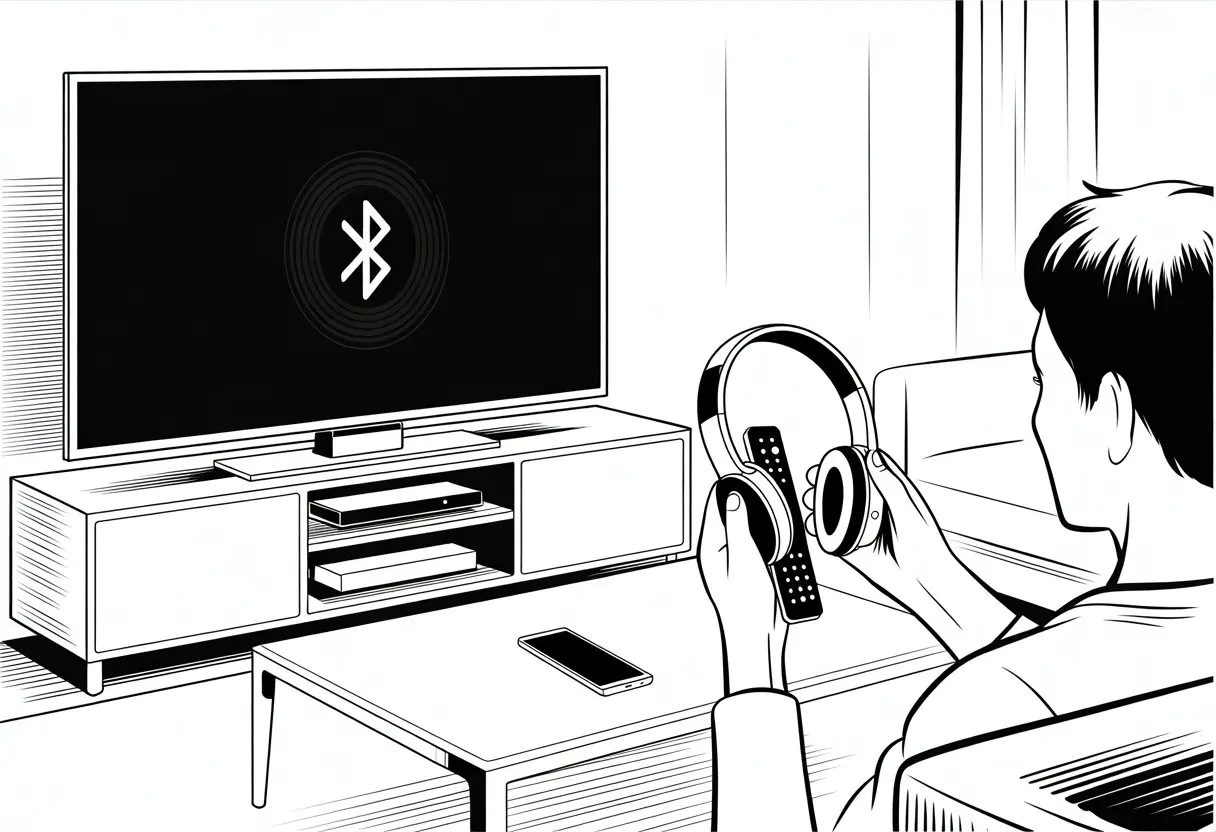
Let’s be honest—sometimes you just want to binge your favorite shows on the smart TV without waking everyone up. Pairing Bluetooth headphones with a smart TV is usually as simple as opening your TV’s settings, finding the Bluetooth option, and connecting your headphones.
Now you can finally enjoy those late-night movies or gaming sessions without anyone yelling at you to turn it down.
We’ve all messed with tangled cords or tried to find a volume that works for everyone. Bluetooth headphones let you skip all that and just enjoy clear sound, all to yourself.
If you’re ready to make your smart TV actually feel smart, this trick is about to make evenings way quieter—and honestly, a lot more fun.
Grab your favorite headphones. Let’s stop arguing over the remote volume.
You’re about to take your living room sound to a whole new level, and nobody has to hear you singing along to commercials but you.
Understanding Bluetooth Connectivity
Bluetooth isn’t just a silly word—it’s what lets your gadgets talk to each other without any wires in the way.
When you use Bluetooth headphones with a smart TV, you’re tapping into radio waves, which are different from what your Wi-Fi or TV remote uses.
How Bluetooth Technology Works
Bluetooth lets two devices connect over short distances. When you put your headphones and TV into pairing mode, they basically start “shouting out” to find a buddy.
Once they spot each other, they swap codes, become friends, and set up a private conversation.
This tech uses a 2.4 GHz frequency band—the same as your microwave, weirdly enough, but hopefully without any popcorn explosions.
Bluetooth’s range is usually about 30 feet. Walls or other gadgets can mess with the signal.
It’s all about quick, low-power connections for simple stuff, like enjoying a late-night movie without keeping everyone awake.
Differences Between Bluetooth and Wireless Connections
It’s easy to mix up Bluetooth and other wireless stuff, but they’re not the same.
Bluetooth uses radio waves for short distances. Wi-Fi covers a bigger area for streaming videos or downloading games.
Bluetooth’s perfect for linking devices quickly and doesn’t need internet.
Here’s a quick comparison:
Feature
Bluetooth
Wi-Fi
Range
~30 feet
Up to 300 feet
Internet Needed
No
Yes (for most uses)
Uses
Headphones, remotes
Streaming, browsing
Power Usage
Low
Medium/High
Most wireless headphones use Bluetooth. Some use dongles or transmitters.
When you get new headphones, check what kind of wireless magic they use.
Compatible Bluetooth Devices
Not every TV or Bluetooth device wants to play nice. Most modern smart TVs have built-in Bluetooth, but some older ones don’t.
Check your TV’s settings or manual—usually under “Sound” or “Connection”—to find out.
Almost any Bluetooth headphones will work, but there are exceptions. Some high-end headphones only play nice with certain brands.
You might run into issues if your devices use different Bluetooth versions. If your TV isn’t Bluetooth-ready, just grab an external transmitter and turn even the crankiest old TV into a wireless party.
Before you connect Bluetooth headphones to your smart TV, you’ll want to cover the basics—battery life, finding pairing mode, and knowing what the lights or sounds mean.
Miss one of these steps and you can turn a five-minute job into a half-hour headache.
Charging Your Headphones Like a Responsible Adult
Nothing kills movie night like headphones dying after five minutes.
Charge your headphones or wireless earbuds before pairing—yes, even if you think there’s “just enough” battery left.
Plug the charging cable in. Look for a tiny red or orange light to confirm it’s charging.
Many headphones, like the Sony WH-CH520, will flash or change color when fully charged (usually green or white).
Charging Tips:
Check your manual for charge times.
Don’t overcharge unless you want weak batteries.
If your headphones have been in a drawer for a while, give them a good recharge before you start pairing.
Activating Pairing Mode Without Cursing
Pairing mode shouldn’t feel like a puzzle.
Most Bluetooth headphones use a long press on the power or Bluetooth button. Usually, you hold it for 3–8 seconds until you see a flashing light.
Try this:
Turn off the headphones if they’re on.
Hold the power or Bluetooth button.
Wait for the LED to start blinking, or for a voice to say “Pairing.”
If your headphones are being stubborn, Google your model or read the manual. For detailed steps by model, check the manufacturer’s site.
Some wireless earbuds with touch controls may need you to tap both earbuds at once.
Identifying Status Lights and Sounds
Let’s decode those mysterious flashes and beeps.
Headphones use LED lights and sound cues to show pairing status and battery life. A slow blink or steady light means “on,” while fast blinking means “pairing.”
Solid lights usually mean you’re paired and connected.
Sample Status Indicators Table:
Light/Sound
What It Means
Fast blue blinking
Pairing mode active
Slow blue blinking
Powered on, not connected
Steady blue/white
Paired and connected
Red light or beep
Low battery or charging
If your WH-CH520 or other headphones beep, chirp, or flash at you, it’s their way of saying, “I’m trying!” Knowing what the lights and sounds mean saves you from randomly mashing buttons.
Getting Your Smart TV Ready to Pair
Before you start pairing, make sure your smart TV has Bluetooth and get familiar with the settings menu.
Not all TVs make this easy. If you’ve got a really old TV, you might need a little extra help.
Accessing TV Bluetooth Settings (And Why It’s Tricky)
Finding Bluetooth settings on a smart TV can feel like a treasure hunt, but with less treasure and more remote-control frustration.
Most modern smart TVs hide Bluetooth under “Settings,” then “Sound” or “Connections.” Some TVs only show Bluetooth if your headphones are already in pairing mode.
Try putting your headphones in pairing mode first, then digging through the menus. If the Bluetooth settings are there, you’ll see options like “Bluetooth Audio Devices” or “Add New Device.”
Sometimes there’s an on-screen search for gadgets, and if you’re lucky, your headphones pop up for pairing.
Some TVs have special remotes or “secret” Bluetooth menus that need a button combo or even a firmware update. If you get lost, you’re not alone—some smart TVs seem to enjoy playing hide and seek with their own settings.
Samsung’s got a helpful guide if you need more details.
Navigating the Audio Output Options
Once you finally find the Bluetooth settings, you need to handle the audio output.
TVs often have more options than a pizza menu, and not all of them make sense. The main choices are usually TV speakers, optical out, and Bluetooth.
Switch audio output from the TV’s speakers to your Bluetooth headphones. This usually means toggling “Audio Output” or “Speaker List” in the sound settings.
Some TVs let you keep both speakers and headphones on, but others make you pick just one.
If nothing works, unplug everything, reboot the TV, and try again. Sometimes stubbornness pays off.
Making Sure Your TV Supports Bluetooth
Don’t assume your TV has Bluetooth just because it’s “smart.” Not all smart TVs include Bluetooth for audio.
The fastest way to check is to look in the manual, explore the TV’s sound settings, or search for Bluetooth in the menu.
Big brands like Samsung, LG, and Sony usually include Bluetooth in newer models, but it’s not a guarantee.
Some TVs only offer Bluetooth for remotes, not for headphones (which is a bit sneaky). If you don’t see a Bluetooth audio device option, you’re probably out of luck.
Using a Digital to Analog Converter for Ancient TVs
If your TV’s ancient, pairing Bluetooth headphones isn’t impossible—it just takes a little tech magic.
You’ll need a Bluetooth transmitter, which connects to the TV’s headphone jack or those old red and white RCA outputs.
If your TV only has optical or coaxial outputs (those weird, old-school plugs), you’ll need a digital to analog converter. This box turns the TV’s sound into “normal” analog signals for the Bluetooth transmitter.
Once you’ve set it up, pair your headphones to the transmitter and relax.
Here’s what you might need:
Bluetooth transmitter
Digital to analog converter (if needed)
Headphone or RCA/Optical cables
It’s a few extra steps, but even old TVs can keep up with the wireless trend if you give them a little help.
Step-by-Step Pairing Process
Getting your Bluetooth headphones to play TV audio feels great—if you actually get them paired.
If you follow these steps, you can enjoy your favorite shows privately and avoid annoying anyone else in the house.
Starting the Pairing Request on Your TV
First, grab your remote and channel your inner tech wizard. Head to your TV’s settings.
Usually, this means pressing the Menu or Settings button, though sometimes it feels like they’re hiding it.
Once you’re in Settings, look for options like Sound, Audio, or maybe even Connections. You want to find something that says “Bluetooth.”
If your TV doesn’t have Bluetooth built-in, don’t panic—you might need a Bluetooth transmitter, but most newer smart TVs have you covered.
Here’s what to do:
Put your Bluetooth headphones in pairing mode (usually by holding a button until a light blinks).
On the TV, pick the Bluetooth or Bluetooth Devices menu.
Choosing Your Headphones from the Bluetooth Speaker List
After scanning, your TV should show a list of available Bluetooth devices. This is the Bluetooth speaker list—a little moment of tech magic. Your headphones should appear, either with their actual name or some jumble like “BT-1298A.”
Don’t freak out if you see a weird name. Sometimes it’s just a jumble instead of “SuperSonic Headphones.” Take your best guess, pick the one that looks right, and get ready for a little surprise.
Tip: If nothing pops up, double-check that your headphones are still in pairing mode. Some models hide after a minute or two, like cats under the bed. Try the pairing process again if you need to. For more details, check out how to pair with LG and other smart TVs at this Bluetooth TV setup page.
Following On-Screen Instructions (Without Yelling at the Remote)
Once you pick your headphones, the TV will toss up some on-screen instructions. Usually, it wants you to confirm—hit OK, Accept, or maybe “Pair Device Now?” if your TV is feeling dramatic.
Just follow along (and try not to throw the remote). Some TVs ask for a PIN code; 0000 or 1234 usually does the trick. Your headphones might beep or flash to celebrate their new Bluetooth buddy.
Give it a few seconds. If it works, you’ll spot a headphone icon onscreen. Now, all TV audio streams through your headphones. If things go sideways, try again or restart both devices. For a visual walkthrough, check out this Bluetooth headphone TV pairing video.
Troubleshooting Common Pairing Issues
Bluetooth doesn’t always play nice. Sometimes headphones won’t connect, settings disappear, or the audio lags behind. It’s not the end of the world—most problems have a fix if you’re patient.
What to Do When Devices Refuse to Connect
Is your Bluetooth device giving you the silent treatment? First, make sure both the headphones and the TV’s Bluetooth are on. Many TVs want you to activate Bluetooth in the settings before they’ll even start looking.
If your headphones aren’t popping up, check that they’re in pairing mode. Usually, there’s a tiny button to hold down, and maybe a blinking light to say “I’m ready!”
Restarting the headphones and TV can work wonders. It’s a classic for a reason. For a step-by-step, check this TV Bluetooth pairing guide.
If nothing works, your TV might not support Bluetooth audio, or it only works with certain models. Some TVs need a firmware update, or you might need a separate Bluetooth adapter.
Resetting Bluetooth Settings (The Nuclear Option)
If you’ve tried everything and your devices still ignore each other, it’s reset time. Most smart TVs tuck a reset option somewhere in their menus. You’ll probably find it under “All Settings” > “Sound” or in a “Bluetooth” section.
Before you go nuclear, unpair or forget the headphones from the TV’s Bluetooth list. Then restart both devices. This clears out any old connection junk that might be causing problems.
Some headphones let you do a factory reset by holding certain buttons together for a few seconds (double-check the manual). It’s drastic, but sometimes a fresh start is what you need. For more help, check out this Samsung Bluetooth troubleshooting page.
Resolving Audio Delays and Sync Problems
You finally connect, but now the sound is out of sync. Is your movie hero suddenly a bad lip reader? Bluetooth does this sometimes. Switching your TV’s audio output from “Automatic” to “PCM” can help.
Many TVs have audio sync or lip-sync settings in the sound menu. These let you nudge the audio until it matches the mouths on screen.
If you only notice lag with Bluetooth, your headphones might be the culprit. Some models have higher latency than others. Wireless just isn’t as fast as a cable—yet. If it keeps happening, a complete Bluetooth guide has more tips, or maybe consider a low-latency Bluetooth adapter.
Pairing Bluetooth Headphones with Multiple Devices
Trying to use your Bluetooth headphones with more than one device can get messy. Switching between your TV, phone, and PC sometimes feels like an Olympic event. Let’s see what’s actually possible, and what just makes you want to scream.
Switching Between TV, Smartphone, and PC
Pairing your headphones to a bunch of gadgets sounds great—until you try it. Some headphones support multi-point pairing, letting you bounce between your smartphone and PC. Unfortunately, most TVs are the odd one out and don’t make switching easy.
Here’s a quick tip:
To switch devices:
Disconnect the headphones from the current device.
Put the headphones back in pairing mode.
Connect to the new device.
Keep track of which device “owns” the headphones, or you’ll end up shouting at your TV when it refuses to connect. Some smart TVs, like certain Samsung models, have dual audio functions for connecting two audio devices. But even then, switching isn’t always smooth.
Limitations of Simultaneous Connections
Bluetooth headphones don’t like to share. Multi-point technology lets some models juggle two devices (like a phone and a laptop), but you can only hear audio from one at a time.
Here’s what usually happens:
Most headphones: Pair with several devices, but only connect to one at a time.
Multi-point headphones: Stay connected to two, but only play audio from one. For example, you can stream music from your PC, but if your phone rings, the headphones switch to the call.
If you try connecting to your smart TV and phone at once, something’s going to lose out. There’s no magic setting to play Netflix and TikTok through the same headphones at the same time.
Basically, your Bluetooth headphones just aren’t built for polyamory—at least, not with audio streams.
Alternative Ways to Use Bluetooth Headphones with Your TV
Not every TV is born “smart,” but that’s not the end of the story. You can still enjoy wireless headphones with almost any TV if you get a little creative.
Using a Bluetooth Transmitter
If your TV skipped the Bluetooth upgrade, just plug in a Bluetooth transmitter. This little gadget connects to your TV’s audio jack—usually the headphone port or optical output. Put both the transmitter and your headphones in pairing mode, and they’ll find each other.
What to look for:
Make sure your transmitter fits your TV’s ports (3.5mm or optical).
Check that it supports newer Bluetooth standards for better sound and fewer dropouts.
Your gaming console can play middleman, who knew? Some consoles (PlayStation 4, PlayStation 5, Xbox Series X/S with adapters, and Nintendo Switch) can connect with Bluetooth headphones or their own wireless headsets.
How to do it:
On PlayStation: Plug Bluetooth headphones into the controller with a USB dongle, or use official PlayStation headsets.
On Switch: Use Bluetooth audio in system settings (on newer models), or grab a Bluetooth adapter.
Why bother?
It lets you listen privately while gaming or streaming. Plus, you can keep one device plugged in and easily swap between TV and game audio.
Making Use of Wired Connections (If You Must)
Sometimes, tech just won’t cooperate. If you’re out of options, a trusty audio cable is still a friend.
How it works:
Plug your headphones into the TV’s headphone jack or audio output with a 3.5mm or RCA adapter.
If your Bluetooth headphones include an audio cable, you’re set.
Use an extension cable if you want to sprawl out.
Pro tip:
Wired connections mean steady sound quality and no battery anxiety at midnight.
Just try not to trip over the cords—or tie yourself to the couch.
Ensuring the Best Audio Experience
Let’s get your Bluetooth headphones sounding great and keep the headaches away. With a few tweaks, you’ll enjoy crisp audio, smoother connections, and no more waking up the neighbors during late-night marathons.
Adjusting Audio Output Settings
First things first: set your TV’s audio output to Bluetooth headphones. Otherwise, you’ll hear both the TV speakers and headphones at once—nobody wants that echo.
Most smart TVs follow these steps:
Open Settings on your TV.
Go to Sound or Audio options.
Select Audio Output or Speakers.
Choose Bluetooth Headphones instead of “TV Speakers.”
Confirm.
If your TV’s being stubborn, unpair and repair the connection. Some TVs let you turn off the built-in speakers in the settings, so it’s headphones only. For more step-by-step help, check how to connect headphones to TV.
Enhancing Sound Quality
Nobody wants tinny sound or muffled voices. Adjust your TV’s sound settings to boost bass, cut harsh treble, or make dialogue clearer.
Many TVs offer equalizer settings, “Night Mode,” “Clear Voice,” or “Surround.” Try them out and see what sounds best to you. Turning on “Audio Sync” can fix lag between picture and sound—really useful if you’re tired of out-of-sync lips.
Bluetooth settings matter too. If you get lag or dropouts, move closer to the TV or cut down on wireless interference (maybe move that WiFi router). Charging your headphones before a binge session never hurts either.
Using Headphones as TV Speakers
Let’s be honest—muting the TV speakers and cranking up the audio through headphones just feels right sometimes. Whether you’re sneaking in a midnight snack, binging movies in secret, or just trying to block out the usual family chaos, headphones make it all easier.
When you pair Bluetooth headphones, most TVs throw you a few options. You can pick just the headphones, stick with the built-in speakers, or even go wild and use both at once (party mode, why not?).
If your TV allows it, you can usually hop into the settings menu and switch between audio outputs pretty quickly. Some TVs jump to headphones automatically when they detect them, but others make you poke around and select the output yourself.
Want to use more than one pair of headphones? Some TVs let you pair two at the same time, which means no more squabbling over the volume knob.
Hi, my name is Garrett Jones, and I am a tech enthusiast. I enjoy researching the new tech that has been released, and have a vast knowledge of the best tech to purchase.
From a young age, I have always had a big interest in technology, and this blog is an extension of that interest. Through this blog, I hope to provide others with all of the information they need regarding tech options to consider, and things such as compatibility. Some of the different items I will be discussing include headphones, smartwatches, and how to fix common issues.