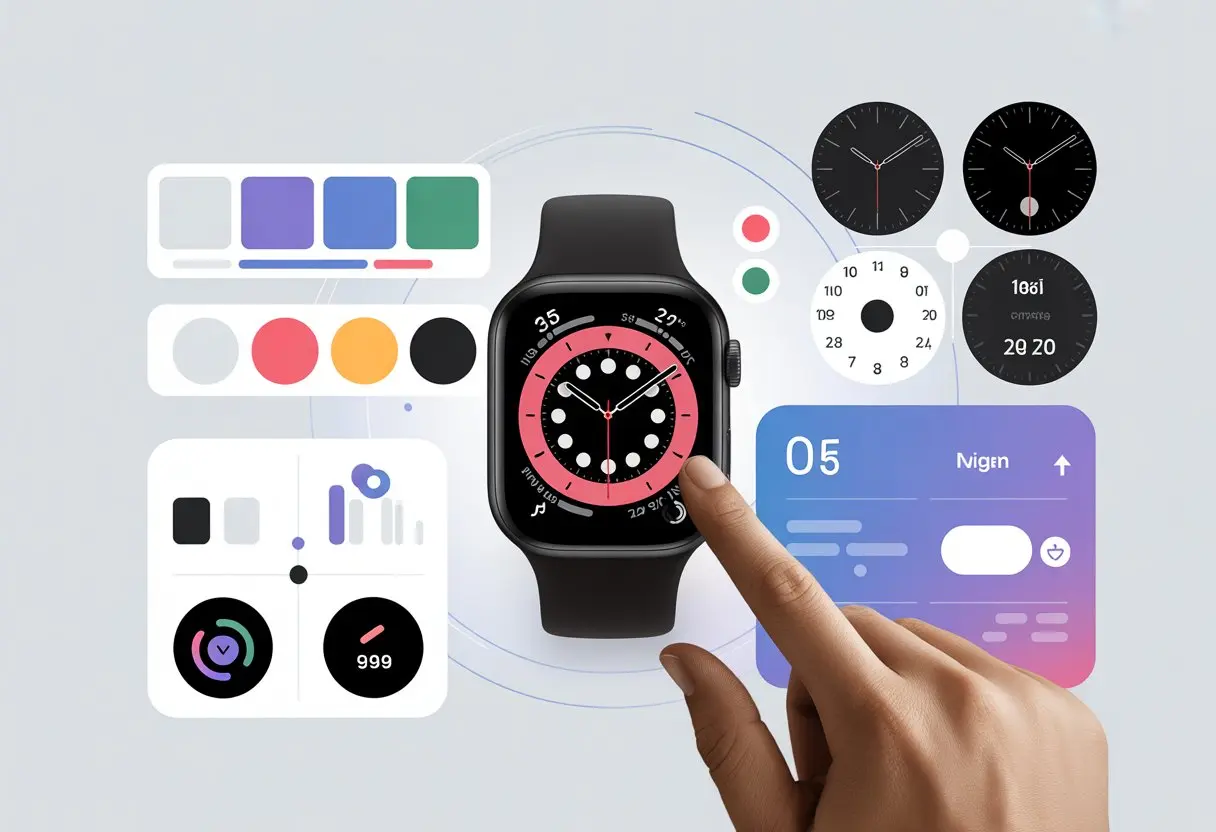
Ever glance at your smartwatch and think, “This thing needs a little more personality”? Yeah, same here. Watch faces are basically our watch’s wardrobe—sometimes we want classic, sometimes we’re feeling bold, and occasionally, we just want a face that tells us exactly how long until lunch.
Customizing smartwatch watch faces lets us match our tech to our mood in just a few taps or swipes.
Good news: making our smartwatch look cooler (or just more “us”) isn’t rocket science. On Wear OS, we just hold down the screen to pick or tweak a new watch face.
Other smartwatches, like the Apple Watch, keep things interesting with easy swipes and taps. Tools like Samsung’s Watch Face Studio exist for creative folks who want to dive into designing their own custom watch faces.
Changing our watch faces isn’t just about looks—it adds a bit of fun (and maybe a slice of our personality) to the daily grind. Whether we like digital, analog, or something with a fire-breathing unicorn, the options are almost endless.
Ready to ditch the boring face and make our smartwatch stand out? Us too.
Understanding Smartwatch Watch Faces
We wear smartwatches to tell time, sure, but let’s be real—we want our wrists to look good too. Watch faces let us customize both the look and the function of our screens.
We can show off the time, track our steps, and maybe even pretend we’re getting enough sleep.
Types of Watch Faces
When we talk about watch faces, we usually mean digital or analog. Digital watch faces show the time in numbers, like a fancy alarm clock.
Analog faces display time with classic “hour” and “minute” hands. It’s a little more old-school, a little more “I’m sophisticated, trust me.”
Some faces focus on style, serving up cool colors, fun designs, or characters. Others pack in info—weather, heart rate, calendar events—right on our wrist.
Then there are mix-and-match faces that let us pick what info we want to see. Custom watch faces are a thing too.
We can use selfies, pets, or even that one vacation photo. Just make sure Grandma’s not judging.
Key Features and Functions
Watch faces aren’t just pretty pictures, which is a relief because honestly, we need help remembering what’s next. Most faces show the time, date, battery, and fitness stats like step count or heart rate.
On Wear OS and Samsung devices, we can add apps or quick shortcuts right on the screen. That turns our watch into a tiny dashboard.
Some faces give us interactive elements. Tap the weather icon for a forecast, or hit the calendar shortcut to check meetings.
Certain faces even have animations or fun effects, so we can literally watch time fly—or watch a cartoon dog chase its tail.
Complications (yep, that’s the real word) are those extra bits like step count or weather. We can add or swap them around.
The more features we add, the less likely we are to double-book ourselves at the dentist.
Popular Smartwatch Brands
Let’s talk about the big names: Apple, Samsung, and Google’s Wear OS. Each one does watch faces a little differently.
Samsung lets us personalize with the Galaxy Wearable app. We can pick preset faces or use our own pictures from the gallery.
It’s as easy as matching socks—if our socks tracked our heart rate. Samsung’s support site has more on customising the watch face.
On Wear OS, we get hundreds of pre-made faces. We can download extra options or design our own with third-party apps.
If we want bold, simple, or spaceship-cockpit vibes, it’s probably out there. Google’s help page covers changing watch faces on Wear OS.
MI smartwatches and Apple Watches are in the game too. Apple especially packs in features and color options, so iPhone users can tinker for hours.
Accessing and Navigating the Watch Face Gallery
Changing our smartwatch look is almost as easy as changing shirts. With a few taps or swipes, we can scroll through dozens of watch faces.
We can adjust colors and pick the features that fit our style or mood.
Finding the Watch Face Gallery
Let’s start exploring. On most smartwatches, like the Apple Watch, we press and hold the current watch face.
If the watch vibrates and things wiggle, don’t panic—that’s what’s supposed to happen. Suddenly, a menu pops up (feels a bit like magic).
We swipe left until we spot a big plus sign. That “+” button is our doorway to the Watch Face Gallery.
Tapping it brings up a whole world of styles: analog, digital, minimal, or faces loaded with widgets.
On Samsung watches, we open the Galaxy Wearable app on our phone. There’s a “Watch Faces” tab just waiting for us.
It’s kind of like a clothing rack, but for our wrists. We’ll find ready-made collections and a way to add our own images.
Exploring the Watch Faces Collection
Inside the gallery, we’re in charge. Faces line up in neat rows—some simple, some so packed with dials we feel like pilots.
We browse by scrolling with a finger or, for Apple fans, twirling the Digital Crown. It’s like window-shopping, but without spending money.
Customization menus let us pick colors, layouts, and which complications show up. Want weather, fitness rings, or calendar events? Just tap to add.
Some faces let us drop in a favorite photo, so our dog can guilt us into more walks.
Once we’re happy, we tap to set the new face. Our watch feels brand new.
The faces we love stay in our collection, so swapping them is quick next time we want a change.
Customizing Watch Faces Directly on Your Smartwatch
Changing our smartwatch face is honestly easier than convincing Grandma to use emojis. We can pick styles, change colors, and add digital complications like step count or heart rate—all without grabbing our phone.
It’s quick, fun, and just a little bit addictive.
Using the Customization Menu
First, we wake up our smartwatch, tap and hold the current watch face, and boom—the customization menu pops up. Some watches, like the Galaxy Watch4, let us swipe through options by dragging a finger.
Other devices use a gear or “Edit” button for more tweaks. Navigating the menu kind of feels like flipping through a diner menu—so many choices, not enough wrist space.
Most models, including the Apple Watch and Galaxy Watch, let us scroll through a collection of pre-made faces. Picking one is just a tap.
If we want to show off, some watches let us upload photos for a personal touch. Changes show up instantly, so there’s no suspense.
Changing Colors and Styles
Now, let’s talk colors and styles, because honestly, we want our wrists to look as good as our shoes. From bright neon to classic black, the customization menu usually has a palette of options.
On watches like the Samsung Galaxy Watch, we tap “Customize” and pick backgrounds, fonts, and accents.
Some watches even let us pick textured dials or switch between digital and analog displays.
We like that some displays offer playful touches—think animated weather icons or moving planets. When we settle on a look, we tap “Set” or “Apply,” and we’re ready to impress at the next meeting.
Adding Complications
Complications sound complicated, but really, they’re just extras: bits of info like step count, heart rate, or weather, right on our watch face.
We hop into the customization menu and find the “Complications” section. Here, we pick which stats we want at our wrist-tips.
Popular options include calendar events, battery life, and world clocks. On the Galaxy Watch4 and similar models, we just tap where we want a complication, then scroll through what’s available.
Pick step count for a little motivation, or add a heart rate tracker to see how stressful Mondays really are. Digital complications update on their own, so we always get the latest info.
Using Mobile Apps for Watch Face Customization
If we want our smartwatch to look as cool or as quirky as we feel, mobile apps are the way to go. Some apps let us edit every detail, while others offer a buffet of fresh new faces to match our moods.
Editing Through the Tag Heuer Connected App
Alright, let’s talk about the Tag Heuer Connected app. This one’s for folks who take watch style as seriously as their morning coffee.
Once we connect our Tag Heuer smartwatch to the app, we can mix and match colors, hands, and complications. It’s like picking toppings at a salad bar, but for our wrist.
We open the app on our phone and pick a watch face. Then we adjust styles or swap out complications, like step count, weather, or battery display.
These move or change with just a few taps. The best part: we get real-time previews before anything hits the actual watch.
That means fewer regrets and more time strutting our custom creation. The app even lets us save favorites, so we can switch styles for work, workouts, or wild weekends—whatever fits our mood.
Leveraging Google Play for New Watch Faces
If we love choices, Google Play is basically our ultimate shopping mall. We scroll through thousands of watch faces—classic, sporty, or, let’s be honest, outrageously funky.
Downloading a new face is as easy as grabbing a meme. Once we find a face we like, we usually tap to install it straight to our Wear OS watch.
Many faces let us customize further—tweak fonts, numbers, backgrounds, and widgets. It’s customization without the headache, perfect for people who want variety but don’t want to read a manual.
Some of the best smartwatches, including Samsung and others, let us personalize even more from their official mobile apps.
So whether we want our watch to match our shoes or our pet lizard, Google Play’s endless supply has us covered.
Advanced Customization With Graphic Authoring Tools
If you’ve already played around with basic watch face tweaks and want more control, graphic authoring tools open up a whole new playground. Here, you can shape watch faces using your own imagination—and maybe your love for weird fonts, too.
Introduction to Watch Face Studio
Watch Face Studio is Samsung’s way of saying, “Sure, make that cat blink every second.” This graphic authoring tool lets you create and customize watch faces for Wear OS devices.
With Watch Face Studio, you can drag, drop, and tinker to build just about any watch face you dream up. The software handles layers, image placement, text, and all sorts of layouts.
It’s more than just backgrounds or moving hands. You get to add animations, build interactive elements, and set up custom complications. When you’re done, Watch Face Studio spits out your design in a format ready to publish straight to your smartwatch.
If you want a walkthrough, Samsung has a detailed overview that’ll help you avoid making a watch face only your mom would wear.
Understanding Graphic Authoring Tool Basics
A solid graphic authoring tool puts you in charge of every little detail. You get to pick fonts, colors, backgrounds, shapes, and interactive features.
Want to see your steps, heart rate, weather, or the moon phase next to a dancing banana? These tools let you lay out each bit right where you want it.
Here’s what you’ll usually find:
Watch face format: Decides how the design gets saved and used.
Layers: Organize each part, like hands, numbers, or icons.
Objects: Add text, images, buttons, and data fields.
You can change things just by dragging objects or tweaking settings in a properties panel. It’s finally possible to match your watch face to your mood, your favorite color, or even that questionable t-shirt you bought last year.
Syncing and Saving Your Custom Watch Face Designs
Making your smartwatch look cool is just the start. You also need to sync your new watch face to your device and make sure your creations stick around.
Messing up a sync or losing a favorite style feels almost as bad as missing your morning coffee.
Applying Custom Watch Faces
After you’ve finished designing your perfect watch face, it’s time to get it onto your smartwatch. Usually, you’ll use the companion app for your watch—like the Apple Watch app, Garmin Connect, or whatever your brand uses.
From there, pick your new design and tap “Sync.” For Apple fans, the quickest way to switch faces is through the Apple Watch app.
Head to the “Face Gallery,” select your design, and watch it show up on your wrist. Android smartwatches have their own steps, and some let you design faces with tools like Facer Creator, then send them to your device over Bluetooth or Wi-Fi.
Some watches, like certain Garmins, make you use their own store, which adds a few extra taps. No matter if you’re into digital or analog styles, the real goal is making sure your custom face shows up just how you want it.
Managing Saved Designs
Saving your watch face designs means you won’t have to start from scratch every time you want a new look. Most smartwatch apps have a collection or gallery where you can stash all your favorite faces.
On an Apple Watch, your custom faces get added to your collection for quick swapping. Tap and hold the watch face, then swipe left or right to scroll through your saved options—kind of like a digital fashion show.
Garmin users can manage their faces with the Connect IQ Store, where you’ll see all your installed faces in one spot.
If you change your mind a lot, these collections save you time. No need to hunt down design files every time you want to switch things up for an event, or just because it’s Tuesday and you’re feeling fancy.
Tips for Choosing and Creating the Perfect Watch Face
Personalizing your smartwatch can feel a bit like picking an ice cream flavor—so many options, but only a few will keep you happy all day. Let’s get into what actually makes a watch face work for real life, not just for looks.
Balancing Style and Practicality
We all want a stylish watch face, but sometimes those flashy designs make it tough to check the time—or your next meeting. If your screen gets crowded with patterns or neon numbers, it’s easy to lose track of what matters.
Try matching your watch face to your daily mood. You don’t have to stick with classic analog or digital.
A lot of smartwatches let you use photos, themes, or custom backgrounds. On Samsung watches, you can add your own pictures from the Gallery as a background, making your watch face as unique as that vacation selfie you’re oddly proud of.
If you like matching your watch to your outfits, set up different faces for different days. Many watches let you swap faces easily, so you’re not stuck with polka dots during a serious meeting (unless you want to be).
The trick? Pick styles that don’t overpower the basics: clear numbers and easy-to-read hands.
Prioritizing Useful Complications
Let’s be real—the word “complications” sounds scarier than it is. On a smartwatch, complications are just the little widgets that show extra info, like weather, calendar, battery, or steps.
Pick complications that actually help you get through the day. If you never remember your schedule, a digital calendar is clutch.
To avoid clutter, stick with two or three complications you’ll actually use. Too many, and your watch face turns into a packed suitcase—useful, but impossible to find anything.
If you’re not a morning person, having the weather and calendar right on your home screen is a lifesaver. Mixing practical info with a bit of style means your watch won’t just look good—it’ll actually help you out.
Troubleshooting Common Watch Face Issues
We’ve all had it—a perfect watch face stuck in syncing limbo, or a favorite complication refusing to show up. These little hiccups can mess with your smartwatch style, but a quick fix is usually just a few taps away.
Resolving Syncing Problems
Sometimes, your watch faces just won’t sync, like they’re taking the day off. First thing to check? Your Bluetooth connection.
If your phone and watch aren’t talking, nothing happens. Try restarting both your smartwatch and your phone.
That move fixes more tech headaches than coffee fixes Mondays. If your watch face still won’t appear, double-check your Wi-Fi.
A weak signal can slow syncing to a crawl. When nothing else works, remove the watch face and add it again.
On Apple devices, press and hold your current watch face, swipe left, and tap the “Add” button. You can follow this Apple Support guide for step-by-step help.
Fixing Complication Errors
Complications—those tiny widgets on our screens—can be a little rebellious sometimes. You might spot a blank space where your weather or calendar should be. Or maybe your apps just refuse to update.
Try opening the troublesome app and check the permissions. When an app loses access to background data, its complication might just give up completely.
Go ahead and update both your watch and the companion app on your phone. Outdated software tends to make complications freeze or disappear.
Still no luck? Pick a different watch face, then flip back to your favorite. This little shuffle often snaps stubborn widgets back to life.
If you use a Samsung watch, try loading one of the original Samsung faces and then re-customize it. That trick fixes most customization issues.
With a bit of patience and a few taps, you’ll probably get your weather, steps, and calendar showing up again—just the way you want.
Hi, my name is Garrett Jones, and I am a tech enthusiast. I enjoy researching the new tech that has been released, and have a vast knowledge of the best tech to purchase.
From a young age, I have always had a big interest in technology, and this blog is an extension of that interest. Through this blog, I hope to provide others with all of the information they need regarding tech options to consider, and things such as compatibility. Some of the different items I will be discussing include headphones, smartwatches, and how to fix common issues.