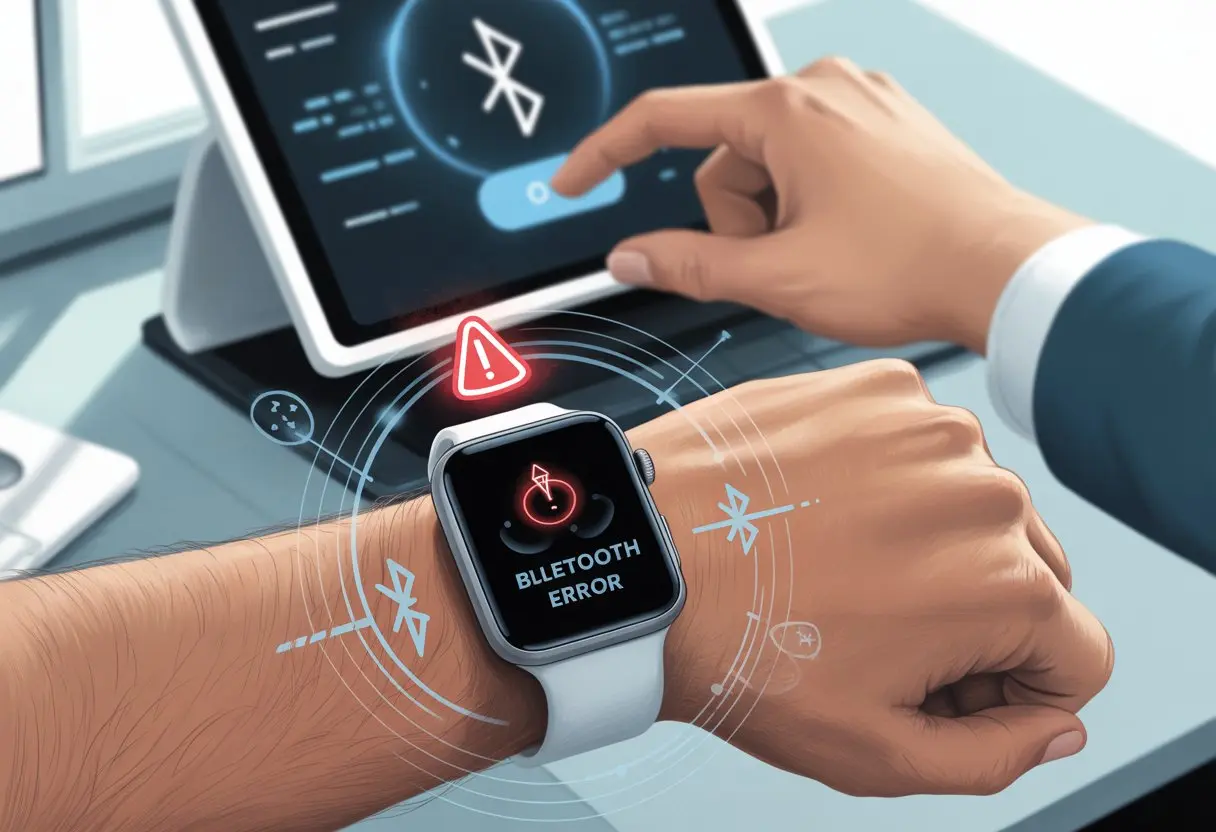
We’ve all been there—trying to sync our shiny smartwatch over Bluetooth, only to get smacked with that annoying error code 43. It almost feels like our smart gadgets have a secret pact just to mess with us.
The good news? You can usually fix Bluetooth error code 43 by updating your device drivers, restarting your devices, or running the Bluetooth troubleshooter.
Sometimes, it’s not just us. Even the big tech companies admit this error crops up when the Bluetooth adapter has a driver or hardware issue.
It’s like our smartwatches and PCs just decided to take a break together without letting us know. If you’re sick of seeing that “Windows has stopped this device because it has reported problems” message every time you try to connect, you’re definitely not alone.
Luckily, you don’t need a computer science degree or some secret handshake to deal with this. Whether you actually love your wearable or just use it to look busy, let’s get Bluetooth working again (and keep those step counts syncing) with as little drama as possible.
Understanding Bluetooth Error Code 43
https://www.youtube.com/watch?v=iENAp3oHuSE
Let’s be real—Bluetooth errors can push even the calmest person to mutter at their wrist. When your smartwatch flashes “code 43,” it usually means something behind the scenes isn’t working right, especially with drivers or the device manager.
What Is Code 43 and Why Does It Happen?
Code 43 is Windows’ way of saying, “I’m giving up on this device because it’s causing trouble!” Basically, there’s a problem between your device and the computer it’s trying to talk to.
Instead of some cryptic nonsense, code 43 pops up when a driver reports a failure. Your device then gets booted from the Bluetooth club.
This blocks your smartwatch from connecting, syncing, or doing anything over Bluetooth. You’ll often see the message: “Windows has stopped this device because it has reported problems.”
This isn’t just a smartwatch problem, but we’re picking on them today because, well, who wants a watch that won’t sync?
Common Causes of Bluetooth Error Code 43
Here are the usual suspects:
Outdated or corrupted drivers: Your Bluetooth drivers might give up after a bad update or just because they’re old.
Hardware conflicts: Some other device could be hogging resources, leaving your Bluetooth adapter confused.
System power settings: Windows sometimes tries to “save power” by putting the Bluetooth adapter to sleep, but then forgets to wake it up.
Physical issues: Maybe the Bluetooth chip itself has seen better days (or too many accidental drops).
Device Manager acts as our main detective when weird Bluetooth errors appear. It’s the control center where you can see if your device is alive, on strike, or just plain confused.
Inside Device Manager, code 43 devices usually show up with a yellow warning sign. Right-click the device to check the error message, disable or enable it, or try a driver update.
If only Device Manager handed out snacks and emotional support while we troubleshoot. At least it points straight to the problem. Sometimes, removing the device and reinstalling drivers can wake Bluetooth up again, as described on Microsoft Community forums.
Immediate Fixes for Error Code 43
https://www.youtube.com/watch?v=wdi8bSjSVmA
Error Code 43 can turn our smartwatch dreams into a flashing Bluetooth nightmare. Let’s dive into some simple but effective fixes, using our best troubleshooting weapon: hope (and a few built-in Windows tools).
Run the Bluetooth Troubleshooter
Our computers actually come with a built-in Bluetooth Troubleshooter. Think of it as a tech-savvy detective that never judges us for not knowing what’s wrong.
Hit Win + Q and type “Find and fix problems with Bluetooth devices.” Click through the prompts, even if you’re just guessing.
The troubleshooter checks for common problems and tries to fix them automatically. If you’re lucky, this tool finds the culprit—maybe a moody driver or a grumpy Bluetooth stack.
If it works, your smartwatch should reconnect, and you can get back to your day. For more info, check out the Bluetooth Troubleshooter in Windows.
Restart Bluetooth Support Service
Now let’s try restarting the Bluetooth Support Service. This background service keeps Bluetooth devices running unless it’s dozing off.
Press Win + R, type services.msc, and hit Enter. In the list, find “Bluetooth Support Service,” right-click, and pick Restart.
If it’s not running at all, select Start. It’s also smart to set it to Automatic so it doesn’t vanish on you again.
Restarting this service often helps the system recognize your smartwatch again. For more info, this step is often suggested in other Device Manager fixes.
Enable or Disable Bluetooth in Device Manager
Sometimes, Device Manager needs a little nudge. If Bluetooth is being stubborn, you can disable and re-enable it.
Open Device Manager by right-clicking the Start button and choosing it from the menu. Under “Bluetooth,” find your adapter, right-click, and select Disable device.
Wait a moment, then right-click again and choose Enable device. This forces the system to reset the connection.
If your Bluetooth widget is being rebellious, this trick can sometimes bring it back to life. Troubleshooting with Device Manager can solve a lot of stubborn code 43 headaches.
Updating and Reinstalling Bluetooth Drivers
When your smartwatch throws a Bluetooth Code 43 error, Bluetooth drivers are usually the troublemakers. Fixing them means updating, reinstalling, or grabbing the right version from the manufacturer’s site.
Don’t worry, you’re not hacking the Pentagon—just giving Windows a gentle push.
How to Update Bluetooth Drivers
Let’s start with the classic move: updating the driver. Open Device Manager (right-click the Start menu, choose Device Manager).
Under “Bluetooth,” find your Bluetooth adapter and right-click it. Choose Update driver.
Pick Search automatically for updated driver software. If Windows finds something, awesome—your drivers get a refresh.
If Windows claims your drivers are already updated (and you’re skeptical), there’s still hope. Sometimes Windows Update just needs a nudge, so check for updates under Settings > Windows Update.
For more details, see how others handle it on Device Checker.
Uninstall and Reinstall Bluetooth Drivers
If updating didn’t do the trick, try the classic “unplug it, plug it back in” approach, but for software. In Device Manager, right-click your Bluetooth adapter and choose Uninstall device.
Tick the box if it asks to remove driver software. Then restart your computer.
Windows should reinstall the Bluetooth driver automatically when you reboot. If it works for toasters, why not Bluetooth?
If things still aren’t happy, try running troubleshooters (Settings > System > Troubleshoot > Other troubleshooters). Sometimes, uninstalling and reinstalling only gives you a temporary break from Code 43, as folks mention on Microsoft’s forums.
Download Drivers from Manufacturer Website
If “update” and “reinstall” do nothing, it’s time for a quick quest to your device’s manufacturer website. Search for the exact model—be the Bluetooth detective you were always meant to be.
Most sites have a downloads or support section. Download the latest driver for your Windows version.
Once you’ve got the file, double-click it (or unzip first, if needed) and follow the instructions. After installation, restart your computer.
This method often solves rare or really stubborn Code 43 errors—especially if your hardware needs a specific driver, as explained at UMA Technology.
If you want to keep things fresh, check for new driver releases every so often… or whenever your smartwatch throws another fit.
Keeping Windows Happy (and Updated)
No one enjoys a moody Windows computer, especially when your smartwatch keeps tossing out “Bluetooth error code 43.” Giving Windows a little TLC and keeping it updated can work wonders.
Let’s keep our computers running smoother than a buttered pancake and minimize those annoying Bluetooth hiccups.
Why Windows Update Matters for Bluetooth
Old software is like stale bread—nobody wants it, especially your Bluetooth devices. Bluetooth errors like code 43 often show up when Windows misses important updates or uses outdated drivers.
Windows updates include fixes for Bluetooth bugs and improvements that help your smartwatch talk to your computer without all the drama.
If you skip updates, your system might miss out on crucial driver changes from Microsoft or your computer’s manufacturer. That’s when things get weird—like Bluetooth not working or devices refusing to pair.
And honestly, what’s sadder than a smartwatch stuck on the “Can’t Connect” screen? Not much.
That’s why running regular updates isn’t optional if you want things to just work. You can see more about how keeping drivers up to date helps with Bluetooth issues at Device Checker.
Performing a Full Windows Update
Alright, let’s grab our digital wrench. Here’s how to refresh Windows the right way:
Hit the Start menu, then head over to Settings.
Find Windows Update (look for those spinning arrows).
If you see “Update available,” don’t hit “Remind me later.” We tap Download and Install—let’s be responsible for once.
Let Windows do its thing. This might take a few minutes, but honestly, it’s probably faster than fighting with Bluetooth for an hour.
Reboot when Windows asks—whether politely or not.
A full update brings in the latest patches, drivers, and those sneaky Bluetooth fixes. Sometimes, just rebooting does the trick, forcing everything to reload fresh.
If you want more troubleshooting tips for update-related Bluetooth headaches, you can check the Microsoft Community. Staying updated is honestly the easiest way to keep your devices happy and make error code 43 a thing of the past.
Advanced Bluetooth Troubleshooting Steps
Getting error code 43 on your smartwatch? It’s about as fun as stepping on a LEGO. Luckily, we’ve got a few tricks up our sleeve to get Bluetooth back on track.
Let’s tackle these steps with a bit of patience—and maybe some stubborn optimism.
Turn Off Fast Startup
Fast Startup sounds great in theory, right? Who doesn’t want a speedy boot? But for Bluetooth issues, it’s often the troublemaker.
Fast Startup can mess with driver loading, which means your Bluetooth connection might get left in the dust.
To turn it off, go to Settings > System > Power & sleep > Additional power settings. Click Choose what the power buttons do, then hit Change settings that are currently unavailable (because Windows loves to hide things).
Uncheck Turn on fast startup, save, and enjoy a slightly slower—but way less cranky—device boot. If you want to know why this matters, check out the Microsoft Community.
Repair System Elements
Every so often, your system just needs a little TLC. Corrupt files or outdated drivers can trigger that dreaded error code 43.
First, run the Bluetooth troubleshooter. Just hit Win + Q, type “Find and fix problems with Bluetooth devices,” and follow the steps.
Still stuck? Open Device Manager, right-click your Bluetooth adapter, and pick Uninstall device. Restart your computer so Windows can reinstall a fresh version.
If things are still weird, check for Windows updates—sometimes that’s all it takes. For a deeper dive, check out Device Checker.
Check for Hardware Issues
If software tricks aren’t working, maybe there’s a hardware gremlin lurking. Sometimes, Bluetooth problems come from physical damage or a loose connection.
Try pairing your smartwatch with another phone or tablet. If it works, your computer might be the problem. If it doesn’t, the smartwatch could be the culprit.
You can also try plugging in a different Bluetooth device to your computer. If both devices fail, your Bluetooth adapter might be toast.
If your computer has a replaceable adapter, swapping in a new one could fix things. Not sure? Give your local repair shop a call. For more ideas, peek at Fixerman for a quick checklist.
Preventing Future Bluetooth Code 43 Errors
Nobody wants to deal with Bluetooth drama every week. If you want your smartwatch and computer to stay friends, you’ll need to show a little love to your drivers and Bluetooth settings.
Regular Driver Maintenance
Bluetooth drivers are like that one friend who needs a check-in now and then—ignore them, and suddenly there’s chaos. Try to check for updates once a month.
Most manufacturers release new drivers to squash bugs. Keep your drivers fresh, and you’ll avoid a lot of headaches.
Here’s a quick game plan:
Open Device Manager (it’s not as intimidating as it sounds).
Find Bluetooth, right-click, and select “Update driver.”
Choose automatic search.
If Windows comes up empty, head to your smartwatch or Bluetooth adapter’s website for the latest version.
Bonus Tip: Sometimes, uninstalling and reinstalling the Bluetooth driver works wonders—almost better than a double shot of espresso. If you see “Code 43,” remove the driver, restart, and let Windows handle the reinstall. Plenty of users have fixed things this way, as explained in this detailed guide on Bluetooth Code 43.
Best Practices for Bluetooth Settings
A smartwatch looks great, but honestly, if you don’t wrangle your Bluetooth settings, it’s just a fancy bracelet. Try to keep Bluetooth ON only when you actually need it. Always disconnect devices you’re not using.
When you pair too many gadgets, they can clash—kind of like siblings fighting over the TV remote. That’s never fun.
If you want to dodge random disconnects and weird interference, here’s what you should do:
Go to Device Manager, click your Bluetooth device, and under the Power Management tab, uncheck “Allow the computer to turn off this device to save power.”
Don’t connect a bunch of Bluetooth devices at the same time. Laptops can’t handle everything—they get overwhelmed, trust me.
Keep your Bluetooth devices away from microwaves or thick walls. Sounds odd, but obstacles really can mess with your signal and make Code 43 errors more likely. The Microsoft Community has more on that if you’re curious.
It only takes a few tweaks now to avoid a headache later. That way, your smartwatch might actually stay smarter than you (no offense).
Hi, my name is Garrett Jones, and I am a tech enthusiast. I enjoy researching the new tech that has been released, and have a vast knowledge of the best tech to purchase.
From a young age, I have always had a big interest in technology, and this blog is an extension of that interest. Through this blog, I hope to provide others with all of the information they need regarding tech options to consider, and things such as compatibility. Some of the different items I will be discussing include headphones, smartwatches, and how to fix common issues.