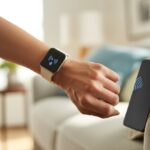
Let’s be real: losing our phones always happens at the worst possible moment. The upside? Our fitness trackers aren’t just step-counters—they can actually help us track down our missing phones, too.
With just a few taps on a Fitbit, Garmin, or Wear OS watch, we can make our phones ring and avoid tearing up the whole living room.
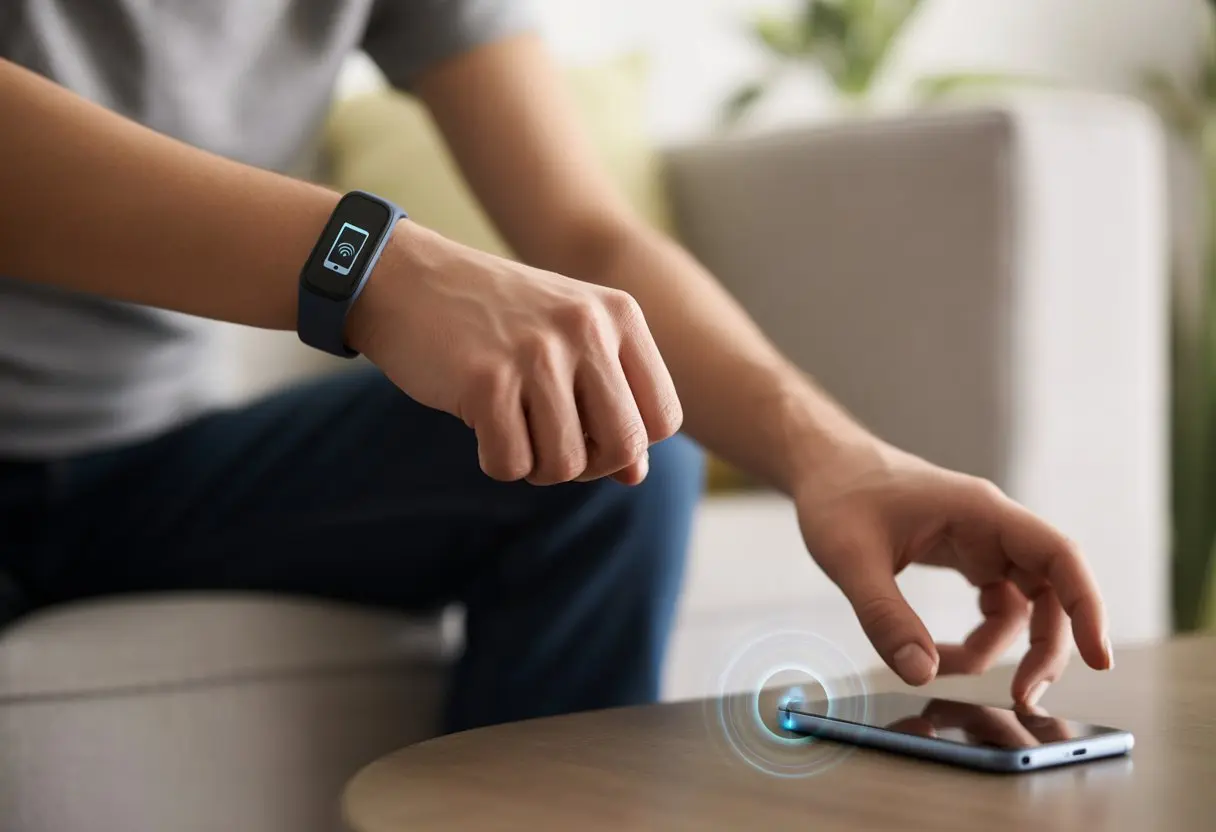
Honestly, fitness trackers are supposed to get us moving, not send us running in circles searching for our phones. But thanks to features like “Find My Phone,” we can let technology handle the detective work.
For Wear OS watch owners, just swipe and use Find My Phone to make your phone ring—even on silent.
Whether you’re using Fitbit, Garmin, or something else, your tracker has your back (and your phone’s back, too). Sometimes, it’s easier to find your phone than to find workout motivation. Let’s see how each tracker can save us from those classic phone-hunting disasters.
Connecting Your Fitness Tracker to Your Phone
First things first, we need to get our fitness tracker and phone communicating. We’ll use Bluetooth, check if our devices are compatible, and turn on notifications so we don’t miss a thing.
Pairing Using Bluetooth
Bluetooth is the quiet hero here, letting our phone and tracker chat behind the scenes. Make sure Bluetooth is on. Seriously, double-check.
Open the companion app that matches your tracker. Each device has its own app, so grab the right one. For Fitbits, open the Fitbit app. For Apple Watch, use the Apple Watch app.
Once the app’s open, tap “Add Device” or “Pair New Device.” The tracker might vibrate, flash, or just pop up a code.
Check that the code matches on both screens—don’t let a typo ruin your day. If things get weird, try restarting Bluetooth or even resetting the tracker.
Some trackers want extra permissions to share data. Grant them if you want everything to work smoothly.
Keep the phone and tracker close together while pairing—think friends at a party, not shouting from opposite ends of a stadium.
If you need more help, here’s a step-by-step Bluetooth pairing guide for Android.
Android and iOS Compatibility
Not every fitness tracker works with every phone. Most big brands like Fitbit and Apple Watch support both Android and iOS, but some don’t.
Apple Watch, for example, only works with iPhones. Sorry, Android fans.
On Android, download a companion app like Google Fit or the tracker’s own app. Want to use your phone as a tracker? Apps like Samsung Health and Google’s Health Connect can use your phone’s built-in sensors for that.
If this all sounds confusing, check out this guide for connecting fitness trackers to Android.
Before pairing, check for software updates on both phone and tracker. Outdated apps can make things way harder than they need to be.
Enabling Notifications
Now, let’s turn on notifications so your tracker can buzz you when your phone’s lost—or when a message comes in. In the tracker app’s settings, look for “Notifications” or “Alerts.”
Enable “Find My Phone” or similar features. When you press the button on your tracker, your phone rings, buzzes, or maybe just makes noise.
Sometimes, you’ll need to give extra permissions. Android might ask for notification access. On iOS, toggle which alerts you want on your wrist.
If notifications don’t work, check Bluetooth and app permissions. Missing an alert stinks, but having to dig through the couch for a silent phone? That’s worse.
Finding Your Phone With a Fitness Tracker
We all lose our phones at home more than we care to admit. Modern fitness trackers can save us from crawling under every sofa cushion.
Using the Locate a Lost Phone Feature
First, check that your fitness tracker is paired to your phone. No one wants to tap their wrist a hundred times only to realize the devices aren’t even connected.
Most trackers, like Fitbit, have a “Find My Phone” feature right on the device. For Android or iOS users, steps might differ a bit, but usually, you swipe on the watch face or open a menu to find the option.
Wear OS devices make it pretty simple—just slide down and tap “Find my phone.” If you want a walkthrough, here’s Google’s step-by-step guide.
Your phone has to be nearby and Bluetooth needs to be on. If your phone’s in airplane mode or miles away, even the best tracker can’t help.
Triggering an Audible Alert
Here’s the fun part! When you activate the feature, your phone rings at full volume—even if it’s set to silent. It’s kind of like calling for a lost dog, except the phone actually answers.
Your tracker sends a signal, and the phone makes noise until you stop it. This works for Android and iOS, as long as they’re paired and within Bluetooth range (usually about 30 feet).
Fitbit explains it pretty clearly, but if your phone’s off or disconnected from Bluetooth, the sound won’t play. You can read more on Fitbit’s support page.
Leveraging Signal Strength
If your home feels like a phone-hiding maze, some fitness trackers can help even more. Certain devices show signal strength between tracker and phone.
It’s like a game of “hot and cold,” but with bars instead of shouts from your sibling. As you walk around, the signal bars change, showing if you’re getting closer or farther away.
Garmin watches, for example, display signal bars in their app or right on the watch. This turns you into a phone-finding pro—no khaki vest required. If you want more info, check out Garmin’s official details.
Supported Devices and Apps
If finding your phone feels like a never-ending chore, the right fitness tracker and app can make you a hide-and-seek champ. The tracker, your phone brand, and app features all affect how easy (or dramatic) the search gets.
Compatible Fitness Trackers
We’re not secret agents, but most big-name fitness trackers help when our phones vanish. Apple Watch and most Fitbit models (like the classic Fitbit Charge 2) have phone-finding features right on your wrist.
Garmin and some Samsung watches do too.
Here’s a quick look:
| Tracker Brand | Phone Finding Support |
|---|---|
| Apple Watch | Yes |
| Fitbit | Most models* |
| Garmin | Yes |
| Samsung | Yes |
*Not all Fitbits support this, so check your model on this list of supported devices.
Popular Phone Brands
The magic of making your phone beep works best with Android and iOS (yes, iPhone). Apple Watch works mostly with iPhones.
Fitbit, Garmin, and Samsung can usually pair with both Android and iPhones. If you’ve still got a Windows phone… well, you might be on your own.
Some trackers on Android need Bluetooth and extra permissions. If your phone’s off or dead, you’ll probably end up searching the old-fashioned way.
App Features for Finding Phones
Most big trackers have built-in “find my phone” tricks. On Wear OS, just swipe down and tap Find my phone—the phone rings, even on silent.
With Garmin smartwatches, launch the Connect app and pick the phone-finding option right on your wrist.
Apple Watch makes your phone chime—and even flashes its light if it’s really hiding. Fitbit lets you ring your phone if it’s close by and connected with Bluetooth.
Key find-my-phone features:
- Ring or vibrate the lost phone
- Flash the phone’s light or screen
- Show last known location (on some trackers)
- Support for Android and iOS in most major apps
We may not be detectives, but these tracker tricks get us closer to victory over lost phones—one beep at a time.
Common Use Cases for Finding Your Phone
We’ve all reached for our phone and realized it’s pulled a disappearing act. Fitness trackers with find-my-phone features swoop in to save the day, especially when we’re busy or half-awake.
During Workouts
Nothing kills workout motivation like losing your phone mid-session. We’re hopping around, changing playlists, and suddenly—our phone disappears under towels or inside a gym bag.
With a fitness tracker, we can stay focused and use the ping feature to make our phone ring loudly, even from inside the bag. Some trackers even vibrate or flash to let us know the search is on.
Losing a phone at the gym used to mean a full-on scavenger hunt. Now, we can skip the panic and let our gadget handle it, keeping our heart rate up for the right reasons.
While Cycling
Cycling brings its own brand of phone-losing chaos. We’re zipping through parks or cruising down a busy street, and suddenly realize—wait, where’s that familiar phone-shaped lump in our pocket?
With a fitness tracker’s find-my-phone tool, we don’t have to stop and dig through every pocket or bag. Just a quick tap on the wrist sets off a ping, and we can track down our phone before it bounces away forever.
If our phone slips out without us noticing, tracking it right away can save us from hours of backtracking. Nobody wants to stop in the middle of traffic or a group ride to hunt for a phone. Using the tracker’s ping feels a lot safer and saves us from that cycling suspense.
Nighttime Sleep Emergencies
Waking up in the dark, needing our phone, and having no clue where it is—yeah, that’s a nightmare. Maybe we use it as an alarm, for emergencies, or to turn off that snoring app.
With a fitness tracker nearby, we can ping the phone from bed and let the alert pierce the darkness. No more stumbling around or flipping pillows when we should be monitoring our sleep.
It’s honestly such a relief, especially if we’re only half awake. Plus, we don’t have to get out of bed and mess up our sleep cycles—our tracker’s got it covered while we stay cozy.
Optimizing Bluetooth and Battery Life
If our tracker keeps dropping its Bluetooth connection or our phone dies before lunch, that find-my-phone feature isn’t much help. So, how can we keep everything paired and powered up without losing our minds?
Improving Connection Stability
Dropped connections are the worst. To keep our fitness tracker and phone paired, we need to double-check that Bluetooth is on for both—no more “airplane mode oopsies.”
Staying within range matters too. Most trackers and phones need to be within about 30 feet—roughly the length of a very confused dachshund—to stay connected. If we wander off with the tracker while the phone snoozes in another room, the signal just disappears.
If things get weird, restarting both devices usually helps. The classic “turn it off and on again” trick isn’t just for computers. If nothing works, we can unpair and re-pair them through the Bluetooth menu. It’s also smart to check for system updates on both devices.
Maximizing Battery Life
We can’t find our phone if it’s completely dead. To stretch battery life, we should lower screen brightness (even if it’s tempting to keep it at max). Turning off features like always-on display or extra notifications also helps save power.
Keeping both our tracker and phone charged is a must. Setting up a nightly charging routine means we’re not scrambling for chargers at breakfast. If Bluetooth seems to drain our phone too quickly, closing background apps and updating the OS can help, as a lot of folks mention in this Reddit thread about Bluetooth battery drain.
It’s best not to toggle Bluetooth off and on all day—turning it off does save some battery, but then our tracker can’t help us find the phone. Might as well let Bluetooth do its thing.
Limitations and Troubleshooting Tips
Let’s be real. Sometimes our fitness tracker’s search-and-rescue mission just doesn’t go as planned. Here’s how things can go sideways—and what we can try when our gadgets act up.
GPS Functions and Range
Fitness trackers and phones have to stay within Bluetooth range—usually about 30 feet, or the length of a short hallway. If our phone slips past that invisible barrier, our tracker just loses the trail. “Find My Phone” features stop working once the phone is out of Bluetooth range, no matter how much we wish otherwise.
Don’t expect GPS to save the day. Most trackers use Bluetooth, not GPS, for finding the phone. GPS is great for mapping a run, but not for tracking down a phone lost in the couch cushions. If the tracker says “Phone not found,” it’s probably just out of range—or maybe hiding with that missing sock. Garmin has more on this in their Find My Phone feature guide.
Issues with Notifications
Even with all the energy and motivation in the world, our tracker can still miss signals if notifications aren’t set up right. If Bluetooth is off, or the app on our phone is asleep, no alerts are coming through. Someone could text us while we’re frantically tapping “Find Phone,” and we’d miss it—along with that random notification from Aunt Linda.
Sometimes, notifications just refuse to show up at all. The tracker and phone can get stuck in a weird loop of “Let’s Go!” and “Phone not found,” as Fitbit describes in their troubleshooting tips. Restarting both gadgets, double-checking Bluetooth, and maybe playing some calming music can help.
When Your Phone Is Too Hot to Handle
We love our phones, but sometimes they overheat and just give up. If our phone gets too warm—maybe after baking in the sun or binge-watching cat videos—it might shut off wireless features to avoid overheating. Suddenly, our tracker can’t talk to it, and we’re left yelling “Marco!” with no reply.
Extreme heat can slow down notifications and weaken Bluetooth too. It’s not being dramatic; it’s just trying to survive. When things heat up, we need to cool our phone down. Move it out of the sun, close some apps, and just let it chill. Otherwise, we might try everything and still can’t get our phone to respond.
Bonus Features While Locating Your Phone
Tracking down our phone with a fitness tracker isn’t just about avoiding panic. We can take advantage of some unexpected features while we’re at it.
Activity Tracking Integrations
When our phone goes missing, our activity tracker suddenly becomes our best friend. It helps us find our lost phone, but it also logs steps, distance, and calories burned during the frantic search. It’s like getting rewarded for accidental cardio.
Some brands sync our movements to their fitness apps, so we can see exactly how many calories we burned during that dramatic house search. Maybe we’ll start losing our phones on purpose for the extra steps.
Thanks to activity tracking integrations, we can set goals and crush them—sometimes just by chasing after a misplaced phone. If we need an excuse to move more, misplacing our devices is oddly effective.
Sleep Tracking Support
Losing a phone at night can ruin sleep, and our tracker can help here too by monitoring our sleep patterns before and after the late-night phone hunt.
With sleep tracking, we can see if we lost deep sleep tossing and turning. Some trackers even wake us up at the perfect moment in our sleep cycle if we need to search for our phone (as if things weren’t exciting enough).
Sleep monitoring also helps spot patterns—if we keep losing our phone at bedtime, maybe it’s time to change our routine or get a glow-in-the-dark phone case.
Heart Rate Monitor as a Stress Meter
What spikes first when we can’t find our phone? Our heart rate, every time. Most trackers come with a heart rate monitor, so it basically acts as a personal stress meter. The second we realize our phone’s missing, the data jumps.
By checking our heart rate history in the app, we can see exactly when panic set in and how fast we calmed down once the phone started ringing from under the couch.
Some devices remind us to breathe or take a break when stress gets too high. So while we’re retracing our steps, our tracker nudges us to chill out and maybe keep that blood pressure in check.
Using the Step Counter for Detective Work
So, the humble step counter—yeah, the pedometer—does more than just keep track of your morning strolls. When you’re on the hunt for your phone, it logs every single step you take in that frantic search.
Honestly, sometimes looking for a lost phone is the most movement we get all day. The step counter catches every lap around the living room, each time you run up the stairs, and all that anxious shuffling from your bedroom to the kitchen.
You can actually scroll through your step history and spot those wild “lost phone” days. If you ever need proof that looking for a phone should count as a sport, just check the numbers your step counter racked up.

From a young age, I have always had a big interest in technology, and this blog is an extension of that interest. Through this blog, I hope to provide others with all of the information they need regarding tech options to consider, and things such as compatibility. Some of the different items I will be discussing include headphones, smartwatches, and how to fix common issues.
Related Posts: