Let’s be real—nobody gets thrilled when their headphones start acting weird or missing out on those neat new features. The truth? Those earbuds and fancy over-ears in our bags need firmware updates just like our phones do.
Updating Bluetooth headphone firmware keeps our music streaming smooth, fixes bugs, improves sound, and can even help our gadgets last longer.
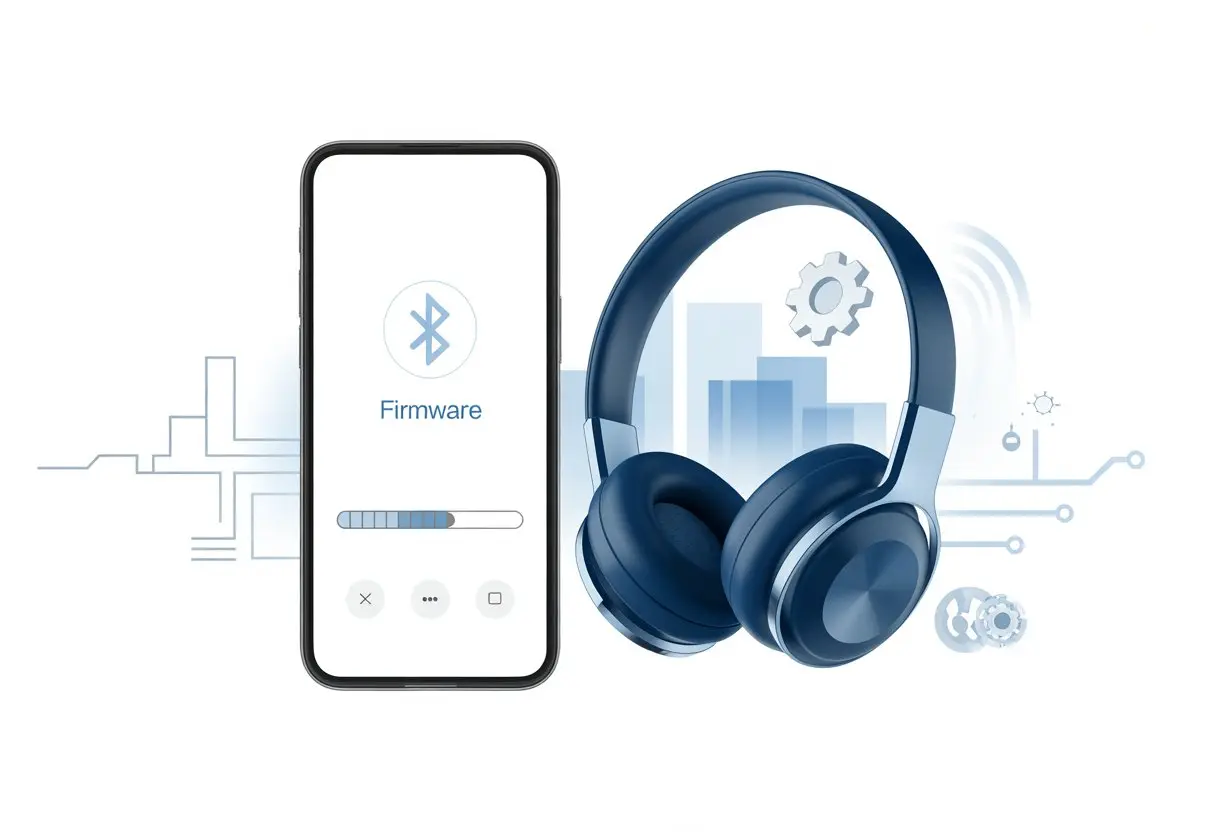
We’ve all felt the panic when the battery dies at the best part of a song or the connection drops mid-call. Staying updated can save us a lot of embarrassment.
Updating is usually simple if we have the right app. Sometimes, our headphones basically do the work for us—just ask Apple users with automatic AirPods updates.
If we want fewer tech headaches and more reliable jams, keeping our headphones up to date really matters. Who knows, we might even stumble on some fun new features.
Understanding Bluetooth Headphone Firmware
Let’s dig into what’s actually happening inside our Bluetooth headphones and why firmware updates matter. Firmware isn’t just a fancy word for “software.” The right update can genuinely improve our listening experience and fix stuff we didn’t even realize was broken.
What Is Firmware and Why Should You Care?
Firmware acts as the brains of our Bluetooth headphones, earbuds, or speakers. It’s the instructions tucked inside, telling each device what to do and how to act.
Unlike apps on our phones, firmware sits deep in the hardware. It won’t update unless we tell it to—usually through official apps or update tools.
We should care because firmware updates fix bugs, improve battery life, add new features, or boost sound quality. Those update notifications aren’t just nagging—they’re offering us better performance, fewer glitches, and sometimes cool new functions.
Sometimes, the “what’s new” list reads more like poetry for gadget nerds than actual instructions. We love that.
Here’s a quick look at what a firmware update can do:
| Benefit | Example |
|---|---|
| Bug Fixes | Removes random disconnects |
| Feature Upgrades | Adds EQ settings |
| Improved Compatibility | Works better with newer phones |
| Battery Optimization | Helps headphones last longer |
How Firmware Affects Your Listening Experience
Our headphones only get as smart as their firmware allows. Outdated firmware can cause random Bluetooth drops, laggy audio, or block us from new features.
If our product info says we’re still on an old version, we’re missing out.
A firmware update might suddenly give us clearer audio, smoother Bluetooth, or that “game mode” for less lag in videos. Sometimes, pairing with our devices gets faster, too.
It’s wild—sometimes it feels like we just unboxed a new product after updating. Just by hitting “update,” we get fresh features.
If we skip updates, our headphones can act up—refusing to play nice with our phone or not supporting new stuff. Staying current keeps our headphones, earbuds, or speakers running like new.
It’s like giving our tunes a five-star tune-up, but way cheaper than shopping for new gear.
Pre-Update Preparation for Firmware Updates
Before we jump into firmware updates, we’ve got to do a little homework. Let’s make sure our headphones are ready, back up anything important, and check what our warranty actually covers (and what it doesn’t).
Checking Headphone Compatibility
Let’s not try to update a toaster with headphone firmware, okay? First, we need to check the exact model number of our headphones.
Usually, we find this on the label, box, or buried somewhere in our support website account. Some updates only work for certain versions or batches.
Next, we should see if there’s a firmware update made for our headphones. If we use an app like Sony | Sound Connect or the brand’s support website, it’ll show compatible models right away.
Downloading mystery files from random sites? That’s just asking for a new paperweight.
We should also disconnect speaker accessories, wearables, and any other Bluetooth gadgets. Sometimes, stuff like smartwatches can mess with the update process, especially for Sony devices.
Backing Up Settings and Customizations
We don’t want to lose our custom EQ or that weird bass boost we spent an hour tweaking. Before updating, let’s jot down our settings or back them up if the app allows.
Some headphone apps let us save presets directly to our account or export them. If we can’t back up settings, a quick screenshot of the app’s audio and button settings works.
Pen and paper is totally fine too if we’re feeling retro.
If the headphones have profiles tied to our support website or email login, we should sync everything before updating. Better safe than stuck with “factory default,” where everything sounds like a tin can.
Reviewing Warranty and Support Policies
Sometimes firmware updates go wrong. It’s smart to know if a failed update makes us eligible for repair, replacement, or just a “good luck” message.
We should check our warranty info, usually hidden near product information or in a PDF we never read.
The support website usually has a big FAQ about firmware, warranty, and what counts as “user error.” If we break our headphones by ignoring directions or using sketchy third-party software, we might have to pay for repairs.
Some brands help with speaker accessories and wearables too. Knowing where to get support or start a warranty claim saves us from panic if things go sideways.
Methods to Update Bluetooth Headphone Firmware
Getting the latest firmware update for our Bluetooth headphones isn’t just about bragging rights—it’s usually the only way to squash bugs and score new features.
There are a couple main ways to get the latest headset software, and each one has its own steps (and quirks).
Updating Firmware Via Manufacturer’s App
Honestly, if our headphones have a companion app, that’s almost always the easiest way. Most big brands want us to download their official support app from the App Store or Google Play.
Once we’ve got the app, we can connect our headphones via Bluetooth and check for updates right from our phone.
Here’s what usually happens:
- Open the app and pick our headset model
- Pair the headphones with Bluetooth
- Look for “Firmware Update” or “Software Update”
- Follow the steps and try not to stress if it takes a while
Some updates need us to tap “Update” manually. The process is usually pretty painless, but we should keep our headphones charged and close by.
Brands like Audio-Technica have their Connect app that guides us through it. If we’re lucky, our headphones will beep and we’ll have the latest software before we know it.
Manual Update Using a Computer
If our headphones are a bit old-school or the app isn’t working, we might need to update with a computer. This usually means downloading the update file from the support website and connecting the headphones to the PC or Mac with a USB cable.
It sounds more intimidating than it is. We can handle it.
Here’s how this usually goes:
- Go to the manufacturer’s support website
- Find the right firmware update for our headset
- Download the update file (double-check it’s for our headphones—not the neighbor’s toaster)
- Connect the headphones to the computer with a USB cable
- Run the update tool or follow the steps
We shouldn’t unplug the headphones or turn off the computer during the update. Interrupting it can turn even the fanciest headphones into expensive earmuffs.
When it’s done, we’ll have the latest software and maybe a little more tech confidence.
Step-By-Step Guide: Updating Your Headphones
Let’s get our Bluetooth headphones running the latest firmware—without starting a tech support bonfire in the living room.
We’ll check our current firmware, find the right update, and make our headphones smarter than we are (at least for now).
Locating the Firmware Version
Before downloading anything, we need to know what firmware our headphones are running.
Most headphones let us check this in a few ways:
- Companion App: Open it, connect your headphones, and look under “Device Info” or “About.”
- Bluetooth Settings: Some phones show firmware info in Bluetooth settings, though this doesn’t always work.
- User Manual: If all else fails, the manual might help—or at least hold the door open.
With Audio-Technica, we use the Connect app to check and update firmware. If we need more info, the product support website usually has it somewhere.
Knowing our current firmware version saves us from trying to update to the same version, which is about as useful as re-toasting burnt toast.
Downloading the Latest Headset Software
Once we know our firmware version, we can hunt for the latest headset software. If our headphones use an app, like the Philips Headphones app, the app usually checks for updates automatically.
Otherwise, the support website is our new best friend.
Here’s what we usually need to do:
- Go to the Support Website: Find “Downloads” or “Product Support” for our model.
- Look for Firmware Updates: Check the release notes for what’s new.
- Check Compatibility: Make sure the update matches our headphones model.
- Download Required Tools: Some brands need special update tools or software.
We should avoid fake sites—nobody wants a firmware update that makes our headphones play Spotify ads in Morse code. Stick with official links.
Installing the Firmware Update
Now for the main event: installing the update. Instructions can vary, but here’s the play-by-play most brands use:
- Charge Everything: Headphones and phone or computer should be fully charged, unless we’re feeling risky.
- Connect Devices: Use Bluetooth or USB, as the guide says.
- Open the Update Tool/App: Select the firmware file if needed, or just let the app handle it.
If our headphones use an automatic process, like Apple AirPods, we just pop them in the case, connect to Bluetooth, and keep everything close.
For others, we might need to watch a progress bar that feels more dramatic than a movie climax.
We should never disconnect during the update. Our headphones could end up less useful than a potato with Wi-Fi dreams.
Once it’s over, they might restart, reset, or even sound better—kind of like us after coffee and a nap.
Troubleshooting Common Firmware Update Issues
Firmware upgrades for Bluetooth headphones usually sound simple, but honestly, things can get weird fast. Sometimes, we end up just staring at blinking lights or, worse, headphones that refuse to do anything.
Handling Bricked or Unresponsive Headphones
Maybe you tried updating the firmware, and now your headphones ignore you completely. It’s tempting to just toss them in a drawer, but let’s not give up yet.
Try resetting the headphones first. Most models ask you to hold the power button for more than 10 seconds, or press some secret combo in the manual. If there’s a tiny reset hole, a paperclip might save the day.
If a reset fails, check for the manufacturer’s recovery or forced firmware mode. Sometimes, plugging them into a computer with a USB cable lets the official app revive them with a fresh update. If they still won’t budge, check if they’re under warranty or qualify for a replacement.
Most brands have product support on their website. If they mention repair, and it comes with a fee, you might just start looking at new headphones instead.
Resolving Bluetooth Connection Problems
When your headphones suddenly refuse to pair after an update, it almost feels personal. Go ahead and unpair or “forget” the device from your phone or computer.
Restart both the headphones and the gadget you’re pairing with. The classic “turn it off and on again” trick still works more often than it should.
If that doesn’t help, check if Bluetooth works at all on your device. If nothing connects, the problem might be with your phone or computer, not the headphones. For Windows, updating Bluetooth drivers sometimes does the trick.
Open Device Manager, right-click the Bluetooth adapter, and select “Update driver” to search for updated driver software.
If you’re still stuck, reaching out to product support is the next step. Ask about repair, replacement, or warranty information before blaming the cat for chewing the headphones again.
Keeping Your Headphone Firmware Up-to-Date
Nobody wants their headphones acting like relics. Keeping firmware up-to-date isn’t just about staying current—it actually keeps bugs away and unlocks new features.
Enabling Automatic Firmware Updates
Your headphones deserve the latest software without you having to dig through menus every week. Most newer models—Sony, Beats, Apple AirPods—offer automatic updates if you pair them with their apps.
The Beats app, for example, lets you check the firmware version and update when needed.
A quick checklist:
- Download the official app from the support website (skip anything sketchy).
- Pair your headphones and keep Bluetooth on.
- Charge fully; updates need plenty of battery.
- Enable app notifications so you’ll know when it’s update time.
- Keep the headphones nearby; some updates, like those for AirPods Max, just need you to wait.
The reward? New features and better performance sneak in while you’re busy with cat videos.
Staying Informed About New Releases
Automatic updates are great, but sometimes they miss things or your model gets left behind. It pays to check the support website for new firmware.
Brands usually post changelogs and announce new features there. You can also:
- Sign up for email alerts or newsletters.
- Follow the brand on social media for updates and teasers.
- Visit forums like this Reddit thread where fans share tips.
- Watch for push notifications in the app; sometimes updates just pop up.
That way, your headphones stay sharp. Sometimes you’ll even spot a new button in the app and wonder how you ever lived without it.
Firmware Updating Tips for Other Audio Devices
We all want our tech to sound better and maybe surprise us with new tricks. Keeping firmware updated on earbuds, soundbars, and speakers helps dodge glitches and keeps everything running smoothly.
Earbuds: Tiny Tech, Big Potential
Earbuds might vanish in couch cushions, but their software updates matter. Usually, you need the brand’s mobile app (and good luck finding it sometimes).
Make sure both buds are charged and out of their case. Connect them to the app, find the firmware update button, and hope your phone’s Bluetooth behaves.
Some brands give you progress bars and notifications; others leave you guessing. Quick tip: set them on a table and don’t touch them during updates. Interruptions can cause that dreaded “update failed” message.
Soundbars and Home Cinema Systems
Soundbars and home cinema setups try to bring the movie theater home. Updating their firmware is usually less mysterious than with earbuds, but it still takes a few steps.
Most of the time, you’ll download updates from the manufacturer’s website onto a USB drive. Then comes the hunt for the right port behind the soundbar—usually hidden by dust and cables.
Some models let you update over Wi-Fi or Bluetooth with special apps. TVs sometimes warn you not to unplug anything, so just sit tight while the progress bar crawls along.
When it’s finally done, crank up the volume and enjoy that deep “boooom” sound. It’s a small victory, but it feels good.
Speaker Accessories and Wearables
Sometimes you end up with smart speakers, voice assistants, speaker docks, or even those wild audio sunglasses. Updating the firmware on these? It can feel like a scavenger hunt, honestly.
Some speaker accessories update themselves automatically when you connect them to Wi-Fi or their companion app. Others make you grab a USB cable and hunt down a special file to download.
Either way, try to get a solid connection first. It’s always a good idea to double-check that your device doesn’t shut off halfway through the update.
Wearables, like fitness trackers that play music, usually get updates through their smartphone app using Bluetooth Low Energy (BLE). Just keep both devices close together—resist the urge to wander off or start opening random apps.
If something goes sideways, you can always hit up the device’s official support forums. They’re surprisingly helpful most days.

From a young age, I have always had a big interest in technology, and this blog is an extension of that interest. Through this blog, I hope to provide others with all of the information they need regarding tech options to consider, and things such as compatibility. Some of the different items I will be discussing include headphones, smartwatches, and how to fix common issues.
- How to Improve WHOOP Recovery Scores Without Giving Up Pizza or Netflix - April 7, 2026
- Why is my fitness tracker not unlocking my computer? Tech tantrums and wearable woes explained - April 7, 2026
- Best Fitness Trackers for Stress Relief: Because Your Anxiety Deserves a Step Counter Too - April 6, 2026
Related Posts: