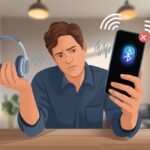
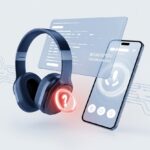
We’ve all been there. We connect our Bluetooth headphones, hit play, and… nothing.
The silence feels so loud it almost seems personal, like our headphones are staging a protest. Usually, Bluetooth headphones refuse to play music because of basic issues like the wrong audio output, low volume, connection hiccups, or a bug that just needs a restart.
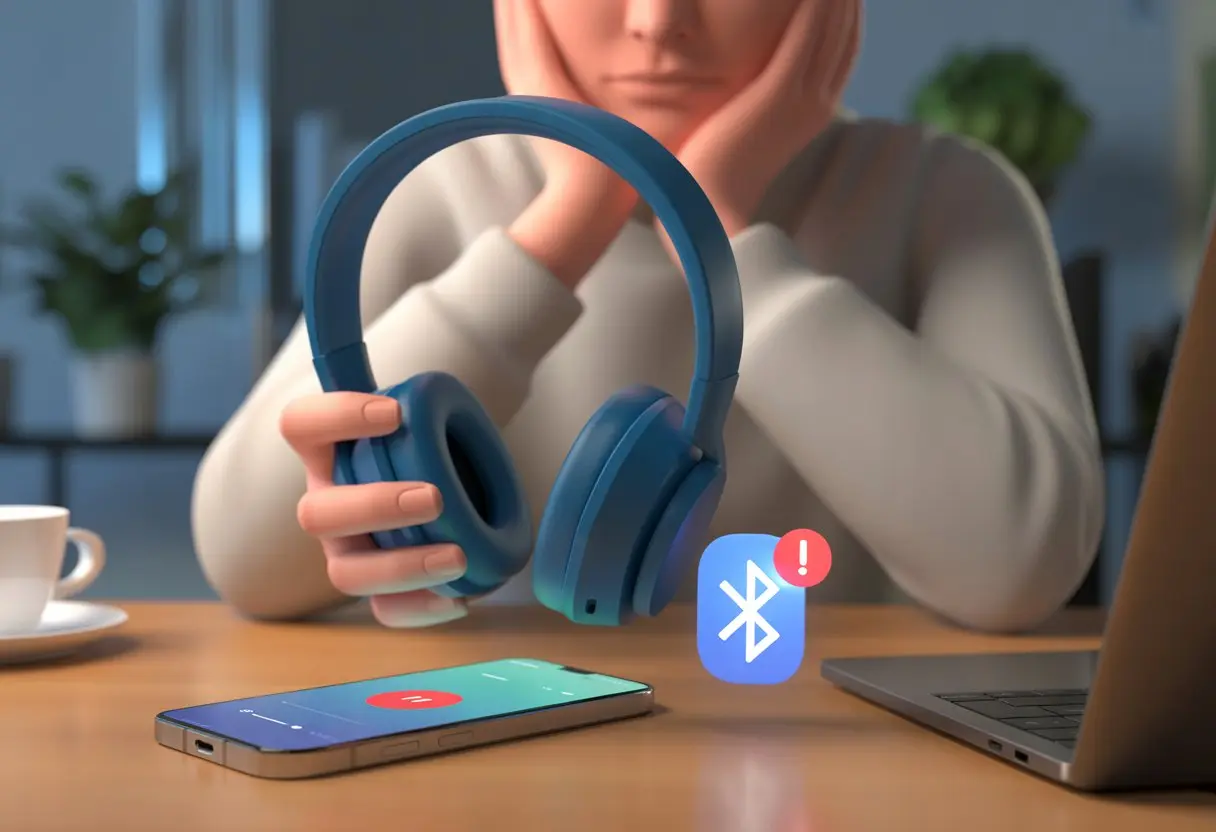
It’s wild how just forgetting to set headphones as the audio output leaves us listening to the world’s most disappointing concert. And then there’s the classic—headphones connect, but the phone keeps blasting music from its own speaker just to show off.
If Bluetooth tech had a sense of humor, it’d probably be laughing at us right now.
We shouldn’t let tech glitches come between us and our music. Let’s see what’s really happening and fix it before we lose our minds—or our favorite playlist.
Common Reasons Bluetooth Headphones Aren’t Playing Music
Bluetooth headphones are supposed to make life easier. Yet sometimes, getting sound from them feels like solving a puzzle blindfolded.
It helps to know where the usual problems hide so we can track them down and fix them.
Muted Volume or Audio Output Selection
Most of us have probably panicked and blamed technology first. But before we accuse our headphones of betrayal, let’s check if the volume is muted—on the headphones or the phone.
Many Bluetooth headphones use a tiny touchpad or buttons for volume, and it’s easy to change by accident. If the volume’s up but we still hear nothing, the audio output setting could be the sneaky culprit.
Sometimes, the device sends sound somewhere else (like that Bluetooth speaker in the next room).
Checklist:
- Make sure the volume is up on both device and headphones.
- Check if the phone, tablet, or computer actually uses the Bluetooth headphones as output.
- Try switching output in the app’s audio settings if possible.
If you want more details, Microsoft’s help site explains this problem too.
Dead Battery or Not Charging
No sound at all? The headphones might just be dead because the battery’s empty.
We’ve all seen the battery icon drop to nothing and hoped for a miracle. If nothing plays, check if the headphones just ran out of juice.
A battery that won’t charge is another sneaky issue. Loose cables, dusty charging ports, or a blinking charging light can all mess things up.
Always use the original charger if you can, and check if the charging indicator turns on.
- Plug the headphones in, wait a few minutes, then try again.
- If this keeps happening, the battery might be old or the cable’s faulty.
For more info, Sony has help for charging problems.
Bluetooth Source Problems
We’ve all had the “connected, but not really connected” moment. Headphones say they’re ready, phone agrees, but music just doesn’t play.
Sometimes the Bluetooth source—your phone, tablet, or computer—causes the problem. It might have a bug or too many devices trying to connect.
Walls, microwaves, or just being too far away can also mess with the connection or cause weird glitches.
Try turning Bluetooth off and on, or restart both the headphones and the audio source. Unpairing and repairing can work wonders.
If that fails, you might face Bluetooth connection issues that need more creative fixes, like removing old devices from the Bluetooth list or moving closer to the source.
Connection Troubleshooting Techniques
Bluetooth headphones can be unpredictable—music one day, silence the next.
Before blaming the headphones or considering a career in silent meditation, let’s run through some checks, resets, and app tests.
Checking Device Pairing and Default Device
First, check if the headphones are actually paired. Open Bluetooth settings and see if the headphones show as “Connected.”
If they’re missing, pair them again. Even if they’re paired, sound might play somewhere else.
Look at your device’s sound output settings and set the headphones as the default device. No one wants to put on headphones only to have music blast from the phone speaker.
On Windows, changing the default playback device is common. On phones, tap the audio output icon.
Here’s a summary checklist:
| Step | Action |
|---|---|
| Check pairing | Are the headphones “Connected”? |
| Set as default | Select headphones as default output device |
| Remove and re-pair | Try forgetting and pairing headphones again |
Resetting Your Product Like a Pro
Sometimes, devices just need a fresh start—like us after a Monday. Turn off both headphones and your device, then turn them on again.
If that doesn’t help, “forget” or remove the headphones from the device’s Bluetooth list and pair them from scratch.
Many headphones have a reset button or a reset combo. You might need to hold the power and volume buttons for ten seconds.
Check the manual for your model and do a proper reset. This can fix weird bugs, pairing issues, and even mystery volume problems.
Fully charge the headphones before troubleshooting—sometimes a low battery is the real culprit.
Resetting isn’t just for headphones. If your phone or computer acts up, a quick restart there can work wonders.
If you suddenly hear music, that’s a win. Maybe even celebrate with a little dance (headphones on, of course).
Quick reset chart:
| Product | How to Reset |
|---|---|
| Headphones | Hold buttons (see manual) |
| Phone/Computer | Restart device |
| Both | Unpair, then re-pair |
Trying a Different App
Sometimes, the streaming app decides to be difficult and won’t work with Bluetooth.
If you can’t hear anything, try a different music or video app. For example, if Spotify is silent, open YouTube or a podcast app to test.
If music plays from one app but not another, the original app might be the problem. Check the app’s settings—maybe it’s muted or set to a different output.
Close and reopen the app, or log out and back in. If that doesn’t help, update or reinstall the app.
When apps refuse to cooperate, switching to another can reveal if the issue is with the headphones or just the app being dramatic.
If a different app works, your headphones are innocent. If not, blame the hardware.
For more details, check out solutions for Bluetooth headphones with no sound.
App Settings and Compatibility Issues
Sometimes, the headphones aren’t the issue—the apps just don’t want to play nice.
We can miss out on our favorite songs because of a permission mix-up or an app that just won’t cooperate.
Permissions and Audio Output Within Apps
Let’s be real—app permissions can be confusing. Some apps may need special permissions to play sound through Bluetooth headphones.
Check if the app has access to things like “Media Audio” or if it’s sending audio somewhere else.
Settings can betray us too. Sometimes, the app plays music but doesn’t send it to our headphones.
A quick trip to the device Bluetooth menu and the app’s audio settings can save a lot of frustration.
Samsung devices, for example, have Separate App Sound, letting us pick which app sends audio to Bluetooth. That feature can be a lifesaver or a sneaky troublemaker.
It helps to check these settings whenever the headphones go quiet, especially if sound works in one app but not another.
Updating or Reinstalling Applications
Sometimes, even our go-to apps let us down. Maybe we updated our phone and suddenly the app just goes silent.
App developers make mistakes too. Keeping apps updated can fix a lot of silent treatment issues, since updates patch bugs and improve Bluetooth compatibility.
If updating doesn’t help, uninstalling and reinstalling can give the app a fresh start. Don’t forget to clear the app’s data or cache.
It’s like telling the app, “let’s start over.” For stubborn cases, reinstalling helps the app reconnect with device settings and Bluetooth.
If nothing works, try a different app to see if the audio problem only happens with one. Sometimes, it’s not us—it’s them.
Physical Connections and Optional Accessories
Bluetooth headphones are supposed to be wireless, but sometimes plugging in a cable is exactly what’s needed.
Let’s talk tangled cords, mystery jacks, and our shared craving for actual sound.
Audio Cable Connection Quandaries
Sometimes, skipping Bluetooth and using an audio cable is the fastest way to troubleshoot.
Most Bluetooth headphones, like the ones we keep threatening to donate, have a 3.5mm jack for wired listening.
If you plug in the audio cable and still get nothing, it’s a big hint the headphones or the cable might be the problem.
Double-check the cable—bent pins, frayed ends, or that mysterious sticky stuff from the bottom of a bag can all mess things up.
Some cables don’t support microphones or remote buttons, turning our fancy headset into earmuffs.
Here’s a quick checklist:
- Swap to another device
- Wiggle the cable gently and see if the sound cuts in or out
- Try another cable, if you have one
If sound works with a cable but not Bluetooth, at least the headphones are alive—the problem is probably pairing, not hardware.
Inspecting Ports and Connectors
Let’s be real: headphone ports collect more crumbs than my snack drawer. When the jack gets dirty, corroded, or just doesn’t fit snugly, you might get weird audio dropouts—or worse, total silence. Sometimes, all your headphones need is a quick swipe with a cotton swab or a blast of compressed air.
Bent pins or random debris love to hide inside ports. They block connections and can keep headphones stuck in “wired” or “Bluetooth” mode. I always squint at the port to check for damage or grit.
If you use adapters—like those USB-C to 3.5mm dongles—don’t trust them too much. Cheap ones break, and even good ones can quit on you out of nowhere. Swapping in another adapter or device can save you a lot of frustration.
Device and Headphone Specific Quirks
It’s not always the Bluetooth connection. Sometimes, the little quirks of our devices and headphones leave us scratching our heads. Certain brands and features can make you wonder if your gadgets are just messing with you.
bose noise cancelling headphones 700 Oddities
Honestly, the Bose Noise Cancelling Headphones 700 work wonders for blocking out your neighbor’s saxophone. But if you don’t set them up just right, the sound disappears faster than my motivation on a Monday. These headphones sometimes refuse to play music if they’re stuck in “talk mode” or if the connection only allows calls.
They get confused if you connect to multiple devices at once. If your phone and laptop both want to play DJ, sometimes the music just won’t play, or it starts blasting from the wrong device. Try disconnecting all the extras and reconnecting only the one you actually want to use.
Some settings on your phone or computer decide whether audio goes to or from the headphones. Double-checking the output device usually saves you from yelling at innocent electronics.
If nothing else works, restarting or re-pairing the headphones is the gold standard of tech support. It really does fix things most of the time, according to users everywhere and even pro troubleshooting guides like these tips from WIRED.
Touchpad and Button Mischief
Touchpads are supposed to make life easier, but sometimes they just make us look like we’re waving at invisible friends. Loads of Bluetooth headphones—even fancy ones like the Bose NC 700—use touchpads or buttons for controls like play, pause, or volume.
Accidentally brushing the touchpad can pause your music, skip tracks, or suddenly blast the volume. Sweat, rain, or even your hair can register as a touch and mess things up. For headphones with buttons, it’s easy to fumble and put them in pairing mode or mute them by mistake.
It helps to make sure your fingers are clean and dry before swiping. If your headphones have an app, check if there’s a “lock controls” option or a way to adjust touchpad sensitivity. Your ears—and nerves—will appreciate it.
When All Else Fails: Service and Support
Sometimes, no matter how many tricks we try, Bluetooth headphones just won’t cooperate. At that point, it’s good to know who to call, what to do next, and whether it’s time to just give up or try one last reset.
Contacting Manufacturer Support
If you’ve tried every button combo, menu setting, and the classic “turn it off and back on again” with no luck, it’s time to ask for help. Manufacturer support teams know all the weird quirks and secret fixes for your headphones.
Grab your product number, serial number, and any receipts you’ve got. Most companies want these right away—probably so you’re not asking for help with someone else’s gear.
Most brands let you reach out by online chat, phone, or sometimes those weird contact forms. Check the website for their steps. Some brands want you to reset or re-pair your headphones before you chat, just to be sure you’ve tried everything.
If support suggests troubleshooting steps or software updates you missed, following their advice can sometimes bring your sound back. For more ideas, searching for similar issues in tech forums or official sites—like this Bluetooth headphones not playing sound—can turn up extra tips.
Service Your Product Options
When support finally throws up its hands, we might just have to send our headphones in for service. Honestly, nobody loves this part, but sometimes a trip to the service center is exactly what our stubborn tech needs.
First, let’s see if our headphones are still under warranty. If they are, repairs—or even a replacement—could be free.
Lost the paperwork? Don’t stress. Sometimes the serial number works just fine.
A lot of brands give us instructions for mailing in our headphones. It’s a good idea to reset them before shipping, just to wipe the slate clean.
If the repair costs more than grabbing a new pair (especially if there’s a sale), it might be time to retire the old set. Yeah, it stings, but sometimes it’s the practical move.
For those who just can’t let go, some stores or repair shops offer diagnostic services and in-person fixes. It never hurts to compare prices and options, especially when all we want is our music back without the hassle.

From a young age, I have always had a big interest in technology, and this blog is an extension of that interest. Through this blog, I hope to provide others with all of the information they need regarding tech options to consider, and things such as compatibility. Some of the different items I will be discussing include headphones, smartwatches, and how to fix common issues.
- The Best Rugged And Waterproof Smartwatches - October 21, 2026
- 10 Best Military Smartwatch – Find The Best Tactical Military Watches in 2023 - October 20, 2026
- Are Wired Headphones Safer Than Bluetooth? A Friendly Guide - October 20, 2026
Related Posts: