We’ve all been there—just chilling with our Bluetooth headphones, and then suddenly they start playing this weird game of “now you see me, now you don’t.” Bluetooth headphones usually keep pairing and unpairing because of things like low battery, connection issues, or just being too far from the device. Sometimes it feels like they know when we’re finally in a good mood and decide to mess with us.
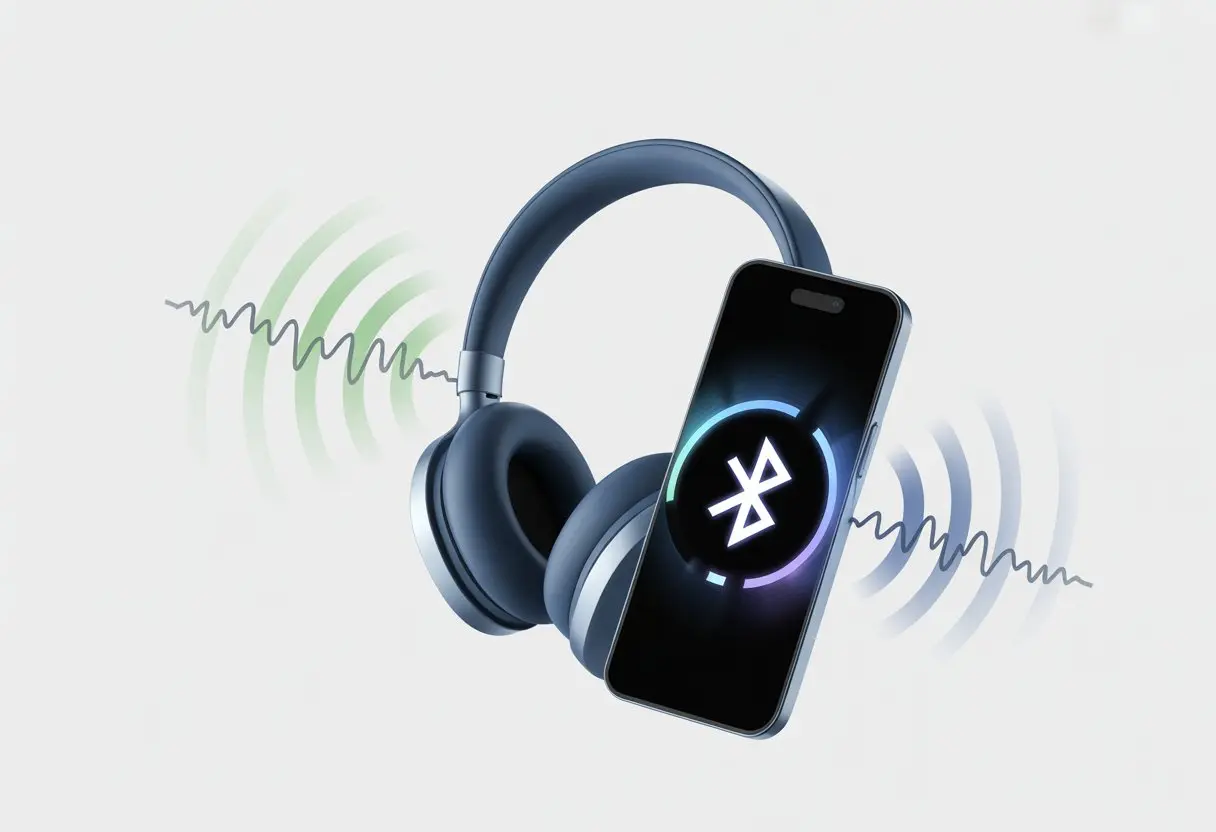
Honestly, sometimes our devices just want to cause drama. They get picky about battery, forget who they’re supposed to talk to, or try to find a better connection somewhere across the room.
If you’ve felt like your headphones are ghosting you, you’re not alone—so many people deal with this.
The good news? There are some simple reasons and even easier fixes.
Let’s dig into why our Bluetooth headphones act so flaky and what we can actually do about it.
Common Reasons Bluetooth Headphones Keep Pairing and Unpairing
Bluetooth headphones really do have a mind of their own sometimes. They connect, unpair, then reconnect, like they’re just trying to see how much patience we have.
Most of the time, it’s a few sneaky things like interference, settings, or just confused headphone memory causing the chaos.
Interference from Nearby Devices
Bluetooth gadgets love to gossip.
They’re always chatting across the air, but if too many devices talk at once, it gets messy fast.
If you’ve got a bunch of active gadgets nearby—phones, tablets, even a show-off smart fridge—your headphones might get confused.
Microwaves, Wi-Fi routers, and other wireless stuff can jump into the conversation too.
When there are too many signals flying around, headphones struggle to keep a steady connection.
Even walls and metal objects can mess with the signal, like a nosy roommate eavesdropping.
Here’s a quick list of usual suspects:
| Trouble-Maker | Example |
|---|---|
| Other Bluetooth devices | Speakers, keyboards, smart TVs |
| Wireless signals | Wi-Fi routers, microwaves |
| Physical barriers | Walls, metal desks |
So yeah, too many chatty devices or thick walls, and your headphones just want to bail.
Bluetooth Settings Gone Wild
Sometimes the Bluetooth settings on our phones or laptops act up for no reason.
Automatic power-saving might kick in, your device tries to pair with everything it can find, or some background app just messes things up.
If your device is set to turn off Bluetooth to save battery, the connection might drop out of nowhere.
Pairing to more than one device can make headphones bounce between them, not sure which one to stick with.
Let’s keep it simple and just check:
- Is Bluetooth actually staying on?
- Are we logged into more than one device at once?
- Is power-saving mode or airplane mode acting up?
Taming those settings can really save you from headphone drama.
Product Memory Mishaps
Sometimes headphones act like they can’t forget their ex-device.
Old pairing data gets stuck, making them try to connect to everything they’ve ever met.
If your headphones have old connections stored, they might get confused when new devices show up—leading to constant pairing and unpairing.
Resetting the headphones or clearing the pairing list usually fixes this and gives them a fresh start.
Most manuals show how to reset the memory, but if not, just holding the power and volume buttons together for a few seconds usually does it.
Now your headphones can finally move on and stay loyal.
Bluetooth Connection Stability Issues
Bluetooth headphones can really test your patience with random disconnects.
Connection problems often pop up because of weird stuff like your body blocking signals, headphones trying to save power, or the case acting up at the worst time.
Body-Block Interference Explained
Our bodies aren’t just for snacks—they’re also Bluetooth blockers.
If you put your phone in a pocket or hide it behind you, your body can actually weaken the signal.
Bluetooth works best with nothing big in the way.
Even turning your head or putting headphones behind your neck can make things choppy.
If your headphones keep disconnecting when you move, try holding the phone in your hand or moving it to the same side as your headphones.
Different gadgets, furniture, and even walls can add to the chaos.
Using headphones in a crowded gym or on the subway? Other signals can mess with Bluetooth too—interference is real.
Power Management Shenanigans
Bluetooth headphones always try to save battery.
When the battery drops, they start cutting corners to keep running.
They might randomly disconnect or just go to sleep while you’re listening to music.
That’s their power management system trying to help, but it usually just annoys us.
If this keeps happening, check if both your headphones and the device they’re paired to are charged up.
Some devices even lower the Bluetooth signal or turn it off to save power when the battery’s low—so charging up before using them can make a difference.
Computers often have settings in the Bluetooth menu or Device Manager to control these power management features.
Charging Case Conundrums
Charging cases are supposed to be safe havens for headphones, not troublemakers.
If your headphones don’t fit snugly in the case or you leave the lid open, the headphones get confused.
They might turn on and off, pairing and unpairing as they try to figure out, “Am I in the case or not?”
If you walk around with the case in your pocket and the lid pops open, the headphones might think it’s time to connect, then disconnect as soon as you close the lid.
Always put the headphones back in the case properly and keep the lid closed.
If things get really weird, a quick reset of the case and headphones can sometimes fix these charging case issues.
Sometimes, a little extra attention is all it takes to avoid a headphone identity crisis.
Device Compatibility and Pairing Problems
Bluetooth headphones sometimes act like they have their own agenda—connecting and disconnecting whenever they feel like it.
Usually, the problem comes down to our computers, the adapters they use, and the weird connections between devices that try to pair.
Windows Computer Woes
Bluetooth on Windows computers can be a real pain.
Headphones pair one minute and unpair the next.
One culprit is Windows’ obsession with “saving power.” Windows might turn off your Bluetooth radio whenever it feels like it, leaving you in silence.
To make things worse, Windows sometimes keeps old paired devices in memory, which causes confusion.
The computer might try to connect to the wrong headphones or juggle several devices at once.
Doing a quick settings check helps.
You can disable Bluetooth power-saving settings or use the Bluetooth troubleshooter to get things working again.
Bluetooth Adapter Antics
Let’s talk adapters.
That tiny dongle that connects your headphones to the computer can actually cause big headaches.
Not all adapters are created equal.
Some don’t support the latest Bluetooth standards, and others get lost on crowded USB hubs.
When your adapter can’t keep up, your headphones suffer.
Old or low-quality adapters might drop connections or refuse to pair.
It’s like trying to tune a radio with a bent antenna.
Look for adapters that support at least Bluetooth version 4.0 or higher.
If you keep disconnecting, try a different port or even a new adapter—it can save you a ton of frustration.
The Case of the Mismatched Paired Device
Nothing brings out the inner detective like a mismatched paired device.
If two devices have paired before, they might fight over who gets to connect next.
Maybe your phone keeps stealing the connection just when you want to listen on your computer.
Sometimes, too many devices are paired to your headphones at once.
Many headphones remember several devices, but they don’t always pick the right one.
Clear the list of paired devices on your headphones and start fresh to avoid mix-ups.
If things get desperate, unpair everything and just re-pair the devices you actually use.
This simple step can stop the pairing circus and bring back some peace.
Power Management and Energy-Saving Features
Bluetooth headphones might start pairing and unpairing because our computers or devices try a little too hard to save energy.
These settings can help, but sometimes they cut off Bluetooth at the worst possible moment.
Power Management Setting Mystery
Let’s be honest—our computers want to be the greenest things around.
But when the Bluetooth radio keeps shutting off, it’s just plain annoying.
Windows loves to “help” us save battery by disabling devices that seem unused, including our poor Bluetooth adapter.
This auto-sleep feature often kicks in while we’re streaming music or on a call, and suddenly—zap! Music gone, headphones unpaired.
Batteries might get a little break, but our patience definitely doesn’t.
To fix this, check settings in the Power Management tab.
Turning off the “Allow the computer to turn off this device to save power” box can stop the headphone disco.
More tips for fixing random Bluetooth disconnects can help you keep your chill.
Device Manager Disasters
Device Manager sounds fancy, but it’s easy to mess things up there.
This tool lets us control all our computer’s hardware settings, including Bluetooth.
One wrong click and suddenly, the headphones drop out like bad Wi-Fi at a crowded coffee shop.
Device Manager is also where you find that sneaky Power Management tab.
You have to right-click on the Bluetooth device, choose “Properties,” and click your way to the tab.
It’s like a little treasure hunt, except the prize is working headphones.
If you forget which Bluetooth device to change, you’ll be guessing for a while.
If you’re running Windows 11, the process hasn’t really changed and still throws surprise disconnects.
It helps to turn off any “power saving” boxes under every Bluetooth device, just to be safe.
If only there was a “Never Annoy Me Again” button!
Advanced Troubleshooting Steps
When Bluetooth headphones keep playing the pairing and unpairing game, it’s time to try something smarter.
These steps dig deeper and get us closer to a stable connection—without just turning things off and on a million times.
Service Your Product
Let’s be honest—sometimes, headphones just need a little love. Dust bunnies and weird crumbs sneak into charging ports or hide inside the ear cups.
I like to gently clean out any obvious debris and check for loose buttons or broken hinges. It’s not all about cleaning, though.
Firmware updates can fix bugs that cause those annoying disconnects. I usually head to the headphone maker’s website, grab the latest update, and follow their instructions—well, most of the time.
Some companies even offer diagnostic apps that run checks and suggest repairs. That’s pretty handy, honestly.
Sometimes, the problem isn’t on our end. If headphones keep disconnecting from every device, I just contact support or visit a service center. If the product’s under warranty, free fixes are always a win.
Resetting Bluetooth Settings Like a Pro
Here’s something I do when things get weird—a full reset. This usually solves issues like ghost pairings, corrupted settings, or devices not showing up.
Every headphone brand has its own reset trick, so I check the manual or the manufacturer’s site for the steps. Once I reset, I also give my phone or computer’s Bluetooth settings a fresh start.
I remove old pairings, reboot my device, and pair everything up again. That usually helps.
Power-saving features in Windows or other operating systems sometimes cause random disconnects. I turn those off in my Bluetooth settings if I can—headphones don’t need to nap every five minutes (by the way, this Reddit thread has more about that).
Selecting the Right Bluetooth Devices for Seamless Connection
Choosing the right Bluetooth gear saves so many headaches and random beeps in my ears. The right product means fewer dropped connections and smoother listening—even if I’m dancing around the house.
Choose the Best Select Products
When you’re picking out Bluetooth headphones, it’s smart to look for models with the latest Bluetooth version. Bluetooth 5.0 and up? That’s where you’ll find better range and faster pairing—way less hassle than those older models.
Nobody wants their music to cut out right in the middle of a song. Trust me, it’s annoying.
Check the specs before you buy. If your phone or laptop supports 5.0, your headphones should match.
Device compatibility really makes a difference for a smooth, stable connection. Seriously, Bluetooth troubleshooting tips can save you a headache.
Battery life? Huge deal. Headphones that die fast usually disconnect more often.
I always check online reviews to see which models have a good reputation. Bad headphones can ruin your playlist, and nobody wants that.
Here’s a quick table to compare some popular choices:
| Product | Bluetooth Version | Max Range | Battery Life | User Ratings |
|---|---|---|---|---|
| Headphone A | 5.2 | 10 meters | 30 hours | ★★★★☆ |
| Headphone B | 4.2 | 8 meters | 14 hours | ★★★☆☆ |
| Headphone C | 5.0 | 12 meters | 20 hours | ★★★★☆ |
Try testing different headphones with your own devices. Sometimes one brand just works better for you.
Honestly, there’s no shame in picking the headphones that don’t constantly drop your connection. Isn’t that what we’re all after?

From a young age, I have always had a big interest in technology, and this blog is an extension of that interest. Through this blog, I hope to provide others with all of the information they need regarding tech options to consider, and things such as compatibility. Some of the different items I will be discussing include headphones, smartwatches, and how to fix common issues.
- Why do my Bluetooth headphones not block outside sound? Sorry, They’re Not Mind Readers! - October 5, 2026
- How to Use a Smartwatch for Running Without Looking Like You’re Checking Your Stocks - October 4, 2026
- Best Bluetooth Headphones for Long Flights: Ears Happy, Neighbors Jealous - October 4, 2026
Related Posts: