We’ve all been there: you put on your Bluetooth headphones, press play, and get ready to enjoy your favorite playlist. Suddenly, silence. Why do these headphones betray us like this? Most of the time, Bluetooth headphones disconnect because of signal interference, low battery, being too far from your device, or even a sneaky software glitch.
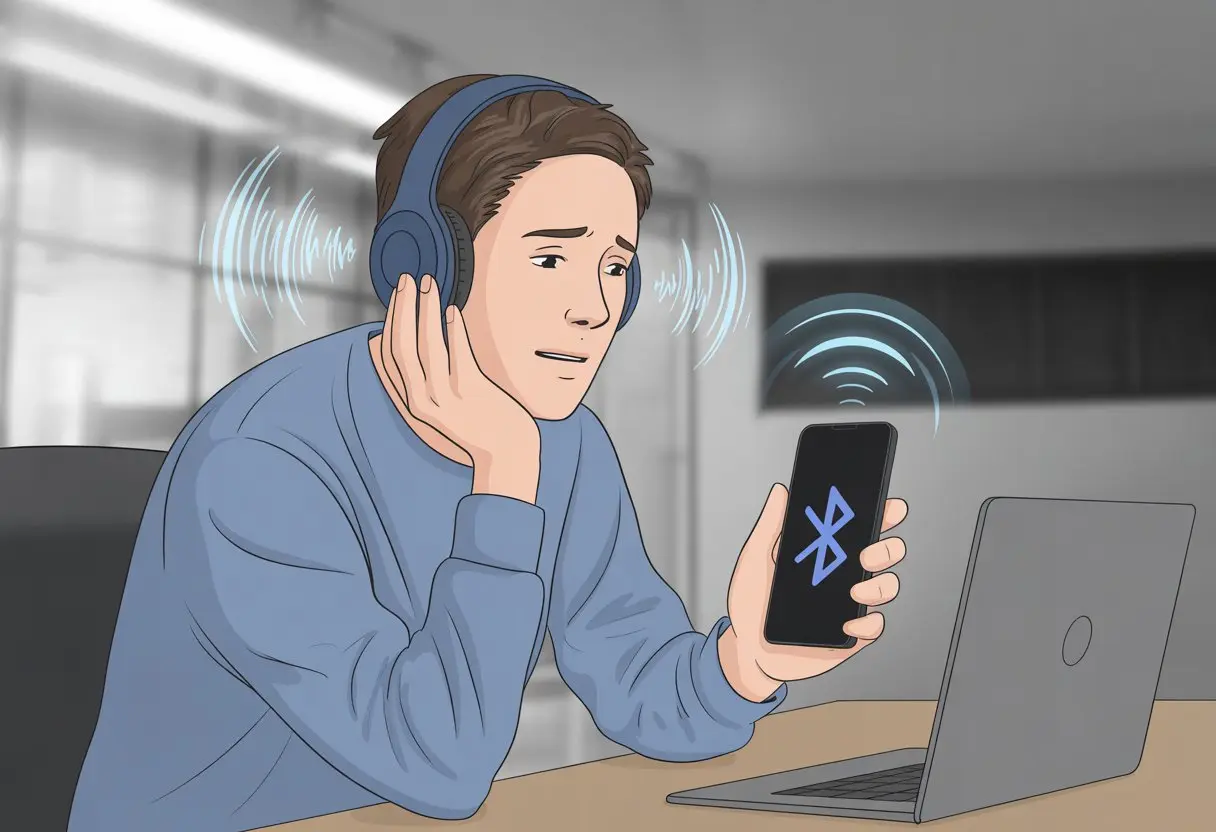
It almost feels like these headphones have a mind of their own. Sometimes, you wander too far away or there’s just too much electronic noise in the air.
Other times, the battery gives out right when the chorus hits. If you’re trying to figure out why your headphones keep dropping out and how to stop it from ruining your jam session, let’s dig in.
Common Reasons Bluetooth Headphones Keep Disconnecting
Right in the middle of your favorite song, the music cuts out. This isn’t just annoying; it makes you want to chuck your headphones straight into the junk drawer.
Let’s take a closer look at what’s actually causing Bluetooth headphones to keep leaving us in silence.
Interference From Other Electronics
Ever notice how headphones seem to cut out only when there are a dozen other gadgets nearby? Wi-Fi routers, microwaves, and even other Bluetooth devices often use the same frequencies as your headphones. It’s like a turf war in your living room.
The closer your Bluetooth headphones are to these electronic troublemakers, the more your music will stutter or stop. Try moving away from high-traffic electronic areas or turning off some devices to smooth things out.
“If it’s plugged in and blinking, it could be the culprit.” If you want more detail, check out this deep dive into interference from other electronics that make Bluetooth drop out.
Outdated Bluetooth Device Drivers
Let’s talk about outdated drivers. Sometimes, your headphones don’t hate you—they’re just trying to talk to your devices in a language nobody uses anymore.
Your laptop or phone runs on software that needs updates. When they fall behind, Bluetooth devices act like cranky grandparents refusing to understand the latest slang.
Fixing this is usually easier than you think. Head to your phone or computer’s settings and check for software updates.
If you’re using headphones with a computer and they keep disconnect, updating or reinstalling the Bluetooth driver may work wonders. Spending a few minutes updating can save you from hours of interrupted music.
Battery and Power Management Glitches
Batteries and power settings sometimes act like they have a mind of their own. A lot of Bluetooth headphones don’t give a proper low battery warning. Instead, they just drop the connection and move on.
Some headphones have quirky power management features that disconnect to “save energy,” but really, they’re just being lazy. Check that battery levels are above 20% before each use.
On computers, look for power-saving settings that might be overriding your connections—especially if your headphones disconnect when there’s silence. If all else fails and the headphones keep playing hard to get, try a full reset or even a battery replacement. For more on battery and power management headaches, check out these opinions.
Device Compatibility and Connection Issues
When Bluetooth headphones keep disconnecting, it feels like technology is playing a prank on us. Many problems come down to how your devices talk to each other—or how many gadgets you’re juggling at once.
Pairing Problems With Smartphones
Sometimes cell phones act like they’re too cool for your headphones. Older phones or those with an outdated Bluetooth version might not get along well with newer headphones, and this can cause them to disconnect more often than you’d like.
Pairing can also go sideways if you type in the wrong code or if your phone is still trying to flirt with other Bluetooth devices in the area. Some phones have weird power-saving settings that shut down Bluetooth to make the battery last longer, but then your music cuts out at the worst time.
You might notice that when nothing is playing, some smartphones pause the Bluetooth connection, only reconnecting when audio starts up again. That’s like leaving the room every time someone stops singing at karaoke—rude and confusing for everyone involved.
Keep your phone updated, check for software issues, and forget unused Bluetooth devices so they don’t try to join the party uninvited. For extra stubborn cases, resetting the network settings (not as dramatic as it sounds) sometimes fixes those connection mood swings.
Conflicts With Multiple Bluetooth Connections
Everything wants a Bluetooth invitation these days—watches, speakers, laptops, even smart fridges that want to DJ your kitchen. When you try connecting your headphones to a phone, a computer, and a tablet, sometimes none of them feel special, so the headphones just give up and disconnect.
Some Bluetooth headphones can only remember a couple of devices at once. If you try to connect too many, your headphones might play favorites or get confused.
This results in dropped connections, especially if another device is nearby and tries to steal the connection. Too much Bluetooth traffic is like everyone talking at once on a group call—nobody gets heard properly.
Sometimes, you forget that your headphones might auto-connect to the device you used earlier, even if that device is off in another room. If your phone and laptop are fighting for attention, turn off Bluetooth on everything except the one device you actually want to use.
If all else fails, put everything in airplane mode and enjoy the silence—for once, on purpose. For more details, check out this guide about conflicts with multiple Bluetooth connections.
Specific Devices: Laptops, Computers, and Game Systems
Bluetooth headphones seem to have a knack for disconnecting at the worst possible moments—right when the best part of a song is playing, or you’re about to win a big match. The real trick? It’s usually settings, background tasks, or Bluetooth interference unique to each device.
Windows Laptop Bluetooth Settings
On Windows laptops, the sneaky power-saving feature is the number one culprit. When headphones keep disconnecting, Windows might be trying to save battery by turning off the Bluetooth radio.
You can fix this by heading to Device Manager:
- Press Windows Key + X
- Choose Device Manager
- Find Bluetooth under “Bluetooth” or “Network Adapters”
- Right-click and press Properties
- Go to the Power Management tab
- Uncheck Allow the computer to turn off this device to save power
Windows laptops can also have connection issues if there are too many Bluetooth devices paired at the same time. Try removing unused connections and turn off any other Bluetooth gadgets you’re not using.
If things are still glitchy, try the Bluetooth troubleshooter in Windows Settings. You can read a helpful step-by-step fix here.
Bluetooth on macOS and Other Computers
When you use a Mac or other computers, Bluetooth settings are sometimes less obvious, but problems are just as real. Macs love to update their Bluetooth software, and sometimes your headphones forget how to “speak Mac.”
Removing the headphones from Bluetooth devices and re-pairing usually helps. Interference is another pain—keep Wi-Fi routers, microwaves, and other wireless stuff away from both the Mac and your headphones if possible.
Restarting both the Mac and the headphones works like magic more often than you’d care to admit. On Linux or other computers, you may need to update drivers using system tools. Not glamorous, but it usually does the trick.
Game Systems and Audio Dropouts
Game consoles like PlayStation, Xbox, and Nintendo Switch can be even more particular. Most don’t support Bluetooth headphones natively, especially for chat.
You’ll need USB dongles or adapters, which sometimes disconnect if bumped. Game systems focus most of their “Bluetooth energy” on controllers, not audio.
If you face constant audio dropouts, double-check that headphones and adapters are fully charged. Move any other wireless devices farther away.
For consoles, try wired connections for a more stable experience when Bluetooth is acting like a grumpy cat. If all else fails, try switching audio output inside settings until the next round of Bluetooth shenanigans.
Phone Platforms: Android Devices vs iPhone
When Bluetooth headphones start dropping out, the problem can depend a lot on which phone platform you’re using. Both Android and iPhone users run into disconnect issues, but the reasons and fixes can be wildly different.
Android-Specific Bluetooth Quirks
Android devices seem to love giving us a wide variety of weird Bluetooth moments. Phones sometimes lock headphones into “call mode,” which means you only hear phone call audio and no music—basically turning your fancy headphones into glorified walkie talkies.
This happens because some Androids just love to prioritize call functions—definitely not what you want when jamming out.
Common Issues on Android:
- Headphones randomly disconnect and reconnect.
- Audio switches to mono or drops completely.
- Certain apps can take over Bluetooth settings, causing chaos.
A simple fix is to reset the Bluetooth connection or unpair and re-pair the headphones. Sometimes, rebooting the phone helps.
If all else fails, toggling airplane mode off and on is the ancient-and-honored Android cure. For particularly stubborn situations, a full phone restart—or threatening your phone with a return to the store—could do the trick.
If your Bluetooth worries only appear when streaming, interference from wifi or nearby gadgets may be to blame. More tips about Android headaches can be found from others who face the same issues.
iPhone Bluetooth Headache Remedies
iPhone users aren’t immune to the Bluetooth blues, and honestly, plenty of us feel especially betrayed when Apple’s famous “just works” philosophy takes a vacation. A common culprit is iOS updates—suddenly, things that paired fine last week start disconnecting every five minutes, or the sound cuts out as soon as you step three feet from the phone.
Top iPhone Problems:
- Headphones randomly disconnect, especially after updates.
- Sound drops when multiple Bluetooth devices are nearby.
- Connection gets flaky while streaming music.
Luckily, there are some tricks. Turning Bluetooth off and back on, forgetting the problem device, and then reconnecting can do wonders.
Keeping your phone and headphones close together helps since iPhone Bluetooth is easily upset by physical obstacles or interference, like the microwave or even a particularly nosy neighbor’s router. Firmware updates for headphones and the iPhone itself often help.
Apple Support has suggestions for fixing iPhone Bluetooth disconnects and managing interference. Sometimes, all you really need is patience—and maybe a snack—while the update installs.
Troubleshooting Steps and Fixes
When Bluetooth headphones start acting up and disconnecting, there are a few ways to bring them back to life. Resetting, updating, and fiddling with settings usually help—or at least save us from hurling them across the room.
Resetting Bluetooth Headphones
Resetting is basically the IT classic—turn it off, then on again—but for Bluetooth headphones, it works wonders. This step wipes out old connections and clears up those weird glitches that make us want to scream.
The reset process changes depending on the model, but it often looks like this:
- Turn off the headphones.
- Hold down the power or multi-function button for about 10 seconds.
- Wait for a light to flash (usually red and blue) or a chime.
Don’t forget to forget the device (not emotionally, just in the Bluetooth settings!) on your phone or computer, then re-pair. If you keep bouncing on and off connections for no obvious reason, this step can really help. Some headphones even have a tiny reset pinhole. If you spot one, grab a paperclip and poke gently—no need to go full Hulk.
If your headphones still disconnect after a reset, it’s probably a deeper issue. Honestly, sometimes hardware just wants to keep us on our toes.
Update Software and Firmware
Updates aren’t just annoying pop-ups—they’re actually useful. Both your headphones and the device you connect to need the latest software and firmware updates.
On your computer or phone:
- Check for system updates in settings.
- Install any Bluetooth driver updates you find.
For the headphones:
- Go to the manufacturer’s app or website (because, yeah, there’s always an app).
- Follow the instructions for downloading and installing firmware updates.
Updates squash bugs and make things run smoother. If you ignore them, you might end up with compatibility issues and more Bluetooth drama. That “update available” message? It might actually be your ticket to a peaceful, uninterrupted playlist.
Tweaking Device Manager Settings
Here’s where you get a little technical—don’t worry, nothing too wild. On Windows, open the Device Manager (press the Windows key, type “Device Manager,” and click what pops up).
In the list:
- Find Bluetooth adapters and right-click to update drivers.
- Under Power Management in the Bluetooth adapter’s properties, disable “Allow the computer to turn off this device to save power.” This sneaky setting can cause random disconnects when your computer decides headphones use too much juice.
If you’ve paired more than one Bluetooth device, turning off Bluetooth on the extras can help, since some headphones love to play favorites. For more ideas, check out this troubleshooting guide for Bluetooth device headaches.
Honestly, poking around in Device Manager isn’t always thrilling, but sometimes that’s all it takes to give your headphones another shot.
Preventing Future Bluetooth Disconnects
We’ve all felt the sting of losing our favorite song right in the middle of a jam, thanks to a dropped Bluetooth connection. The upside? A few small habits can keep the music going without those annoying interruptions.
Keeping Devices Close and Uncluttered
Let’s be real—sometimes our headphones lose their signal like a toddler wandering off in a store. Bluetooth devices really hate long distances. Keep your headphones and the device they’re paired with closer than your favorite snacks. A Bluetooth signal gets weak if there’s a wall, furniture, or even a mountain of laundry in the way.
Bluetooth also isn’t a fan of crowded spaces. Other electronics—like microwaves, smart speakers, or competing Bluetooth gadgets—love to mess things up. Too many connections at once can break up your wireless duet, making headphones disconnect or reconnect at random. If you want a stronger Bluetooth connection, use your headphones in open spaces and turn off any extra gadgets or Bluetooth features you’re not using.
Try not to pair your headphones with multiple devices at once. If your headphones are juggling between your phone, tablet, laptop, and maybe even your smart fridge, it’s no surprise they keep dropping out. Keeping it simple helps your headphones stay loyal to the right device—yours.
Regular Maintenance for Headphones
We all need a bath now and then, right? Well, our headphones deserve a regular refresh too.
First off, keep them charged. If you’ve ever noticed Bluetooth headphones acting up on low battery, you know they can get weird—almost like teenagers, randomly disconnecting just for the drama.
Just plug them in until they’re fully charged. That simple habit saves a ton of headaches before they even start.
Don’t skip updates, either. Manufacturers push out firmware updates to fix bugs, boost battery life, or help your headphones get along with new phones and computers.
It’s worth checking the brand’s app or website for updates every now and then. Outdated software can make headphones act like they’re stuck in 2015, and nobody wants that.
Still having disconnect issues? Try unpairing and re-pairing your headphones and device. Honestly, it’s like couples therapy for electronics.
A fresh connection often clears up leftover problems from old pairings. And hey, if you’re still stuck, reaching out to product support makes way more sense than tossing your headphones in frustration.
We paid good money for those tunes, after all.

From a young age, I have always had a big interest in technology, and this blog is an extension of that interest. Through this blog, I hope to provide others with all of the information they need regarding tech options to consider, and things such as compatibility. Some of the different items I will be discussing include headphones, smartwatches, and how to fix common issues.
- Best Fitness Trackers for HIIT Workouts: Outrun Your Excuses, Not Just Your Heart Rate - August 24, 2026
- How to Use a Fitness Tracker for Digital Payments Without Breaking a Sweat - August 24, 2026
- Best Smartwatches for Tracking Kids’ Locations: Because Hide and Seek Just Got Serious - August 23, 2026
Related Posts: