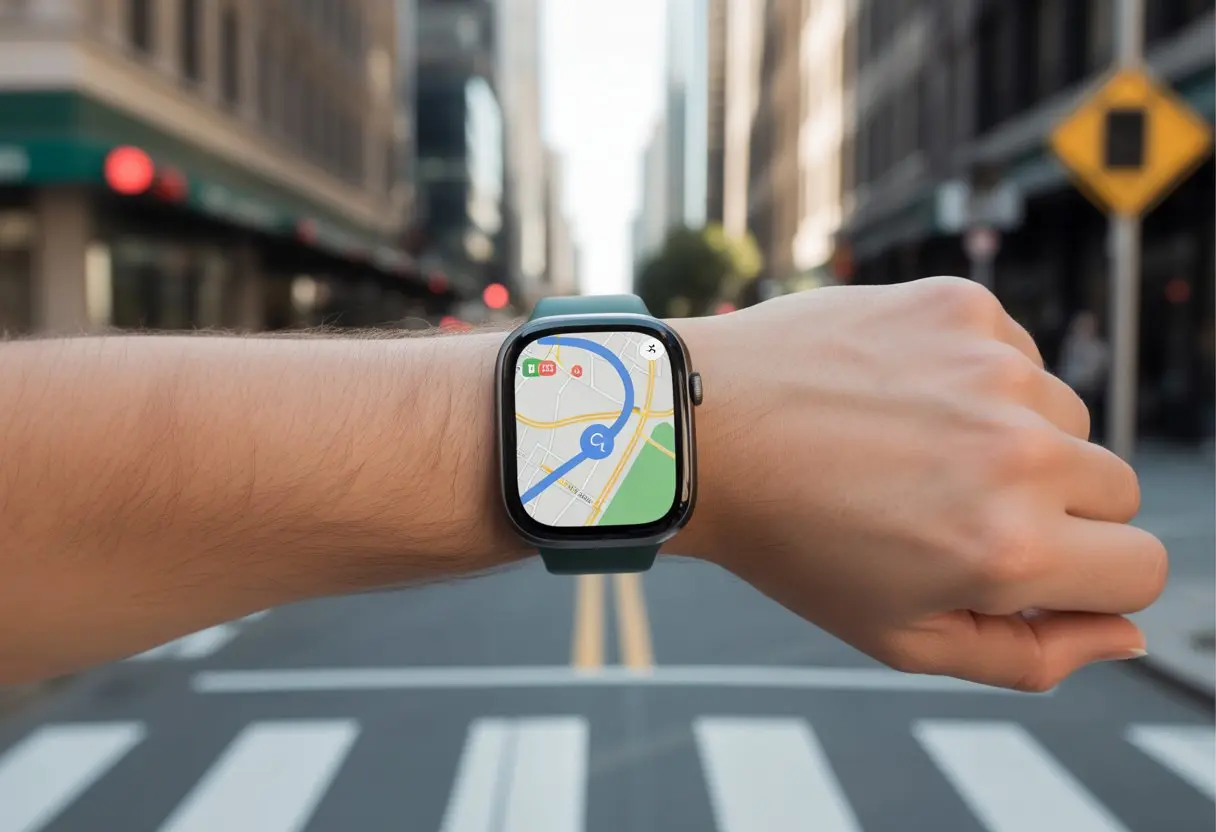
Ever tried wandering through the city with your phone glued to your palm, tripping over nothing, and somehow still missing your turn? Same here. That’s why I love having my smartwatch and Google Maps—suddenly, I’m not the lost tourist dodging lampposts. Google Maps on my smartwatch gives me step-by-step directions right on my wrist, so my hands stay free and my dignity mostly survives.
Pairing up a smartwatch with Google Maps is honestly pretty simple. I don’t have to dig through pockets or fake confidence when I’m obviously lost at a busy crosswalk.
This setup lets me just glance down and follow directions like a secret agent—minus the theme music and with much better accuracy. If you want to start navigating like you know what you’re doing, let’s get into it.
No more getting stranded with a dead phone or stepping into puddles because I’m glued to that blue dot. Let’s see how a smartwatch can make using Google Maps way easier (and maybe save a pair of shoes).
Getting Started With Google Maps on Your Smartwatch
It’s never been easier to get lost and—thankfully—find your way again, all from your wrist. Let’s check which watches work, how to install Maps, and what pairing steps you’ll need.
Compatibility: Supported Smartwatches and Operating Systems
Before heading out, make sure your gear is ready. You’ll need a smartwatch running Wear OS, like Google’s Pixel Watch 2, the upcoming Pixel Watch 3, or a Samsung Galaxy Watch with Wear OS.
Apple Watches can’t join this Google Maps party—they’re stuck with Apple Maps.
Wear OS smartwatches need version 2.0 or higher for Google Maps. The Android phone you pair with should run Android 8.0 or newer.
Some features only work on newer watches or certain brands, so keep that in mind.
Here’s a quick table for reference:
Smartwatch
Compatible with Google Maps?
Pixel Watch 2, 3
Yes
Galaxy Watch (Wear OS)
Yes
Fossil Gen 5, 6
Yes
Apple Watch
No
Installing the Google Maps App on Your Smartwatch
Time for the app install. Most Wear OS watches come with Maps pre-installed, but if it’s missing, you can grab it from the Google Play Store right on your watch.
Turn on your watch and swipe to the apps menu.
Open the Play Store app.
Search for “Google Maps.”
Tap Install if you don’t see it already.
Check permissions too—Maps needs location access, or you’ll be wandering aimlessly. Grant that, and you’re set.
Setting Up Pairing Between Smartphone and Smartwatch
Pairing is where some folks get tripped up, but it’s not so bad. Your smartwatch and Android phone need a solid connection, like peanut butter and jelly.
For Wear OS 3 and above, set up the connection using the watch’s setup process and your Google Account.
Steps:
On your phone, turn on Bluetooth.
Open the Wear OS app (unless your watch says you don’t need it—newer models sometimes skip this).
Follow the pairing instructions.
Keep the devices close together for fewer headaches.
Once paired, navigation syncs between your phone and smartwatch. Start navigation on your phone, and the directions appear on your wrist—no magic needed.
Using Google Maps for Navigation on Your Smartwatch
With a smartwatch, you can leave your phone in your pocket and still get step-by-step help from Google Maps. Navigation feels simpler, your hands stay free, and you look a lot cooler glancing at your wrist.
Launching Google Maps Navigation
Wake up your smartwatch and open the Google Maps app. If you’re on Wear OS or a Samsung Galaxy Watch with Wear OS, just find the Maps icon and tap.
For recent locations, Maps makes it easy. You can pick places you’ve searched for before or punch in a new destination.
Type it in or just speak—it’s up to you.
If you want, you can sync directions from your phone to your watch, saving you a few precious seconds. Samsung has a helpful guide if you need it.
Getting Directions Right on Your Wrist
Now things get fun. The watch screen shows a simple map, so you can see your route at a glance.
If you started navigation on your phone, the destination pops up on your watch—no extra steps.
Directions show up as easy-to-read steps. You see the distance to the next turn, street names, and your estimated arrival time.
The map rotates to show which way you’re facing, so you don’t end up walking the wrong direction.
If you make a wrong turn, the map updates quickly so you don’t wander off course. For more details, check out Android Police.
Turn-By-Turn Navigation With Vibrations and Notifications
Directions don’t just stay on the screen—they buzz your wrist with gentle vibrations and notifications.
When a turn or exit comes up, your watch buzzes, so you won’t miss it even if you’re daydreaming.
Each step appears as a notification with the turn and street name, making it hard to get lost unless you’re really trying.
If you get rerouted, the smartwatch updates quickly, and the buzzing keeps you on track.
Some watches even change the vibration pattern for different turns or alerts. That means you don’t have to look down every time—the buzz tells you what’s up.
You might find yourself walking with a little more confidence, letting Google Maps handle the tricky parts.
Advanced Features and Tips for Seamless Navigation
Let’s be real—getting lost isn’t as fun as it sounds. Google Maps on your smartwatch unlocks some handy tools that make navigation smoother.
You can use your voice as your new copilot and check out the traffic before you even leave.
Using Voice Commands with Google Maps
Typing on a tiny screen is a pain, so just talk to your watch. With Wear OS, you can start routes, search for places, or even change your destination—all hands-free.
How it works:
Wake up the watch with “Hey Google” or hold the side button.
Say things like “Navigate to home,” “Find coffee shops nearby,” or “Show walking directions.”
The app kicks in, keeps your phone pocketed, and saves you from awkward typos.
This is a huge time-saver when you’re juggling groceries, walking the dog, or just don’t want to poke at a screen. It’s also a lot less weird than yelling at your phone in public.
You don’t have to trust that friend who “knows all the shortcuts.” Google Maps on your smartwatch brings live traffic updates right to your wrist.
Your watch shows if a road is jammed or clear—helping you dodge traffic jams.
Here’s what you get:
Color-coded traffic (red, orange, green) for quick info.
Alerts for heavy traffic, accidents, or slowdowns while you’re on your route.
Reroute from the navigation app if your path turns into a parking lot.
This is super useful if you’re trying to get somewhere on time—like catching a movie or making happy hour. Traffic data pops up automatically, so you won’t have to tap around or risk missing a turn.
WiFi and LTE always seem to disappear at the worst times. Google Maps has an “offline mode” for those moments when your smartwatch turns into a digital paperweight.
Setting Up and Using Offline Mode
To avoid yelling at your wrist, set up offline maps before you head out. On most Wear OS smartwatches, open the Google Maps app and find the Offline maps section in the menu.
Here’s how:
Tap Offline maps in the menu.
Pick an area you need (home, work, or that taco spot).
Download the map.
Once you do this, your smartwatch stores the map data locally. No WiFi, no LTE, no worries.
As long as you stay inside the saved map area, navigation works as usual—directions, street names, and all.
With offline maps ready, you can walk, ride, or even rollerblade wherever you want—no signal anxiety required.
Unique Features on Pixel Watch and Galaxy Watch
Using Google Maps on a Pixel Watch or Galaxy Watch feels like strapping a tiny, surprisingly polite GPS to your wrist. Each model shows off its own smart tricks, but honestly, not every watch plays by the same rules.
Exclusive Google Maps Features on Pixel Watch 2 & 3
Google Maps on the Pixel Watch 2 or Pixel Watch 3? It’s almost like magic. Both watches give us turn-by-turn navigation with just a quick flick—no more awkwardly stopping to check our phones.
We see route previews, step-by-step directions, and even get haptic nudges, so we can literally “feel” when a turn is coming up. It’s subtle, but it works.
If we’ve got our phone nearby, the watch and phone team up for directions. But with LTE on the newer Pixel Watches, you can ditch the phone and still get where you’re going.
We can launch Google Maps directly from the app menu, search for places using our voice, and check Trip Progress so we always know how far we are from our next snack stop.
On the Galaxy Watch, Google Maps jumps in with its own style. The app usually comes pre-installed, so we just tap and go.
Voice commands work smoothly here too. We can say, “Take me to the nearest pizza,” and Maps gets right to it.
Galaxy Watch stands out with its integration with Samsung Health. We can check our steps and see our location at the same time, which honestly makes those walks a bit more interesting.
Text-to-speech is a handy touch—if we forget our glasses (again), the watch just reads the directions out loud. That’s a relief.
For anyone who likes more options, Samsung’s Galaxy Watch lets us view alternate routes and estimated arrival times, all on our wrist.
Galaxy Watch Highlights:
Tightly integrated voice navigation
Text-to-speech for spoken directions
Health app step count while navigating
View alternate routes and ETAs
Using the Google Maps Beta Program for Smartwatch Pioneers
Ever wish you could mess around with Google Maps features on your smartwatch before everyone else? That’s what the beta program is all about.
We get to poke at new stuff early—sometimes it’s awesome, sometimes it’s hilariously buggy. Honestly, it feels like we’re Google’s guinea pigs, but for navigation, not snacks.
So, how do you actually join?
Open the Google Maps page in the Play Store on your phone.
Scroll down and tap Become a beta tester.
Update Google Maps, wait for approval, and keep an eye out for the “Beta” label.
Here’s a quick table for reference:
Step
What To Do
1
Open Google Maps in Play Store
2
Find and tap “Become a beta tester”
3
Wait, then update the app
When we join, we sometimes get features like offline maps on our smartwatch before anyone else. That’s pretty cool, even if it means dealing with the occasional weird glitch or unfinished menu. News about new features pops up online a lot, and sometimes we’ll see them before the official rollout—like offline Google Maps for Wear OS.
Beta apps can be a bit wild, though. If your smartwatch suddenly acts haunted, don’t panic. It’s just the price we pay for being ahead of the curve.
Hi, my name is Garrett Jones, and I am a tech enthusiast. I enjoy researching the new tech that has been released, and have a vast knowledge of the best tech to purchase.
From a young age, I have always had a big interest in technology, and this blog is an extension of that interest. Through this blog, I hope to provide others with all of the information they need regarding tech options to consider, and things such as compatibility. Some of the different items I will be discussing include headphones, smartwatches, and how to fix common issues.