You know the feeling—your fitness tracker works perfectly one day, then suddenly, it just won’t connect to your computer. Bluetooth’s on, cables are in, and still, nothing. Usually, a fitness tracker won’t connect because Bluetooth is weak, apps are outdated, software is being moody, or a USB port just isn’t feeling it. Modern tech, right?
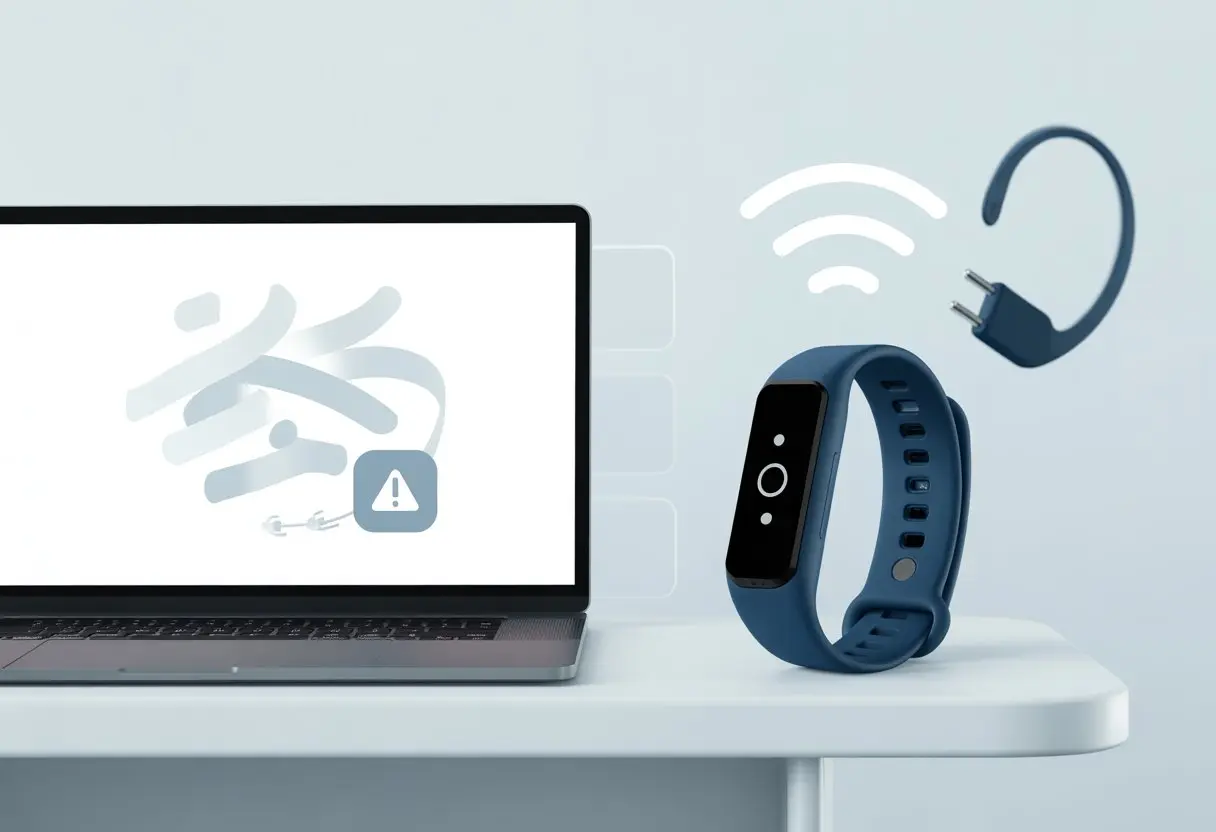
Honestly, syncing steps shouldn’t require a computer science degree, but sometimes it feels that way. Fitbit and other trackers can get grumpy with computers, especially after a big update.
If you think your device is ghosting you, you’re not alone. We totally get it, and we’ve seen what actually works (and what’s a waste of time) when things stop syncing.
Let’s dig into why our fitness trackers act up and how we can get them back on speaking terms with our computers. Maybe we’ll fix it before the coffee gets cold.
Common Reasons Your Fitness Tracker Won’t Connect
Before you start blaming the computer or tossing your tracker out the window, let’s check out some real problems that actually have solutions. Most of the time, it’s something small—Bluetooth, USB cables, or maybe your Wi-Fi acting up.
Bluetooth Issues
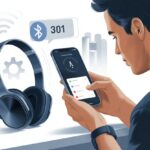
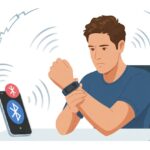
Bluetooth has a knack for making us sweat, just like a tough workout. Sometimes, trackers like Fitbit or Apple Watch just refuse to talk to the computer or phone because Bluetooth is off or not working right.
First, check if Bluetooth is on. If the tracker doesn’t show up, try turning Bluetooth off and on again.
Gadgets sometimes need a little nudge. Also, keep an eye out for other wireless devices that could mess with your signal.
Pairing problems crop up if your tracker is already connected to something else, like an old phone you forgot about. Unpair and try again. When nothing’s working, restart everything—trackers, phones, and maybe yourself with another coffee.
USB Cable Troubles
USB cables can be sneaky troublemakers. If syncing over a cable gets you nowhere, check if it’s fully plugged in.
Test the cable with something else. Does it work, or is it just taking up space?
Some computers just don’t like certain USB ports or hubs. Plug the tracker straight into the computer—skip the hubs and extensions.
On Windows, Garmin Express sometimes only recognizes a tracker with a direct port. Swapping cables can be a lifesaver.
If your tracker still won’t connect by USB, make sure you’ve got the right apps or drivers running and up to date. That “device not recognized” message shouldn’t be your new wallpaper.
Wi-Fi and Router Problems
Wi-Fi can be even moodier than Bluetooth. Some trackers need a good internet connection to sync data or update.
Connection errors over Wi-Fi? Try restarting your router. Sometimes that’s all it takes.
If your tracker syncs over Wi-Fi, make sure it’s allowed on your network. Privacy settings can block it from talking to your computer or phone.
Keep your devices close to the router—walls and furniture love to block signals.
And double-check that your phone or computer is actually online. It’s not fair to blame the tracker if your Wi-Fi is the real culprit.
For more help, check device-specific guides like these troubleshooting tips from InsideTracker.
Device Compatibility and Requirements
We all want our fitness trackers and computers to just get along. But sometimes, basic things like compatibility or software versions trip us up before we even break a sweat.
Checking System Compatibility
First things first—does your tracker even speak the same language as your computer? Not every device likes to play nice.
Some newer trackers, especially certain Fitbits, don’t work with computers anymore. They’re all about syncing with smartphones and tablets now.
If you’ve got an older model, it might still connect. Most recent trackers want a mobile device.
Here’s a quick checklist:
- Check the official website for your device to see if computer sync is supported.
- See if the tracker uses Bluetooth or needs a USB dongle (sometimes hiding in the box).
- Using a Fitbit? Know that PC compatibility is gone for some models. You can dig into more details in this Windows PC compatible fitness trackers discussion.
Most of the time, Android and iOS (even iPad on iOS 16) have better luck with wireless syncing. Computers are kind of left behind.
Supported Operating Systems
Let’s talk operating systems. Your tracker’s app is picky—it wants the right dance partner.
Most fitness apps, like Strava, Google Fit, Samsung Health, and the Fitbit app, need a recent iOS or Android version.
For computers, Windows 10 and 11 are pretty much your only options. Even then, support can just disappear.
A tracker that still connects usually wants your computer fully updated. On iOS, you’ll need iOS 16 or later for the newest app features. (Weirdly, iPads don’t always get every fitness app.)
Here’s a quick table for popular platforms:
| Device/OS | App Example | Compatible? |
|---|---|---|
| Windows 10/11 PC | Fitbit App | Limited*** |
| Android Phone/Tablets | Google Fit | Yes |
| iOS (iOS 16+) | Fitbit App | Yes |
| iPad (iPadOS 16+) | Strava | Usually |
***Fitbit PC support is basically extinct—most new Fitbits only sync with phones or tablets.
Fitness App Updates
Even if your device and computer are on speaking terms, outdated apps can ruin everything.
App developers love to push updates that break old syncing methods or only work with the newest systems.
To dodge frustration, always keep the Fitbit app, Google Fit, Strava, or Samsung Health up to date. Skip an update, and suddenly your tracker is stuck in limbo.
Most apps on iOS and Android update automatically, but it’s worth checking the App Store or Google Play, especially after a big iOS update like iOS 16.
If things still aren’t working, uninstall and reinstall the app. Sometimes, you need a fresh start to get your step data back.
Some fitness trackers also need new drivers on Windows PCs, and Windows doesn’t always install them for you.
Initial Setup Steps You Might Have Missed
Connecting your fitness tracker can sometimes feel like setting up a spaceship with missing instructions. Usually, it’s just a few simple steps—pairing the tracker right or actually adding it in the app.
Even experienced step counters miss these.
Pairing Your Fitness Tracker Correctly
Bluetooth is unpredictable, right? If you skip the fine print, your tracker becomes a fancy bracelet and nothing more.
First, open your computer’s Bluetooth settings and make sure Bluetooth is actually on. If it’s off, your tracker will just sit there, waiting for a connection.
Put your fitness tracker into pairing mode. Sometimes, you have to hold down a button or tap a tiny screen until you see flashing lights.
If you can’t figure out pairing mode, check the manual. Don’t be shy.
Make sure your tracker isn’t already paired with another device, like your phone. Removing old connections from Bluetooth settings can help.
Adding the Device in the App
Now that your tracker is visible, actually add it in the app. It’s easy to miss this step if you assume “the tech will figure it out.”
Usually, you open the fitness tracker app and look for “Add Device” or “Set Up New Device.”
Quick checklist:
- Open the app (make sure it’s updated).
- Find the “Add Device” button—it might be hiding.
- Pick your tracker from the list.
- Follow the instructions. Sometimes you’ll need to confirm a code or press a button.
Most apps also ask for permission to track fitness data so they can sync your steps. It’s easy to skip, but the app usually reminds you.
If you’re still stuck, check out official guides like Apple’s support page about managing Health data. Saves a lot of frustration.
Are we done yet? If not, at least you burned a few calories setting it up.
Troubleshooting Connection Failures
When your fitness tracker digs in its heels, it’s tempting to blame the computer. But most connection problems have a fix—sometimes you just need a few tricks, a little patience, and maybe a muttered curse or two.
Restarting and Resetting Devices
Sometimes, all you need is a restart.
Restart both your computer and fitness tracker before anything else. Rebooting forces cranky devices to reload their settings.
If things still act up, try a full reset. On trackers like the Apple Watch, unpair and pair again to fix stubborn connections or a fitness app that won’t work.
Some devices let you reset calibration data too, which can clear up sync issues.
Back up your data before any deep reset. Losing workout history is almost as bad as accidentally liking an old ex’s photo.
Checking Charging and Data Cables
Nothing ruins a sync faster than a bad cable.
Always use the original charging cable—cheap replacements can be trouble.
Check both ends for dust, bent pins, or obvious damage. If you can, try a different cable.
Some trackers (like Garmin) need a real data connection, not just power. If your computer won’t recognize the device, the problem might be a bad USB port or cable.
Turn off USB hubs and plug the cable directly into the computer. Sometimes, the shortest path really is the best one.
Reinstalling the Fitness App
Every now and then, our fitness app just stops cooperating. If restarting doesn’t help, it might be time to delete and reinstall the app on your computer or phone.
Apps get buggy after updates or when files go haywire. Reinstalling gives us the latest version and can clear up those weird connection errors.
This trick also helps if our Garmin or Fitbit activities refuse to upload, or if the fitness app just isn’t working.
Before you remove the app, make sure you know your logins. We’re trying to fix stuff, not create a password headache.
Deleting and Re-adding Devices
When nothing else works, removing the fitness tracker from the app or system and adding it back can do wonders. It’s like telling your devices, “Let’s just start over, okay?”
Head into the app or Bluetooth settings and take the tracker off the list of recognized devices. Restart both your computer and the tracker, then pair them again like it’s their first meeting.
This approach often sorts out Bluetooth and Wi-Fi glitches, especially if you keep seeing failed syncs or the app just won’t see your device. For step-by-step help, most brands have official troubleshooting steps to walk you through the process.
And hey, don’t forget to watch for that “connected” notification—sometimes that’s the best part of the whole ordeal.
Data Sync and Transfer Issues
Fitness trackers are great at counting every step, heartbeat, and snooze, but sharing that data with your computer? Not always so smooth.
Sometimes syncing turns into a staring contest with a spinning wheel. Or your hard-earned stats just vanish, like socks in the laundry.
Syncing Fitness Data Manually
We want our devices to sync data easily, but let’s be real, it rarely goes that way. When your tracker refuses to connect, try forcing a manual sync.
Most tracker apps hide a “Sync Now” or “Refresh” button somewhere. Give it a tap and see what happens.
If your gadget’s still stubborn, try unplugging and replugging it. Sometimes, closing and reopening the app or restarting your computer gives things a kick.
And yes, have you tried turning it off and on again? USB ports can be moody, so switch ports or swap cables if nothing else works.
If you’re still stuck, update the tracker’s app or firmware. Some trackers only let you transfer a set number of days’ data, so check if you’ve hit a limit, like in this Apple device syncing discussion.
Handling Heart Rate and Sleep Data
Heart rate and sleep data can be shy about moving from tracker to computer. They don’t always transfer with the rest of your fitness info, especially if app sync settings are weird.
Often, missing heart rate or sleep info comes down to permissions. Make sure your app can access all the data from your device.
If things still look empty, check which accounts and services you’ve linked. Some trackers use third-party services for transferring health or sleep data, and if even one connection is off, important stats can disappear.
Uninstalling and reinstalling the fitness app can sometimes force stubborn data to appear, as mentioned for Health & Fitness apps.
Troubles With Workout Data
Let’s be honest—we sweat for those workout stats, so when a hard-earned 5K disappears, it’s just plain frustrating.
Workout data is tricky. Sometimes only part of the workout syncs, or the data changes format between tracker and computer, leaving us with a “workout” that’s just a warmup.
One big issue is converting data formats between apps and computers. Some apps only sync workouts through certain backup methods—like local backup instead of cloud sync, especially for Apple devices.
Check which method your tracker uses—using the wrong transfer channel just leads to endless circles.
If your data’s still missing, check app settings for filters. Sometimes workouts don’t show up because the app only displays recent sessions or certain types.
Double-check paired devices to make sure everything matches, and review permissions if you need to. If all else fails, take a snack break—this could take a bit.
When to Seek Help From the Pros
Sometimes we follow every guide, check every setting, and still our fitness tracker acts like it’s on vacation.
When you’ve tried everything and nothing works, it’s probably time to let the pros flex their muscles.
Contacting Support or Using JustAnswer
We all want to feel like tech wizards, right? Still, let’s be honest—sometimes even the best of us just have to wave the white flag.
If our tracker refuses to connect, reaching out to official support makes sense. Most brands offer help lines, live chat, or even community forums where real people are ready to help us out of a syncing mess.
If you’re not in the mood for hold music (who ever is?), services like JustAnswer can connect you with experts any time. Just describe what’s going on, and a real person jumps in to help—no magic tricks involved.
Sometimes, a little professional advice is all it takes to keep us from threatening our tracker with a hammer.

From a young age, I have always had a big interest in technology, and this blog is an extension of that interest. Through this blog, I hope to provide others with all of the information they need regarding tech options to consider, and things such as compatibility. Some of the different items I will be discussing include headphones, smartwatches, and how to fix common issues.
- How to Use Bluetooth Headphones with Alexa Without Accidentally Calling Your Ex - March 30, 2026
- How to Use Bluetooth Headphones with a Camera So You Don’t Trip Over Cables (Again) - March 29, 2026
- Best Bluetooth Headphones for Audiobook Lovers: Hear Every Plot Twist Without Tangled Wires - March 28, 2026
Related Posts: