Ever feel like your fitness tracker app just deletes your steps for fun? One day your walk is logged, the next—poof—like you never moved at all.
Sometimes it seems like your phone and watch are running a secret prank show.
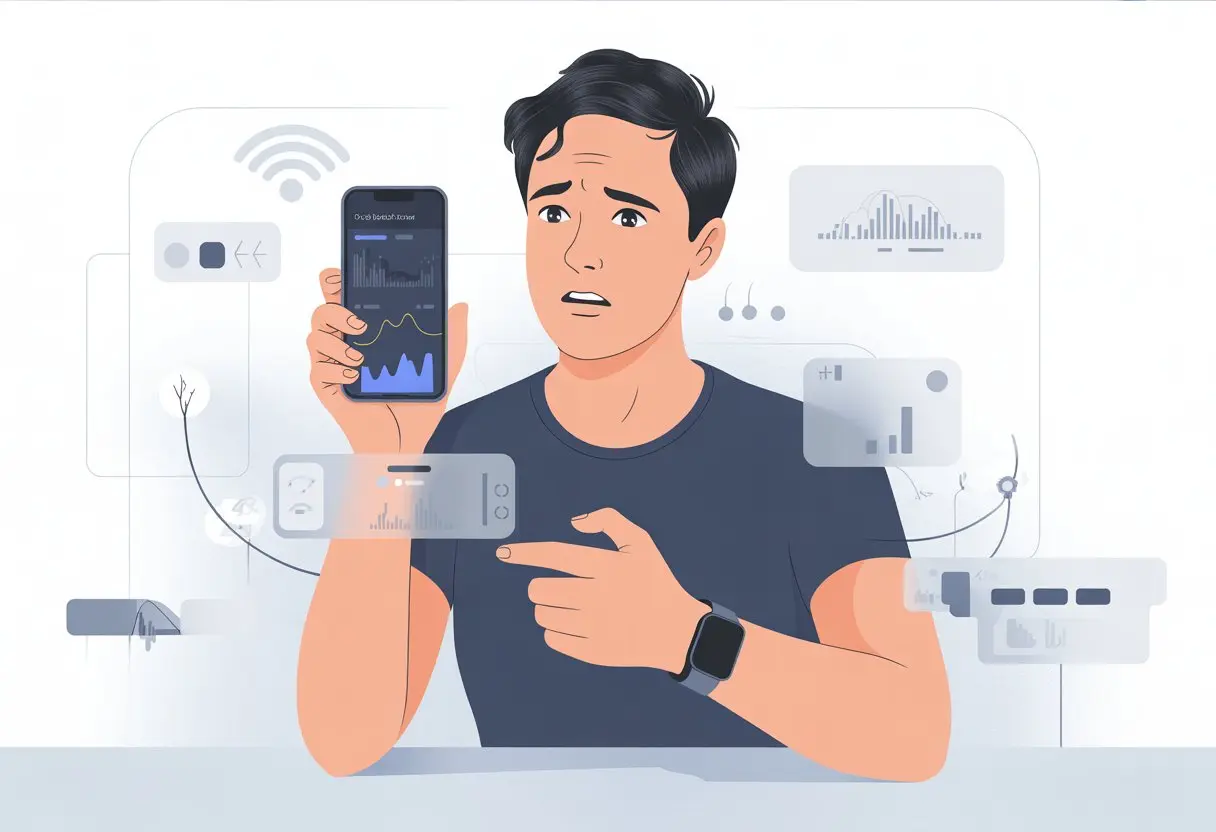
Most fitness tracker apps lose data because of syncing problems, app bugs, device restarts, or network issues. If your data disappears after logging in or updating, you’re definitely not alone.
Plenty of people have watched their exercise streaks, step counts, or even calorie tracking vanish into thin air. Sometimes restarting the app helps. (A dramatic phone shake? Not so much.) But usually, the real culprits are things like connectivity hiccups or iCloud settings issues—just ask anyone struggling with Apple Fitness or MyFitnessPal.
Let’s poke at why this keeps happening and, honestly, how to avoid re-logging every meal and walk like you’re stuck in a fitness-themed Groundhog Day.
Common Reasons Your Fitness Tracker App Keeps Losing Data
When your fitness tracker app loses data, you know something’s up. Usually, it’s a syncing fail, a connection drop, or your app just decides to quit at the worst time.
Let’s break down where things usually go off the rails.
Syncing Mishaps
Syncing acts like a handshake between your fitness tracker and the app. If they don’t greet each other, your data never shows up.
This happens a lot if you forget to open the app after a workout or if the app is snoozing in the background.
Your tracker often needs the internet to send that sweaty run from the device to the cloud and then into the app. No Wi-Fi? No data.
It’s also easy to get tripped up if you’re signed into the wrong account. Nobody wants to send their steps into the void.
On Android and iOS devices, a quick app refresh or restart can work wonders for syncing issues. Even the mighty Apple Watch sometimes needs a nudge if it’s being stubborn.
If sync is still broken, check if both your app and phone software are up to date. Some apps just hate outdated systems.
For more tips, there’s a helpful thread on syncing issues at Apple’s communities.
Connection Issues Between Devices
If your devices aren’t talking, your apps won’t either. When the Bluetooth link between your fitness tracker and phone drops, your workout basically vanishes—as far as the app cares.
This especially stings if you use something like the Apple Watch. If it disconnects from your iPhone or Android, there goes your morning walk.
Sometimes it’s as simple as leaving Bluetooth off or wandering too far from your phone.
To avoid these mini heartbreaks, keep your tracker and phone charged, close, and with Bluetooth on. Restarting both can sometimes restore the connection.
If that fails, try unpairing and then re-pairing the tracker with your phone. It’s like relationship therapy for your gadgets.
Accidental App Closures or Crashes
Fitness apps, much like us on a Monday, sometimes crash out of nowhere. If the app closes while it’s syncing or recording, your data could just disappear.
Sometimes you swipe the app away without thinking, or you’ve got too many apps running and your device’s memory just gives up. The fitness app might quietly shut down before it saves your latest stats.
If this keeps happening, try updating or reinstalling the app.
Many apps suggest logging workouts right away and keeping the app open until syncing finishes. If your app keeps freezing after updates, sometimes waiting for another update or rolling back can help.
If you’re still stuck, forums like Apple Communities or app-specific boards can be lifesavers.
Device Compatibility: The Clash of the Tech Titans
Fitness trackers and apps don’t always play nice together. Sometimes your model, OS, or just weird manufacturer quirks throw your data into chaos.
iPhone and Apple Watch Pairing Problems
Ever stand there with your Apple Watch and iPhone, silently begging them to cooperate? Sometimes they just won’t sync, and you end up sweating more over the tech than your workout.
Here’s what usually goes wrong:
- Bluetooth drops: The sneaky culprit that disconnects the Apple Watch from your iPhone, so data never syncs.
- Outdated iOS or watchOS: If you’re not running the latest update, that “seamless” experience gets pretty rough.
- Unpairing/re-pairing drama: Sometimes you have to unpair your Apple Watch. But if you do, you risk losing anything that didn’t sync.
Best advice? Make sure both your iPhone and Apple Watch have enough battery and the latest updates. Sometimes you just have to grit your teeth and do the unpair-repair dance.
Android Compatibility Woes
Android users, let’s be honest—we get our own special headaches. Unlike Apple’s “one-size-fits-all,” Android devices are all over the place.
Fitness tracker apps might not work with every Android phone. Some older models just aren’t supported, and sometimes an app disappears from the Play Store with a cold note like, “App no longer compatible with my device.”
Here’s what usually causes trouble:
- Fragmented updates: Android updates roll out differently for every brand and model, so your device might not match what the app wants.
- Battery optimization: Background activity gets shut down, and your apps nap instead of track.
- Play Store access: Some devices lose access to certain apps, even if you paid for them.
Best move? Check for app and phone updates, and always double-check your tracker’s compatibility list. There’s nothing worse than losing a week of steps because your phone and app are arguing.
Settings That Sabotage Your Step Count
Sometimes it’s not a glitch—it’s just your settings getting in the way. The wrong toggles or missed options can make your fancy fitness tracker about as helpful as a pedometer in the laundry.
Privacy Settings That Hide Your Data
We all like our privacy, but sometimes we get a little too enthusiastic. Our fitness apps can end up locking away our step data like it’s top secret.
On iPhones, if you turn off Motion & Fitness or deny health data sharing, your steps can vanish from the charts. In the name of privacy, you might block the very permissions that let apps count your steps.
It’s worth double-checking these settings. On Apple devices, head to Settings > Privacy > Motion & Fitness and make sure Fitness Tracking and Health are switched on.
Otherwise, your most active days might look suspiciously lazy. Android users should check their app permissions for any step or health tracking apps.
If your step counts have gone into hiding, your privacy settings might be the culprit. More tips pop up in this Apple Communities discussion.
Low Power Mode Fails
Low power mode sounds smart—until it puts your activity tracking to bed, too. When your phone or watch goes into battery-saving mode, step tracking is usually one of the first things to stop.
You might walk circles around the house, thinking you’re racking up steps, while your tracker is basically napping. Some apps even pause background data updates, so your steps aren’t logged in real time, and syncing can get delayed or go missing.
To avoid this, check if your device’s low power mode is on when you’re moving around. Turn it off, or make sure your fitness app is allowed to run in the background.
Otherwise, you’re just wearing a shiny bracelet.
Notifications Gone Missing
Don’t ignore notifications—they’re more than just background noise. Notifications often alert you to connection issues or when your fitness tracker needs attention.
Some apps even warn you if tracking isn’t enabled or if there’s a sync problem. If you silence or turn off notifications, you might miss these helpful nudges.
Then, if syncing fails or permissions get denied, you won’t know until you check your data and find a big empty spot.
Letting key notifications through is almost as important as lacing up your sneakers. Double-check your notification settings in both the app and your phone so you’re not missing out.
When it comes to step counts, a quick ping can save you a lot of digital disappointment.
Fitness App Not Working: Troubleshooting the Best Drama
Sometimes your fitness tracker just acts up and leaves you scratching your head. Before you panic and blame your step count on lazy tech, try a few quick fixes.
Let’s get hands-on and give your app the attention it’s clearly begging for.
Restart iPhone for Maximum Magic
It’s wild how many problems you can fix by just turning things off and on again. When your fitness app isn’t working right, a simple iPhone restart can clear up random glitches.
Think of it as a gentle nudge—“Hey, get back to work.”
Here’s what to do:
- Hold the power button until the “slide to power off” bar appears.
- Swipe and let the phone shut down.
- Turn it back on after about 10 seconds.
This little trick can kickstart stubborn syncing and even make missing data reappear. If your data still isn’t showing up, force quit both the Fitness and Health apps and reopen them.
Plenty of users say this helps with weird bugs (check out the Apple Community for Fitness App issues).
Reinstall Fitness App (Launch It Like New!)
Sometimes an app just needs a full reset. If restarting didn’t fix it, delete and reinstall the fitness app to wipe away whatever’s lurking behind the scenes.
It’s kind of like sweeping under the rug—except you’re tossing the rug, too.
Here’s how:
- Delete the fitness app by long pressing its icon and choosing ‘Remove App’.
- Open the App Store, search for the Fitness app, and download it again.
- Sign back in and sync with Apple Health to see if the issues are gone.
This move can unblock stuck data, reconnect your app with your devices, and bring back those missing records.
If you use an Apple Watch, you can reinstall the Workout app separately through the Watch App Store. Loads of folks in the Reddit Apple Watch community have found this helpful for stubborn syncing.
Backup and Restore Health Data
Let’s be real—nobody wants to lose their hard-earned health stats. When our fitness app glitches or keeps dropping data, backing up and restoring our health info gives us a little peace of mind.
It’s not glamorous, but it means we’re ready for whatever tech throws at us.
Here’s the quick scoop:
- If we’ve turned on Health data backups, iCloud saves our health data.
- To double-check, just go to Settings > [your name] > iCloud > Health and make sure it’s switched on.
If things go sideways, we can restore our health data after reinstalling apps, setting up a new device, or even after a dramatic system meltdown.
Backing up keeps our hard-earned numbers safe. If the app messes up, we just restore and move along like nothing happened.
For more backup and troubleshooting info, you might want to check Tenorshare’s guide.
Data Sync and Transfer: Where Steps Go to Disappear
Fitness trackers are great—until our steps start playing hide and seek. One minute we’re Olympic-level, the next, we’re at zero and wondering if our cat’s sabotaging us.
Troubleshooting Sync Failures
Syncing never seems as smooth as we hope. Sometimes, our fitness apps lose data overnight, and we start doubting if we ever took those steps at all.
Restarting the app or device often works. For stubborn cases, clearing the app’s cache or force stopping it might help recover those missing steps.
User forums often suggest going to Settings > Apps for a quick reset, especially on Android devices like Google Fit.
Don’t forget permissions. Double-check that Apple Health or your health app can access activity data—it can make all the difference.
And hey, make sure you’re on a decent Wi-Fi connection; nothing syncs right over that sketchy coffee shop network.
Common Troubleshooting Steps Table
| Step | What to Do |
|---|---|
| Restart Devices | Turn off and on your phone and watch |
| Clear Cache | Go to Settings > Apps > Your App > Clear Cache |
| Check Permissions | Open Health App > Settings > Permissions |
| Reconnect Wi-Fi/Bluetooth | Toggle connections off then on |
Transferring Data Between Devices Without the Tears
Switching phones or fitness watches sounds fun until your step count disappears. If you want to avoid starting from scratch, you’ll need to plan ahead.
Before switching, log out and back in on your old device and sync with the cloud or your account backup.
For Apple Health and other health apps, back up your data to iCloud or Google Drive. Only after that should you set up the new device.
If you skip this, your historical workout data might be gone for good, unless you want to follow support pages at 2 AM—like in this workout data transfer guide.
Use the app’s built-in “sync” or “restore data” feature when you can. Some apps take a day or two to catch up; sometimes servers are just slow.
Fitness Calibration Data: The Secret Sauce to Accurate Tracking
Let’s face it—without good calibration, our trackers have about as much accuracy as a toddler with a crayon. Getting our tracker’s calibration right is key if we want to trust those steps, calories burned, or heart rate numbers.
If things get weird, we can reset and help our trackers get smarter again.
Reset Fitness Calibration Data for a Fresh Start
Sometimes, our trackers think we’re running marathons when we’re just walking to the fridge. That’s when it’s time to reset our fitness calibration data.
Resetting calibration wipes out the old info the tracker used to guess our stride, movement, and pace. It won’t erase our workout history or badges.
We just give the device a blank slate for steps, distance, and calories. On most devices, like Apple Watch, we do this in the Watch app on our phone—go to Privacy and tap “Reset Fitness Calibration Data” (see step-by-step at Apple Support).
After resetting, our tracker might seem confused at first. That’s normal—it needs time and movement to adjust.
The more we use it after a reset, especially for walks and runs outside, the more accurate it gets.
Improve Fitness Calibration for Better Results
Good calibration takes some effort. To help our trackers, we need to give them quality data.
Wear the tracker snugly—not too tight, but enough to keep the heart rate sensor close to our skin. If it’s sliding around, it might mistake our pulse for something else.
Take it out for regular walks or runs, preferably outdoors where GPS can help. Many trackers use this early data to measure stride length and match steps to distance.
The more consistent we are, the faster it learns.
Here’s a quick checklist for better calibration:
- Walk or run outdoors: Open sky helps GPS.
- Allow time: Several workouts sharpen accuracy.
- Keep sensors clean and dry: Sweat or grime can mess with readings.
- Check pulse during workouts: Make sure it matches how hard your heart feels like it’s working.
With these tips, our trackers stop calling dog-walking a triathlon—and we can actually trust those numbers.
System Errors and How to Win Against Them
Sometimes our fitness tracker app just forgets what it’s doing, like a dog chasing a squirrel. System errors or app glitches can cause this, but we don’t need to be tech experts to fix most of them.
Standard Repair Techniques
Let’s start simple. When our app loses data, force quitting both the fitness and health apps usually helps. It’s like telling them to take a break and try again.
After force quitting, open them up fresh and see if the glitch is gone.
Next, restart your phone or smartwatch. Sometimes, a simple restart gives everything a clean slate.
If you’re feeling ambitious, log out and back in. Poor syncing can cause mismatched data, especially if what you see online doesn’t match your device.
If restarting doesn’t help, try updating your app or check for a new iOS update.
These steps fix most problems for both techies and folks who still call IT “the help desk.” You’ll find more quick tips from Apple community forums.
Deep Repair and Downloading Firmware
But what if your tracker is still being stubborn? Sometimes, deeper problems need more than the basics.
That’s when we bring in the “big guns” like TunesKit iOS System Recovery, which handles system-level errors.
With apps like TunesKit, we can run a system repair that digs into the device’s software, not just the app. It checks and fixes core system issues that might be ruining our fitness data.
This step won’t delete your phone data, but it might download fresh firmware—think of it like giving your old car a new engine.
Always back up your data before deep repair. Losing a week’s worth of steps is a special kind of pain.
For more on system repair tools and firmware, check this fitness app problems guide.
When All Else Fails: Unusual Fixes and Where to Find Them
Not every fitness app disaster has an easy solution, and sometimes even the savviest users need a weird trick or a helping hand.
Let’s talk about those last-ditch moves that might save your data (and your sanity).
Reach Out to Support (Or JustAnswer!)
When we’ve restarted, reinstalled, and even muttered threats at our phones, it’s probably time to get help.
Most fitness app companies have a support team—they’ve seen everything from lost steps to missing workout streaks.
Usually, we’ll find “Contact Support” in the app’s settings. If not, try the company’s site for chat or email help.
Support teams sometimes pull off miracles, like restoring lost data or pushing out fixes. If that doesn’t work, we can turn to outside help.
Websites like JustAnswer let us post our problems and get expert advice, sometimes within minutes. It’s like having a tech wizard on call—no coffee bribes required.
A lot of users swap survival tips on community forums and Reddit threads. We’re never really alone in the fight with missing health data.
For those who’ve really hit the wall, these places can be a goldmine of weird but true fixes, like what to do if your fitness and health data suddenly vanishes.
Update via App Store or Software Updates
If your hard-earned fitness achievements keep vanishing, it’s probably time to check for updates. Sometimes a bug just zaps your data, and developers rush out a fix before you can even finish grumbling.
Open up the App Store, type in your fitness app’s name, and hit “Update” if you see it waiting there.
Operating system updates—like iOS or Android—can stir up trouble too if you ignore them. Updating your phone might fix issues your fitness app alone can’t handle.
If your fitness data disappeared right after a system update, the app’s support page might have a patch or at least a suggestion. For example, after an iOS update caused fitness data to vanish, a bunch of users got it back just by checking for more updates or following support steps.
When nothing else works, you might need to try something weird, like signing out and back in, or even deleting and reinstalling the app. Just back up anything you care about first—unless you’re ready to start that fitness streak over and pretend it’s all part of the plan.

From a young age, I have always had a big interest in technology, and this blog is an extension of that interest. Through this blog, I hope to provide others with all of the information they need regarding tech options to consider, and things such as compatibility. Some of the different items I will be discussing include headphones, smartwatches, and how to fix common issues.
- How to Use Bluetooth Headphones with Alexa Without Accidentally Calling Your Ex - March 30, 2026
- How to Use Bluetooth Headphones with a Camera So You Don’t Trip Over Cables (Again) - March 29, 2026
- Best Bluetooth Headphones for Audiobook Lovers: Hear Every Plot Twist Without Tangled Wires - March 28, 2026
Related Posts: