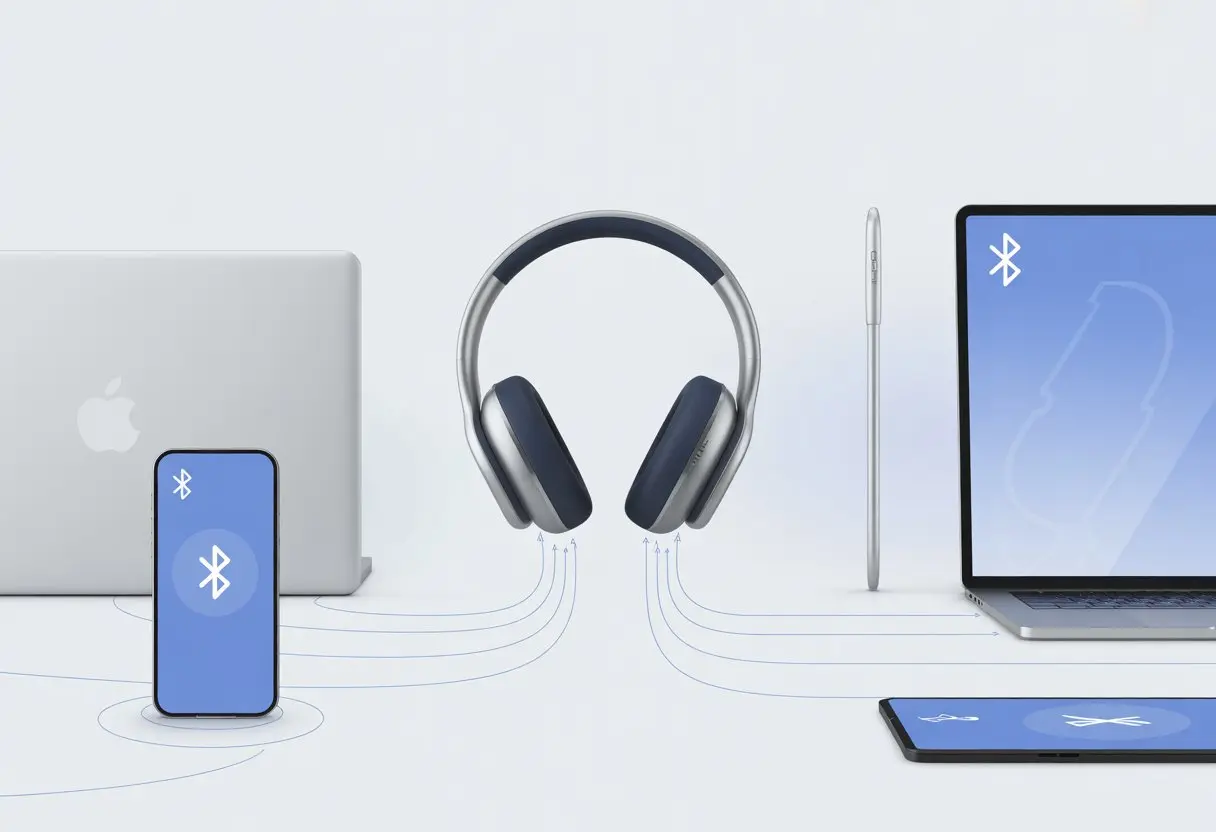
Let’s be honest—most of us use Bluetooth headphones with more than one gadget. We bounce from watching videos on a laptop to answering calls on a phone, maybe sneaking in some music along the way.
Here’s the good part: most modern Bluetooth headphones can connect to two or more devices at once, thanks to a feature called multipoint (no magic spells needed).
But before we all start swapping connections like wild, let’s get real. Not all headphones support this, and sometimes we have to dig through Bluetooth settings like digital archaeologists.
Ever wanted to answer a call without taking off your headphones? Or tired of constantly disconnecting and reconnecting every time you switch devices?
You’re in the right place. Let’s turn headphone headaches into smooth, wire-free multitasking. The possibilities are actually pretty cool!
Understanding Bluetooth Headphones and Multipoint Pairing
Switching Bluetooth headphones from a laptop to a phone and back can feel like playing a game where nobody explained the rules. Multipoint pairing swoops in to save us from endless menus and button mashing.
Let’s talk about what this tech really does, which headphones support it, and why it sometimes gets confused—just like we do.
What Is Multipoint and Why Does It Matter?
Multipoint lets us connect our headphones to more than one device at once. No wizardry here—just modern tech that works (well, most of the time).
We don’t have to keep disconnecting and reconnecting Bluetooth every time the boss calls during a YouTube binge.
With multipoint, we can listen to music from a laptop and still get alerts from a phone. If a call comes in, our music pauses so we can answer right away.
That way, we look like pros—even if we’re just watching cat videos.
Setup is usually quick. Some brands want us to use their app, check a setting, or follow a few steps.
Supported Devices and Common Compatibility Questions
Not every Bluetooth headphone comes with multipoint. It’s not personal—it’s just a hardware and software thing.
High-end brands like Sony and Bose usually include the feature, while budget models might skip it. Before we brag to friends, we should check if our headphones list “multipoint” in the specs.
Multipoint usually means we can pair with two devices, like a laptop and a phone. Sometimes the limit is just one, and very rarely, headphones can juggle three.
We should look for clear labels in the product info or just ask the manufacturer if multipoint is a must-have. For tricky cases, support pages like this Skullcandy multipoint pairing guide can save us from yelling at our gadgets.
Operating system compatibility matters too. Some headphones only multitask between two phones, or between a laptop and phone that both use certain Bluetooth versions.
Double-check before buying, especially if we mix brands.
Benefits and Limitations of Multiple Connections
Multipoint Bluetooth makes our lives easier. We can watch movies on the tablet and catch calls from the phone without switching earbuds.
Perfect for busy workdays, lazy weekends, or those times when we can’t remember which device is playing which sound.
But let’s not get carried away. Multipoint isn’t perfect. Sometimes notifications or calls might not come through if one device hogs the connection.
Audio quality can drop or lag a bit when both devices compete for attention. Some headphones make us disconnect one device before adding another, which makes us wonder if tech is just trolling us.
When multipoint works, it feels smooth and clever. When it glitches, we find ourselves pressing buttons and making faces.
Still, most people find multipoint genuinely helpful day-to-day. If you want more details, here’s a good explanation of how Bluetooth multipoint works.
Preparing for the Pairing Process
Before we try to connect Bluetooth headphones to every gadget in the house, let’s check a few things. Having the right devices, getting headphones ready, and gathering all our tech nearby will save us from button-mashing and confused looks.
Checking Device Compatibility
Let’s be real—Bluetooth headphones can’t magically bond with every device like best friends at summer camp. Some headphones have multipoint, letting us connect to two or more devices at once. Others only connect to one.
We should check the manual or the manufacturer’s website. Usually, it’ll say if they support Bluetooth multipoint or only allow one device at a time.
It also helps to check the Bluetooth version. Older devices might not play nice with newer headphones.
Here’s a quick checklist:
Do our headphones support multipoint?
Is the phone, laptop, or tablet Bluetooth-enabled?
Are all our devices charged? (Dead batteries are the worst.)
If one gadget isn’t compatible, we’ll have to alternate connections or maybe look for different headphones. Some headphones can switch between a computer and a phone, while others can’t.
Activating Pairing Mode on Headphones
Every headphone has its own “secret handshake” for pairing mode. Most of the time, we hold the power button for a few seconds until a little LED blinks or a voice says, “Pairing.”
Some headphones have a special Bluetooth button, and others want us to tap and press in a specific way—almost like a video game cheat code.
Check the manual for the magic combo if you’re unsure.
Once in pairing mode, our headphones should pop up on the Bluetooth list of nearby devices. On some models, like Sony’s, we might need to use the app and enable Connect to 2 devices for multipoint.
If nothing shows up, a quick reset often helps.
Gathering Your Gadgets: Phones, Laptops, and More
Let’s round up our digital herd. Phones, laptops, tablets, and even smart TVs can all be Bluetooth buddies.
The key: have every device powered up, unlocked, and nearby—Bluetooth isn’t shy, but it doesn’t do long-distance.
Best to turn on Bluetooth on each device before starting. On Windows, click the Bluetooth icon by the clock; on phones, swipe into settings and flip on Bluetooth.
If a gadget is hiding, check under the couch cushions—but maybe skip the fridge.
Pro tip: Name your devices clearly (“Jenny’s Laptop” beats “DESKTOP-123XYZ”) so you don’t accidentally pair with the neighbor’s blender.
Switching between devices gets way less confusing—and maybe even fun.
Pairing Bluetooth Headphones with the First Device
Before our headphones can come to life, let’s make sure our phone, tablet, or computer is ready for some wireless fun. It’s all about finding the right menu, clicking the right buttons, and making sure our headphones aren’t hiding in “stealth mode.”
Accessing Bluetooth Settings
Finding the Bluetooth settings on a device can sometimes feel like a treasure hunt. But we’ve got this.
On most phones and tablets, swipe down from the top and tap the Bluetooth icon. On a computer, find it in the system tray or under Settings > Devices.
If we get lost, searching “Bluetooth” in the settings search bar usually does the trick.
Android devices might say “Connected devices” or “Bluetooth.” Apple users can find it under “Settings” then “Bluetooth.”
Whatever the system, make sure Bluetooth is actually switched on. Otherwise, nothing happens and we’ll just be waiting.
Connecting Your Headphones
Now for the real pairing magic. Put your Bluetooth headphones into pairing mode. Usually, this means holding the power or pairing button for a few seconds.
Some models give us a flashing light or a voice prompt.
Once in pairing mode, our headphones should appear on the device’s list of available devices. Tap or click the headphone name, and if luck’s on our side, we’ll get a notification or a happy beep when the connection works.
If there’s a passcode, it’s almost always “0000” or “1234.” Check the manual if things get weird.
After that, we’re wirelessly connected—no tangled cords, just pure, unfiltered freedom.
Pairing with Additional Devices (Without Losing Your Mind)
Pairing Bluetooth headphones with more than one gadget can feel like juggling flaming bowling pins. Staying sane means knowing the steps and having backup plans for when things get weird.
Ensuring Headphones Are in Pairing Mode Again
Before new devices can join our exclusive Bluetooth club, we need to put our headphones in pairing mode—again. Usually, we turn the headset off, then press and hold the pairing or power button for several seconds.
Sony and other brands usually need about seven seconds of holding down the button until we hear a beep or see a flashing LED.
For the adventurous, there’s always the “look for a blue and red blinking light” method.
Multipoint headphones make this much easier by supporting multiple connections at once. If our headphones don’t have multipoint, we’ll need to switch between devices manually by disconnecting from one and pairing with the next.
It’s a dance, but at least nobody’s judging us if we fumble the Bluetooth settings. For a closer look at handling multipoint, check out these tips on setup.
Troubleshooting Common Pairing Pitfalls
Let’s be honest—we’ll probably hit a wall at some point. If our headset refuses to connect, it might already be paired to another device and holding onto that connection for dear life.
The classic fix? Sweat a little, then manually disconnect from the “jealous” device before starting fresh with a new one.
Typical issues: the device not appearing in the Bluetooth menu, “connection failed” errors, or both gadgets just refusing to play nice.
In these cases, forgetting the headset on all current devices and re-pairing one at a time usually works wonders.
If that doesn’t work, restarting the Bluetooth device or toggling airplane mode can help reset stubborn connections.
When we’re about to throw the headset out the window, it’s usually something simple—like the headphones not being in pairing mode at all.
Switching Seamlessly Between Devices
Let’s be real—everyone’s had that moment when their Bluetooth headphones just refuse to let go of the wrong device. Figuring out how to handle both automatic and manual switching can make a huge difference, especially when you’ve got laptops, tablets, and phones all fighting for headphone time.
Switching Audio Sources Effortlessly
Switching audio between Bluetooth devices might seem like magic, but there’s actually a trick to it. Lots of new headphones support Bluetooth multi-point. That means you can connect to two devices at once. No kidding! Maybe you’re playing music on your laptop, but you still want to catch calls from your phone.
Some headphone brands make multi-point switching super easy. On models from Sony and Bose, you just turn on multi-point in their app or settings. If you like step-by-step help, check out this guide on setting up Bluetooth multipoint. The best part? You can pause a video on your computer and grab a call on your phone, all without digging into annoying Bluetooth menus.
Here’s a quick table to keep things straight:
Task
What to Do
Take a Call
If your phone rings, audio jumps to it while you’re connected to both devices.
Resume Music
Hit play on the device you want—audio should follow.
Trouble Switching
Open the headphone app and check that multi-point is on.
Understanding Automatic versus Manual Switching
Bluetooth headphones aren’t mind readers—sometimes they need a little push. You’ll usually find two ways to switch: automatic and manual. With multi-point on, automatic switching kicks in. If you’re watching a cat video on your tablet and your phone rings, the audio should jump to the call. Some headphones pull this off pretty well, though there’s always one that just won’t cooperate.
For headphones that don’t switch automatically, you’ll need to do it yourself. Pause the audio on one device, press play on the other, or use the app to pick the device you want. Sometimes you’ll have to disconnect from one device or toggle Bluetooth off and on to make it work. If you want more hands-on instructions, this guide on switching Bluetooth headphones is handy.
Not all headphones work the same way. If yours gives you both options, it’s usually easiest to keep multi-point on—unless you’re in the mood for a tech puzzle.
Special Features and Helpful Apps
Pairing Bluetooth headphones with more than one device can feel like solving a puzzle. Thankfully, special apps and advanced settings are here to make the process less confusing—and, honestly, a bit more fun.
Using Product-Specific Apps Like Bose Connect
Ever get the feeling your headphones are hiding secrets? Enter the Bose Connect app and similar tools. These apps are built for specific brands, so they know all the ins and outs.
With Bose Connect, you can juggle multiple device connections and switch between them way faster than your pet can ignore you at dinnertime. The app’s interface lets you connect new devices, see what’s attached, and swap with a tap.
Usually, you’ll find:
A dashboard showing all your linked devices
Quick switching options
Firmware updates to keep your headphones in top shape
Tips and troubleshooting right in the app
Sony and JBL have their own versions, too. It’s kind of like every company has a secret clubhouse, but at least you get an invite.
Advanced Settings and Customization Options
Let’s get a little nerdy—there are advanced settings hiding in your phone’s Bluetooth menus. Some phones, especially Samsung and certain Androids, offer Dual Audio settings that let you send sound to two Bluetooth headphones at once.
You can often rename devices, set priorities, or pick which device your headphones automatically connect to. If that’s not enough, third-party apps on both iOS and Android help you manage connections, troubleshoot, and even monitor your headphones in real time.
All these tools give you a bit more control—at least over your gadgets, if not everything else in life.
Pairing Bluetooth Headphones with Other Wireless Audio Devices
Let’s be honest, sometimes you want sound everywhere—on your head and filling the room. Pairing Bluetooth headphones with speakers and soundbars isn’t just about being techy; it’s about having choices, whether you want music private or cranked up.
Pairing with Speakers and Soundbars
You can connect speakers and soundbars with Bluetooth, but most won’t let you use headphones and speakers at the same time. Usually, you have to pick—either your wireless headphones or your big soundbar.
When you connect to a speaker or soundbar, your headphones disconnect, since most devices only support one audio connection at a time. Some TVs and a few high-end soundbars let you split audio between Bluetooth headphones and a soundbar, but that’s rare and usually needs features like “dual audio,” which isn’t as common as you’d hope.
If you really want both, you can try a Bluetooth splitter. These gadgets let you pair two wireless audio devices—like headphones and a soundbar—at once. Just be warned, syncing the audio can get weird, so movie nights might turn into a lip-sync guessing game. Most of the time, you’ll stick with one wireless device at a time, unless you’re feeling adventurous. If you want more info about connecting to two devices, check out this guide to multipoint headphones.
Pro Tips and Tricks for a Flawless Wireless Experience
If you want the best from your wireless headphones, you’ll need to do a bit more than just connect and cross your fingers. Stability, signal strength, and avoiding interference all help keep your audio crisp and your mood frustration-free.
Maximizing Connection Stability
Let’s face it, Bluetooth connections can be wild. You should always update your devices—even that old tablet you barely admit you own. New firmware keeps your headphones playing nice with your phone and laptop.
A quick restart can fix a lot. Unpairing and pairing again from the Bluetooth menu often solves random glitches. If your headphones support multipoint, you can connect to more than one device at once. Just don’t be shocked if your music pauses for a surprise Zoom call.
Distance matters! Don’t expect perfect audio if your phone is hiding in the basement and you’re upstairs. Here’s a cheat sheet:
Problem
Easy Fix
Flaky audio
Move closer to the device
Random disconnects
Restart or re-pair
Multipoint confusion
Try toggling Bluetooth off and on for one device
Avoiding Common Interference and Connectivity Issues
Life’s full of mysterious forces—why does the microwave always seem determined to ruin a good playlist? Bluetooth signals get cranky around microwaves, Wi-Fi routers, and, honestly, even thick walls.
Let’s hang out where the signal’s strong and obstacles aren’t everywhere.
Don’t forget to clear out crowded Bluetooth settings every now and then. Pairing with too many devices confuses our headphones faster than a pop quiz in math.
If we stick to only the devices we actually use, we’ll probably dodge a lot of pairing headaches.
Remember to keep headphones charged. A low battery acts like a tiny gremlin, causing static, dropouts, or even failed connections.
For more tips, check out how other folks keep their Bluetooth connections smooth on their wireless headphones.
If things still get weird, try a reset. Most headphones have a button combo that wipes past pairings and lets us start fresh—like spring cleaning, but way easier.
Hi, my name is Garrett Jones, and I am a tech enthusiast. I enjoy researching the new tech that has been released, and have a vast knowledge of the best tech to purchase.
From a young age, I have always had a big interest in technology, and this blog is an extension of that interest. Through this blog, I hope to provide others with all of the information they need regarding tech options to consider, and things such as compatibility. Some of the different items I will be discussing include headphones, smartwatches, and how to fix common issues.