Ever tried to watch a movie on a projector, only to realize your neighbor’s dog could probably recite the entire plot because of those thunderous built-in speakers? Yeah, that’s not ideal.
The dream is to get big screen action without waking up the whole street—or turning movie night into a desperate search for wireless headphones.
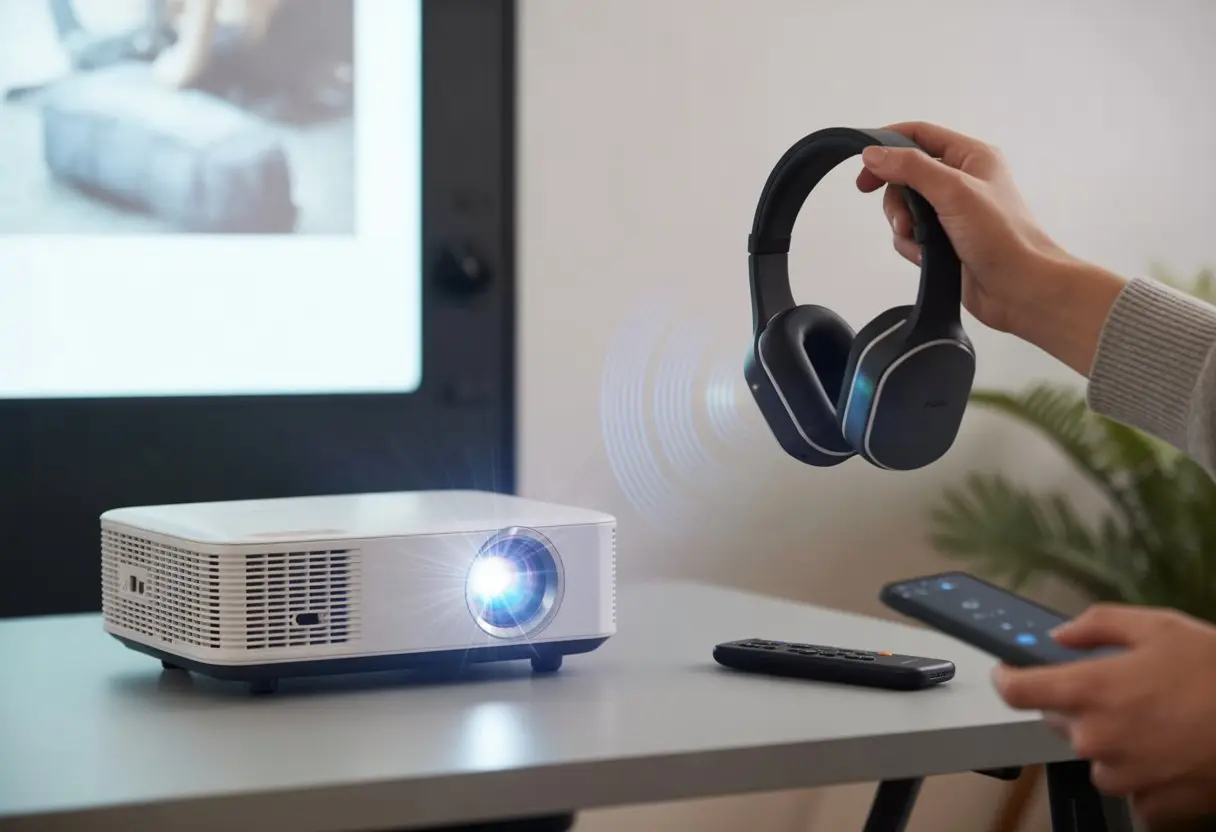
Here’s the good news: you can use Bluetooth headphones with a projector and finally enjoy your favorite shows in peace. No more tangled cords. No more fighting for the “good seat” closest to the audio jack. And definitely no more accidental eavesdropping from pets or parents.
Whether you’re hosting movie night in the backyard or catching up on a show while everyone else sleeps, this trick keeps things quiet and personal. Stick around, and we’ll walk through how to set up Bluetooth headphones with a projector, so the only thing blasting is the surround sound in your ears.
Understanding Bluetooth and Projector Compatibility
Let’s clear up the confusion first. Bluetooth moves audio from your projector to your headphones, but only if both devices want to cooperate.
How Bluetooth Technology Works
Bluetooth is kind of like a personal assistant for your gadgets. It lets your devices talk wirelessly, using radio waves instead of a mess of wires.
When you pair Bluetooth headphones with a projector, you’re setting up a short-range audio handshake that sends sound through the air—no yelling necessary.
The magic starts with “pairing.” Your headphones and projector have to agree to talk, trading secret codes so nobody else butts in. Most audio connections use Bluetooth 4.0 or 5.0, which usually means fewer hiccups and more reliable sound.
Bluetooth isn’t limitless, though. The range is usually about 10 meters. If you wander into the kitchen for popcorn, don’t be surprised if the audio cuts out.
Projector Bluetooth Capabilities
Not all projectors are created equal. Some have Bluetooth built in, ready to beam sound straight to your headphones.
Others need a little help from a Bluetooth transmitter, which plugs into the projector’s audio output—it’s like a wingman for your tech.
Projectors with Bluetooth usually have a settings menu where you can pair headphones. Sometimes, you’ll only get Bluetooth if there’s an Android TV dongle plugged in, so always double-check the settings or the manual.
You can usually find this option with a quick button press on the remote or by poking around in the settings.
If your projector doesn’t mention Bluetooth at all, don’t panic. A simple Bluetooth adapter can save the day.
Just plug it into the headphone or audio out jack and—boom—your non-Bluetooth projector becomes Bluetooth-ready. For more details, check this guide on using Bluetooth with a projector.
Identifying Your Device’s Audio Output Options
Before you buy any adapters, check your projector’s audio output. It might have a 3.5mm headphone jack, an RCA audio-out, or even an optical audio port.
Some projectors get fancy and include a USB audio output.
Here’s a quick table to help you spot what’s what:
| Output Type | Looks Like | Typical Use |
|---|---|---|
| 3.5mm Headphone Jack | Small round hole | Headphones, adapters |
| RCA | Red/white circular | Stereo audio, speakers |
| Optical (TOSLINK) | Square/rectangular | Soundbars |
| USB | Rectangular, USB-A/B | Some headphones, adapters |
If your projector doesn’t have an obvious audio port, check behind the spaghetti mess of cables. Picking the right output is key, since your Bluetooth adapter and headphones need to connect to it to work.
Pairing Bluetooth Headphones Directly with a Projector
Pairing Bluetooth headphones with a projector can feel like tech matchmaking. We want to skip the drama and get straight to that wireless, private audio.
Let’s walk through the Bluetooth pairing dance so you can enjoy movies without waking up the neighbors.
Preparing Your Headphones for Pairing Mode
First, make your Bluetooth headphones look single and ready to mingle. Most models ask you to press and hold the power or Bluetooth button for a few seconds until a flashy light blinks—usually blue or red.
If the headphones are already paired to something else, like your phone, you’ll need to disconnect them or turn off Bluetooth on that device. Otherwise, the headphones will stay loyal to the old partner.
Sometimes, your headphones will chirp or say “pairing mode” if they’re feeling chatty.
When all else fails, check the user manual (yeah, the one in the junk drawer) or the brand’s website for specific steps. Getting your headphones into pairing mode is crucial, or your projector will just sit there, waiting for a device that never shows up.
Accessing Projector Bluetooth Settings
Now, let the projector shine—besides projecting epic blockbusters, of course. Some models have a Bluetooth option in the main menu, usually under “Settings” or “Audio.”
You’ll need to open those menus and look for “Bluetooth Devices” or “Add Device.”
For projectors with built-in Android TV or smart features, check “Remotes & Accessories” or “Audio Output.” Hit “Add Bluetooth Device,” and after a quick search, your headphones should pop up.
If not, they might be in pairing mode timeout. Select your headphones from the list, hit “Pair,” and wait for the confirmation.
If your projector is old-school and skips Bluetooth, grab a Bluetooth transmitter and connect it to an audio out port. There’s more on that in this Reddit thread about Bluetooth transmitters.
Troubleshooting Common Pairing Issues
Sometimes, gadgets just refuse to pair. Common headaches include headphones stuck on another device, pairing mode timing out, or the projector not finding anything.
Turning both the headphones and projector off and on again fixes more issues than you’d expect.
Nearby Bluetooth devices can also mess things up. Try moving other Bluetooth stuff out of range and bring the headphones closer to the projector.
Double-check that Bluetooth is on and the projector’s running the latest software.
You might have to forget previous connections before adding new ones. If your projector just refuses, it probably doesn’t have native Bluetooth.
In that case, a Bluetooth transmitter plugged into the audio output will do the trick.
Alternative Methods for Connecting Bluetooth Headphones
Sometimes, projectors just don’t want to play nice with Bluetooth headphones out of the box. Luckily, there are a few clever workarounds that put you back in control of your own cinema.
Using an External Bluetooth Audio Transmitter
Not all projectors come with built-in Bluetooth, and that’s fine. You can use a Bluetooth audio transmitter.
Just plug this gadget into the projector’s audio out port. Most transmitters use the 3.5mm headphone jack or RCA audio out.
Once it’s plugged in, pairing your Bluetooth headphones is usually as easy as pressing a button and watching for blinking lights.
Why go this route?
- Works with almost any projector with an audio output
- Doesn’t require fancy smart features
- Supports most brands of Bluetooth headphones
Sound quality and range depend on the transmitter model, though. Some cheap ones make your movie night sound like it’s underwater.
Spending a few extra bucks here is worth it. If you want more details, Redditors share some decent advice in the projectors forum.
Employing an Android TV Dongle for Wireless Audio
If your projector has an open HDMI port, grab an Android TV dongle. Plug it in, and suddenly your projector is smarter.
Devices like Google Chromecast or Amazon Fire Stick have settings to pair Bluetooth headphones directly to the dongle.
All audio from Netflix or YouTube goes wirelessly to your headphones.
Here’s how it usually goes:
- Plug the dongle into an HDMI port
- Connect to Wi-Fi and sign in
- Go to settings and pair your Bluetooth headphones
- Stream straight to your ears
It’s great if you want to give an older projector a second chance. Just remember: the audio output now comes from the dongle, not the projector.
Connecting via Remote Control Features
Some newer projectors come with remote controls that are smarter than your average TV remote. These let you pair Bluetooth headphones directly through the projector’s menu.
It’s super easy when available—just find the right menu, scan for your headphones, and hit “connect.”
Not every projector has this, but if yours does, you can skip the extra dongles and transmitters. It’s nice to have a remote that actually does something besides disappearing into the couch cushions.
The projector handles the Bluetooth pairing, and suddenly, your audio output is private and just a click away.
Optimizing Audio Output from Your Projector
Getting great sound from your projector to Bluetooth headphones is part science, part trial and error. You’ll need to dig into the audio out settings and watch for anything that makes actors sound like slow-motion chipmunks.
Adjusting Audio Out Settings
First, hunt down the right port or menu. Most projectors offer several audio output options, like HDMI ARC, 3.5mm jack, or optical audio.
If your projector supports Bluetooth audio out, you can skip the cables and connect headphones directly. If not, you’ll need an external Bluetooth transmitter.
In the projector’s settings, make sure audio out is set to the correct channel. If you see PCM, Bitstream, or Dolby, choose PCM—especially with Bluetooth headphones.
Here’s a quick checklist:
- Make sure your Bluetooth headphones are in pairing mode.
- If you’re using a transmitter, connect it to the audio out port.
- Select the headphones in the projector’s Bluetooth menu.
Volume controls can get weird—sometimes only the remote works, other times only the headphones’ buttons respond. Try not to use both at once unless you’re in the mood for surprises at movie night.
Managing Latency and Sync Issues
Bluetooth can be a little unpredictable, right? Sometimes voices don’t match up with the mouths, and suddenly our favorite characters look like they’re in a cheesy dub. Audio lag happens a lot, but we can usually do something about it.
The best trick is to use Bluetooth headphones and transmitters that support aptX Low Latency. This tech really helps keep sound and video lined up. If our projector doesn’t support low-latency codecs, we can try moving the devices closer together and clearing out anything in the way—walls, pets, or even a suspiciously thick pizza box.
Some projectors actually let us adjust audio sync in their menus. If that’s an option, go ahead and use it to nudge the sound back in line. When syncing issues just won’t budge, try plugging the transmitter into a player (like a streaming box) instead of the projector.
Sometimes, switching the audio setting profile on the projector and toggling back—like in this Reddit audio workaround—can reset the lag. If nothing works, well, we can just embrace our inner karaoke star and lip-sync along.
Troubleshooting Persistent Audio and Connection Issues
Let’s be real: connecting Bluetooth headphones to a projector sometimes feels like a wild guessing game. Interference pops up, or we just need to reset everything to fix stubborn problems.
Dealing with Interference
Bluetooth signals can get a little territorial. Microwaves, other wireless gadgets, thick walls, and even too many people (seriously) can mess with things and cause dropouts or static.
To help our projector and headphones “talk” clearly, try these:
- Put them as close together as possible—imagine a slow dance, not a long-distance relationship.
- Shut down other wireless devices nearby, especially ones using the same Bluetooth or WiFi bands.
- If the projector’s hiding behind a bunch of metal, pull it out into the open.
- Keep our streaming stick or laptop away from routers or big electronics that might hog the Bluetooth signal.
If we still hear robot karaoke, maybe there’s a bigger signal issue or the Bluetooth chip in one device is just being picky. We can swap in a different pair of headphones or try another projector to see if things improve.
Resetting Connections on Both Devices
When audio won’t sync or the headphones just refuse to connect, sometimes we have to play tech matchmaker and give both devices a fresh start. First, disconnect and “forget” the Bluetooth headphones from the projector’s Bluetooth menu.
Restart both devices—yeah, the old “turn it off and on again” move actually works wonders.
Next, hold down the Bluetooth button on the headphones and projector to get them into pairing mode. Usually, the LEDs will blink like crazy—if not, we’re probably not in pairing mode.
Once both are blinking, pick our headphones from the projector’s available device list. Still no luck? Check for firmware updates or peek at the projector’s manual for any oddball quirks.
Some guides, like this Bluetooth setup walkthrough, can walk us through more troubleshooting if we hit a wall.
Tips for an Ideal Bluetooth Headphone Experience with Projectors
Getting comfy for a movie marathon starts with the right headphones. We want sound that’s as crisp as our movie picks—nobody’s here for a laggy monster roar or a battery that dies halfway through.
Extending Headphone Battery Life
Bluetooth headphones seem to run out of battery at the worst possible moment—always right before the big reveal. We can dodge disaster by charging them up fully before movie time, and keeping a charging cable or power bank nearby just in case.
Setting the headphones to a low or moderate volume helps too. Cranking them up to max drains the battery faster than popcorn disappears during previews. If there’s a battery saver mode, we should use it, especially if we’re settling in for a double feature.
Let’s check if our projector has a screen-saver or auto-off feature that’ll pause things if we step away, saving battery for both the headphones and the projector. And honestly, never trust that “20% remaining” warning—headphones love to exaggerate.
Maintaining Optimal Audio Quality
Nothing kills a tense scene faster than static or garbled dialogue. For crisp, clear sound, make sure your projector and Bluetooth headphones both support the latest audio codecs, like aptX or AAC.
These codecs cut down on lag and keep your audio synced with the video. You’ll notice the difference, trust me.
Keep your headphones close to the projector—Bluetooth hates walls and furniture. If the connection gets spotty, just move a bit closer or clear out anything in the way.
Other wireless devices, like your neighbor’s Wi-Fi or that random smart fridge, can mess with your signal. Try turning off any Bluetooth devices you’re not using, and suddenly your living room sounds a lot more like a cinema.
You can find more tips for avoiding audio hiccups in this comprehensive Bluetooth headphone guide.

From a young age, I have always had a big interest in technology, and this blog is an extension of that interest. Through this blog, I hope to provide others with all of the information they need regarding tech options to consider, and things such as compatibility. Some of the different items I will be discussing include headphones, smartwatches, and how to fix common issues.
- How to use a fitness tracker for sedentary alerts: Because Your Couch Won’t Miss You Anyway - September 14, 2026
- Why do my Bluetooth headphones not work with my projector? Solving Tech Mysteries for the Audio-Challenged - September 13, 2026
- Best Smartwatches for Medication Reminders: Never Forget Your Pills (or Your Sanity) Again - September 13, 2026
Related Posts: