We’ve all been there—ready to jam out, only to find our Bluetooth headphones and laptop flat-out refusing to be friends. It really shouldn’t be this hard to listen to music or hop on a video call, but sometimes technology just wants to mess with us.
To connect Bluetooth headphones to our laptop, we need to make sure Bluetooth is turned on, put our headphones in pairing mode, and select them from our laptop’s Bluetooth device list.
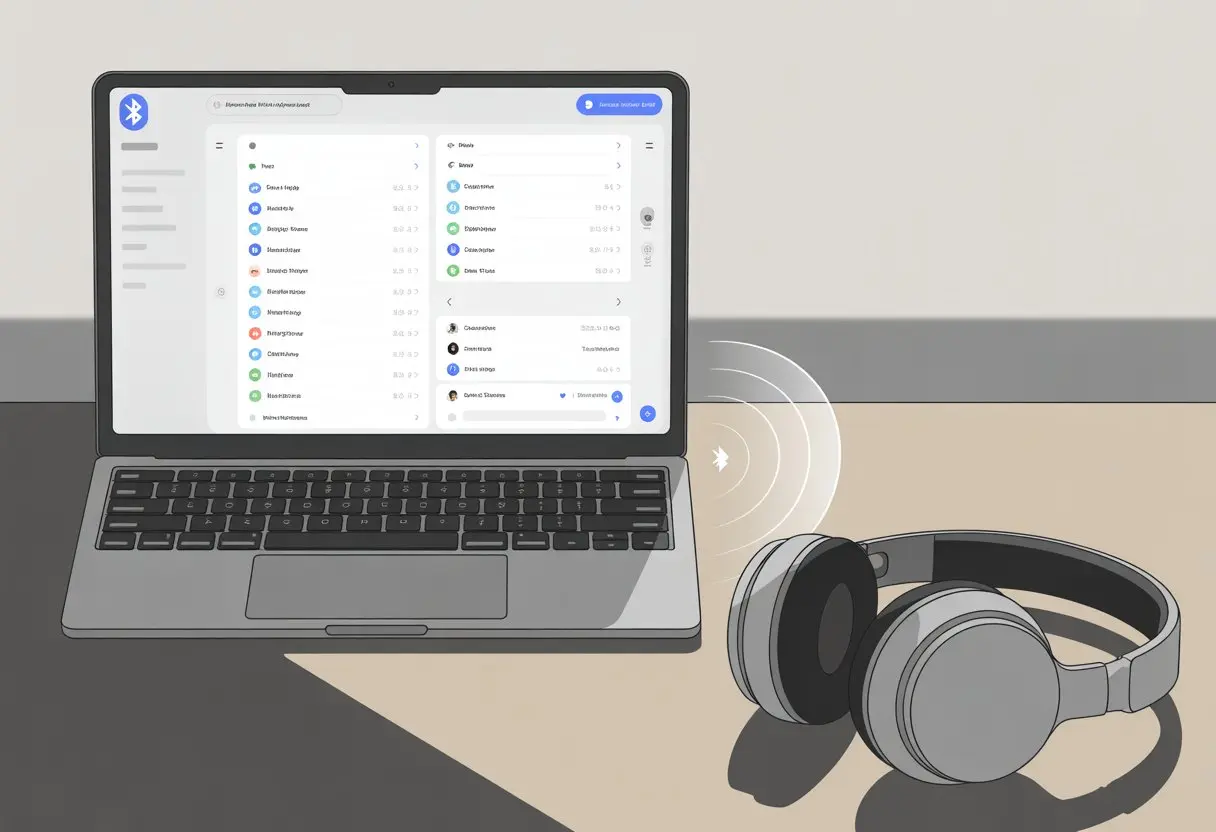
If that sounds easy, well, it usually is—unless our computer decides to act mysterious. Here are some quick tricks and honest advice to make this process smoother.
No more poking around random menus or frantically clicking every icon on the screen. We’re here to get those wireless beats working so we can all dance (or awkwardly nod) in peace.
Let’s be real, getting technology to cooperate sometimes feels like casting spells. Still, with a few simple steps, connecting Bluetooth headphones to a laptop is totally doable—even if our laptop is older or the Bluetooth icon loves to hide.
If you want to skip the struggle and master the basics, just keep reading.
Preparing Your Laptop And Bluetooth Headphones
Before we try to make our Bluetooth headphones and laptop become best friends, let’s get a few things ready so they don’t give us the silent treatment.
Let’s check if our laptop’s got Bluetooth, make sure our headphones aren’t dead, and put them in pairing mode.
Checking Laptop Bluetooth Capabilities
First, does our laptop even have Bluetooth? Some newer laptops come with it built-in, but older ones might need a USB Bluetooth adaptor.
We don’t want to waste time searching settings only to find out our laptop is a fossil.
Check for a Bluetooth logo on the function keys or in Windows settings. On Windows 10 or 11, open Settings > Devices > Bluetooth & other devices.
If there’s a Bluetooth toggle, we’re set. If not, we’ll need to add a Bluetooth adaptor to bring our laptop up to speed.
Quick checklist:
- Look for a Bluetooth icon on the laptop
- Try turning Bluetooth on in settings
- If it’s missing, plug in a USB Bluetooth dongle
Powering On And Initializing Headphones
Now, let’s make sure our Bluetooth headphones are actually awake. Sometimes we forget to charge them (hey, it happens).
Check for enough power—usually there’s a little LED light.
Hold the power button for a few seconds to turn them on. If you hear a startup sound or see a flashy light, they’re alive.
Some headphones start in pairing mode the first time you power them on, but most need a little extra nudge.
If you’re unsure what all those lights mean, check the quick-start guide or just press buttons until something blinks. No shame.
Selecting Headphones’ Pairing Mode
Here’s the magic part: pairing mode. Our headphones need to enter a special state so our laptop can find them.
Usually, holding down the power or Bluetooth button for a few extra seconds after turning them on does the trick.
Some headphones have a dedicated pairing button. Others just use the power button.
Most of the time, the LED will flash quickly or change colors—blue and red are popular.
If you’re lost, check the model’s instructions or look up a Bluetooth pairing guide.
Pairing mode lets the laptop spot our headphones on its list of available Bluetooth devices.
Common pairing signs:
- LED light flashing fast or changing color
- Voice prompt saying “pairing”
- Music pauses (if it was playing)
If in doubt, just hold buttons until something new happens. That’s what I call technical intuition.
Pairing Bluetooth Headphones To Windows Laptops
Getting wireless headphones to talk to a laptop can feel like digital matchmaking. We need to open the right menus, spot our headphones in a sea of Bluetooth devices, and maybe even enter a passkey.
Let’s break it down.
Opening Windows Bluetooth Settings
First, let’s get to the magical land of “Bluetooth settings” in Windows. Tap the Windows key, type “Bluetooth,” and click “Bluetooth & other devices settings.”
You can also click the Start menu, select Settings, and then choose Devices.
On the right, there’s a switch called “Bluetooth.” If it’s not already on, flip it.
Turning this on basically waves an electronic flag that says, “We’re accepting Bluetooth fans!”
Our headphones should be in pairing mode now. Usually, this means holding the power button until a light flashes or a voice says “Pairing mode.”
If we skip this, our laptop won’t see our headphones, no matter how many times we check.
Locating Devices In The Device List
Once we hit pairing mode, look for the list that says, “Add a device.” Click “Add Bluetooth or other device.”
Windows starts scanning for nearby devices.
In a few seconds, our headphones should pop up on the list with their brand or model name. If you see something like “Wireless Audio,” that’s probably us.
Sometimes, the device list gets crowded and it turns into a “Where’s Waldo?” moment. Patience helps.
If nothing shows up, double-check pairing mode and make sure no other device (like your phone) is hogging the connection.
If you need more help, check out this guide for pairing Bluetooth headphones to a laptop.
Pairing And Accepting The Passkey
Now for the dramatic part—pairing. Click on your headphones in the list, and Windows will try to connect.
Sometimes, a passkey (or PIN) pops up on both the laptop and the headphones’ tiny screen—if you’re lucky enough to have one.
Usually, it’s 0000 or 1234 because Bluetooth isn’t creative with passwords.
Just click “Accept,” “Connect,” or type the passkey if asked, and you’re done. Windows might show a success message or play a happy little sound.
If Windows refuses to connect, try putting headphones back in pairing mode and repeat the steps.
Configuring Sound And Microphone Settings
We’ve finally paired our Bluetooth headset, but if we don’t adjust the right settings, it might sound like we’re listening through a tin can.
Let’s make sure our sound card, audio output, and microphone are all set up for a clear (and hopefully less embarrassing) experience.
Choosing Default Playback Device
First, we need to tell our laptop which device should handle all our sound. Go to the lower right corner and right-click the speaker icon.
Select Sound Settings or Open Sound Settings.
A list pops up showing every possible audio device: speakers, Bluetooth headset, maybe even your neighbor’s smart fridge if you’re unlucky.
Under Output, find our Bluetooth headphones in the dropdown and click them.
If you only see “crackly speakers” and “not working,” it might be time for a support ticket.
If you want to get fancy, click Manage sound devices and disable the speakers you never use.
It’s like telling your laptop, “No offense, built-in speakers, but this is Bluetooth territory now!”
Setting Bluetooth Headphones For Audio Output
After we pick our default playback device, let’s actually send our music or game sounds through the Bluetooth headphones.
Go to Settings > System > Sound. Double-check under Output that our Bluetooth headphones are selected.
Sometimes, our laptop still ignores us and plays sound through something else. If that happens, click App volume and device preferences.
Here, you can assign different audio outputs for different programs. Now, Spotify plays through our Bluetooth headset while your browser annoyingly auto-plays videos somewhere else—problem solved!
More details here: setting Bluetooth headphones as your audio output.
Pro tip: If in doubt, unplug other audio devices. Laptops can be as stubborn as we are on Monday mornings.
Enabling Microphone Input
Let’s not forget: our Bluetooth headset usually has a microphone we need for calls or, let’s be honest, the occasional karaoke.
Back in Sound Settings, scroll to the Input section. Click the dropdown to pick our Bluetooth headset’s mic.
If the microphone doesn’t show up, check if the headset is in the right mode. Some headsets need to reconnect before the mic works.
You can also click Device properties to adjust levels or see if the mic is picking up our beautiful voices.
Still nothing? Try Settings > Privacy > Microphone and make sure our programs are allowed to use the mic.
If our PC still won’t detect the microphone, see tips on fixing Bluetooth headset mic issues. Whispering at our laptop rarely works, sadly.
Solving Common Bluetooth Connection Problems
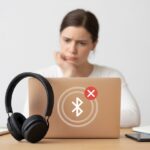
When Bluetooth headphones refuse to connect to our laptop, it can feel like they’re just ignoring us on purpose. Luckily, we’ve got a few tried-and-true tricks to get things working again, from tweaking settings to giving drivers a nudge.
Troubleshooting Pairing Issues
First, let’s make sure both our laptop and Bluetooth headphones have enough battery. Low batteries love to cause drama.
If charging doesn’t help, turn Bluetooth off and on again—classic, but it works. Sometimes, technology just needs a nap.
Bringing headphones and laptop closer together can help too. Bluetooth signals aren’t exactly marathon runners.
Don’t forget the classic remove and re-pair move. Go into Bluetooth settings, “forget” or “remove” the headphones, then try pairing again.
If things still aren’t working, restart both devices. Sometimes, that’s all it takes.
If you’re still stuck, this guide covers more ways to troubleshoot Bluetooth headphone problems.
Dealing With Compatibility Issues
Bluetooth comes in many versions, kind of like superhero movies. Our headphones and laptop need to speak the same Bluetooth language, or at least find a translator.
If our headphones use Bluetooth 5 and our laptop is stuck on 3.0, things can get weird.
Check the specs for both devices. If they’re too far apart in Bluetooth generations, they might not want to connect.
Older laptops sometimes need a Bluetooth adapter to join the fun.
Certain headphones only work with specific computer profiles. If our headphones work fine with phones but ignore laptops, that could be the reason.
Checking the manufacturer’s site or manual for compatibility notes can save us a lot of guesswork.
Checking Drivers And Device Manager
A lot of Bluetooth problems like to hide out in our drivers. Drivers are those little programs that let our devices talk to each other.
We can open Device Manager by searching for it in the Start menu. Look for “Bluetooth” and see if anything has a yellow triangle or a big red X—that’s the device’s way of crying for help.
Try right-clicking and updating the driver. Sometimes Windows finds a better driver for us, but if not, we’ll need to grab one from the laptop maker’s site.
If Bluetooth has completely disappeared from Device Manager, that’s a big clue. We might need to reinstall the Bluetooth adapter, or maybe just check that airplane mode isn’t on by mistake.
You can find more tips for managing drivers and Device Manager on this troubleshooting page.
Reconnecting And Managing Multiple Devices
Staying connected to more than one gadget at once feels like a superpower—until our headphones get confused. Managing connections with multiple computers doesn’t have to be a headache.
Connecting To A Paired Computer
If we’ve already paired our headphones with a laptop, reconnecting is usually easy. Just turn on the headphones and make sure Bluetooth is on.
The headphones should show up in the Bluetooth menu, waiting for us like a loyal puppy. If they don’t, toggling Bluetooth off and on can sometimes wake them up.
Sometimes another device refuses to let go of our headphones. In that case, we’ll need to disconnect that device first.
On our laptop, we open Bluetooth settings, pick our headphones from the list, and hit “Connect.” If things still don’t work, a gentle restart of the headphones—or maybe a few words of encouragement—can help.
For more info, here’s a helpful guide.
Switching Between Devices
Switching headphones from one device to another can get a little dramatic. Bluetooth headphones usually connect to one device at a time, so we have to break up with one PC before moving to the next.
We can either unpair or disconnect from the first device, or just turn its Bluetooth off. That makes our headphones single and ready to mingle.
Some headphones support multi-point connections, but not all do. If we’re lucky and ours do, the manual will say so.
Otherwise, we put the headphones back in pairing mode and pick them from the new device. This habit saves us from wrestling with stubborn connections and jealous laptops.
There’s a step-by-step explanation in this Reddit discussion.
Advanced Features And Tips For Bluetooth Headphones
Let’s check out a few tricks to get more from our Bluetooth headphones and wireless earbuds. With a couple of simple steps, we can stay updated with voice guidance and fix annoying problems by resetting our gear.
Using Voice Guidance And Notifications
Most Bluetooth headphones and earbuds come with voice guidance features. These little voices tell us when we’re paired, when the battery is low, or if something isn’t right.
It’s like having a tiny assistant living in our ears—one who never rolls their eyes at our playlists. Voice prompts also warn us if the connection drops or if we need to charge soon.
Some headphones let us change the language of these notifications, which is fun if we want our gadgets to sound a bit different. To adjust voice guidance, we usually use the headphone’s app or press and hold certain buttons—usually buried in the user manual (which, let’s be honest, we rarely read).
It’s smart to keep voice notifications turned on. Without them, we might not know if our headphones are ready, dying, or accidentally connected to someone else’s TV.
Resetting Headphones To Factory Settings
Sometimes wireless earbuds or Bluetooth headphones just misbehave. The audio sounds weird, buttons won’t work, or nothing connects.
Before we start thinking about smoke signals, a factory reset is worth a shot.
Resetting puts our headphones back to their original state, wiping out all paired devices and saved settings—maybe even that embarrassing pairing name from last year. Usually, we hold down a power button or a combo like volume up and down for several seconds.
Some brands hide a tiny pinhole reset button—good luck finding it without a toothpick or a bit of finger gymnastics.
After resetting, we’ll need to pair our headphones again, just like the first time. This fix won’t solve every issue, but it cures a surprising number of problems and saves us from headphone meltdowns.
For specific steps, check the instructions from our headphone’s maker, who hopefully explains things better than our friends do.
Optimizing Music Playback Connections
Music sounds best when our Bluetooth headphones use the highest audio quality possible. To get there, we need to know which settings matter and how to dodge common hiccups.
Understanding A2DP And High-Quality Audio
Let’s talk about A2DP. It stands for Advanced Audio Distribution Profile, but we just need to know it’s the fancy mode that makes our music sound good.
When we connect our headphones, Windows likes to switch between “Headset” and “Headphones” modes. We want “Headphones,” not the “Headset” hands-free mode.
“Headphones” uses A2DP, which gives us stereo and clear sound. “Headset” is for calls, and music through it sounds like it’s coming from a tin can underwater.
Here’s how to check:
- Right-click the speaker icon near the clock.
- Click Sounds or Sound settings.
- Go to Playback Devices.
- Make sure the one with “Stereo” or “A2DP” is set as default.
If anything says “Hands-Free,” skip it unless you like muffled podcasts.
Dealing With Music Playback Issues
Sometimes we pair our headphones, hit play, and the music stops after a few seconds or sounds terrible. Windows loves to get creative with Bluetooth settings.
If music stops right after pairing, don’t panic. Check if another app is using the mic—that can kick our headphones into “Headset” mode.
Apps like Zoom or Teams love to hijack our audio for themselves. To fix this, double-check we’ve picked the right playback device (the “Headphones” one).
Close any apps using the mic. If all else fails, try unpairing and pairing again using these Microsoft pairing steps.
With a bit of luck, music quality improves and those surprise pauses disappear. Good riddance, tin-can sound.
Alternative Connection Methods (When Bluetooth Is Stubborn)
Sometimes Bluetooth just won’t cooperate, and honestly, that’s fine. We’ve got backup plans that don’t involve yelling at our computer or tossing our headphones across the room.
Connecting Via Audio Jack
If our laptop has an audio jack, we can always use a classic wired connection. Most Bluetooth headphones come with a 3.5mm cable, or you can grab one for cheap.
Just plug one end into the headphones and the other into the laptop’s headphone port. Voilà—no Bluetooth required.
Some laptops have a combined headphone and mic jack, while others keep them separate. We might need a splitter if we want both at once, depending on the model.
Wired connections usually give us better sound and zero lag, which is a win. Plus, no more worrying about battery life—headphones don’t need Bluetooth for this.
This trick works great for meetings, music, or late-night YouTube binges when we’d rather not let the neighbors in on our guilty pleasures.
Using A USB Port Or Bluetooth Adapter
If your laptop doesn’t have Bluetooth, or maybe the built-in Bluetooth just refuses to cooperate, there’s a workaround. You can grab a Bluetooth adapter—yep, those little dongles—and plug it right into a USB port.
Most of the time, it’ll install itself before you even finish saying “wireless freedom.” Once it’s in, you just pair your Bluetooth headphones like you would with anything else.
Some adapters only work for audio, but others can handle stuff like keyboards or mice too. Make sure the adapter supports the Bluetooth version your headphones need.
If you don’t feel like messing with drivers, look for adapters that say “plug and play.” That saves a headache.
Here’s another option: a Bluetooth audio transmitter. Plug it into your laptop’s headphone jack, and it’ll send audio wirelessly straight to your headphones.
This trick works for laptops and even older devices that don’t have Bluetooth at all. If you want step-by-step help or gear suggestions, check out this guide on connecting wireless headphones to a PC without Bluetooth.
With a bit of creativity—and maybe a USB gadget or two—you can get around even the most stubborn Bluetooth issues.

From a young age, I have always had a big interest in technology, and this blog is an extension of that interest. Through this blog, I hope to provide others with all of the information they need regarding tech options to consider, and things such as compatibility. Some of the different items I will be discussing include headphones, smartwatches, and how to fix common issues.
- How to Get Text Messages on Fitbit Versa 2 Android: Simple Guide for Users - October 13, 2026
- Why Doesn’t My Fitbit Record My Sleep? Quick Troubleshooting Guide - October 13, 2026
- How to Change Face on Fitbit Versa 2: Quick and Easy Guide - October 12, 2026
Related Posts: