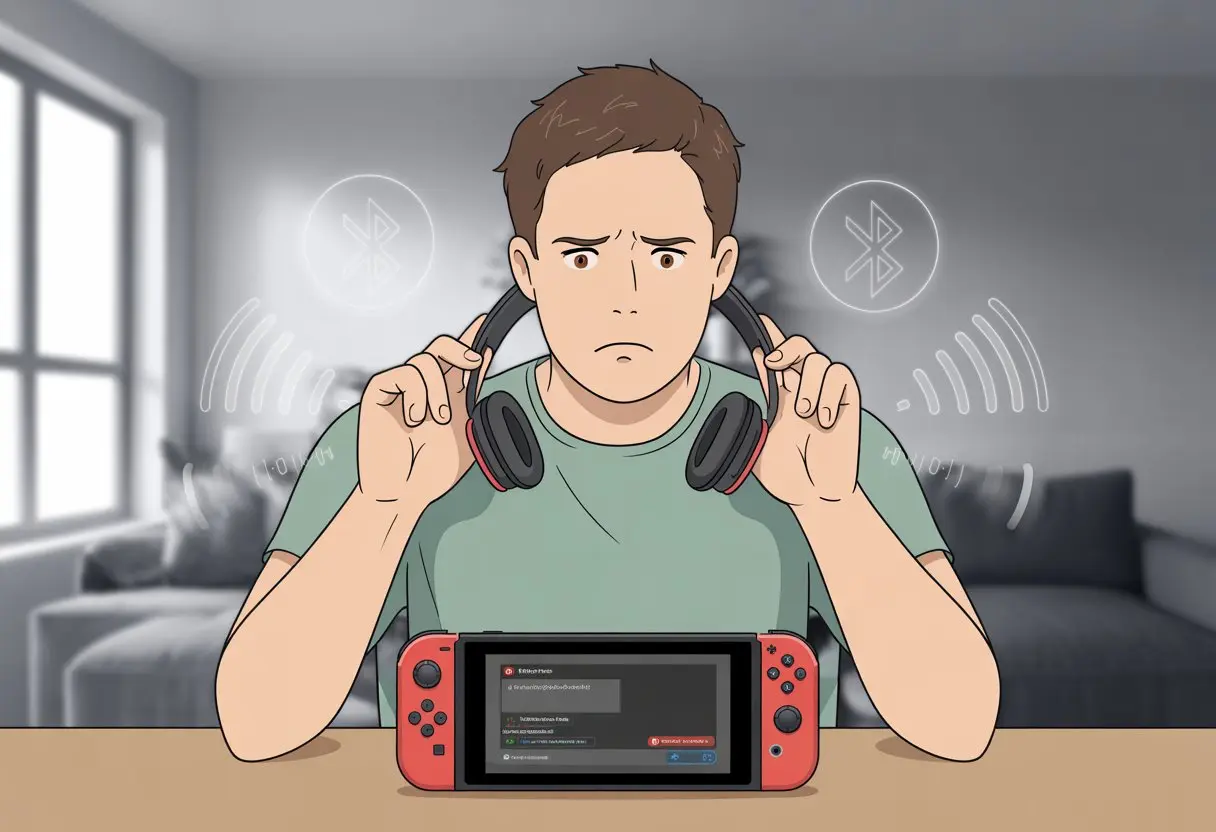
We’ve all been there—fired up to play on the Switch, only to discover our Bluetooth headphones just won’t connect. Maybe the Switch is being stubborn, or maybe the headphones are just in a mood. Most of the time, Bluetooth headphones don’t pair with the Nintendo Switch because of pairing mode hiccups, interference from other gadgets, or system software that’s stuck in the past.
Sometimes, we simply forget to put the headphones in pairing mode. Other times, every Bluetooth device in the house seems desperate to join the party. These connection problems pop up more often than we’d like, but they’re usually not a big deal to fix.
If we want to stop yelling at our electronics and actually play, figuring out what’s going wrong is the first step. Let’s dig into the mystery and see why our Bluetooth headphones keep ghosting the Switch. Maybe we’ll even get a laugh out of it—because if we can’t laugh, what’s left?
Understanding Bluetooth Compatibility on Nintendo Switch
Trying to connect Bluetooth headphones to the Nintendo Switch sometimes feels like solving a puzzle that’s missing a few pieces. The issue isn’t always just bad luck. It usually comes down to what the Switch supports, what software version we’re on, and whether the headphones are even compatible.
Bluetooth Audio Support Overview
For years, Nintendo Switch didn’t support Bluetooth audio at all. We had to get creative with dongles and workarounds. Then a software update finally let us pair Bluetooth audio devices directly. Cue the celebration—unless we grabbed the one pair that refuses to cooperate.
Bluetooth headphone support comes with some catches. When we connect Bluetooth audio, the Switch disables its microphone and sometimes adds enough lag to make game sounds feel like they’re echoing from another room.
We can only connect one Bluetooth audio device at a time. If there are extra wireless controllers or accessories nearby, the Switch might get overwhelmed and boot our headphones off. The system also limits us to two wireless controllers while Bluetooth audio is active. Why? Maybe it just can’t handle the chaos.
Nintendo Switch System Version Requirements
Not every Switch supports Bluetooth audio right out of the box. Our system needs to run version 13.0.0 or higher. Anything older, and pairing Bluetooth headphones is like asking a goldfish to send a text.
To check or update, go into System Settings, scroll to System, and tap System Update. If we’re behind, the Switch will complain but should update itself if it’s online. If weird pairing gremlins show up, check out this Bluetooth audio pairing guide from Nintendo.
If we keep hitting a wall, turning the Switch off and on again surprisingly works more often than we’d expect.
Supported Bluetooth Audio Devices
Not all Bluetooth audio devices get an invite to the Nintendo Switch party. The system only works with standard Bluetooth headphones, earbuds, or speakers using basic audio profiles. Microphones, Bluetooth keyboards, or anything with extra bells and whistles usually get left out.
Some earbuds or headsets just won’t connect well. Brands and models vary—sometimes it’s the Bluetooth version, sometimes it’s just a weird quirk. Always put our headphones into pairing mode and keep them close to the Switch. Think of it as gadget matchmaking.
Nintendo suggests charging our devices, making sure nothing else is connected, and confirming our headphones are actually discoverable. Here’s a quick checklist:
Common Reasons Bluetooth Headphones Fail to Connect
Bluetooth headphones and the Nintendo Switch can be a tricky combo. Sometimes, our favorite wireless buds just refuse to cooperate.
Let’s check out the main reasons we end up stuck with silent headphones when we want to game wirelessly.
Pairing Mode and Discoverable State Issues
The first big roadblock? Pairing modes and discoverable states. If our headphones aren’t in pairing mode or visible to the Switch, nothing will connect—no matter how hard we wish. Usually, holding down the power or pairing button does the trick, but every brand has its own secret handshake.
If our headphones don’t show up on the Switch’s list, they’re probably just not looking for new friends. Sometimes they’re already connected to another device—maybe someone’s phone in the next room. Our headphones need to be charged and ready to be discovered, not half-dead and hiding in a drawer.
Let’s double-check the manual (even if it’s tiny and annoying). Only try to pair one device at a time. If things are still weird, restart both the headphones and the Switch. Sometimes that’s all it takes. More tips live in this Nintendo Support guide for Bluetooth pairing.
Local Communication Limitations
Nintendo Switch has some rules about Bluetooth audio. When we connect Bluetooth headphones, the system turns off local multiplayer communication—so we can’t connect to other nearby consoles wirelessly. It’s like letting our headphones into a party but locking the door on our friends.
If we try to join a local wireless game, Bluetooth headphones just vanish as an option. Nintendo did this because the system can’t juggle both types of wireless connections without dropping the ball.
Before blaming our headphones, let’s make sure we’re not trying to do local communication and Bluetooth at the same time. If we want to play with friends in the same room, we’ll need wired headphones or just go silent like a ninja. Check more about these local communication limitations for the Switch.
Wireless Communication Conflicts
Wireless gadgets love to fight for attention. The Switch, our headphones, Wi-Fi, and even the neighbor’s smart fridge might be battling for the same airwaves. This can mess up pairing, making our headphones act like they’ve forgotten how to connect.
We might see random disconnects, audio lag, or the Switch not finding our headphones at all. Too much cross-talk can scramble everything.
Try keeping other electronics away during pairing or turning off nearby Bluetooth gadgets. Rebooting everything helps too—think of it as a group reset for our tech.
The Switch needs up-to-date software to keep up with new Bluetooth stuff. If our headphones worked yesterday but not today, maybe it’s time for a system update or hiding that interfering wireless mouse. More info is in this headphones troubleshooting guide.
Step-by-Step Troubleshooting for Connectivity Problems
https://www.youtube.com/watch?v=Qk1sGWz0ioM
Let’s be honest: Bluetooth headphones and the Nintendo Switch can be stubborn. Even the best tech sometimes needs a little push to work together.
Let’s run through the main fixes so we’re not stuck with game sounds blasting from the speakers like it’s 2015.
Restarting Your Nintendo Switch
First thing’s first—try the classic fix: turn it off and back on again. It might feel basic, but restarting the Switch can squash a bunch of weird connection bugs.
Here’s how:
Hold the power button for a few seconds until the menu appears.
Tap “Power Options.”
Tap “Restart.”
If it’s been a while since we powered down, the Switch might be cranky. A restart clears out glitches and gives Bluetooth a fresh start.
Still not working? Don’t toss it in frustration—there’s more to try.
Resetting Bluetooth Headphones
Now, let’s give our Bluetooth headphones some attention. Sometimes, they’re clinging to old connections like a stubborn pet.
Power off the headphones.
Turn them back on and put them into pairing mode. Usually, that means holding the power button, but every model is a little different—check the manual if things get weird.
Make sure they’re not already paired with our phone, tablet, or laptop. Let’s disconnect those so the Switch has a fair shot at connecting.
Our headphones need to be charged and in discoverable mode to show up. If they’re hiding, the Switch won’t find them. If pairing stays tricky, check out Nintendo’s tips on how to pair Bluetooth audio devices.
Checking System and Device Updates
Let’s admit it: updates can be annoying, but they fix a lot of sneaky bugs. The Nintendo Switch wants to be up to date, so let’s check the system version.
On the Home screen, open System Settings, scroll down to System, and tap System Update. If there’s an update, install it and hope for the best.
Don’t forget the headphones. Some brands let us update headphone firmware through an app or their website. Outdated software on either device can block connections or cause random dropouts. Following these steps usually makes our gadgets play nice and keeps us from losing our cool.
Limitations When Using Bluetooth Audio
Let’s be real: using Bluetooth audio on the Nintendo Switch means making a few trade-offs. We get the freedom of no wires, but we might lose a bit in controller slots and fast, crisp sound.
Wireless Controllers and Device Limits
If we’re serious about multiplayer, things might get awkward fast. Once we connect Bluetooth audio to the Switch, we’re stuck with only two wireless controllers at a time.
No more Mario Kart with the whole crew unless we’re ready to deal with half-wired setups or watch everyone fight over Joy-Cons. It’s not ideal, but hey, that’s the reality.
The Switch just can’t juggle too many Bluetooth connections before it gives us that digital side-eye. Here’s how it breaks down:
Connected Devices
Limit If Using Bluetooth Audio
Wireless Controllers
Up to 2
Paired Headphones
1
Additional Devices
Not allowed
Trying to charge up a bunch of wireless controllers while also jamming out over Bluetooth audio just isn’t happening on the Switch. Unless, of course, our idea of multiplayer fun is a lot of turn-taking… or just watching.
Audio Latency and Gaming Responsiveness
There’s one little word that might haunt us: latency. Bluetooth audio on the Nintendo Switch introduces a slight delay between the action and the sound.
If we’re playing a chill puzzle game, it’s not a big deal. But in rhythm games or anything fast-paced, our ears might feel a step behind our eyes.
Some headphones make this lag worse, while others handle it better, but none can totally get rid of it. It’s like ordering fries and finding out they’re just a bit cold—still fries, but something’s off.
We might notice sound cues arriving late, so jumps, hits, or musical beats can feel weird. Audio lag affects everyone a little differently, but it’s good to know our stylish wireless headphones probably won’t help our speed-running skills.
Even after we pair our Bluetooth headphones with the Switch, things don’t always go as planned. Sometimes the sound just disappears, the volume acts like it’s on vacation, or the console speakers start blaring like they’re desperate for attention.
Nintendo Switch Volume Controls
When our headphones finally pair, we get excited—until we realize the volume is so low we might as well be reading lips. The Switch uses its own volume buttons to control sound sent to Bluetooth headphones.
If we left the volume low before, it stays low now. We need to press those + and – buttons on top of the Switch; they’re more important than we think.
Sometimes, we have to crank the Switch volume higher than we would with wired headphones. The on-screen volume slider is super handy—it pops up on the home screen if we push the volume buttons while headphones are paired.
If our game is whispering, this is the first place to check.
Maximum Headphone Volume Settings
Our Nintendo Switch likes to protect our ears, even when we’re feeling brave (or reckless). By default, it limits Bluetooth headphone volume to prevent ear-splitting sound.
This setting is called “Lower Maximum Headphone Volume.” If our headphones are still too quiet after maxing out the buttons, we should head to System Settings.
Under “System,” there’s an option called “Lower Maximum Headphone Volume.” We can turn this off if we want more volume, but we should be careful not to blast our hearing.
Some headphones also have their own volume controls. If things are still too quiet, those buttons might be holding us back.
No Sound or Console Speakers Activation
We finally have the headphones paired, but sometimes—surprise!—no sound comes out. The Switch might still think it’s sending audio through the console speakers.
This can happen if the pairing process gets a little messy. If sound won’t budge, we should power off the headphones and turn them back on, letting the Switch reconnect.
Unpairing and repairing the headphones can help too. When it works, the console speakers mute automatically, letting the headphones take over.
If sound is still missing, we should try restarting the Switch. We can also check if the headphones are in pairing mode and not just daydreaming.
Device-Specific Challenges With Logitech and Other Wireless Headsets
If we’ve ever tried connecting our wireless headset to the Nintendo Switch, we know the struggle is real. Not all headsets play nice, and some—like certain Logitech models—can be especially stubborn.
Logitech G533 and G933 Setup
Pairing our Logitech G533 or G933 with the Switch can feel like solving a riddle. These headsets use USB dongles that work with PCs, but the Nintendo Switch doesn’t always recognize them.
Even if we plug the dongle into the Switch dock’s USB port, we might only get sound in dock mode. No luck in handheld or tabletop modes.
Some features, like surround sound or custom EQ profiles, just wave goodbye when we move these headsets to the Switch. Basically, it’s Stereo Sound Only territory now.
And if the headset just flashes at us? We should double-check we’re not using a PS4-specific dongle by accident.
Wireless Stereo Headset Compatibility
Our dreams of using fancy wireless stereo headsets sometimes clash with the Switch’s limited Bluetooth audio support. The Switch supports basic Bluetooth audio, but not all headsets get detected.
Official Nintendo guidance says we should first make sure our headset is in proper pairing mode and fully charged.
Let’s not forget the device limit: only two wireless controllers plus a Bluetooth audio device at a time. Some headsets will freak out if the Switch already has another paired device hogging the channel.
Even when our headset should work, it might completely fail to connect because another device is already paired.
Troubleshooting Stereo Headset Connections
If our wireless stereo headset isn’t connecting, we have to put on our detective hats and try a few things. We should turn the headset off and back on, making sure it’s in pairing mode—not just powered on.
Moving the Switch and headset closer together helps, especially if walls and pets are in the way. Nobody likes restarting devices, but it works—so we should reboot both the Switch and our headset.
Checking for system updates is just as glamorous as it sounds, but sometimes it magically fixes stubborn pairing issues.
If everything still fails, maybe it’s time to question our life choices—or at least try a wired headset.
Alternative Solutions for Uncooperative Bluetooth Headphones
Let’s face it—sometimes our Nintendo Switch just doesn’t want to make friends with our Bluetooth headphones, no matter how nicely we ask. When music and game audio just won’t play along, we’ve got other tricks up our sleeves.
Using Third-Party Bluetooth Adapters
If our Switch seems allergic to our favorite Bluetooth audio device, we can cheat the system with a third-party Bluetooth adapter. We just plug the adapter into the Switch’s USB-C or headphone jack.
Suddenly, a whole new world of connection possibilities opens up. These adapters speak a language our Switch understands, making it possible for our elusive headphones or speakers to finally join the party.
Some adapters even have tiny built-in mics for voice chat, or pairing buttons that make connecting easier than teaching grandma to text. Brands like HomeSpot, GENKI, and Gulikit are popular.
We should check compatibility with the Switch before buying, though—we don’t want an adapter that’s just another fancy paperweight.
Here’s a quick list of why we might want a Bluetooth adapter:
Connects more types of headphones and speakers
Often gives us lower audio lag for gaming
Easy to move between devices
Switching to Wired Audio Options
When Bluetooth lets us down, I always go back to the classic wired connection. It’s straightforward, dependable, and—let’s be honest—never asks for a charge.
The Switch model you have determines how you’ll plug in. Both the standard Switch and the Switch Lite come with an audio jack, so you can just grab any wired headphones or even hook up external speakers with a 3.5mm plug.
If you’re using the Switch OLED, you’ll still find that headphone jack right on top, just waiting for action. Here’s a little bonus: wired connections skip all those annoying Bluetooth audio delays.
No more hearing footsteps a second too late—every sound comes through in real time. Whether you’re gaming on the move or chilling at home, being able to plug in your own headphones or pop on an external speaker for group play just feels better.
You get to control your audio, and honestly, that’s pretty satisfying. Who even needs wireless drama?
Hi, my name is Garrett Jones, and I am a tech enthusiast. I enjoy researching the new tech that has been released, and have a vast knowledge of the best tech to purchase.
From a young age, I have always had a big interest in technology, and this blog is an extension of that interest. Through this blog, I hope to provide others with all of the information they need regarding tech options to consider, and things such as compatibility. Some of the different items I will be discussing include headphones, smartwatches, and how to fix common issues.