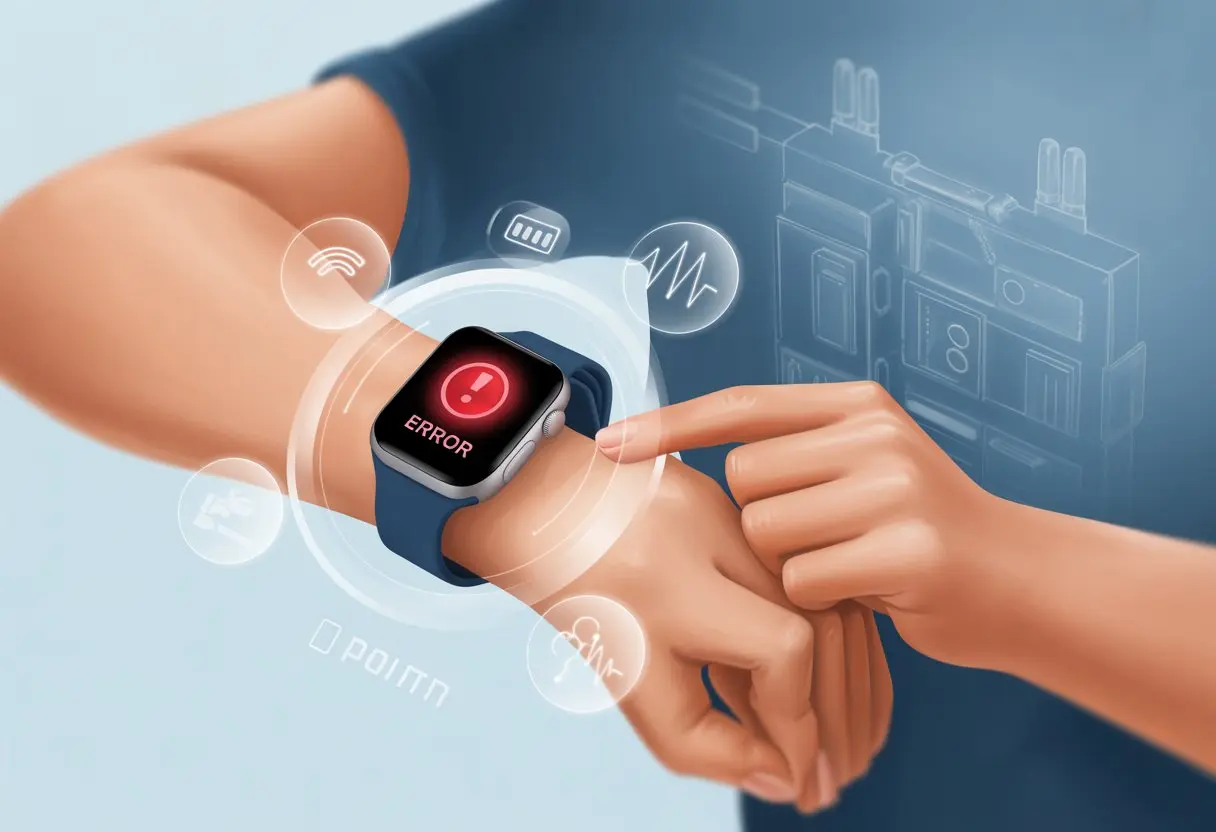
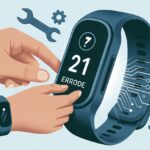
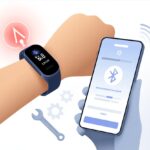
Has your fitness tracker ever decided to hit you with the mysterious error code 104 instead of just counting your steps? You’re definitely not alone. Sometimes, it feels like technology just wants to keep us humble, right? Nothing says “get moving!” like a smartwatch that flat-out refuses to move past an error screen.
Error code 104 usually pops up when your device can’t connect via Bluetooth, often flashing as BLE_CONNECTION_UNAVAILABLE. Luckily, you don’t need to toss your tracker out the window or waste time searching for new batteries you probably don’t need. There are actually some straightforward fixes that’ll get you back to counting calories—and, let’s be honest, bragging rights—in no time.
Let’s dig into the real reasons behind this error, laugh a little at our tech mishaps, and find easy ways to get those trackers back to work. After all, your fitness goals aren’t going to track themselves. If you want more details or to see what others have tried, check out tips on the Garmin forums about BLE connection problems.
Understanding Fitness Tracker Error Code 104
It’s honestly frustrating when your fitness tracker starts throwing secret codes at you, especially when you’re just trying to count steps or beat your neighbor’s running record. Error Code 104 has tripped up plenty of fitness fans, but don’t worry—it’s not the end of your treadmill adventures.
Let’s break down what this cryptic message means, why it happens, and which of our favorite devices love to flash it at us.
What Is Error Code 104?
Error Code 104 basically means your fitness tracker can’t connect to another device, like your smartphone, a heart rate monitor, or maybe even your Life Fitness treadmill.
It’s mostly a Bluetooth Low Energy (BLE) issue. Your tracker tries to connect, but the connection fizzles out—kind of like our motivation on a Monday morning.
You’ll usually see something like “Connection Unavailable” or “BLE_CONNECTION_UNAVAILABLE” on the screen. If your tracker can’t talk to your phone or fitness equipment, this code is its way of complaining.
Why Does Error Code 104 Happen?
Bluetooth connection failures cause most Error Code 104 messages. If your phone is too far from the tracker or you buried the tracker under a pile of laundry, it’ll probably lose connection. We’ve all been there—fit life interrupted by some bad Bluetooth luck.
Other causes? Software glitches, outdated firmware, or an app that needs an update. Sometimes, nearby devices interfere. Maybe your neighbor’s wireless speaker blaring ‘Eye of the Tiger’ is sabotaging your run.
You might also see this code after updating your tracker or switching to a new phone. It’s like your tracker is demanding attention, just like a cat that sits on your keyboard when you’re busy.
Common Devices Affected
You’ll spot Error Code 104 on all sorts of fitness trackers and smartwatches. Brands like Garmin, Fitbit, and Life Fitness running equipment love to flash this code.
Heart rate monitors and treadmills that use Bluetooth can show this error, too. If your tracker or watch pairs with something else, like a bike sensor or fitness equipment, you might run into error 104 there as well.
Here’s a quick table of usual suspects:
Device Type
Example Brands
Fitness Trackers
Fitbit, Garmin
Smartwatches
Garmin, Suunto
Treadmills
Life Fitness, Horizon
Heart Rate Monitors
Polar, Wahoo
If you use any of these, you’ve probably stared at Error Code 104 and muttered “Why me?” while tying your shoes.
Immediate Steps To Fix Error Code 104
When your fitness tracker throws error code 104, it’s easy to panic and picture a future where every step goes uncounted. Good news: most of the time, the cause is just a connection hiccup or outdated software.
You can usually fix error 104 with a little patience and some basic troubleshooting. Let’s start with the basics and work our way up.
Restarting Your Fitness Tracker
First up—the classic IT move: turn it off and then on again. Most fitness trackers sort themselves out after a quick restart, including error code 104.
Find the power button or restart option in your device’s settings. If you don’t see a clear button, try holding down the main button for about 10 seconds until the screen goes dark. Sometimes, you’ll have to swipe and tap through menus, so patience definitely helps.
Restarting clears out minor glitches and helps your tracker reconnect to its app. If your tracker freezes or just won’t respond, try forcing a restart by pressing and holding buttons together. Don’t skip this step—it’s the simplest fix and often works wonders.
Checking Connections and Range
Fitness trackers need a good connection—usually Bluetooth, but sometimes Wi-Fi. If error code 104 shows up, check that your tracker is paired with your phone and that both are close together. Walls, microwaves, and even your own body can block signals (seriously).
Check these points:
Is Bluetooth turned on?
Are your devices within a few meters of each other?
Are other gadgets nearby hogging the signal?
Sometimes, just moving your phone closer does the trick. If you see any cables (rare, but it happens), check that they’re plugged in tight.
Turning Bluetooth off and back on can clear up stubborn connection ghosts. Try not to connect too many devices at once—your tracker can get confused and toss out error code 104, just like other connection reset errors.
Ensuring the Tracker and App Versions Match
If your tracker and app are feuding, outdated versions are probably to blame. Make sure both are running the latest version. Open your app store and check for updates.
Sometimes your phone’s system needs an update, too. If your tracker’s firmware is old, look in the app for update options—usually under device settings with a name like “Firmware,” “Device Update,” or maybe just a big red dot.
Keeping both the tracker and app up to date solves a lot of headaches. If nothing else works, uninstall and reinstall the app to give it a fresh start.
Troubleshooting Life Fitness Equipment With Error 104
When your Life Fitness equipment flashes error code 104, it’s usually not something a simple restart will fix. You’ll need to spot what’s wrong and keep safety in mind.
Decoding Error Displays on Consoles
The first thing you’ll notice is that error code blinking at you, as if your treadmill is suddenly judging you. Error 104 usually means a communication problem in the trainer’s system—think of it as the digital version of being given the silent treatment.
What should you do?
Check the display panel for other messages or codes.
If it’s stuck on 104, it could be a real-time status issue or a lost connection. You can confirm this by checking the web tool for equipment connectivity.
Sometimes, it’s just a loose cable or a power hiccup, but don’t count on that being the only problem.
For more on what error codes mean, these Life Fitness error code resources can save you from inventing new curse words for your machines.
Key Maintenance Checks for Life Fitness Machines
Before blaming the machine, give it a quick check. Dust bunnies and unplugged cords have ruined plenty of workouts.
Here’s what to look for:
Power: Is it plugged in all the way? (No shame if it’s not.)
Internet Connection: Sometimes error 104 is just your Wi-Fi acting up, so check your router and cables.
Cables: Look for loose, frayed, or disconnected wires near the console. Handle these carefully—nobody wants a surprise shock.
Restart: A full reset, not just a quick on-off, often helps. Cross your fingers while rebooting—hey, it can’t hurt.
Doing a regular inspection every week can help prevent these drama-filled errors. For a full list of common issues, check out more Life Fitness troubleshooting tips.
Safety Precautions Before Troubleshooting
Before you turn into a tech whisperer, safety comes first. Nobody wants their living room to become the next viral “I got shocked by my treadmill” video.
Unplug the machine before touching anything inside. This keeps you safe from accidental zaps and angry, spinning belts.
Wear rubber-soled shoes to cut down on static electricity. Fuzzy slippers don’t count as safety gear, even if they’re comfy.
If something feels hot, smells burnt, or looks damaged, back away and call for professional help—no need to play hero.
Keep liquids and pets away. Your cat isn’t going to fix error 104, no matter how curious she looks.
Stay careful, follow the manual, and don’t hesitate to reach out for Life Fitness expert support if your machine starts acting like it’s possessed.
Resolving Error Code 104 in Fitness Apps
Sometimes, fitness trackers just get cranky and throw up error code 104. No need to panic or toss your tracker—most of these issues go away with a little patience and a few taps.
Clearing App Cache and Data
Let’s start by clearing out the digital cobwebs. Fitness apps like Connect App can get tripped up by leftover junk in their cache or corrupted data files.
Clearing the cache is like giving your app a fresh start. Go to your device’s settings, scroll to Apps, pick your fitness app, and tap Clear Cache and Clear Data. This kicks out any hidden glitches and helps things run smoother.
Heads up—clearing data will probably log you out and might erase saved preferences, so keep your login info handy. Regular cache cleanups help keep things fresh, especially if your app is freezing or acting weird. If error code 104 keeps showing up, clearing data gives your app a clean slate.
Reinstalling and Reconnecting Apps
Sometimes, no matter how much we poke at our phones, the error just won’t go away. That’s when we reach for the oldest trick in the book: uninstalling and reinstalling the fitness app.
We start by uninstalling the app from our device. Then we head over to the app store, reinstall it, and hope for the best.
After launching, we sign in again and reconnect any devices—fitness tracker, smart watch, or whatever else we’re using. This step can fix hidden issues or broken connections that clearing the cache just can’t touch.
While we’re at it, let’s check for any app updates. Developers usually squash bugs with new releases, so it’s worth a look.
Updating Permissions and Network Access
Sometimes, error code 104 pops up because the app doesn’t have permission to do its thing or gets blocked by our Wi-Fi. We need to open device settings, find our app, and make sure all the important permissions are switched on—Bluetooth, location, and background data especially.
Apps like Connect App need Bluetooth and network access, or they’ll just refuse to sync data. Quick tip: if we’re on public Wi-Fi, switching to mobile data can sometimes dodge those network gremlins.
Updates sometimes reset permission settings, so it’s smart to check them whenever something seems off. If you want more info about error 104, here’s a piece on connection reset by peer, which sometimes shows up in fitness apps.
Preventing Future Fitness Tracker Errors
If our fitness tracker let us down this week, we’re definitely not the only ones. A few smart moves can help us dodge Error 104 and maybe save us from yelling at tiny screens.
Best Wireless Practices for BLE Devices
Let’s be honest, Bluetooth Low Energy (BLE) can be as unpredictable as we are before coffee. To keep trackers happy, we need to avoid crowded signals.
Trying to sync at the gym, surrounded by dozens of gadgets, is basically asking for trouble.
Here’s a quick cheat sheet:
Keep the tracker and phone close together. Think “BFFs,” not “long-distance.”
Turn off Bluetooth on devices we aren’t using.
Restart both tracker and phone before syncing if issues keep showing up.
These habits help us dodge annoying connection errors like BLE_CONNECTION_UNAVAILABLE, which often show up when there’s too much wireless traffic. There’s more on that in the saga of BLE errors.
Honestly, keeping it simple usually works best.
Regular Maintenance of Fitness Equipment
Trackers, like us, work better when they’re clean and charged. Wipe down the band, charge before it dies completely, and check for dust or sweat clogging up the sensors.
We should keep an eye out for warning symbols or error codes—usually the tracker’s way of saying, “Hey, something’s up!” If things get weird, the fastest fix is often a simple reset.
A tracker that’s snug but not tight, clean, and rebooted regularly is less likely to act up mid-workout.
Staying Alert With Firmware Updates
When our tracker asks for an update, let’s not keep hitting “later” like we do with snooze buttons. Firmware updates actually matter. They fix bugs, patch security holes, and help our gadgets play nice together.
Open the companion app once a week and check for updates. It’s like a mini health check for our devices.
Most updates aren’t dramatic, but the quiet fixes in the background keep errors away. If we ignore them, we might end up with even stranger error codes—or a tracker that gives up halfway through a run.
Let’s stay on top of updates, at least most of the time.
When All Else Fails: Contacting Support And Unusual Cases
Sometimes, error code 104 just won’t go away, no matter how many times we reset or do the classic “turn it off and on again.” That’s when it’s time to gather info, deal with weird fitness scenarios like RV life, and maybe invent our own temporary solutions while tech support gears up.
Collecting Information For Support
Before we call support, let’s get our facts together. The more details we have, the less time we’ll spend on hold listening to elevator music (unless you’re into that).
Here’s what we should have ready:
Device model and firmware version
Description of error 104 (screenshots help a ton)
Steps we’ve already tried (don’t just say “everything”—they never buy it)
Who owns the tracker (in case Grandma borrowed it for Zumba)
Our environment (RV, gym, running in the rain, etc.)
Having this info handy means we can jump straight into troubleshooting with customer support pros instead of repeating ourselves.
Understanding Unique Use Cases (RV Life, Outdoor Workouts)
Let’s be real, some of us just don’t use fitness trackers the “normal” way. We run marathons through cornfields, bike across state lines, or track steps while living our best RV lives (pets and dashboard cactus included).
Error 104 sometimes pops up because our lifestyle isn’t what the engineers pictured. Bumpy RV rides, wild temperature swings, or tracking a sunrise run in the middle of nowhere can throw off even the smartest tracker.
It helps to mention these quirks when talking to support—otherwise, they’ll assume we’re using the tracker in a cozy living room, not out in a field with llamas.
This context lets support troubleshoot in the right direction. Sometimes the device just needs a firmware update to handle all our wild adventures.
Creative Workarounds While Waiting for a Fix
Error 104 just keeps sticking around, doesn’t it? That doesn’t mean we have to sit on our hands.
Let’s try channeling our inner MacGyver for a bit. We could use a reset trick to clear things up for a day, even if it’s just a temporary fix.
If syncing breaks down, I usually jot my workout stats in a notebook. Sometimes I’ll grab my phone and just track distance and time there instead.
For folks in RVs or anyone feeling nostalgic, why not use an old-school pedometer? It’s kind of retro, but honestly, it still does the job.
If the running app refuses to cooperate, I like to compare my daily results to last week’s workouts. It’s not perfect—let’s be real—but sometimes “close enough” is all you need to brag at your next virtual 5K.
And hey, when support finally gets back to us, we’ll have survived, improvised, and maybe even remembered how to use real paper again.
Hi, my name is Garrett Jones, and I am a tech enthusiast. I enjoy researching the new tech that has been released, and have a vast knowledge of the best tech to purchase.
From a young age, I have always had a big interest in technology, and this blog is an extension of that interest. Through this blog, I hope to provide others with all of the information they need regarding tech options to consider, and things such as compatibility. Some of the different items I will be discussing include headphones, smartwatches, and how to fix common issues.