Let’s be real, we’ve all had that moment—chatting away on Zoom, then realizing our Bluetooth headphones decided to check out. We fumble with the Bluetooth connection, wonder if the headphones are even turned on, and maybe yell at the screen (just a little). Usually, Bluetooth headphones don’t work with Zoom because audio settings don’t match up or Zoom isn’t connecting to our device properly.

These days, most of us end up in virtual meetings for work, school, or just to see someone’s cat parade across the keyboard. Bluetooth audio doesn’t always deliver the smooth experience those flashy ads promise.
If we pick the wrong device for sound or let other apps grab the audio, Bluetooth headphones might not work with Zoom. This Bluetooth troubleshooting guide has a quick rundown.
Before we blame the tech, it’s worth knowing a couple tricks that might save us from an awkward silence. Let’s dig into why this keeps happening and what we can do—without tossing our headphones out the window.
Common Reasons Bluetooth Headphones Fail With Zoom
We all want our Bluetooth headset to just work when we join a meeting. But sometimes, these headphones have other plans.
Connection Issues
Bluetooth headphones get moody sometimes. If our Bluetooth connection is weak or drops, Zoom won’t see our headphones at all.
Just walking too far from the computer can make the headphones quit. It’s annoying.
Low battery is another classic culprit. When the battery dips, headphones might disconnect to save power.
Interference from other wireless gadgets or even thick walls can mess things up, too. Keeping headphones charged and close to the laptop helps.
If nothing else works, try disconnecting and reconnecting the Bluetooth device. This fix sorts out more issues than we’d like to admit and often solves Zoom connection problems.
Zoom Audio Settings Misconfiguration
Sometimes Zoom tries to be helpful and ends up picking the wrong speaker or mic. If Zoom sends sound to the computer speakers instead of our headphones, we end up confused and silent.
If Zoom selects the wrong mic, nobody can hear us. Not ideal.
To fix it, check Zoom’s audio settings. In a meeting, click the small arrow next to the mic or speaker icons and choose the Bluetooth device.
Test the volume level too—Zoom likes to set it super low for no reason.
Don’t just set headphones as default in Windows or Mac; double-check inside Zoom. It sometimes ignores the system setting.
If you need more help, the Zoom support guide on audio issues is actually pretty useful.
Conflicts With Other Apps
Other apps like Skype, Teams, or even a random YouTube tab sometimes snatch our Bluetooth headset before Zoom can. That causes a tug-of-war, and usually, nobody wins.
When another app is using the headphones, Zoom might not grab them for audio. It’s best to close any extra programs before starting a Zoom call.
If things are still weird, check the PC settings to see if another app is hogging the headset. Changing “Hands-Free Telephony” settings can help, which has worked for plenty of folks in this Zoom community forum.
Troubleshooting Bluetooth Sound Problems
Nothing kills the vibe faster than joining a Zoom call and realizing nobody can hear us—or worse, all we get is static. Sound issues usually come from device connections, setup mistakes, or the classic technology gremlins that seem to live for chaos.
Let’s check out some of the main annoyances and what might actually work.
Audio Output Not Detected
Sometimes, Zoom hides our Bluetooth headphones, headsets, or speakers. We pick “Bluetooth headset” in Zoom, but still get nothing.
Check the computer’s audio output first. Is the Bluetooth device set as the default?
On Windows, right-click the sound icon and hit Open Sound Settings. Choose the headphones or wearables from the list.
On Mac, head to Sound in System Preferences. In Zoom, pick the headphones under both Microphone and Speaker.
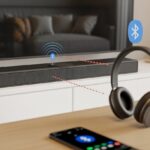
Disconnect any other audio devices—extra speakers or soundbars can confuse things. If the headphones still don’t show up, try “forgetting” them in Bluetooth settings, restart Zoom, and reconnect.
Check for Zoom or driver updates, too. Outdated software loves to cause trouble. Zoom has some step-by-step troubleshooting tips if you need them.
Distorted Audio and Unexpected Noises
Crackling, robot voices, or weird whines? That’s usually a bad audio profile.
Windows sometimes decides our headphones should work like a walkie-talkie, not speakers. Not great.
Check audio settings in Zoom and on the computer. Avoid anything labeled “Hands-Free Telephony” if you want decent sound.
Disable this feature in Windows Bluetooth settings if you can—it tanks sound quality and causes distortion.
If you’re using several Bluetooth devices (soundbars, wearables, whatever), disconnect extras and stick to the main headphones. Also, stay close to the computer—Bluetooth hates walls and interference.
If the weird noises stick around, un-pair and re-pair the headphones, then close any other apps that might be using audio. If someone else sounds like a robot, maybe send them this advice, too.
Poor Sound Quality and Lag
Nobody wants stuttering or laggy audio on a call. If it sounds like someone’s underwater, Bluetooth interference or a low battery could be the villain.
First, charge the headphones. Low battery is a sneaky cause of garbled sound.
Keep the headset near the computer for the best connection. The farther away, the more likely it’ll start glitching.
Shut down other music or video apps. They compete for audio and mess with Zoom.
If things are still off, restart Zoom and the Bluetooth device. Sometimes, that’s all it takes for clear sound.
On Android, make sure Zoom has “Nearby Devices” permission. If not, Bluetooth audio might not work—more details here.
If you’re desperate, disconnect the Bluetooth device, forget it, and reconnect. Hopefully, that’ll end the “Can you hear me?” dance.
Microphone and Speaker Headaches
Zoom meetings should be simple, right? But when Bluetooth headphones go silent or ignore us, frustration is pretty much guaranteed.
Let’s break down a couple ways these gadgets trip us up.
Bluetooth Microphone Not Working On Zoom
We’ve all talked into the void while coworkers mime, “You’re on mute!” Usually, Zoom and our Bluetooth headset just aren’t on the same page.
Even if our device is connected, Zoom might still use the laptop’s built-in mic. To fix this, check Zoom’s audio settings.
Click the arrow next to mute and pick the Bluetooth mic under “Select a Microphone.” If it’s missing, try disconnecting and reconnecting the headset.
Connecting Bluetooth headphones to more than one device can confuse things. Sometimes, the mic goes to the phone while the speakers play Zoom on the laptop.
For best results, connect the headset to only one device at a time. If all else fails, the classic “turn it off and on again” move often works.
For more help, check this guide on Bluetooth mics not working with Zoom.
Speakers Not Outputting Zoom Audio
Let’s talk about the other half—hearing nothing at all. Our Bluetooth speakers just sit there, and all we hear is our own sigh.
Check Zoom’s audio output first. Sometimes, Windows or Mac sends Zoom sound to the wrong place.
Quick fix:
- Join a meeting.
- Click the arrow next to mute/unmute.
- Under “Select a Speaker,” choose the Bluetooth headset.
If the headphones are connected to multiple devices, they might get confused. Stick to one device for the best result.
On Windows, headphones sometimes show up as “Headphones” and “Headset”—one for music, one for calls. Picking the wrong one in Windows or Zoom can make audio vanish.
If the problem sticks around, disconnect and reconnect the device. More tips can be found in this thread on Zoom Bluetooth speaker issues.
Specialty Issues With Particular Bluetooth Devices
Sometimes Bluetooth devices really do seem to have a mind of their own, especially with Zoom. The quirks often depend on the headphones, speakers, or even the product support.
Different gadgets cause their own headaches, but there are usually a couple ways to work around the weirdness.
Problems With Earbuds And True Wireless Devices
Earbuds and true wireless headphones make life easier when we want to wander around the house during meetings. Honestly, who hasn’t zoned out on Zoom with earbuds in? The problem? Zoom doesn’t always play nice with these gadgets.
These devices usually split Bluetooth connections into separate settings for calls and for music. If we pick the wrong one in Zoom, our audio might start crackling or just drop out.
Some earbuds come with a “Hands-Free” mode, which trades audio quality for mic access. If Zoom grabs this mode, suddenly we sound like robots and music sounds sad. We can try switching to “Stereo” in Zoom’s audio settings, but then the mic usually stops working. It’s a bit of a catch-22.
It gets worse if the Bluetooth signal weakens or random interference pops up from other devices—maybe even a microwave. We can check for firmware updates, set the earbuds as the default audio device, or just sit closer to the computer. These tricks help a bit, but sometimes, earbuds and Zoom just don’t get along.
Using Bluetooth Speakers Instead Of Headphones
Bluetooth speakers can fill the room with sound, but using them on Zoom? That’s another story. Most Bluetooth speakers don’t have microphones, so we might hear everyone, but nobody hears us.
Zoom sometimes won’t let us pick the speaker for audio output, especially on older hardware or certain phones. When we connect a Bluetooth speaker, Windows or macOS might treat it as just a music device, not a communication device.
This means Zoom could ignore our settings. One workaround is to dive into sound settings and set the speaker as the default for both regular audio and communications. That way, Zoom’s less likely to ignore us.
We’ve seen some Bluetooth speakers lag behind during live calls due to audio latency. That’s fine for music, but on Zoom, it makes our replies awkwardly late. If this happens, switching to wired speakers—or just pretending we’re being dramatic—might be the move.
Troubleshooting Bose Products
When we grab our fancy Bose headphones, we want comfort and that sweet, sweet noise-canceling. But Bose headphones and earbuds sometimes act up on Zoom.
Firmware mismatches, outdated drivers, or weird “Bose Connect” app settings can mess things up. Zoom might default to the “Hands-Free” profile, which tanks our audio quality.
For a lot of Bose models, we need to go into Windows sound settings or the Zoom app and pick the “Stereo” option. This usually gives us better sound but often kills the mic. It’s like we have to pick between sounding good and being heard. Not ideal, right?
Bose’s support page tells us to restart the device and computer, update firmware, or unpair and re-pair if things go sideways. Sometimes, there’s a hidden switch or a touchpad gesture we missed that toggles the input. It’s worth poking through the manual or the Bose help site if Zoom and our headphones stop cooperating.
Advanced Fixes For Zoom And Bluetooth Compatibility
If our Bluetooth headphones still make us sound like we’re calling from a tin can, don’t panic. We’ve found some tricks to squeeze better sound out of Zoom and keep our ears happy.
Tweaking Treble And Bass Response
Let’s be honest: everyone wants headphones with crisp highs and punchy bass. But Zoom loves to flatten our audio, turning it into something pretty lifeless.
We can fight back by using an equalizer app or our headphones’ controls—if they have them—to adjust treble and bass response. Playing with the sliders helps smooth out playback and gives us a more enjoyable sound.
If our headphones let us save presets, making one called “Zoom Escape” isn’t a bad idea. That way, we can quickly fix the sound every time Zoom tries to make us sound robotic.
- Boost the treble for clearer speech.
- Adjust bass for a richer, less boxy sound.
- See if the Bluetooth headphones’ app has a “meeting” or “voice” mode.
These tweaks won’t stop Zoom’s noise suppression from barging in, but at least we won’t win Worst Audio at the next meeting.
Enabling Original Sound For Music Or High-Quality Calls
Zoom loves to jump in and “help” if it hears anything besides a human voice. By default, it tries to block out what it thinks is background noise, but honestly, this just makes our headphones sound terrible.
If you want your headphones to sound like, well, headphones, you’ll want to turn on Original Sound in Zoom.
Here’s how you can do it:
- Open up your Zoom settings.
- Head over to Audio.
- Find the option called Original Sound for musicians (don’t worry, you don’t need to be in a band to use it).
- Switch it on, and then, during your meeting, click “Enable Original Sound.”
Now Zoom will stop messing with your audio. Your Bluetooth headphones can finally play music and voices the way they’re supposed to.
If you’re curious or still having trouble, the audio troubleshooting thread on Zoom’s forums is actually pretty helpful.

From a young age, I have always had a big interest in technology, and this blog is an extension of that interest. Through this blog, I hope to provide others with all of the information they need regarding tech options to consider, and things such as compatibility. Some of the different items I will be discussing include headphones, smartwatches, and how to fix common issues.
- The Best Rugged And Waterproof Smartwatches - October 21, 2026
- 10 Best Military Smartwatch – Find The Best Tactical Military Watches in 2023 - October 20, 2026
- Are Wired Headphones Safer Than Bluetooth? A Friendly Guide - October 20, 2026
Related Posts: