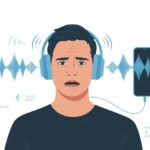
Why do Bluetooth headphones sometimes sound like they’re stuck in a tin can concert? We pay good money, plug them in, and still end up with audio that reminds us of an old radio.
Usually, poor sound quality on Bluetooth headphones comes from weak bandwidth, connection problems, or our computers picking the wrong settings.
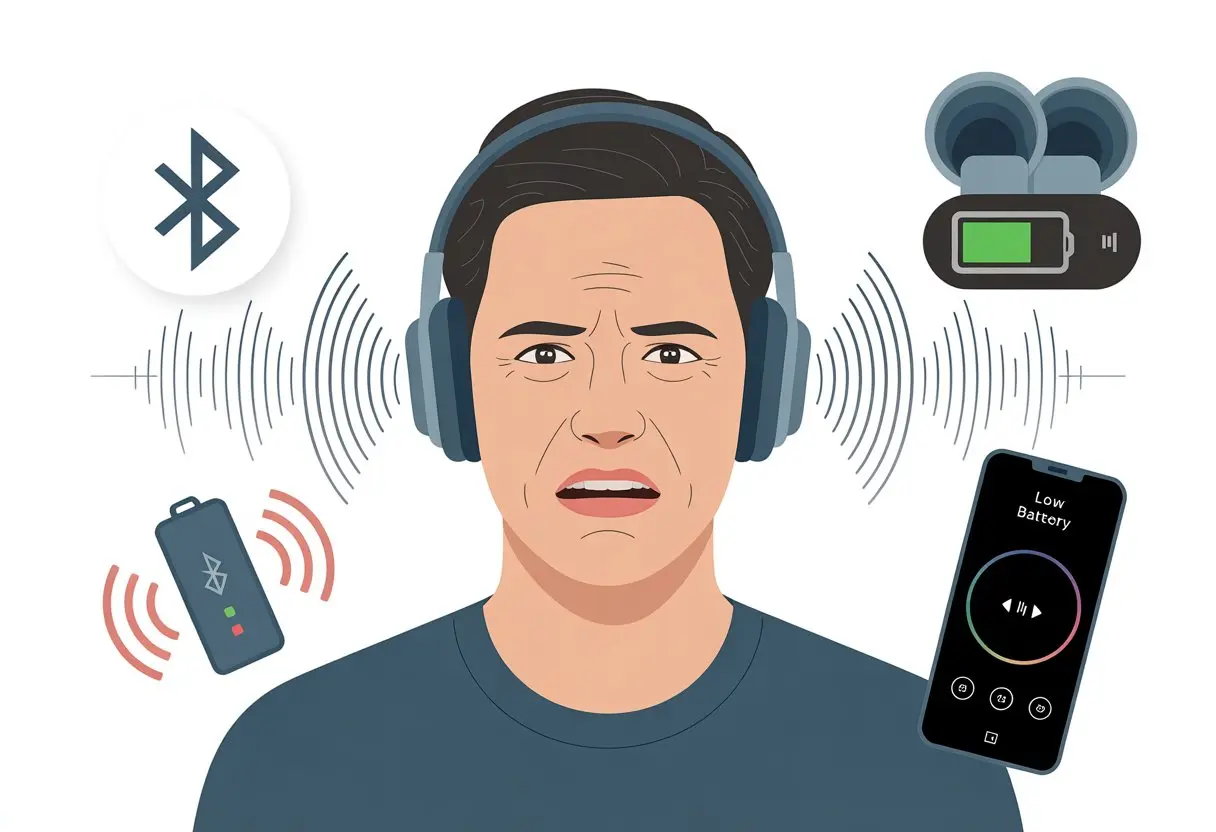
Honestly, nobody wants to watch cat videos when the audio sounds like a robot is gargling marbles. Multiple devices can use the same Bluetooth, and sneaky computer settings like hands-free mode can ruin the experience.
Even turning on the headset microphone can completely wreck our playlist’s groove, as other frustrated users dealing with bad Bluetooth audio have pointed out.
If we’re tired of blaming our headphones for problems they didn’t cause, we’re in the right place. Let’s dig into what’s actually dragging down our sound and figure out some simple fixes—so maybe our next music session is more “wow” than “why is it doing that?”
Understanding Bluetooth Sound Quality
Bluetooth audio doesn’t always deliver the sound we hope for. The reasons usually come down to how Bluetooth works, and honestly, there are a few things about our wireless devices and headphones that most of us don’t even realize.
How Bluetooth Transmits Audio
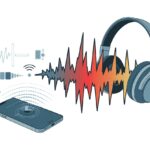
When we use Bluetooth headphones, our music doesn’t magically float through the air. Bluetooth compresses our audio to fit its limited space, using codecs like SBC, AAC, or aptX.
Each codec handles sound differently. Some keep the details, while others flatten out our favorite songs. Here’s a quick comparison table of common Bluetooth codecs:
| Codec | Max Bitrate | Sound Quality |
|---|---|---|
| SBC | ~328 kbps | Basic |
| AAC | ~250 kbps | Good (esp. on Apple devices) |
| aptX | ~352 kbps | Better |
Our devices need to support the same codecs for the best results. If they don’t, we get stuck with the lowest common denominator.
Bluetooth also tries to juggle both music and calls. If we turn on the microphone, audio quality often drops because Bluetooth can’t send crisp music and clear voice at the same time. It has to pick one, and usually, music gets the short end of the stick. This makes things sound muffled or dull, as plenty of unhappy listeners have noticed (Bluetooth headset goes to low audio quality when using mic).
Key Factors Affecting Wireless Audio
There’s more to this than just codecs. Interference from Wi-Fi routers, microwaves, or even that one mysterious smart gadget in the next room can make our sound stutter or cut out.
Multiple Bluetooth devices fighting for bandwidth can trip up even the fanciest headphones (Bluetooth headphones sound bad on pc – Microsoft Community).
Distance plays a role, too. The farther our headphones are from our device, the more likely we’ll start hearing crackles or pops. It’s a bit like walking away from someone mid-conversation.
The quality of our Bluetooth headphones matters as well. Cheap headphones often use basic components that make even the best audio sound like it’s underwater.
But when everything lines up—good codecs, strong connection, and decent hardware—Bluetooth sound quality can surprise us (What You Really Need to Know About Bluetooth Audio | Wirecutter).
Common Causes of Poor Sound Quality
Sometimes our Bluetooth headphones sound like we’re listening to music through a pillow stuffed with bees. Let’s look at why that happens and what’s actually making our playlists sound like underwater karaoke.
Bluetooth Connection Issues
When our headphones glitch, lag, or just drop the beat, the Bluetooth connection probably walked out for a lunch break. Bluetooth only works well at short distances. Think “arm’s length,” not “across the street.”
Moving too far away from the source or putting a few walls between us and our device is just asking for trouble. Weak connections cause cutouts, audio lag, or that fast-forward effect we usually only hear in chipmunk cartoons.
Let’s not forget the hardware. Old computers or phones with outdated Bluetooth chips are like trying to stream a movie on dial-up.
Quick Tips:
-
Keep headphones and devices close together
-
Avoid barriers and closed doors
-
Check for Bluetooth updates
If connection issues persist, try resyncing or rebooting the device. Sometimes just restarting Bluetooth does the trick.
Interference and Noise
Bluetooth can act like a drama queen. If anything else around us is hogging its signal—Wi-Fi routers, microwaves, or even our neighbor’s questionable smart fridge—it’ll start creating static, crackling, or dropouts faster than we can say “static shock.”
This interference sneaks in from other wireless devices or even big metal objects. If the sound is distorted, choppy, or just plain weird, thank nearby electronics for the show.
Look out for:
-
Several Bluetooth devices in one room fighting for dominance
-
Wireless routers and microwaves running at the same time
-
Large metal obstacles nearby
Try moving away from troublemakers or pausing other wireless gadgets to see if the static clears up. Our ears will thank us.
Here’s a fun list of the most common culprits:
- Wi-Fi routers
- Microwaves
- Other Bluetooth gadgets
- Cell phones switching networks
- That mysterious gadget none of us remember buying
Audio Compression Woes
Bluetooth doesn’t send unfiltered, high-fidelity audio to our headphones. It squeezes music into a tiny package using audio compression.
This process can crush our tunes and drain out the energy, especially if the connection isn’t strong. If we notice our music sounds muffled, quiet, or like it’s coming from a tin can, audio compression is probably to blame.
The effect gets even worse if we use our headphones for calls and music at the same time. Many Bluetooth headsets switch to a “hands-free” profile, which reduces audio quality just to keep the microphone open.
To lessen compression:
- Switch to music/playback mode, not hands-free mode
- Don’t use mic and music together unless we have to
- Use wired headphones if we want zero compression
Low-Quality Audio Codecs
Let’s talk codecs—the little audio translators inside our headphones. Some Bluetooth devices use cheaper, lower-quality codecs by default, making our music sound like it’s coming from under a pile of laundry.
Common basic codecs like SBC are okay for podcasts but not for our favorite tracks. Better codecs—like aptX, AAC, or LDAC—send more audio data and make everything sound crisp and clear.
Both our headphones and devices need to support the same codec, or else we’re stuck with the lowest common denominator.
Quick tips for better codec life:
-
Check both our device and headphones for high-quality codec support
-
Change settings in the Bluetooth menu if possible
-
If we’re stuck with basic codecs, consider upgrading equipment
If you want to dig into Bluetooth profiles and codecs (without needing a PhD), check out this detailed guide. Our eardrums will definitely appreciate it.
Bluetooth Profiles That Matter
There’s more happening behind the scenes of our Bluetooth headphones than just music floating through the air. The way our headphones connect—and which profile they use—can make the difference between crystal clear sound and something that reminds us of a drive-thru speaker.
A2DP Versus HFP and HSP
Not all Bluetooth profiles are created equal when it comes to listening to audio. A2DP (Advanced Audio Distribution Profile) is our best bet for high-quality stereo sound.
This profile gives us the kind of music experience that doesn’t sound like it’s coming from inside a tin can. On the other hand, HFP (Hands-Free Profile) and HSP (Headset Profile) are for phone calls, not music.
They focus on letting us talk and don’t really care about making our playlists sound great. If our headphones switch to HFP or HSP, music gets compressed so much that it’s like squeezing an entire orchestra into a shoebox.
Here’s a handy comparison:
| Profile | Purpose | Sound Quality |
|---|---|---|
| A2DP | Music, podcasts | High |
| HFP | Phone calls | Low |
| HSP | Basic calls, alerts | Lowest |
If we notice music sounding worse while we’re on a call or using a voice assistant, our headphones probably jumped from A2DP to one of these lower-quality profiles.
Telephony Profiles and Their Pitfalls
Let’s talk about phone calls, video chats, and those times we accidentally activate our laptop’s mic. Telephony profiles like HFP and HSP are meant to get our voices across.
They cut out big chunks of audio data to prioritize call stability over sound quality. This means when we’re on a call or if our device thinks we’re about to be, our headphone audio drops from concert hall to AM radio real fast.
Some computers and apps can force us into HFP/HSP mode even when we just want to listen to music. Devices can even get stuck in the wrong profile, making everything sound bad until we disconnect and reconnect our headphones.
If we keep hearing muddy, muffled sound, it’s a good idea to check what profile is active or look for settings in the app or device to force A2DP back on.
For more about how different profiles can mess up our listening, see this Reddit discussion on Bluetooth source and audio quality.
Hardware Limitations and Device Settings
Let’s face it: nothing ruins a good playlist like Bluetooth headphones that sound like a broken speaker at a drive-thru. Sometimes, the problem isn’t just our ears. The gadgets we’re using and the sneaky settings hiding in our computers love to stir up trouble.
Driver and Firmware Issues
Drivers and firmware are like hidden elves in our tech cave. When they mess up, nothing works right.
Outdated Bluetooth drivers or old headset firmware can leave us in audio misery. Fuzzy bass, dropouts, or weird screeching noises? Yeah, those too.
Let’s not pretend our Bluetooth headphones update themselves magically. Usually, we have to check for new versions on the manufacturer’s site or poke around in the Bluetooth settings.
Honestly, keeping drivers up-to-date matters more than finding matching socks.
To update:
- Visit our headphone maker’s website.
- Download the latest firmware.
- Follow their steps, and cross your fingers for improvement.
Waiting for an update might feel like watching paint dry. Still, it can fix common glitches like audio lag and stutter.
The Role of Audio Drivers
Audio drivers are basically restaurant servers for our headphones. If they bring the wrong dish, we don’t get what we want.
Bad or missing audio drivers usually mean our headphones sound worse than the speakers in our parent’s old car.
Most of us forget to update audio drivers. When we finally do, it’s like hearing our music in HD for the first time.
Updating audio drivers through the computer’s official support page or using device manager tools is an easy first step for better sound.
Common signs our drivers are outdated:
- Music sounds thin or tinny
- Voices are muffled
- Headphones randomly stop working
Keeping audio drivers in good shape fixes more issues than blaming the Wi-Fi for everything.
Device Manager: Your Secret Weapon
Device Manager is kind of the backstage pass to our computer’s hardware. With a few right clicks, we can force our machines to behave better.
When Bluetooth headphones act up, opening Device Manager lets us see if drivers are installed, need updates, or should just be uninstalled for a fresh start.
It’s honestly not scary—just look for “Sound, video and game controllers,” and “Bluetooth.”
Quick fixes with Device Manager:
- Update driver
- Uninstall and reinstall device
- Disable and re-enable hardware
This simple trick fixes problems a surprising amount of the time. It’s like a hard reboot for our headphones and computer’s relationship.
If you get stuck, the Microsoft Community has step-by-step guides for troubleshooting sound quality issues.
Codec Showdown: SBC, aptX, and Friends
When we talk about Bluetooth sound quality, the audio codec really matters. Not all codecs are created equal, and that explains a lot about why our headphones sometimes sound amazing and sometimes sound like a tin can concert.
SBC: The Default Culprit
SBC is the default Bluetooth audio codec. That means it’s always there—like a slightly awkward party guest who won’t leave even when it’s clear the party is over.
SBC is built into almost every pair of Bluetooth headphones. Why? Because it’s the standard for Bluetooth audio, so every device has to support it.
But here’s the catch: SBC was designed to be easy to decode, not to sound incredible. It’s not famous for its high quality—think more “functional” than “fancy.”
The biggest problem with SBC is its low bitrate. That’s tech-speak for saying your music files get squeezed down pretty hard, and a lot of detail gets left behind.
Because it clips some of the highs and lows out of our tunes, we end up with flatter, less exciting sound. Still, it does the job if we’re not picky, and sometimes it’s the only option our earphones will even accept.
You can read more on why Bluetooth headphones use SBC by default.
Here’s a quick rundown of what SBC does well and where it falls short:
| SBC Pros | SBC Cons |
|---|---|
| Always supported | Lower sound quality |
| Works on anything | More compression, less detail |
aptX and Enhanced Audio Codecs
Let’s give aptX a round of applause. It’s kind of like SBC’s cooler, better-sounding cousin.
When we use aptX, our music keeps more of its detail because it handles data with higher transfer rates and less compression. That means clearer vocals, sharper drums, and a more enjoyable playlist party for our ears.
But—there’s always a “but”—aptX needs both our headphones and our phone (or whatever device we’re using) to support it. If even one doesn’t, we’re kicked back down to SBC like Cinderella after midnight.
For those of us wanting even more, codecs like LDAC and AAC offer their own benefits. Each comes with trade-offs around compatibility or battery life.
Here’s a quick side-by-side:
- aptX: Better sound, less delay, but both devices need to have it.
- LDAC: Even higher quality, but usually found only on certain headphones and Android devices.
- AAC: Good for Apple users, less ideal on Android.
If our headphones support aptX, we should definitely use it for a richer, clearer listening experience.
For more about how aptX outshines SBC, see this guide on audio quality and Bluetooth codecs.
Software Settings and User Adjustments
Sometimes, our Bluetooth headphones sound like they’re stuck in a tunnel because of the way we (or our computers) set things up.
Before blaming the headphones, let’s look at how our EQ settings, system audio tweaks, and a dash of techy curiosity can make or break our listening experience.
Mastering Your EQ Settings
We’ve all fiddled with those mysterious EQ sliders, only to make things worse. EQ, or Equalizer, lets us control how much bass, mids, or treble we hear.
A basic EQ has several frequency bands. Boosting the bass (60–250 Hz) can give music depth, but too much makes things muddy.
Raising the treble (over 4 kHz) adds crispness, but our headphones might start to sound like cheap earbuds if we overdo it.
The mids (250 Hz to 4 kHz) carry voices and instruments, and these settings can really change how clear things sound.
Most music apps, phones, and computers offer preset options like Rock, Pop, or Jazz. If we don’t know where to start, trying these presets can be easier than pretending to be sound engineers for a big-name band.
If things sound off, a quick reset to “Flat” can work wonders.
Audio Settings on Windows 10 and Linux
Now, let’s talk about our dear friends, Windows 10 and Linux. Does our Bluetooth headset sound like we’re underwater on Windows 10? The system might treat our headphones like a headset with a mic, causing poor sound from using the wrong Bluetooth profile.
Switching to the Stereo output instead of the Hands-Free Telephony one can be a game changer, since Bluetooth headphones with mic can default to lowest quality.
On Linux, we may need to hunt in PulseAudio or PipeWire settings. Sometimes the automatic profile doesn’t pick the best option.
With enough clicking and possibly some mild cursing, we can set the profile to “High Fidelity Playback (A2DP Sink)” for much better sound. If all else fails, a driver update or restart can fix gremlins hiding in the audio system.
Loudness, Bass, and Other Adventures
Now for the fun part—loudness and bass! Some Bluetooth headphones just aren’t that loud because of software limits.
Windows 10, Linux, and even some music apps might cap the volume so we don’t accidentally blow out our eardrums.
When we want more bass, sometimes built-in settings like “Bass Boost” can help. But too much thumping can drown out voices and details.
Trying out “Loudness Equalization” in Windows or tweaks in audio settings can balance things.
Lists and icons help us keep track:
Tips for better loudness and bass performance:
- Check volume on both device and headphones.
- Use presets for “Bass Boost” or “Loudness.”
- Tweak slowly—small changes go a long way.
- Don’t forget to test with different music styles.
If things still sound flat or weak, Codec issues or Bluetooth interference might be at fault. Using the wrong codec or too many Bluetooth devices can make sound quality drop.
When in doubt, we can always try turning everything off and back on again—the oldest trick in the book.
Microphone Mayhem: When Chatting Goes Wrong
Bluetooth headphones can make calls sound like we’re speaking from the bottom of a fishbowl. We get random noises, voice glitches, and echoes—sometimes all at once.
Poor Call Quality Explained
Let’s be honest, our microphones sometimes sound like they’re filtered through a sock. When we start a call, most Bluetooth headsets automatically switch to something called “hands-free profile” (HFP).
This mode is built for two-way chat, not for great sound. As soon as this mode kicks in, audio quality takes a serious nosedive.
Check this out:
| Mode | What it’s for | Audio Quality |
|---|---|---|
| A2DP (Stereo) | Music & Podcasts | High |
| HFP/HSP (Hands-Free) | Calls/Voice Chat | Low |
HFP has a much lower sampling rate, so music gets fuzzy and voices are flattened. We suddenly miss every detail, from subtle guitar riffs to our friend’s snarky remarks.
If we wonder why our headphones sound fine until we join Discord, Zoom, or Teams, it’s because the operating system swaps our audio profile when mics turn on for calls. This audio profile switch is the main villain here.
Reverb, Echo, and Other Surprises
Let’s talk about the greatest hits: reverb, echo, and random noise. We’ve all been there—everyone’s voice bounces around, or worse, echoes back to us with a delay.
It sounds less like a conversation, more like a haunted hallway. A few reasons are worth knowing:
- Bluetooth lag: Wireless signals mean audio might arrive late or out of sync
- Bad mic placement: If our mic is too close to speakers, we get instant reverb
- Incorrect software settings: Selecting the wrong recording device can send us into echo-chamber mode
Sometimes, the solution is as simple as switching back to the internal laptop mic instead of the headset mic, as pointed out by Google Chromebook help.
Other times, we just need to grin and bear it—or invest in better headphones.
When Bluetooth chat gets noisy, we’re never quite sure if we sound like a robot, a ghost, or someone shouting from a bathroom. Let’s just hope the next call doesn’t include all three.
Troubleshooting and Fixes You Can Try
Dealing with bad Bluetooth sound can be annoying. Sometimes, the problem is simple to fix at home, but other times our headphones just need some extra help.
Let’s see what we can do before giving up on them.
Easy Fixes for Poor Sound
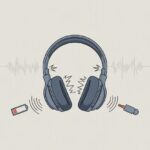
First, make sure our headphones and devices are fully charged. Low battery power can cause crackling, static, or low volume.
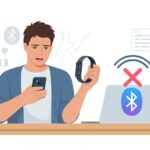
If nothing improves, it’s time to check our Bluetooth connection. Disconnecting and reconnecting often solves weird audio glitches.
Interference is another common cause. Too many Bluetooth devices in one spot can turn our headphones into a confused robot choir.
Turning off unneeded Bluetooth devices (like that old phone still hunting for WiFi) can free up the signal and improve headphone sound quality.
We can also try using our headphones closer to the device, just to rule out range issues.
Sometimes our headphones switch to a lower quality mode, especially if a “hands-free” or “headset” microphone is active. In Windows, we can disable “hands free” mode in the sound settings for a real sound upgrade.
If things still sound bad, removing the headphones from the device list and pairing them again might force everything to reset.
When to Service Your Product
Still hearing static, weird dropouts, or that scratchy sound that reminds you of old AM radio? That’s a sign it might be time to get your headphones checked.
If you’ve already tried resetting, re-pairing, and updating the firmware, and the problems just keep coming back, that’s a big red flag.
Physical damage—like broken parts or obvious wear—can mess with sound quality, too. Maybe your headphones barely survived getting sat on, stepped on, or even a wild trip through the washing machine (yeah, it happens). In those cases, a professional should probably take a look.
A lot of companies actually cover repairs or replacements under warranty. So, check the manual or poke around the maker’s website for the details.
Sometimes, letting an expert handle it is just easier—and honestly, your ears will thank you. If fixing them costs more than a new pair, maybe it’s time for an upgrade. We all deserve to hear every note, not just the ones covered in static.

From a young age, I have always had a big interest in technology, and this blog is an extension of that interest. Through this blog, I hope to provide others with all of the information they need regarding tech options to consider, and things such as compatibility. Some of the different items I will be discussing include headphones, smartwatches, and how to fix common issues.
- The Best Rugged And Waterproof Smartwatches - October 21, 2026
- 10 Best Military Smartwatch – Find The Best Tactical Military Watches in 2023 - October 20, 2026
- Are Wired Headphones Safer Than Bluetooth? A Friendly Guide - October 20, 2026
Related Posts: