We’ve all been there. You’re trying to enjoy an audiobook or text-to-speech on your Kindle, but the world just won’t stop making noise.
The fix? Bluetooth headphones and a Kindle—kind of like peanut butter and jelly, but for book nerds. You can pair your Bluetooth headphones with a Kindle by turning on Bluetooth in the Kindle’s settings and picking your device from the list.
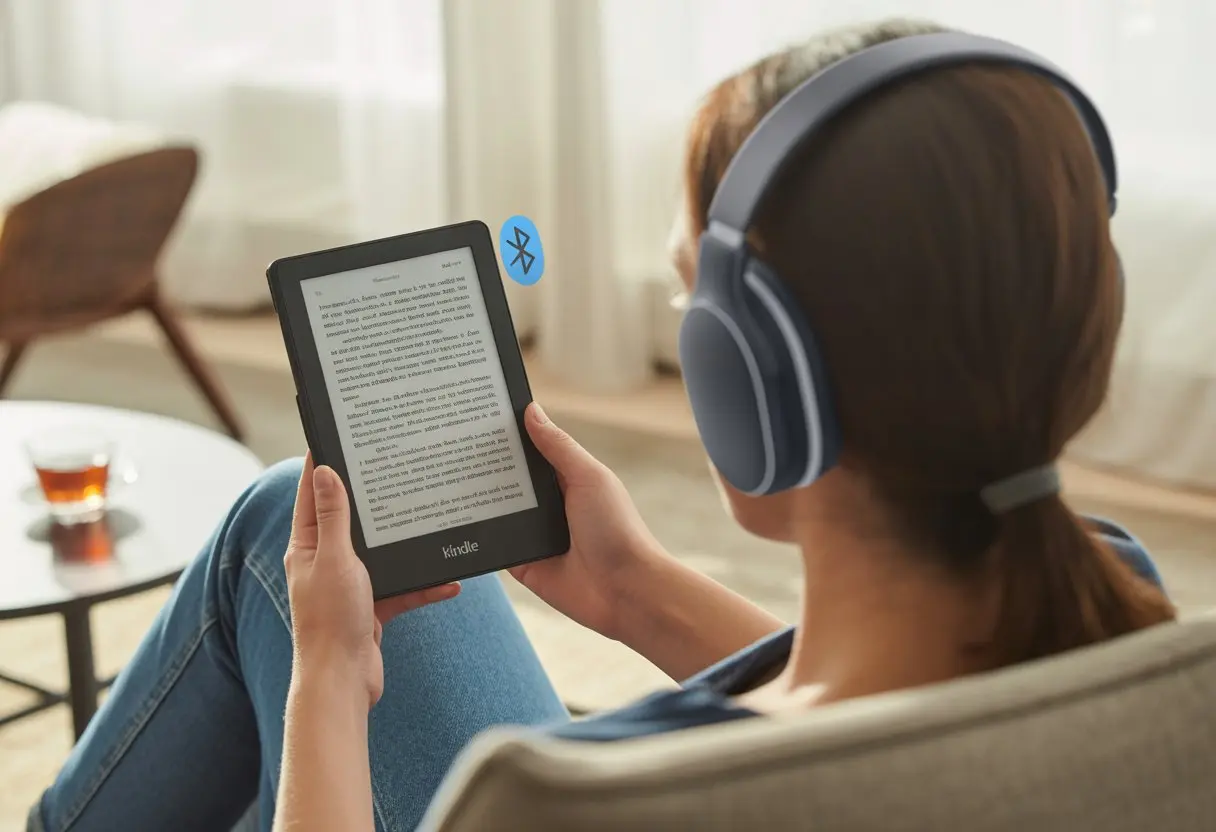
No more tangled cords or blaring chapters for everyone in the coffee shop to overhear. With the right setup, you’ll get crisp, private sound right in your ears.
If you want to see just how easy this is, stick around and let’s untangle this tech puzzle together.
Understanding Bluetooth And Kindle Compatibility
Connecting Bluetooth headphones to a Kindle isn’t just about pressing random buttons and hoping for the best. You need to know which Kindles actually work, what Bluetooth versions they like, and a few annoying limits that might make you roll your eyes.
Supported Kindle Devices
Let’s dodge disappointment right away. Not every Kindle has Bluetooth magic built in.
Older Kindles (especially those from before 2018) simply won’t pair with your headphones, no matter how nicely you ask. Right now, the Kindle Paperwhite (10th gen and newer), Kindle Oasis (9th gen and up), and Kindle Scribe have Bluetooth.
These e-readers let you pair with wireless audio gadgets—great news if you’re tired of cords tripping you up. The kids’ versions of these models also support Bluetooth, so nobody’s left out.
However, basic Kindles from before 2022 don’t join the Bluetooth party. Sadly, there’s no way to add Bluetooth to unsupported models, even if you beg.
Bluetooth Version Requirements
Now, about Bluetooth versions. Your Kindle prefers newer Bluetooth—usually 4.1 or higher.
Most headphones and speakers made recently use Bluetooth 4.0 or later, so you probably don’t need to dig out ancient gear. If your headphones use an older version, the Kindle might just ignore them.
Pairing is smoother when both your Kindle and headphones use compatible profiles like A2DP. Outdated Bluetooth devices, especially old speakers, might cause connection hiccups instead of sweet audiobook moments.
Limitations Of Kindle Bluetooth Support
Before you get too excited, let’s talk about the limits. Kindle only plays Audible audiobooks and certain text-to-speech features over Bluetooth.
It doesn’t support streaming music, podcasts, or videos through Bluetooth. That stings a little, right?
The connection range is typical—about 30 feet—so don’t wander too far or things will get quiet. Headphones with lots of fancy features, like noise cancellation or multipoint pairing, might cause some lag.
Sometimes there’s a small delay between turning on your headphones and hearing sound from the Kindle. If you want more details, Amazon has a helpful page on which Bluetooth devices work with the Kindle Paperwhite. It’s worth a look if you’re stuck.
Preparing Your Bluetooth Headphones For Pairing
Before you start your private audiobook concert, you’ll need to prep your Bluetooth headset. That means entering pairing mode, waking up the headset, and maybe even resetting to factory settings if things get weird.
Turning On Pairing Mode
First, let’s get your headset blinking like it wants attention. Most models need you to press and hold the power button for about five seconds.
You’ll usually see a blue or red flashing light—that’s the headset saying, “I’m ready!” Some fancier headphones have a dedicated pairing button.
If yours does, hold it down until you see flashing lights or hear “pairing mode” in your ear. If nothing happens, check the user manual or that quick guide you swore you’d never need.
Here’s a quick cheat sheet for the lights:
| Light Color | Status |
|---|---|
| Blue/Red | In pairing mode |
| Solid Blue | Connected |
| No light | Turned off |
If your headset just sits there, it’s probably not in pairing mode yet.
Initializing The Headset
Now, make sure your headset isn’t dead. If it’s been hiding in a drawer for months, charge it up.
A headset with no juice won’t connect, no matter how many buttons you press. Once it’s charged, power it on.
You might hear a sound or see a light. If you can’t remember which button does what, a quick online search with your model number usually helps.
Turn off Bluetooth on nearby devices that might try to grab your headphones first. Give your Kindle a fair chance.
When the headset is on and not paired to anything else, you’re set.
Resetting To Factory Settings
If your headset refuses to cooperate, a factory reset might do the trick. This wipes out old pairings and gives you a fresh start.
Usually, you hold two buttons—often “power” plus “volume up” or “call”—for about ten seconds. You’ll probably hear a beep or see some frantic flashing lights.
Check your headset’s instructions to make sure you’re not accidentally launching a spaceship. After a reset, go through the pairing steps again.
It might feel like déjà vu, but at least you know what to do this time. When in doubt, pressing buttons with optimism sometimes works, but the manual is usually safer.
Connecting Bluetooth Headphones To Kindle Devices
Let’s be honest—Kindle speakers don’t do audiobooks justice. Bluetooth headphones let you listen in peace, whether you’re at home or crammed on a bus.
Here’s what you need to do so your Kindle and headphones can finally get along.
Accessing Bluetooth Settings On Kindle
First, find the Bluetooth switch on your Kindle. On newer Kindles like the Paperwhite or Oasis, tap Settings on the home screen.
Then, hit All Settings and look for Bluetooth or Device Options. Sometimes these things like to play hide and seek.
If you have a Kindle Fire, swipe down from the top of the screen and tap Bluetooth in the quick settings. If your Kindle acts stubborn, make sure it’s charged and updated.
A Kindle with low battery loves to ignore new connections.
Starting The Bluetooth Pairing Process
With Bluetooth on, it’s time to pair. Put your headphones into pairing mode—hold the button until a blinking light shows up.
The Kindle should start searching for nearby devices. On the Bluetooth screen, you’ll see a list.
Find your headphones and tap to connect. Some days, the Kindle finds them instantly.
Other times, it’s like playing hide-and-seek. If nothing shows up, try turning devices off and on again (classic move).
For Kindle Fire users, there’s a guide for connecting Bluetooth headphones to a Kindle Fire Kids Edition.
Using A Passkey Or PIN
After you try to connect, your Kindle might ask for a passkey or PIN. Most devices use “0000” or “1234.”
Some headphones have a sticker with a specific PIN, so don’t peel off those labels too soon. If a passkey pops up, enter it and you should pair up in seconds.
If the PIN fails, double-check for typos or try the other common numbers. If it still won’t connect, check the headphone’s manual or the manufacturer’s website for any sneaky pairing info.
The Kindle just wants you to follow the steps.
Managing Multiple Bluetooth Devices
Juggling more than one Bluetooth gadget with your Kindle can get messy fast. Sometimes you want headphones for quiet time, sometimes a speaker for a little more volume.
Keeping track of paired devices and switching between them is pretty important.
Switching Between Headphones And Speakers
If your Kindle could talk, it would probably sigh every time you try to use headphones and speakers at the same time. Most Kindles only connect audio to one Bluetooth device at a time.
Try to connect two headphones or a headphone and a speaker, and only one will actually play sound. It’s like inviting two friends but only letting one in.
You can pair several devices—maybe a speaker for music and headphones for audiobooks—but you have to pick which one plays sound each time.
Here’s how you can switch devices:
- To switch devices:
- Open the Kindle’s Bluetooth settings.
- Disconnect the current device.
- Select and connect a new device from the list.
You’ll see both devices listed, but only one gets to join the audio party. If you want more details, check out what users say about connecting multiple Bluetooth devices.
Clearing Pairing Information
Sometimes your Kindle forgets who’s who. Old headphones and random speakers pile up, and suddenly your paired list is longer than a CVS receipt.
Clearing out unused entries helps cut down confusion and fixes many connection issues.
To clear pairing info:
- Open Settings on the Kindle.
- Go to Bluetooth.
- Find the device you want to remove.
- Tap the device, then select Forget or Remove.
This helps if a device won’t connect or you just want a fresh start. Cleaning up the list can boost connection reliability and save you from scrolling through ancient gadgets every time you want to connect something new.
If your Kindle starts ignoring you, try removing some old pairings and see if it perks up.
Using Bluetooth Headphones With Audible On Kindle
We want to enjoy our Kindle the same way we enjoy snacks—hands-free and with no crumbs in the pages.
Using Bluetooth headphones, you can listen to Audible audiobooks, music, and more without disturbing anyone else (not even your goldfish).
Listening To Audible Audiobooks
Audible audiobooks on Kindle basically turn any place into our own little library. To get started, we just need to pair our Bluetooth headphones.
We swipe down on the home screen, hit Settings, and tap Bluetooth. Our Kindle searches for nearby devices, and when our headphones show up, we tap to connect.
Once we’re connected, our Kindle shows us the audiobooks we’ve bought from Audible. We pick a title, hit play, and suddenly the narrator’s voice is right in our ears.
No wires, no hassle—just pure audiobook time.
If something goes wrong—like our headphones pair but Audible refuses to play—we might need to restart the Kindle or check for software updates. Most people say the setup is pretty easy, but every now and then, Bluetooth acts up with certain books.
For more advice, the Amazon Forum discussion is packed with stories from real users.
Playing Music And Other Audio Content
Kindles are known for audiobooks, but we can actually play other audio too, like music or podcasts. It depends on our Kindle model, though.
Not every Kindle can handle non-Audible audio, so it’s worth checking before we get our hopes up for a playlist session.
If our Kindle does support it, we just follow the same Bluetooth pairing steps. After connecting, we open whatever music or podcast app is available on our Kindle.
Some Kindles stick to Audible books only, while others give us a little more freedom to experiment.
Want more details? This step-by-step guide on connecting Bluetooth headphones is super helpful. And hey, if we end up dancing around with our Kindle, that’s our secret—no one else hears the tunes.
Bluetooth Connection Tips And Troubleshooting
Getting our Kindle and Bluetooth headphones to work together can get a little frustrating sometimes. Problems pop up, but with a few tricks, we usually get back to wireless listening pretty quickly.
Resolving Pairing And Connection Problems
First things first, let’s check the basics. Our Bluetooth headphones need to be charged and turned on.
They also have to be in pairing mode. Usually, we hold down the power button until a blinking light shows up.
On our Kindle, we turn Bluetooth on by heading to Settings > Bluetooth Devices. The Kindle scans for devices, and if our headphones show up, we tap to connect.
If they’re still missing, maybe try moving the headphones closer—sometimes it feels like coaxing a shy pet out from under the couch.
Still no luck? We can restart both devices. Honestly, turning things off and back on fixes more problems than we like to admit.
If our Kindle keeps being stubborn, we can try forgetting the device (if it’s been paired before) and then re-pairing it.
Some headphones just don’t play nice with Kindles, no matter what we do. For a list of headphones that should work, Amazon’s compatibility support info might help us figure out if our model is on the list.
Getting Voice Guidance From Devices
Some Bluetooth headphones actually talk to us—sometimes politely, sometimes with a bit of attitude. You might hear, “Power On,” “Pairing,” or that annoying, “Connection Failed.” I’ve found these little voice updates make setup way less confusing.
If you don’t hear any guidance, grab your headphone model’s instructions. Not every device talks—some just beep, flash, or honestly, leave you guessing.
When voice guidance kicks in, it tells you if you’re in pairing mode or if you’ve connected successfully.
Check that the voice prompt volume isn’t muted. If there’s an app for your headphones, poke around—maybe you can adjust or turn on guidance features there.
If your headphones are supposed to talk but stay silent, try them with a different device. Sometimes they just don’t get along with your Kindle, or maybe there’s a bigger issue.

From a young age, I have always had a big interest in technology, and this blog is an extension of that interest. Through this blog, I hope to provide others with all of the information they need regarding tech options to consider, and things such as compatibility. Some of the different items I will be discussing include headphones, smartwatches, and how to fix common issues.
- How to Get Text Messages on Fitbit Versa 2 Android: Simple Guide for Users - October 13, 2026
- Why Doesn’t My Fitbit Record My Sleep? Quick Troubleshooting Guide - October 13, 2026
- How to Change Face on Fitbit Versa 2: Quick and Easy Guide - October 12, 2026
Related Posts: