We’ve all been there—trying to watch a movie late at night without waking up the whole house, or just wanting to tune out the neighbors’ questionable karaoke. That’s when Bluetooth headphones and the trusty Fire TV Stick really shine.
Connecting Bluetooth headphones to a Fire TV Stick is actually pretty simple. It lets us enjoy our shows in peace and quiet.
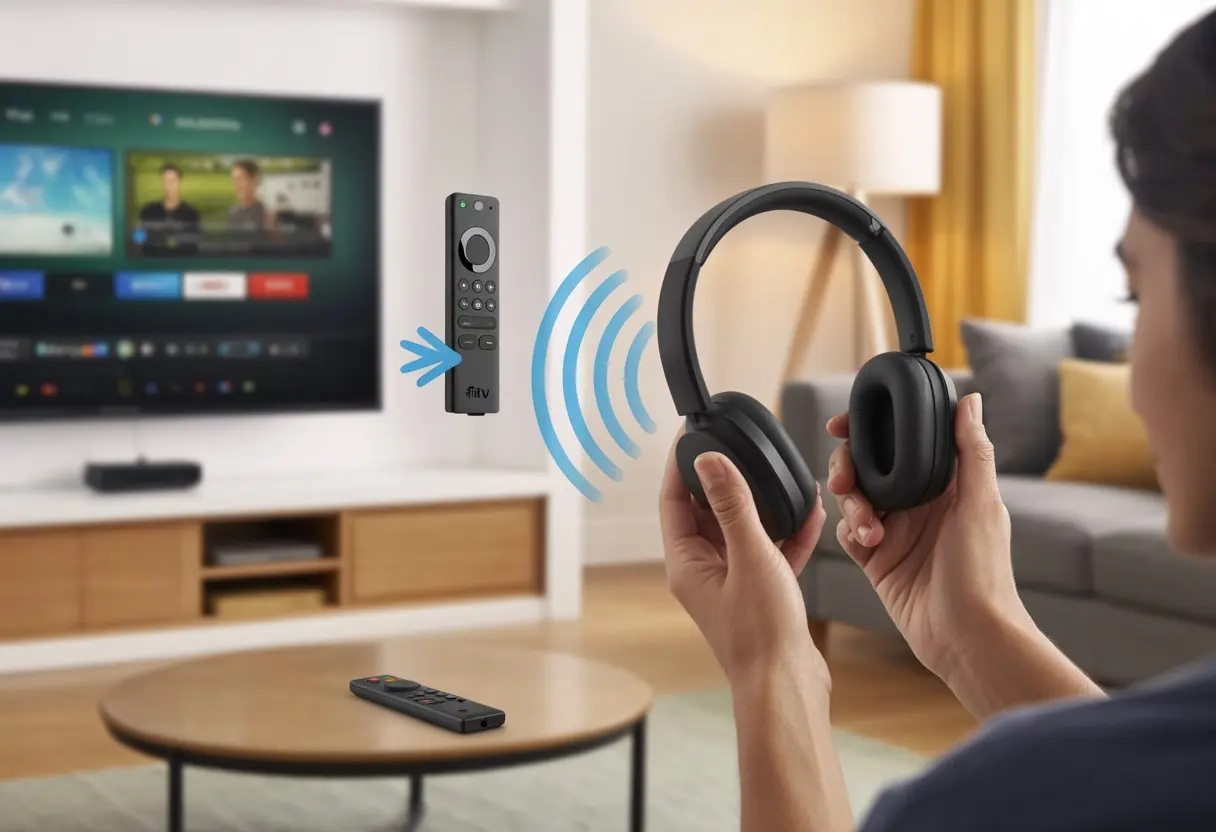
With just a few settings tweaks, we can pair any Bluetooth headphones. Binge-watching becomes way less stressful—no angry roommates, no wires, just us and our snacks.
Ready to make movie night private? No more tangled cords or shushing. Here’s how to get started.
Getting to Know Your Fire TV Stick and Bluetooth Headphones
Streaming’s just better when you don’t wake up everyone. To pull this off, we should know what a Fire TV Stick does, how Bluetooth headphones connect, and which devices support wireless audio.
Let’s get the basics down so we’re not left in silence.
What is a Fire TV Stick?
The Fire TV Stick is basically our tiny portal to a huge world of TV shows, movies, and more. It’s that small but mighty sidekick—we plug it into the TV’s HDMI port, connect to Wi-Fi, and suddenly our old TV gets a smart upgrade.
This little stick runs Fire OS, Amazon’s streaming software. We can use apps like Netflix, Prime Video, and YouTube, all from one spot.
The Fire TV Stick comes with a remote, so we don’t have to mess with our TV’s buttons.
Fun fact: there are a bunch of Fire TV devices, but the Fire TV Stick is probably the most popular way to bring streaming to older TVs.
How Bluetooth Headphones Work with Streaming Devices
Bluetooth headphones are like wireless earmuffs for our ears. No more tangled cords—Bluetooth lets us connect to devices wirelessly.
We can watch an action movie at full blast without scaring the cat.
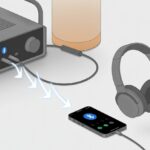
The Fire TV Stick supports Bluetooth, so we sync our headphones by turning on pairing mode and letting the Fire TV Stick find them. Select, connect, and boom—no wizard hat needed.
Bluetooth also works with speakers, soundbars, and other gadgets on many streaming devices.
If our headphones refuse to connect, they might not be compatible or maybe they’re just too old. With most newer devices, though, it works smoothly and keeps us from tripping over cords.
Step-by-step help is always available here.
Supported Fire TV Devices for Bluetooth Pairing
Not every Fire TV device does Bluetooth. We need a Fire TV Stick or other Fire TV device with built-in Bluetooth.
If we’ve got a newer Fire Stick, like the 4K model, we’re set—Bluetooth comes standard. The Fire Stick Lite, Fire TV Cube, and certain Fire TV smart TVs also play well with Bluetooth.
Table: Bluetooth Pairing on Popular Fire TV Devices
| Device | Bluetooth Supported |
|---|---|
| Fire TV Stick (3rd Gen) | Yes |
| Fire TV Stick 4K/Max | Yes |
| Fire TV Cube | Yes |
| Some older Fire TV models | Sometimes |
| Fire TV Edition TV | Yes |
If we’re dusting off an old Fire TV, Bluetooth might be missing or limited. It’s smart to check the exact model or ask for help on Amazon’s support forums, like here. And if our TV has Fire TV built in, chances are Bluetooth will work there too.
Preparation Before Pairing
Nothing kills movie night faster than headphones that won’t connect. To avoid that, let’s get our Bluetooth gear ready, check Fire TV Stick settings, and charge everything up.
Charge Your Bluetooth Headphones
Nobody wants to find out their headphones are dead right when the villain starts monologuing. Before we do anything, let’s make sure our headphones are charged.
Low battery can mess with pairing, drop the signal, or make the headphones shut off mid-episode.
Check the battery indicator or the app if there’s one. If you’re not sure, plug them in for at least 30 minutes.
Some headphones blink red when they need juice, others just go silent. The trick’s making sure they’re alive and ready, so we don’t waste time fixing a problem that’s just a dead battery.
Update Your Fire TV Stick Software
Trying to pair up-to-date headphones with an ancient Fire TV Stick is like asking a dinosaur to use TikTok. Updates add new features, fix bugs, and help more devices work together.
Go to:
- Settings
- My Fire TV
- About
- Check for Updates
If there’s an update, install it. It usually only takes a few minutes, and things just work better after.
New updates also make the Fire Stick more secure and play nicer with more headphone brands.
Enable Bluetooth on Fire TV
Bluetooth isn’t just a bonus—it’s our ticket to quiet streaming. We can connect headphones, but also other Bluetooth gadgets.
Click through:
- Settings
- Controllers & Bluetooth Devices
- Other Bluetooth Devices
- Add Bluetooth Devices
Make sure our headphones are in pairing mode. Usually, that means holding the power or Bluetooth button until a light flashes.
If our headphones don’t show up, double-check they’re on and try again.
The Fire Stick will look for nearby devices. When our headphones appear, select them and wait for the magic handshake.
If it asks for a PIN, try 0000 or 1234—those are the classic Bluetooth codes.
Once connected, we’re set for private marathons, embarrassing reality TV, or whatever we want to watch.
How to Pair Bluetooth Headphones to a Fire TV Stick
Getting Bluetooth headphones to play nice with a Fire TV Stick is honestly easier than finding the remote. Tap a few buttons, start pairing, and soon we’re watching late-night shows without waking up the house.
First up, let’s find the Fire TV Stick’s settings. Grab the remote and press the Home button (the one that looks like a house).
From the home screen, use the directional pad to slide over to Settings. Don’t pick the TV’s settings—look for the gear icon on the Fire TV menu.
Once we see the settings row, we’re halfway there. Sometimes, finding the settings takes longer than the actual pairing.
Select ‘Controllers & Bluetooth Devices’
Inside Settings, let’s scroll down to ‘Controllers & Bluetooth Devices’. Click it.
You’ll see options for remotes and game controllers, but we want Other Bluetooth Devices. If it’s named something else, just look for anything with ‘Bluetooth.’
Every Fire TV device words things a little differently, but they all want us to get there. If you’ve paired stuff before, you’ll see a list. If not, it’ll be empty—time to change that.
Put Your Headphones in Pairing Mode
Now, let’s get those headphones blinking. Check the manual (or just start pressing buttons—hey, we’ve all done it) and put them into pairing mode.
Usually, holding down the power button or a Bluetooth button for a few seconds does the trick.
Some headphones beep or flash when they’re ready. If nothing happens, double-check the battery—low battery can make them stubborn.
Once pairing mode is on, our headphones send out their Bluetooth handshake. The Fire Stick should be listening.
Connect and Confirm Audio Output
Back on the Fire TV, wait for the headphones to pop up under ‘Discovered Devices.’ When you see their name—even if it’s something weird like ‘BT-3021’—select it.
A popup might ask if you want to pair. Say yes.
If audio starts coming through the headphones, we’ve done it.
If it’s still silent, check everything: Are the headphones charged? Are they too far away? Try restarting the Fire Stick if you need to.
For more help, sites like MakeUseOf have step-by-step guides.
Once the audio’s working, crank up the volume and enjoy—no complaints from the next room.
Troubleshooting Common Bluetooth Connection Issues
Sometimes, connecting Bluetooth headphones to a Fire TV Stick feels about as easy as herding cats. Here are fixes for common problems, like devices not showing up, audio lag, and the classic “why won’t this thing just work?”
Bluetooth Headphones Not Detected
So, our Fire TV Stick keeps saying “searching for devices,” but our headphones just don’t show up. First things first, let’s double-check that both the headphones and the Fire TV Stick are in pairing mode at the same time.
Headphones shouldn’t be connected to anything else—if they’re stubbornly holding onto our phone, we’ll need to break that bond.
Sometimes, toggling Bluetooth off and on in the Fire TV Stick’s settings works wonders. Go to Settings > Controllers & Bluetooth Devices > Other Bluetooth Devices > Add Bluetooth Devices for a fresh start.
If we still don’t see our headphones, let’s restart both the headphones and the stick. Electronics can be a bit moody and sometimes just need a quick break.
If that’s still not doing the trick, some folks suggest removing old paired devices or updating the Fire TV Stick. Firmware updates sometimes bring everything back in sync.
Fixing Audio Lag or Sync Problems
Bluetooth devices have a habit of making audio lag behind the video. If our movie starts feeling like a bad dub, let’s first check if other wireless gadgets are causing interference.
Wi-Fi routers, microwaves, and even our phones can mess with the signal.
Disconnecting and reconnecting the headphones is worth a shot. Sometimes the lag just comes from a flaky connection.
Lowering the video quality or switching off other Wi-Fi devices can help, since less wireless traffic gives the Fire TV Stick a fighting chance.
Some Bluetooth headphones just don’t play nice with the Fire TV Stick, honestly. Before giving up, we can try updating the headphones’ firmware, or borrow a different pair to see if the problem follows us.
Clearing Cache for Improved Connectivity
When nothing else works, maybe our Fire TV Stick just needs to clear its head. Clearing the cache can help Bluetooth devices connect more reliably.
Here’s how we can do it:
- Go to Settings.
- Select Applications.
- Choose Manage Installed Applications.
- Find and select Bluetooth app (or anything Bluetooth related).
- Click Clear Cache.
This quick cleanup can shake loose whatever’s clogging up the works. If things start working better, we’ll know our Fire TV Stick just needed a reset—kind of like us after a strong cup of coffee.
Advanced Bluetooth Pairing Tips
Bluetooth on the Fire TV Stick seems simple, but it gets more interesting when we want to juggle multiple devices or clean up our device list.
From pairing extra gadgets to managing connections, there’s more to it than just flipping a switch.
Multiple Bluetooth Devices with Fire TV
Maybe we’ve got a couple of headphones or a Bluetooth speaker for movie night. The Fire TV Stick and Fire TV Cube let us pair several Bluetooth devices, but only one audio device can play sound at a time.
So, two people can’t both use wireless headphones unless we buy a Bluetooth transmitter adapter:
| Device | Multiple Headphones | How-To |
|---|---|---|
| Fire TV Stick | No | Use an external Bluetooth transmitter |
| Fire TV Cube | No | Same as Stick; 1 audio device at a time |
| Bluetooth Adapter | Yes | Connect to adapter, then pair 2+ headphones |
If we want to pair two different devices for different uses—like a controller and headphones—the Fire TV can handle it. For audio, though, it’s still one at a time unless we go for that adapter.
Reconnecting and Forgetting Devices
Sometimes our Fire TV Stick gets confused, or maybe we paired with someone else’s headphones by mistake. No big deal.
Here’s how we can fix our Bluetooth connections:
To reconnect:
- Go to Settings > Controllers & Bluetooth Devices > Other Bluetooth Devices.
- Pick the device from the list.
- Hit Connect.
To forget a device:
- Find the device in the Bluetooth list.
- Highlight it and press the Menu button (three lines) on the remote.
- Select Forget Device.
This helps us keep things tidy and avoid confusion later. If a device won’t connect, removing it and pairing again usually does the trick. If you’re still stuck, there’s a YouTube guide on Bluetooth pairing that walks through the usual hiccups.
Enhancing Your Streaming Experience with Bluetooth Headphones
Using Bluetooth headphones with our Fire TV Stick can make movie nights quieter, Netflix marathons more immersive, and block out the sound of neighbors mowing the lawn for the fifth time this week.
To get the most out of our headphones, we’ll want the right audio settings and a sense of which streaming apps actually play nice with wireless audio.
Best Audio Settings for Home Theater Sound
Fire TV audio settings can work a little magic. For that home theater feel, we should set the audio output to “Dolby Digital Plus” if our headphones support it.
This gives us richer sound and clearer dialogue, and those action scenes really pop (without waking up the dog).
Settings steps:
- Grab the remote and go to Settings > Display & Sound > Audio.
- Pick Dolby Digital Plus or Stereo—try both, since not all Bluetooth headphones are up for Dolby.
- If there’s a weird audio delay, tweak the AV Sync setting to fix it.
Volume leveling can help too. It keeps explosions from being way too loud and whispers loud enough to actually hear those sneaky plot twists.
If we use our Fire Stick with a full home theater system, Bluetooth headphones will only send stereo sound—not the full surround—even if the movie says “5.1.” Still, it’s a big step up from TV speakers that sound like a tin can band.
App Audio and Streaming Platform Compatibility
Not every streaming app treats Bluetooth headphones the same way. The good news? Big names like Netflix, Prime Video, Disney+, and Hulu all work well with Bluetooth headphones on Fire TV.
If we use lots of different apps, we shouldn’t miss a beat. With some specialty apps, though, audio might not sync perfectly, or features like “audio descriptions” might not work over Bluetooth.
If that happens, switching to another app or restarting the Fire TV Stick usually helps.
Sometimes, services like Apple TV have strict digital rights rules that block Bluetooth audio for certain shows or movies. If that happens, we can poke around the app’s settings or just try another platform.
For the best experience, we should keep our Fire TV software updated and reconnect our headphones if the audio drops out. For a quick how-to on pairing headphones, check out this guide on pairing Bluetooth headphones to Fire TV.
Using Alexa and Voice Controls with Bluetooth Headphones
Once we’ve paired our Bluetooth headphones, we still get all the Fire TV Stick’s audio in our ears—and yes, Alexa still works.
No more shouting at the TV; the remote does all the listening for us.
Activating Alexa with Bluetooth Audio
Let’s talk basics: the Alexa button on our remote. Even if our headphones are hooked up through Bluetooth, pressing the Alexa or microphone button still works.
Just hold the button, talk near the remote, and Alexa listens—whether we’re in pajamas or pretending we’re in a spy movie.
If we have an Alexa Voice Remote Pro, it gets a bit fancier, but the main idea is the same. We don’t need to yell; our regular voice is fine.
Alexa answers through the headphones, so late-night movie searches don’t wake up anyone or trigger the dog.
Even if the TV speakers are off and all the sound is in our headphones, we’ll hear Alexa’s confirmations and those sometimes unnecessary “OK” responses. Just a heads up: we can’t talk to Alexa through the headphones’ mic; the Fire TV listens through the remote, not the headset.
Nothing beats just asking Alexa to find our favorite shows. With Bluetooth headphones on, we can hold the mic button and ask for a title, actor, or even a genre.
Results show up just like normal, but nobody else has to know we’re searching for “cute puppy videos” again.
We can say things like, “Alexa, go Home,” “Alexa, open Netflix,” or “Alexa, what’s the weather?” Simple commands save us from endless menu scrolling.
Voice navigation also means less fumbling with tiny arrow buttons. It works for subtitles, too—just say, “Turn on subtitles,” and it happens.
The remote’s microphone does the listening, so we should keep it nearby. If our remote’s buried under a pillow, Alexa might mishear us, and suddenly we’re watching “Bake Off” instead of “Back to the Future.”
Fire TV Home Screen Shortcuts
Alexa isn’t just for fancy searches; she can help us control the Fire TV home screen like a pro. Need to open settings or launch an app fast? Just say, “Open Settings,” or “Go to YouTube.”
The guide button on newer remotes opens the channel guide in a snap—super handy if we’ve lost track of time watching cat videos.
The power button on the Alexa Voice Remote Pro can turn our TV off and on with one tap. No more juggling a pile of remotes at bedtime.
With Bluetooth headphones, these shortcuts let us stay in control without taking off our headphones every two minutes.
If we’re not sure what else Alexa can do, just ask, “Alexa, what can you do?” She’ll list out voice commands, tips, and shortcuts.
No more digging through menus—Alexa helps us find features faster and, honestly, makes things a bit more fun. For a simple setup guide, TCL has a handy breakdown for connecting Bluetooth devices on Fire TV home screens.
Comparing Bluetooth Headphones with Other Audio Solutions
Some of us want to watch TV late without waking up the whole house. Others just want crisper sound or more oomph from the living room.
Let’s actually break down what it’s like to use Bluetooth headphones versus other popular audio gear with the Fire TV Stick.
Bluetooth vs. Wired Headphones on Fire TV
Bluetooth headphones are the real MVPs for Fire TV marathons. No cords to trip over, no wires for the cat to chew, and we can sprawl across the couch without yanking anything.
Pairing is usually easy in the Fire TV’s Settings—just make sure Bluetooth’s on and the headphones are in pairing mode. If you want a step-by-step, here’s a quick tutorial on connecting Bluetooth headphones to a Fire TV Stick.
But let’s not forget about wired headphones. You can plug them into the Fire TV remote—if your model has a jack.
The good? No batteries to worry about, no Bluetooth dropouts. The downside? A wire stretched across the couch, just waiting for someone to trip over it. And, not every Fire TV device has a headphone jack, especially the newer ones.
Here’s a quick head-to-head for sanity’s sake:
| Feature | Bluetooth Headphones | Wired Headphones |
|---|---|---|
| Freedom to move | 👍 Yes | 👎 Limited by wire |
| Battery concerns | 👎 Must charge | 👍 No charging needed |
| Audio delay | 👎 Possible lag | 👍 No lag |
| Setup | 👍 Wireless pairing | 👍 Just plug in |
| Device compatibility | 👍 Most Fire TVs | 👎 Not all models |
Connecting Soundbars or Home Theater Systems
So, let’s say you want to turn your living room into a mini movie theater (maybe at the risk of annoying your neighbors). Connecting a soundbar or a full home cinema setup is honestly the best way to do it.
These gadgets bring richer sound, punchier bass, and special effects that sometimes feel like they’re jumping right out at you.
Most Amazon Fire TV and Fire TV Stick 4K models let you hook up soundbars or home theater systems with an HDMI cable—just make sure you use the HDMI ARC port. Some soundbars connect through Bluetooth, but honestly, you might notice more lag and audio drift that way.
Physical connections just work better for movies, gaming, or those late-night karaoke sessions.
If you’re setting up a home cinema system, double-check that your Fire TV Stick plugs into the right port. You should also pop into your Fire TV audio settings and switch to “Dolby Digital” or “Stereo” mode for the best sound.
Honestly, there’s no need to crawl behind the TV with a flashlight—most of the time, you can just tweak the audio settings from the Fire TV menu.
The best part? Everyone in the room gets to hear crisp, clear sound, not just the person with headphones.
But if you want privacy, headphones still win. It really comes down to whether you want solo listening or that full, room-filling action movie vibe.

From a young age, I have always had a big interest in technology, and this blog is an extension of that interest. Through this blog, I hope to provide others with all of the information they need regarding tech options to consider, and things such as compatibility. Some of the different items I will be discussing include headphones, smartwatches, and how to fix common issues.
Related Posts: