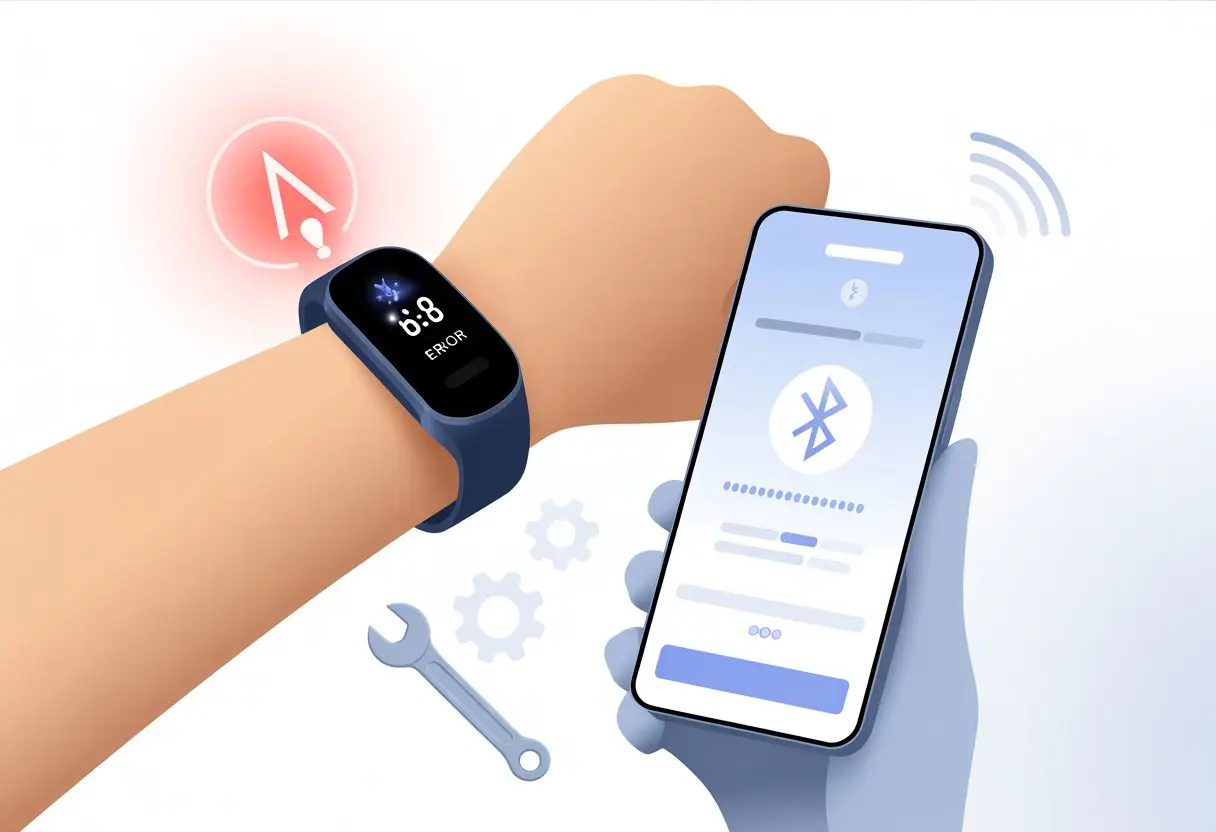
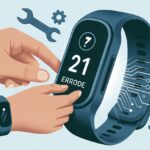
Let’s be real—nothing kills a healthy day’s motivation faster than “Bluetooth error code 100” flashing on our fitness tracker. We’re ready to take on the world, or at least hit those rings, but suddenly our wrists just won’t talk to our phones.
Want the fastest fix for fitness tracker Bluetooth error code 100? Restart both your tracker and your phone, make sure Bluetooth is turned on, and keep the devices close together. For most of us, that’s all it takes—a quick reset, and we’re back on track (and a little less stressed).
Of course, some error codes just love to stick around, testing our patience more than a treadmill set to “hill climb.” We might end up unlinking and re-pairing our devices, or updating our tracker’s software.
If you’re tired of watching your steps disappear into the Bluetooth void, hang tight. We’ll help you make error code 100 a distant memory.
Need more fixes, step-by-step help, or just a laugh? This guide is here to get us back in sync—literally. For a quick troubleshooting rundown, peek at these Fitbit syncing tips and join us in outsmarting error code 100!
Understanding Bluetooth Error Code 100
Bluetooth can be a lifesaver, letting us sync our fitness trackers to our phones and smartwatches. But nothing makes our step count nosedive faster than “Error Code 100” glaring up at us from the screen.
What Error Code 100 Means on Fitness Trackers
Let’s cut to the chase—Error Code 100 is basically the “Did you try turning it off and on again?” of fitness tracker problems. It usually shows up when your tracker fails to pair or sync with your phone.
Here’s what’s happening: your tracker tries to shake hands with your phone or smartwatch, but something gets in the way. Instead of sharing your health data, they just stare at each other across the Bluetooth void.
Sometimes, Error Code 100 pops up during first-time pairing. Other times, it shows up after a software update or when you’re switching to a new device.
Usually, it means your tracker feels lost, ignored, or maybe paired with someone else’s account. Or, maybe it just woke up on the wrong side of the bed.
Common Causes of Error Code 100 on Smartwatches
If you’ve spent any time with smartwatches or fitness trackers, you’ve probably seen Error Code 100 for a few reasons. Here’s what usually triggers it:
Paired to Another Device: Maybe your tracker’s still linked to an old phone or someone else’s device. It can’t juggle two at once.
Out of Bluetooth Range: Bluetooth only works for about 30 feet. If your phone and tracker are too far apart, forget about syncing.
Device Not Discoverable: Sometimes, your tracker just refuses to show up in the pairing list.
App Issues: The health or fitness app might be stuck, buggy, or just out of date.
Outdated Software: If your tracker or phone needs an update, that can definitely cause drama.
Why Bluetooth Errors Happen More Than Monday Mornings
If Bluetooth errors were coffee, we’d all be bouncing off the walls. These things just keep popping up, and not just on Mondays.
Bluetooth needs a lot of little things to go right at once, but real life is messy. Interference from Wi-Fi, other Bluetooth devices, or even microwaves can mess things up.
Our phones and trackers juggle a bunch of connections, and sometimes they just drop the ball. One day, everything’s perfect; the next, your tracker won’t even say hi.
Environmental stuff matters, too. Walls, metal, or even our own bodies can block signals. Add in the occasional software bug, and Error Code 100 becomes the guest nobody invited.
This article digs into why Bluetooth devices sometimes just won’t connect or pair.
Quick Fixes for Fitness Tracker Bluetooth Error Code 100
Staring at Bluetooth error code 100 can feel like being locked out of the gym. The upside? We’ve got a few tricks that can kick this problem out fast so we can get back to counting steps.
Restarting Devices Like a Tech Magician
First up, the old-school move—restart everything. Our phones, smartwatches, and trackers can get as cranky as we are before coffee.
We just power off both the tracker and the phone, wait about 30 seconds, then turn them back on. This clears out any weird background stuff causing that annoying error code 100.
It’s a low-effort fix that often works. If it doesn’t, try it once more before moving on.
We can also reset the tracker itself by holding the power button or using the settings menu (depends on the brand). If you’re not sure how, check the manual—it’s worth a quick look.
Checking Bluetooth Settings Without Losing Your Sanity
Now, let’s peek at those Bluetooth settings without going nuts. On your phone, turn Bluetooth off, wait a second, and turn it back on.
This can jolt stuck connections back to life. If your tracker is in the paired devices list but won’t connect, remove (or “forget”) it, then try pairing again.
Sometimes, devices just need a nudge to play nice. Make sure you’re using the right app, and that it’s up to date.
Old apps and outdated software love to cause trouble. If you’re still stuck, uninstall and reinstall the app—it’s a quick way to squash hidden bugs.
Distance really does matter, even for Bluetooth. If your tracker and phone are more than a few feet apart, or if there’s a wall, microwave, or maybe even a chunky pet in the way, the connection might fail.
Keep both devices close—like workout buddies on leg day. Try removing thick cases from your phone or tracker, too.
Other Bluetooth gadgets (like headphones) might hog the signal or cause interference. Turn those off or move away from crowded electronics if you can.
With these steps, we keep our smartwatches and phones talking, ready to sync those hard-earned steps.
Advanced Troubleshooting Steps
Sometimes, a restart doesn’t cut it. When Bluetooth keeps ghosting us, we’ve got to get creative—without smashing our smartwatches or losing our cool.
Let’s get those trackers chatting with our phones again, using a few careful moves.
Clearing App Cache and Data Without Breaking Anything
Ever had your tracker app act weird, lose your steps, or just refuse to connect? Clearing the app cache and data can help.
First, back up anything important—like your step history or that epic nap record—since this might wipe some data.
On most phones, head to Settings > Apps > pick your tracker app. Tap Storage & cache.
Clear cache first; that usually handles small glitches. If it doesn’t, tap Clear Data (you’ll just need to log in again).
This usually boots out stubborn bugs without touching your device’s software or breaking your streak.
Worried about losing data? Most tracker apps sync to the cloud. Double-check by logging in from another device or on the app’s site.
Clearing cache and data is safe if you go slow—no heroics needed.
Reinstalling Fitness Tracker Apps Like a Pro
If clearing cache feels too basic, go for the uninstall-and-reinstall move. Uninstall the fitness app completely to wipe out any lingering junk.
Before you grab a fresh download, make sure your phone’s software is up to date. Old phone software and new apps can clash, causing weird Bluetooth fights.
Check for updates in Settings > Software Update > Check for updates. Once you’re updated, reinstall the app and log in.
This resets things for your smartwatch, too. We’ve seen this solve Bluetooth connection issues more than a few times.
It’s like moving into a new house—no old ghosts to haunt your sync.
Disconnecting and Re-Pairing to Cure Bluetooth Commitment Issues
Sometimes Bluetooth just needs a clean slate. Unpair your tracker from both your phone’s Bluetooth settings and the app.
On your phone, tap the info icon next to the tracker and select Forget This Device. It’s a polite breakup, but you’ll be friends again soon.
Restart both your phone and tracker to clear their heads. Then, open the app and follow the pairing steps.
Keep the devices close—seriously, don’t let them wander. If error code 100 still pops up, check that your devices aren’t paired to something else.
Keeping your fitness tracker and its app up to date can feel a little endless sometimes. But ignoring updates is like skipping your veggies—things just don’t work as well.
Getting those new software versions can take your tracker from grumpy to happy in just a few minutes.
Why Updating Your Fitness Tracker Software Actually Matters
We’ve all had that moment—a Bluetooth error code 100 flashing on your wrist, instantly spoiling the vibe of a morning run. What’s wild is that a lot of these annoying errors show up just because the tracker’s software is out of date.
Updates aren’t just about shiny new features. They’re mostly about bug fixes, including those pesky Bluetooth connection hiccups.
Developers keep an eye out for errors and drop updates to keep our smartwatches in check. Sometimes, they design these fixes specifically to tackle connection issues and those dreaded Bluetooth errors.
If we skip updates, we’re kind of asking for trouble. Old tracker software just loves to drop connections or repeat the same error until we’re ready to throw the thing out.
So before we curse the universe, let’s check for the latest update. Usually, you’ll find it in the settings or the companion app on your phone.
Some trackers even shout at us with a “software update available” message. Honestly, who hasn’t ignored that at least once?
Ensuring Your Smartphone App Isn’t Living in the Past
It’s not always the fitness tracker’s fault. Sometimes, the smartphone app is just as guilty—stuck in its own outdated bubble.
An old app can mess up Bluetooth pairing, crash for no reason, or refuse to sync your hard-earned steps. Suddenly, error code 100 is back, and it’s not even sorry.
Updating the app is simple, but let’s be real—it’s easy to forget. Developers push updates to make sure everything plays nice with the latest firmware.
If the app and tracker aren’t on the same page, weird errors show up.
We should check the App Store or Google Play for updates at least once a month, or whenever things get glitchy.
Turning on auto-updates can save us from yet another “update now?” pop-up. If things still don’t work, deleting and reinstalling the app can give it a clean slate.
Let’s be honest—nobody wants Error Code 100 to crash their fitness routine again. Staying on top of regular care and keeping tech updated can save us from a lot of headaches.
Regular Maintenance for Your Fitness Tracker
Dust bunnies aren’t the only threat—grimy sensors and sticky buttons can mess with performance too.
Every few days, grab a soft, dry cloth and give your band or watch a gentle wipe-down. For the charging pins, a cotton swab works surprisingly well and can help dodge weird connection issues.
Here’s a quick maintenance cheat sheet:
Task
How Often
Tools Needed
Clean Sensors
Twice a week
Dry cloth
Wipe Display
Weekly
Microfiber cloth
Check Charging Pins
Weekly
Cotton swab
Also, try to keep your tracker dry and skip the steam showers. Maybe give it a spa day off now and then—it’s earned it.
Keeping Your Devices and Apps Up to Date
There’s nothing worse than buggy software killing your post-workout high.
Brand apps drop software updates all the time to fix bugs and make Bluetooth less of a drama queen. We should turn on auto-updates if we can, or at least check for updates once a month.
Don’t forget about your phone and watch too—old operating systems are a playground for error codes.
Updating isn’t rocket science. App makers usually make it as simple as tapping “Update” in the App Store or Google Play.
Let’s just add it to our endless to-do list, right next to “Eat more vegetables.”
Avoiding Common Bluetooth Pitfalls
Bluetooth is awesome—until it just stops cooperating.
Keep your devices within 10 meters (about 30 feet) of each other for the best Bluetooth connectivity. Walls, TVs, and even microwaves can mess with the signal, so give your devices some breathing room.
Don’t try to pair your tracker when you’ve got a dozen other Bluetooth gadgets fighting for attention.
If things get weird, toggling Bluetooth off and on is a classic fix. It’s like giving your gadgets a mini reboot—just like we need coffee sometimes.
And hey, restart your tracker and phone every so often. Sometimes, all it takes to dodge Error Code 100 is a quick power nap for your tech.
When All Else Fails: Seeking Technical Support
Sometimes, no matter what we do, our fitness trackers and smartwatches just won’t cooperate.
We’ve rebooted, reset, and probably muttered a few choice words, but that Bluetooth error code 100 won’t go away. At this point, it’s time to call in the cavalry and have a few backup tricks ready.
When to Call in the Experts
If we’ve tried every fix—toggling Bluetooth, reinstalling the app, even doing a full device reset—sometimes we just have to admit defeat.
When the tracker ignores us like a moody cat, it’s time to reach out to technical support.
Contacting the manufacturer’s support team is usually the way to go. Before we call, let’s jot down the error code, device model, and everything we’ve already tried.
It’ll save everyone time and keep us from hearing “Have you tried turning it off and on?” yet again.
Some brands might ask for logs or even the device itself if they think it’s a hardware thing.
Backup Plans Before Breaking Out the Tiny Screwdrivers
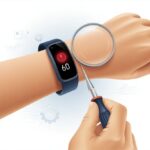
Before we start prying open a fitness tracker with those tiny screwdrivers we found in an old Christmas cracker, let’s pause for a second. There are a few things we should try first—honestly, it could save us a headache or two.
On Windows, you can run the built-in Bluetooth troubleshooter. It’s quick, easy, and doesn’t mess with your device or your friendships.
Resetting network settings on your phone is another move for the brave. It wipes out all your wireless configurations, so you’ll need to reconnect to Wi-Fi and Bluetooth devices.
Sometimes, though, that’s the magic fix. And if nothing works, well, maybe it’s just Mercury in retrograde—who knows?
If you’re still stuck, maybe let the experts handle it this time. And try not to see if the device “flies” across the room.
Hi, my name is Garrett Jones, and I am a tech enthusiast. I enjoy researching the new tech that has been released, and have a vast knowledge of the best tech to purchase.
From a young age, I have always had a big interest in technology, and this blog is an extension of that interest. Through this blog, I hope to provide others with all of the information they need regarding tech options to consider, and things such as compatibility. Some of the different items I will be discussing include headphones, smartwatches, and how to fix common issues.