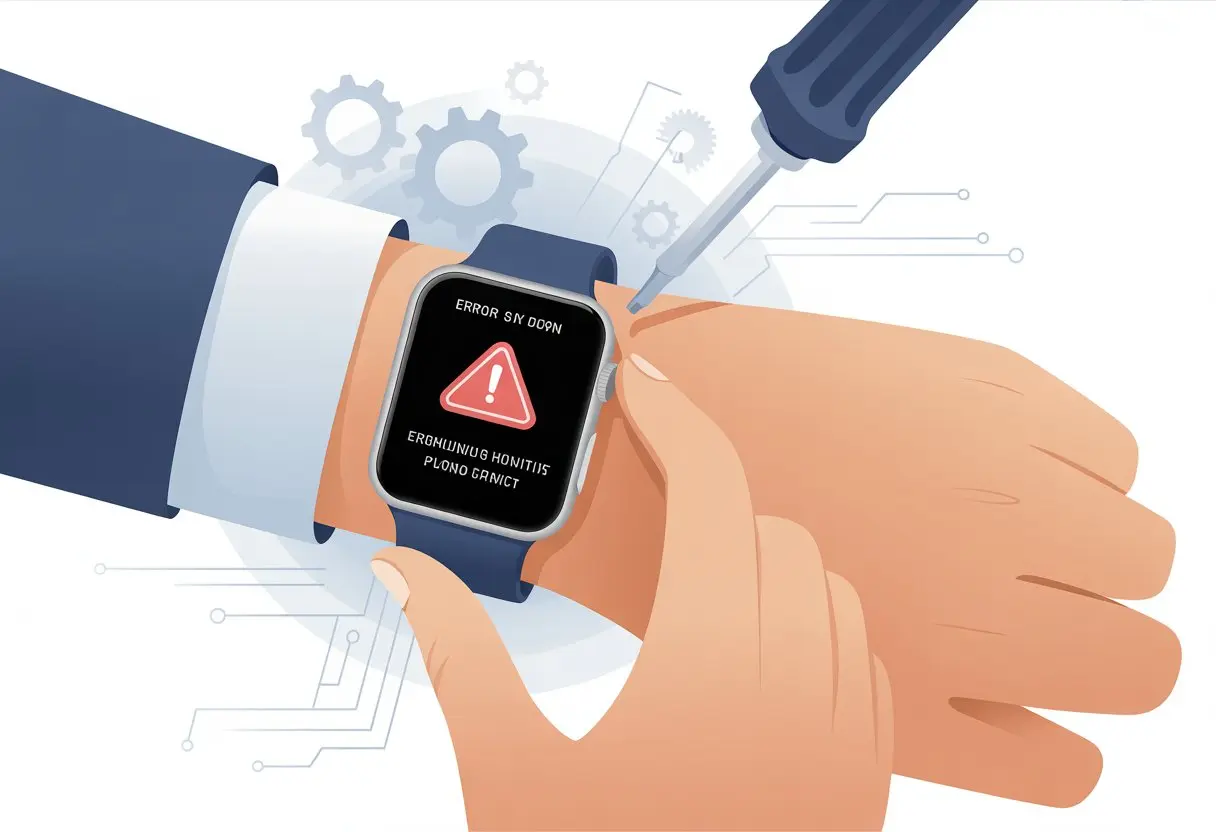
There’s nothing quite like sitting down with a shiny new smartwatch, ready to take on the world, and suddenly seeing that dreaded error code 2001. Ugh. We’ve all been there—one minute our wrist is feeling clever, and the next it’s throwing a fit that’s almost as dramatic as our pets when they spot the treat jar. The quickest way to fix smartwatch error code 2001 is to make sure we’re actually on a postpaid plan, give our devices a restart, and double-check every carrier activation step (learn more here).
If our carrier seems just as lost as we are, or if nothing works even after a factory reset, it might be time to get creative—or at least call support and pretend we’re more patient than we feel. Grab a snack and hang out for a bit, because we’re breaking down the easiest fixes to get our smartwatches behaving again (and maybe save our sanity in the process).
Understanding Smartwatch Error Code 2001
Error code 2001 can turn a smartwatch from a handy sidekick into a high-tech paperweight in seconds. Let’s talk about what this code actually means, why it pops up, and which unlucky devices seem to attract it.
What Is Error Code 2001?
Error code 2001 is basically our smartwatch’s way of waving a white flag when it can’t connect to mobile networks or activate a cellular plan. It’s almost like the watch is yelling, “Nope, I can’t do this right now!”
Usually, this code shows up when we try to set up mobile data, especially on LTE or 4G. It blocks us from making calls, sending texts, or using data directly from the watch.
Sometimes, we’ll see messages like “failed to activate” or “cannot connect to network” alongside it. If our watch could roll its eyes, it probably would.
Why Error Code 2001 Appears
Honestly, there’s plenty of blame to go around for error 2001. The biggest reason? A mismatch between our smartwatch’s mobile plan and what our carrier actually supports. Using a prepaid SIM when the carrier wants a postpaid plan is a classic way to trigger this headache, as plenty of folks have mentioned on Reddit.
Other culprits include outdated firmware, weird network settings, or maybe our watch is just holding a grudge because we ignored its last “stand up” reminder. If we’re still clinging to an old carrier plan, that can also mess things up.
Even after trying all the usual tricks—restarts, resets, desperate button-mashing—sometimes error 2001 just won’t budge. Most fixes involve working with our carrier, but even tech support sometimes throws in the towel.
Devices Commonly Affected
Some smartwatches just seem to attract error 2001 like socks attract lint. Samsung Galaxy Watch LTE models, like the Watch 4 Classic and Watch 5, get mentioned a lot in forums and troubleshooting guides.
Typically, LTE-capable wearables running on Samsung’s system have the most trouble, especially with certain carrier plans in places like the US and UK. If our device has that “LTE” badge and we’re trying to use it with an old or incompatible plan, we might be practically inviting error 2001.
There are plenty of stories and matching complaints in threads like this one on Reddit and the Samsung Members community. Some of those posts read like little tech whodunits.
Quick Fixes for Error Code 2001
Error code 2001 doesn’t have to ruin our mood or convince us our smartwatch is just a fancy bracelet. When that annoying pop-up appears, we can try a few quick tricks and see if we get lucky.
Restart Your Smartwatch
Turning it off and on again—yeah, it’s a cliché, but it works more often than we want to admit. If our smartwatch shows error 2001, a restart can refresh things and clear out minor glitches.
We just press and hold the power button (usually on the side) until we see the restart prompt. Tap “Restart” and let the watch do its thing. If nothing pops up, hold the button longer to force a shutdown.
After restarting, let the watch finish booting before testing if the error vanished. If it’s still there, grumble a bit and move on to the next idea.
Check Your Internet Connection
Sometimes, it’s not the watch—it’s the Wi-Fi or cellular data acting up. If our internet is weak or down, the smartwatch can’t reach the servers it needs, which can trigger error 2001.
Check if our phone has a solid connection and make sure the watch is properly paired and actually in range. On some models, switching from Wi-Fi to cellular (or the other way around) can help. Try opening a webpage or streaming a quick video. If it loads, the internet’s probably not the villain this time.
If we use a mobile plan with the watch, double-check that it’s compatible. Some folks have reported that only postpaid plans work—prepaid SIMs might not be enough.
Try Forced Re-Pairing
If restarting and checking the internet don’t help, it’s time for something a bit more drastic—forced re-pairing. First, unpair the watch from our phone using the app, then go through the pairing process again like it’s the first date.
Here’s the basic rundown:
Open the smartwatch app on our phone.
Select our device and choose Unpair or Forget.
Restart both the phone and the watch. (Yep, both. They both need a breather!)
Pair them up again, following the app’s instructions.
Some folks swear by a full factory reset on both devices, but maybe save that for when we’re truly desperate. Forced re-pairing can fix those weird connection bugs that cause error 2001, especially if something got scrambled during setup. There are plenty of stories about this in troubleshooting forums like this one.
Advanced Solutions for Persistent Problems
When the usual tricks don’t work, it’s time to dig a little deeper. Sometimes our smartwatches act like stubborn teenagers, and we have to get a bit more hands-on.
Reset Network Settings
If our smartwatch still flashes error code 2001, even after the usual rebooting and Bluetooth resets, we should try resetting network settings. This basically wipes out all paired Bluetooth devices, saved Wi-Fi passwords, and mobile network settings, giving us a clean slate.
The good news? Our personal data and apps won’t disappear. But we’ll need to reconnect to Wi-Fi and Bluetooth devices afterward (hey, it’s a good memory test).
How to do it:
On our phone, find ‘Reset
App Permission Confusion
Sometimes our phones clutch permissions tighter than a parent holds a toddler’s hand crossing the street.
The smartwatch app wants Bluetooth, location, contacts, and sometimes even calendar access—if it doesn’t get them, it throws error 2001 and just refuses to cooperate.
Here’s what we should check:
Bluetooth permission: Double-check that it’s actually allowed. Some phones just love to sneakily turn it off in the background.
Location services: The watch app might need this, even if we’re just lounging on the couch.
Other odd permissions: Look at contacts, messages, and anything else the app asked for during setup. Honestly, who knows why it wants our grocery list, but let’s just go with it for now.
If we turn off permissions or set the app to “Deny,” we’ll run into connection issues.
We can head into the app settings, find “Permissions,” and flip those switches to “Allow.”
Believe it or not, sometimes our watches just need a quick nap. Restarting smartwatches might sound a bit too simple, but honestly, it works wonders—kind of like hitting a reset button for ourselves.
Try setting a schedule:
Once a week: Turn off your watch and phone, then power them back up.
After installing updates: Restart your gadgets to shake off any weird glitches.
These regular restarts clear out memory bugs, network hiccups, and app confusion. It’s like telling your tech, “Hey, take a breath, you’ve got this.”
If you use a bunch of third-party apps or notice even a hint of sluggishness, you might want to restart even more often. Some folks swear by it.
Honestly, giving your smartwatch a little nap can help keep Error 2001 at bay. And hey, if it doesn’t work, at least you tried the classic off-and-on trick—just like the pros do.
Hi, my name is Garrett Jones, and I am a tech enthusiast. I enjoy researching the new tech that has been released, and have a vast knowledge of the best tech to purchase.
From a young age, I have always had a big interest in technology, and this blog is an extension of that interest. Through this blog, I hope to provide others with all of the information they need regarding tech options to consider, and things such as compatibility. Some of the different items I will be discussing include headphones, smartwatches, and how to fix common issues.