Let’s be real—nobody wants to blast their guilty-pleasure playlist from Alexa for the whole house. Sometimes you just need a private jam session in your headphones. You can use Bluetooth headphones with Alexa by pairing them directly to your Echo device or by linking your headphones with the Alexa app on your phone. Honestly, it’s easier than finding that remote you lost last week.
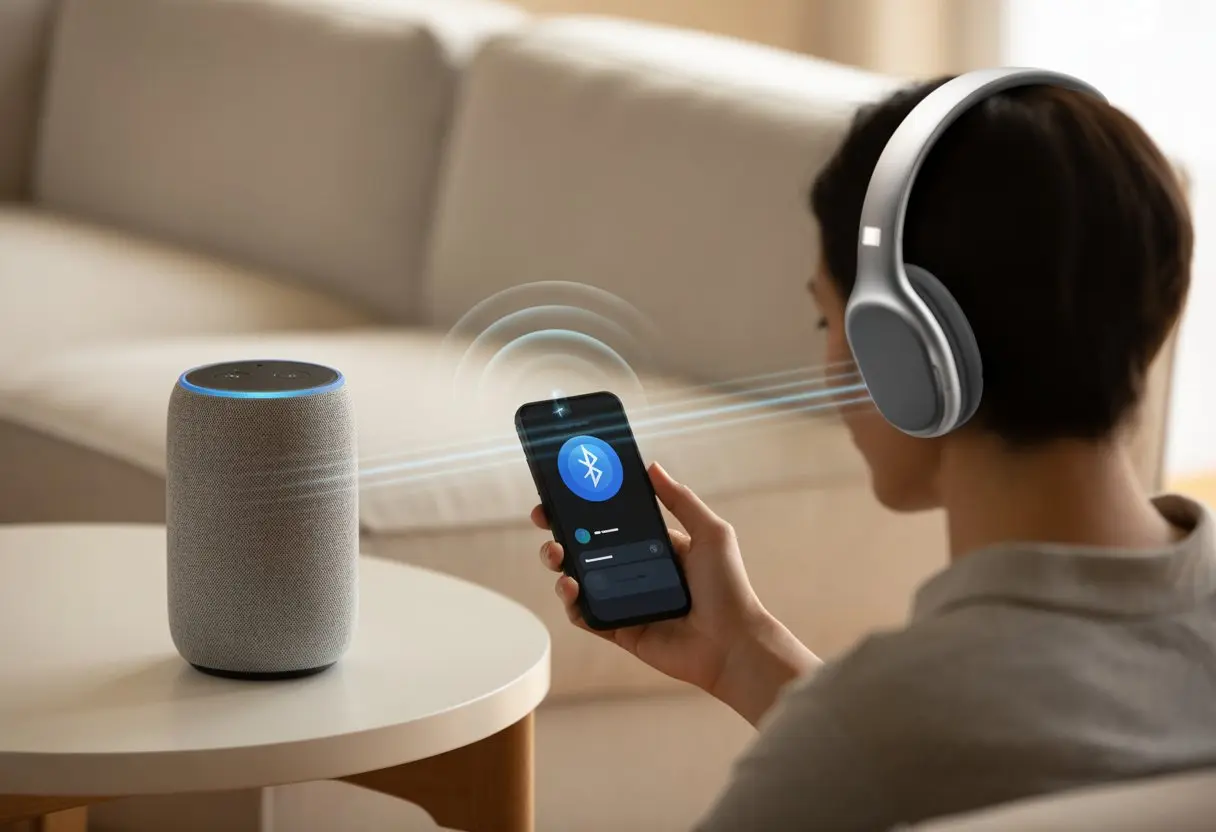
Alexa won’t do your homework for you, but she’ll definitely play music, check the news, or set alarms through your wireless headphones. Once you figure out the pairing steps, you’ll have hands-free, wire-free access to Alexa’s skills—and nobody will know you’re listening to 90’s pop for the tenth time this week.
What You Need to Use Bluetooth Headphones With Alexa
Before you get Alexa’s voice in your ears, make sure you’ve got the right gear, the best gadgets, and—let’s be honest—don’t forget to update your software before things start acting up.
Compatible Bluetooth Headphones
Not every Bluetooth headphone wants to be friends with Alexa. Your headphones need to support classic Bluetooth pairing, not just some weird brand-specific feature that refuses to work with anything else.
Look for headphones that say “Ready to pair!” (or at least blink a blue light at you). Sony, JBL, and most newer wireless headphones usually work just fine.
Double-check that your headphones aren’t already paired with another device. Unpair them from any phones or laptops before you try to add them to Alexa. Some older Bluetooth models just won’t play nice with the Echo family, so newer headphones are usually a safer bet.
If your headphones support voice assistants, you might get extra features—like talking to Amazon Alexa by pressing a button, as Sony explains in their headphones and Alexa guide.
Supported Alexa Devices
Don’t blame the headphones if Alexa’s being stubborn. Not every Alexa device can connect to Bluetooth headphones.
To play music through headphones, you need Amazon devices with Bluetooth output, such as Echo Dot, Echo Show, and most newer Echo models. Sadly, some early Echos only connect to Bluetooth speakers, not headphones—so if yours looks like a first-gen relic, it might be time to upgrade.
Check your Alexa’s specs before you get too excited. Most models released after Echo Dot 3rd Gen support pairing to Bluetooth headphones. You’ll find Bluetooth settings in the Alexa app under Devices > Echo & Alexa > [Your Echo] > Bluetooth Devices.
If you want more tips, check out this Amazon discussion where users share their advice on pairing.
Checking Software Version
If the hardware isn’t the problem, point the finger at the software. Both your Alexa device and the Alexa app need to be updated for reliable Bluetooth connections.
Outdated software causes weird issues, so check for updates before pairing. You can do this in the Alexa app under Device Settings.
Don’t forget about your headphones—sometimes they need firmware updates too! The manufacturer’s app or website usually has info about updates that help with Alexa compatibility or Bluetooth bugs.
A fresh combo of updated software and shiny electronics usually leads to a smooth pairing experience with Alexa.
How to Pair Bluetooth Headphones With Alexa Devices
Pairing Bluetooth headphones with Alexa isn’t rocket science, but if you skip a step, you’ll end up confused. You need to get your headphones ready, use the Alexa app the right way, and double-check the connection so you can finally listen in peace—or chaos, depending on your playlist.
Turning On Pairing Mode
Grab your Bluetooth headphones and put them in pairing mode. Usually, you press and hold the power button until a blinking light appears.
Sometimes it’s a different button, so if your headphones beep and flash in several colors, you’re probably on the right track (or maybe about to enter another dimension).
If you’re lost, check the manual—sometimes companies actually want you to read those. The lights should start blinking blue, red, or whatever mysterious color your model uses.
If nothing flashes and you just hear music from last week, try turning the headphones off and on again. Seriously, the classic “off and on” trick saves the day more often than you’d think.
Using the Alexa App
Pull out your phone and open the Alexa app. You can’t skip this step—Alexa gets lonely if you don’t invite her to the pairing party.
Tap Devices at the bottom. Pick Echo & Alexa to see your devices, and select your Echo device (like Echo Dot). Under Bluetooth Devices, tap Pair a New Device.
Alexa starts searching for anything nearby that’s waving a Bluetooth signal. When your headphone name pops up, tap it!
If you see “Pairing successful,” celebrate (but maybe not too loudly). If not, repeat the pairing mode dance with your headphones. For more details, check out the Amazon Alexa and Bluetooth headphones guide.
Confirming the Connection
Time to double-check everything. You should hear Alexa’s voice or a sound from your headphones right after the connection—if not, maybe she’s just being dramatic.
In the app, your Bluetooth headphones will show up under the Echo device in the same Bluetooth Devices menu. Want to be sure? Ask Alexa to play something.
If the music plays in your headphones (and not across the room), you’re connected. If audio still comes from the Echo Dot’s speaker, check if your headphones are charging instead of in pairing mode.
Sometimes missing one tiny step means you’re left wondering where your music went. If anything acts up, just reset or forget the device and pair again.
That solves at least half of Bluetooth mysteries, according to, well, everyone who’s ever used Bluetooth. For more tips, take a look at this guide for pairing Bluetooth headphones to Echo Dot using the Alexa app.
Connecting Bluetooth Headphones on Different Platforms
Pairing Bluetooth headphones with Alexa takes a bit of patience, a pinch of bravery, and just enough Wi-Fi to avoid tossing your gadgets out the window. Get ready to juggle settings and wander through Bluetooth menus—no wizard hat required.
Pairing With a Mobile Device
On mobile, whether you’re using a shiny new phone or your trusty old one with more cracks than your sidewalk, the steps are pretty straightforward. First, turn on your Bluetooth headphones and put them in pairing mode.
Usually, that means holding the power button until some lights start flashing. Now, let your phone join the fun.
On Android or iOS, open Settings and tap Bluetooth. You’ll see a list of available devices, and your headphones should show up—tap to connect.
If prompted, the magic passcode is usually “0000” or “1234.” Once paired, open the Amazon Alexa app.
Tap Devices, pick your Echo or Alexa device, then hit Bluetooth Devices and choose Pair a New Device. Alexa should spot your headphones, and with one tap, you’re in.
If your headphones are stubborn, toggling them off and on usually does the trick. For more help, check Sony’s guide for using Alexa with wireless headphones.
Pairing With a Computer
Let’s see if your computer can handle headphones without panicking. Put your Bluetooth headphones in pairing mode (listen for beeps and blinks—bonus points if you look silly).
On your computer, go to Bluetooth & devices in Settings. Click Add device, choose Bluetooth, then click your headphones from the list.
If it asks for a PIN, guess “0000” or “1234.” Once you connect, Alexa won’t magically appear on your desktop, but you can use the Alexa app (or web version) to talk to your assistant through your headphones.
If the connection is weird, unplug and replug the headphones or restart Bluetooth—computers love a good reboot.
That’s all it takes to get Alexa’s voice in your ears, whether you’re pairing with your phone, your computer, or maybe even your neighbor’s tablet if they’re feeling generous.
Making the Most Out of Alexa and Bluetooth Headphones
Bluetooth headphones and Alexa together can do a lot more than just play music. You can get things done, ask questions, and even tweak how everything sounds.
Enabling Alexa Features
Let’s squeeze every drop out of Alexa’s features. When your Bluetooth headphones are paired with your Alexa device, you can activate reminders, smart home controls, and weather updates by just asking—no need to dig for your phone like it’s 2010.
Most Alexa-enabled headphones need you to set up the Amazon Alexa app. If you don’t have it, a quick trip to the app store fixes that.
Once the app is open, tap “Devices,” pick your headphone model, and enable Alexa as the default voice assistant. After this, your headphones basically become your voice-powered butler—minus the tux.
Customize your flash briefings and notifications too. Alexa can tell you if there’s a package at the door or remind you to water the plants. All you have to do is ask.
Voice Assist Function and Guidance
Who wants to press buttons anymore? With voice assist, you just use your voice to guide Alexa.
Most headphones let you press and hold a button or touch panel to wake Alexa. No need to take off your headphones or shout across the room.
If Alexa starts ignoring you, just say, “Alexa, reconnect Bluetooth,” or pair again in the app. That fixes most problems way faster than yelling at your headphones.
Ask Alexa for help, info about the song you’re hearing, or even directions to the nearest taco truck—because, let’s be honest, priorities.
Alexa can also walk you through routines like setting alarms, controlling smart lights, or answering trivia questions. It’s like having a techy friend who never rolls their eyes.
Optimizing Audio Quality
Calling someone and hearing them sound like a robot underwater? Yeah, that’s the worst. For the best audio quality, keep your headphones charged and stay within Bluetooth range—think 30 feet or less. Thick walls? Forget about it, they’re just trouble.
Some headphones let you mess with EQ settings in their app. If you want deep bass or podcasts that sound crisp, play around until Alexa’s jokes actually land. When things sound weird or cut out, try reconnecting or just restart both your headphones and the Alexa device.
Higher-end headphones—or ones made for Alexa—usually sound better. Brands like Sony and JBL have guides to set up Alexa with headphones, which makes things a bit less painful. For calls, get that microphone close and keep it clean—nobody wants to hear your pocket fuzz.
Troubleshooting Common Issues
Even the fanciest Bluetooth headphones can act up with Alexa. Let’s talk about how to keep your headphones connected, dodge audio delays, and give stubborn gadgets a fresh start.
Dealing With Disconnection Problems
Headphones seem to bail on us right when we need them most. If Alexa keeps dropping your Bluetooth, don’t freak out—or throw your headphones (they won’t appreciate it).
- Keep devices close: Stay within a few feet of your Echo. Walls, microwaves, and even big plants can mess things up.
- Charge up: A dying battery causes more drama than you’d expect.
- Remove old connections: In the Alexa app, clear out any old or unused Bluetooth devices, especially if you’ve tried half a dozen pairs lately.
If nothing helps, check what Bluetooth profiles Alexa supports or skim these tips for Bluetooth issues with Echo devices.
Fixing Audio Latency
When you tell Alexa to play a song and it takes forever to start, audio latency is probably to blame.
- Interference is sneaky: Routers, microwaves, and other Bluetooth gadgets can mess with your stream.
- Reset the headphones and Echo: Sometimes, all your tech wants is a quick nap. Just turn them off and on again.
- Firmware counts: Headphones with old firmware lag behind. Check the manufacturer’s app or website for updates.
Try swapping in a different pair of headphones to see if the problem sticks around. And if you’re desperate, an old-school wire always works—though nobody’s excited about that.
Resetting Bluetooth Connections
Sometimes, Echo and your headphones just need a fresh start. Here’s how to help them get along:
- Forget and re-pair: In the Alexa app, go to Devices > Echo & Alexa > [Your Echo] > Settings > Connected Devices > Bluetooth, and remove your headphones.
- Restart both devices: Give Echo and your headphones a quick reboot.
- Pair again: With luck, Alexa will notice you this time.
If things still aren’t working, make sure your headphones are in pairing mode and close to Echo. Also, check that nothing else is trying to connect at the same time—interference is real. Sometimes it just takes a little patience (or a deep sigh).
Using Third-Party Apps With Alexa and Bluetooth Headphones
Sometimes Alexa and Bluetooth headphones need outside help to really work together. That’s where third-party apps come in, making the whole process a little smoother.
Bose Connect and SoundTouch App
If you’ve got Bose headphones, the Bose Connect app is your main hub. Use it to manage Bluetooth connections and get your headphones into pairing mode.
Once you pair your headphones to your phone with Bose Connect, the Alexa app treats them like VIPs. The SoundTouch app helps control Bose speakers, but not headphones directly—though it keeps all your Bose stuff in one spot.
Don’t expect to bark orders at Alexa through your Bose mic—the app doesn’t support that. Still, you can pause, skip, and control music in seconds when Alexa calls.
Integrating With Google Assistant
Mixing in Google Assistant can liven things up, but don’t expect Alexa and Google to gossip together. With Google Assistant and the Google app on your phone, you can connect Bluetooth headphones and switch between assistants like you’re running a talk show.
Alexa and Google Assistant keep their secrets, but you still get the perks of both. Ask Google for directions, then switch to Alexa for shopping lists. The catch? There’s no “merge” button—you’ll have to pick which one to wake up.
If only your headphones did a drumroll when you switched! For now, just tap a few buttons and pretend you’re a tech wizard.
Language and Regional Considerations
Before you get Alexa chatting on your Bluetooth headphones, check what languages Alexa understands, which regions support these features, and how your wireless networks might affect things. Tech, travel, and accents can get weird fast.
Supported Languages for Alexa
Alexa isn’t fluent in everything. She’s pretty smart, but not quite C-3PO. You’ll want to know which languages she gets before you try to quiz her in Klingon.
Alexa handles big languages like English, German, French, Spanish, Italian, and Japanese. If you try Swedish or Zulu, she’ll probably ignore you—which, honestly, might be for the best. Pick your language in the Alexa app, but only supported ones show up. Some accents and dialects work, but they can trip Alexa up, making her play ABBA instead of giving you the weather.
Check Amazon’s region and language list for the latest. Voice services change slowly, so it’s worth checking now and then, especially if you want to practice your Portuguese.
Availability by Country or Region
Alexa’s skills aren’t the same everywhere. Some countries get the full feature set, others get left out in the cold.
In places like the US, UK, Canada, Germany, and Japan, Alexa offers almost everything—including Bluetooth headphone support. Other regions might miss out or only get partial Bluetooth pairing or certain languages. So if you try to connect headphones while on vacation in the Himalayas, Alexa might just beep at you.
Check Alexa’s country support first so you’re not disappointed. Device country settings affect streaming, calendars, and whether you can use voice through Bluetooth. For country specifics, Amazon’s official guide is your best bet.
Effect of Wireless Networks
Even the best plan for using Alexa with Bluetooth headphones can fall apart fast if the wireless network acts up. Weak Wi-Fi or random drops turn cool tech into a headache.
Alexa usually sends voice commands to the cloud, even when you’re using headphones. So, the router matters just as much as the Bluetooth connection.
Ever tried asking Alexa something while someone else streams a show in 4K? Yeah, that lag is real.
Slow internet can make music streaming or web searches crawl or just not work at all. Big houses or thick walls? Those can mess with Bluetooth and Wi-Fi, so your headphones might disconnect, or Alexa just sort of zones out.
If the internet keeps acting up, a better router or some range extenders can help. Or maybe, just maybe, it’s time to call the ISP—politely, of course.

From a young age, I have always had a big interest in technology, and this blog is an extension of that interest. Through this blog, I hope to provide others with all of the information they need regarding tech options to consider, and things such as compatibility. Some of the different items I will be discussing include headphones, smartwatches, and how to fix common issues.
- How to Use Bluetooth Headphones with Alexa Without Accidentally Calling Your Ex - March 30, 2026
- How to Use Bluetooth Headphones with a Camera So You Don’t Trip Over Cables (Again) - March 29, 2026
- Best Bluetooth Headphones for Audiobook Lovers: Hear Every Plot Twist Without Tangled Wires - March 28, 2026
Related Posts: