Let’s be real—nobody wants to show up to class tangled in wires that flap around your neck like spaghetti. That’s where Bluetooth headphones come in and, honestly, save us a bit of embarrassment. We just connect Bluetooth headphones wirelessly to our device, and suddenly it’s way easier to hear and talk with zero cord chaos.
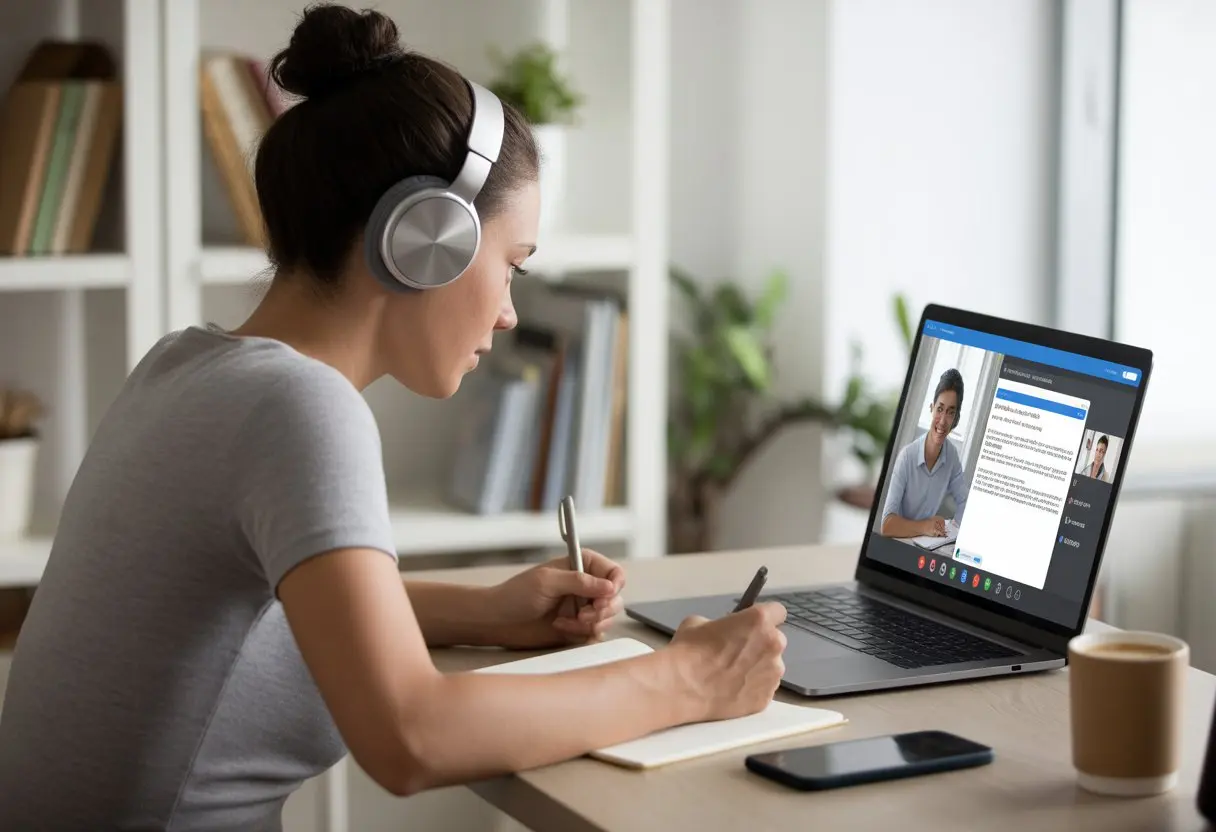
Getting started is way quicker than wrestling with knots in your old earphones. We only need a Bluetooth-ready device, headphones in pairing mode, and maybe a dash of stubbornness to avoid going back to wired life.
If you want step-by-step help, there are lots of guides for pairing wireless headphones via Bluetooth. That way, we can actually join class audio without looking like we’re stuck in the early 2000s.
Let’s be honest, using Bluetooth headphones isn’t just about looking slick (though, it helps). They make our voices clearer and help us focus. Now the teacher can actually hear us—and we can’t really blame the Wi-Fi anymore.
Why Use Bluetooth Headphones for Online Classes
Online classes can get noisy, distracting, and, let’s face it, occasionally awkward. Bluetooth headphones show everyone in the house (or dorm) that we’re actually working—not just watching cat videos with the sound off.
Convenience and Flexibility
Wires have this weird obsession with getting tangled, don’t they? Bluetooth headphones give us freedom from that mess.
We can wander around, grab a snack, or dodge a nosy sibling and still catch every word from the teacher. No cords means we don’t get yanked back every time we move.
Pairing is a breeze—one click and we’re connected. We can switch between devices without crawling around for plugs.
Most modern Bluetooth headphones last long enough that we’re not hunting for a charger halfway through a lecture.
They’re also pretty discreet. These headphones don’t scream “I’m in class!” to everyone nearby—especially our pets, who never respect boundaries. Unlike giant gaming headsets, they look professional and don’t totally ruin our hair.
Hands-Free Learning
Our hands get busy—sometimes with notes, sometimes with snacks, and sometimes just wildly gesturing in a group discussion. With Bluetooth headphones, we stay hands-free.
Built-in microphones let us ask questions or answer without holding up a phone like it’s 1997. Group discussions and presentations flow smoother when we can type, gesture, or even wave at someone off-camera.
Teachers appreciate good microphones too, since they can actually hear us. That means less “Can you repeat that?” and more real conversation.
And hey, when we need to mute for a quick secret chat (not that we’d ever do that), the button’s right on the headphones or just a tap away.
Productivity Boost for Students
Distractions are lurking everywhere. Bluetooth headphones help block out background noise, so we can focus on what matters—like figuring out math problems instead of listening to barking dogs or kitchen chaos.
Keeping the audio right in our ears means we catch every important point. Some headphones even have noise-canceling features that make a quiet bubble around us.
Headphones signal to everyone else that we’re busy, so we get fewer interruptions. Since many models are comfy for hours, we’re way more likely to stick with long lectures (well, at least a little more likely).
If you want more on this, check out why headphones are a popular pick for online learning.
Choosing the Right Bluetooth Headphones
Picking out Bluetooth headphones for online classes sometimes feels like picking an avocado—if you don’t know what you’re after, you might end up disappointed. We need to think about headphone type, features, background noise, and battery life to avoid audio lemons.
Types of Wireless Headphones
Wireless headphones come in a few flavors—kind of like ice cream for your ears. We’ve got wireless earbuds, over-ear models, and wireless headsets with built-in microphones.
- Wireless earbuds are tiny and easy to pocket. They’re light, but if you’ve got big ears, they might pop out if you laugh too hard.
- Over-ear headphones cover your whole ear and keep both sound and homework secrets safe. They usually offer richer sound, and you’re not likely to lose them between the couch cushions.
- Wireless headsets come with a microphone, so if you do a lot of speaking in class, you’ll sound as clear as a weather reporter.
The right pick depends on whether you care more about comfort, portability, or looking like an airline pilot on Zoom. For a breakdown, check out this guide to choosing headphones.
Key Features to Consider
It’s tempting to grab the first pair that fits the budget, but features matter more than just a cheap price tag.
We want headphones with solid audio quality so we can actually hear when the teacher quietly mentions homework. Controls on the headphones are super handy—if we can pause or adjust volume without hunting for our device, we feel like we’re in a spy movie.
Microphone quality is a big deal for class participation. Nobody wants to sound like a robot or someone underwater. Even if you’re saving every penny, there are good options out there.
Check out this headphone buying guide for more feature tips.
Noise Cancellation and Background Noise
Let’s be real—our homes aren’t always the quiet sanctuaries teachers imagine. Siblings, pets, and delivery trucks always seem to get louder when it’s study time. That’s why headphones with noise cancellation are a lifesaver.
Active noise cancellation (ANC) uses tiny mics to block out background noise. This is perfect if you’re studying next to someone watching cartoons.
If you just need to block a bit of background hum, passive noise isolation (snug headphones) can help. But when you want as much silence as possible, ANC is the way to go.
If you want fewer distractions, look for these features. The best Bluetooth headphones almost always mention noise cancellation as a must-have.
Battery Life and Comfort
Long online classes mean our headphones have to keep up with us—they can’t just quit halfway through algebra. Battery life varies a ton, from a few hours on wireless earbuds to over a school day with some over-ear models.
Here’s a quick table:
| Type | Average Battery Life |
|---|---|
| Wireless Earbuds | 4 – 8 hours |
| Over-ear Headphones | 15 – 30 hours |
| Wireless Headset | 8 – 20 hours |
Comfort matters, too. Headphones should feel like soft clouds, not a vise. Lightweight materials and cushy ear pads help a ton.
Look for headphones that are light and adjustable. Your future ears will thank you. If you want more advice, here are some tips on choosing a comfortable pair.
Setting Up Bluetooth Headphones
Let’s get those Bluetooth headphones ready to whisper sweet nothings—no wires required. Using wireless headsets for online classes makes life less tangled, but setting them up right is the real trick.
Pairing Bluetooth Headphones With Your Device
First, we need to make the headphones and our device become best friends—no awkward introductions, just instant connection.
- Turn on Bluetooth on your device. Usually, you’ll find it in Settings under Bluetooth.
- Put the headphones in pairing mode. Usually, press and hold a button (like Play or Power) until you see a blinking light—like a tiny disco. If you’re not sure, check the manual.
- On your device, look for the headphone name in the available devices list. Tap or click it and, just like that, they connect.
- Sometimes you’ll need a PIN. Most of the time it’s “0000” or “1234”—Bluetooth isn’t big on tough passwords.
Bluetooth headphones usually work at about 8-10 meters away, as long as you don’t have giant objects or thick walls in the way. For more details, here’s a helpful setup guide.
Using a Bluetooth Transmitter
If your device doesn’t have Bluetooth (looking at you, old desktop), grab a Bluetooth transmitter.
A Bluetooth transmitter plugs into your audio port—either the headphone jack or USB. Turn it on and put it in pairing mode, usually with a button.
Set your Bluetooth headphones to pairing mode, too. The transmitter and headphones find each other—if only dating was this easy.
Once paired, sound from your computer goes wirelessly to your headphones, basically like magic (well, science, but still). Some transmitters let you pair more than one wireless headset at once, so there’s no fighting over who gets to hear the teacher.
Don’t forget to charge both the transmitter and the headphones, unless you enjoy surprise silence during math class.
For more info, check out this comprehensive pairing guide.
Optimizing Audio and Sound Quality
Getting the most from Bluetooth headphones in online classes means paying attention to volume, sound clarity, and sound delay. We want to hear our teacher—not just a robot with a stuffy nose.
Adjusting Volume Control
Volume control isn’t just about cranking things up to drown out barking dogs or the neighbor’s lawnmower. We want a level that’s clear enough to understand, but not so loud the teacher sounds like they’re yelling straight into our brains.
Most Bluetooth headphones stick the volume buttons on the side for quick tweaks, but don’t forget the volume settings on your device, too. Sometimes both need a nudge. If the sound still feels off—either too quiet or weirdly loud—it’s worth checking the sound settings on your computer or phone.
Here’s a little tip: If you notice a sudden jump or dip in volume, apps like Zoom sometimes hide their own volume controls in the settings, just waiting to mess with us.
Improving Sound Quality
Nobody wants to sit through a class that sounds like it’s happening underwater. To boost sound quality, let’s keep our headphones charged. Low battery can make audio cut in and out or sound fuzzy, and suddenly we’re missing half the lesson.
We can use apps or system settings to enable features like “original sound” in Zoom, which usually makes things a lot clearer. For step-by-step help, check out Zoom audio settings or follow this Bluetooth audio fix guide.
If you use the mic on your Bluetooth headphones, some models lower sound quality when the mic’s on. It’s a pretty common issue when you’re using wireless headsets for both talking and listening. If this keeps happening, try using a separate mic or check your settings to prioritize audio.
Minimizing Latency
Latency is that annoying delay between when the teacher says something and when we actually hear it. It’s not always obvious in music class—until you’re clapping off-beat and wondering if you’re the problem. It can make group conversations a little awkward, too.
To keep latency low, keep your headphones close to your device and avoid using lots of wireless gadgets all at once. Closing background apps helps, too. Some Bluetooth headphones use newer Bluetooth versions (like 5.0 or higher), which usually means less delay.
If the delay gets out of hand, try resetting your headphones and device. Sometimes that clears things up. For more advice, check out this Bluetooth headset troubleshooting guide.
Proper fit matters—a wobbly headset doesn’t just mess with sound, it can drive you a little nuts. Let’s keep things snug, tuned, and as lag-free as we can!
Troubleshooting Common Bluetooth Headphone Issues
When wireless headphones don’t cooperate, online classes can quickly turn stressful. Here’s what we can try when our Bluetooth setup decides to take a break right when we need it most.
Connection Problems
Sometimes Bluetooth headphones just refuse to connect. The most common issue is not connecting to the device, or connecting with no sound at all. First, double-check that your headphones are charged and turned on—even if you’re sure you did it last night. If the battery’s dead, nothing else will work.
If that’s not it, try forgetting the headphones on your device’s Bluetooth list and pair them again from scratch. Most models let you know they’re ready to pair by flashing a light or saying “pairing” in that dramatic robot voice. For a step-by-step, here’s a Bluetooth headphone pairing guide.
Here’s a quick checklist:
| Problem | Try This First |
|---|---|
| Won’t connect | Toggle Bluetooth on/off. |
| Paired, no sound | Check device audio output settings. |
| Random disconnects | Move headphones closer to device. |
| Still not working | Restart both device and headphones. |
Audio Dropouts and Delays
Nothing says “professional student” like robotic audio halfway through your homework explanation. Bluetooth headphones can drop audio or lag behind, especially if there are walls or other devices getting in the way.
Keep headphones close to your computer—Bluetooth hates long-distance relationships. If you’ve got a bunch of devices nearby—phones, tablets, smart fridges—try turning a few off. Software can also cause problems, especially if you’ve got a million tabs or apps open. Some programs might steal audio, so close extra apps if sound disappears during class.
Updating drivers and keeping your operating system current can help smooth out audio. Sometimes a quick reboot or moving to a different seat does the trick. If all else fails, maybe it’s time for a pep talk—or just a reset.
Maintaining Your Bluetooth Headphones
Bluetooth headphones need a bit of care if we want them to last through every class. If we keep them clean, treat the battery right, and avoid blasting the volume, they’ll stick with us for the long haul.
Cleaning and Care Tips
Let’s be real—our ears aren’t exactly spotless, so neither are our headphones. Wipe your Bluetooth headphones with a soft, dry cloth every so often. If they have ear pads, gently clean them with a damp cloth (but don’t dunk them in water unless you want them to retire early).
Skip the harsh chemicals, unless you’re hoping for some wild stains. When you’re not using them, keep them in a case to block out dust, hair, and cookie crumbs.
Quick Do’s and Don’ts Table
| Do | Don’t |
|---|---|
| Wipe gently | Use alcohol |
| Store in a case | Toss in a bag |
| Clean ear pads | Submerge in water |
If your headphones look and smell funky, your ears probably will too.
Maximizing Battery Life
A dead battery during class is the enemy of productivity (or maybe an excuse for a nap). Only charge your headphones when they’re actually low—not every five minutes. Use the right cable; that mystery cord from the drawer might not be the best bet.
When you’re not using the headphones, turn them off. Some newer models shut down automatically, but if not, just hit the power button. Don’t leave them plugged in overnight; it won’t unlock any secret supercharged mode.
Batteries like a comfy room temperature. If you freeze them or leave them in a hot car, they’ll age faster than a banana on the dashboard.
Preventing Hearing Loss
Online classes matter, but our ears matter more (we only get two, after all). Don’t crank the volume just to block out the neighbor’s vacuum. Most experts say to keep the volume at 60% or lower.
Wearing headphones for hours without a break is just asking for headaches. Take short breaks every hour to give your ears a breather.
Some Bluetooth headphones include safe-listening features or volume limits, which are super handy if you tend to forget what “too loud” means. If you notice ringing in your ears, it’s time to turn it down. Your future self will thank you.
Bluetooth Headphones for Remote Work Beyond Classes
Remote work has made Bluetooth headphones a daily essential for a lot of us. With the right pair, we don’t just hear our coworkers—we survive endless meetings and multitask like pros.
Attending Virtual Meetings
When we jump into virtual meetings, a good pair of Bluetooth headphones feels a bit like a superhero cape (just less obvious). We actually hear what our boss says instead of guessing between “great job” and “late job.” The built-in microphones in most wireless headsets or earbuds keep our voices clear, so nobody has to fake hearing us.
Comfort counts. Over-ear headphones keep our ears happy during marathon meetings, while wireless earbuds are light and discreet for video calls where we want to look chill—not like a DJ. Noise-canceling options are a lifesaver; sudden dog barks and doorbells won’t embarrass us mid-presentation.
A lot of us love having volume and mute buttons right on the headphones. Fast access is a lifesaver when you need to cough or vent about spreadsheets for a second.
If you’re still on the fence, check out this discussion about in-ear versus over-ear headphones for teaching and meetings. Spoiler: nobody mentions spaghetti as a hazard.
Switching Between Devices
Wouldn’t life be so much easier if our work laptop, phone, and tablet just got along? These days, a lot of Bluetooth headphones actually let you pair with more than one device, so you can bounce from a Zoom call on your computer to a phone call without too much hassle.
Picture this: you’re in a virtual meeting on your laptop, and then your phone starts ringing. With multi-device pairing, you can switch your wireless headset over with just a button press—or sometimes it just does it for you. No more panic-scrolling through Bluetooth menus. It’s almost as smooth as flipping from “serious work mode” to “snack break” without missing a beat.
If you want something specific, the ASUS ROG Strix Go Wireless Headset really stands out for device switching and comfort. It’s worth checking your headphones’ user manual to see if they mention multipoint connection, because when tech actually works the way it should, it feels a little bit like magic. Maybe even as magical as that one Monday morning when your WiFi actually covers every corner of the house.

From a young age, I have always had a big interest in technology, and this blog is an extension of that interest. Through this blog, I hope to provide others with all of the information they need regarding tech options to consider, and things such as compatibility. Some of the different items I will be discussing include headphones, smartwatches, and how to fix common issues.
- How to Get Text Messages on Fitbit Versa 2 Android: Simple Guide for Users - October 13, 2026
- Why Doesn’t My Fitbit Record My Sleep? Quick Troubleshooting Guide - October 13, 2026
- How to Change Face on Fitbit Versa 2: Quick and Easy Guide - October 12, 2026
Related Posts: