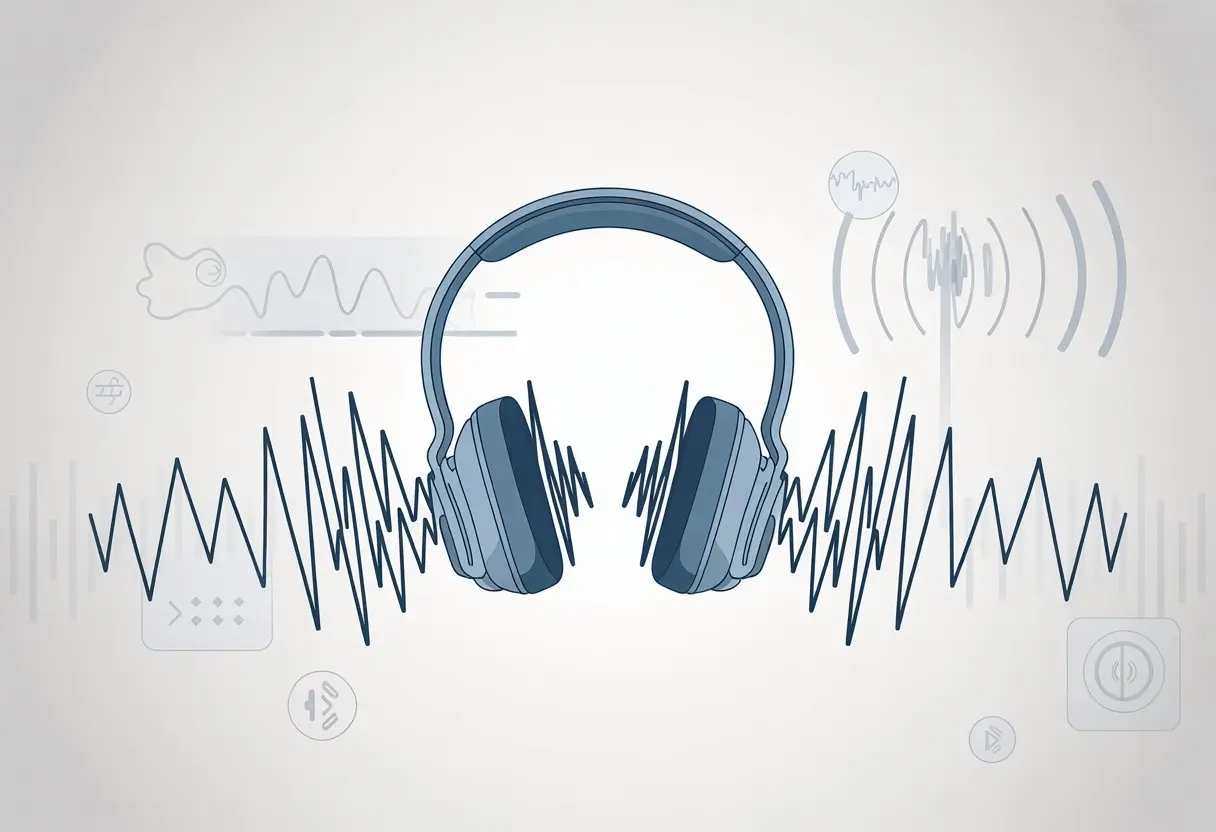
Let’s be honest—nothing ruins a good playlist or a movie night like Bluetooth headphones suddenly going all robot-underwater on us. We connect, hit play, and instead of beautiful music, we’re left wondering if we just tuned into a busted radio. Bluetooth headphones usually sound distorted because of interference, low battery, outdated software, or annoying hands-free mode settings—but hey, there are ways to fix it.
We’ve all been there. Ready to jam out or take an important call, only to have everything come through like static mixed with garbled voices.
It’s frustrating, and honestly, it happens more often than anyone wants. If you’re curious about why headphones turn into static machines and how to get back to clear, crisp sound, you’re in the right place.
Grab your headphones—we’re about to uncover the causes of that annoying distortion and pick up a few easy tricks to get back to smooth listening. Our ears deserve better, don’t they?
Understanding Bluetooth Audio and Sound Quality
Bluetooth headphones can turn our favorite songs into weird, crackling noises that sound like a robot with a sore throat. Figuring out why isn’t always straightforward.
Let’s break down how Bluetooth handles sound and why distortion and static show up more often than anyone would like.
How Bluetooth Technology Transmits Sound
Bluetooth audio uses wireless signals to connect our headphones to devices like phones or laptops. These signals can only carry so much data, though.
To squeeze through that tiny wireless “pipe,” sound quality gets compressed. When something interrupts the signal—walls, microwaves, or just too many open Bluetooth connections—music or calls get choppy.
Sometimes, headphones switch to “hands-free” mode, dropping sound quality even more and making everything sound like it’s coming from inside a tin can. If the headset’s microphone is on at the same time, distortion becomes even more likely.
Distortion and static can turn a great song into chaos. Distortion means sounds don’t come out as clear as they should.
Static is those annoying crackling or buzzing noises. Both pop up when something messes with the signal that’s supposed to deliver smooth sound to our ears.
A weak Bluetooth connection often causes crackling or muffled audio. If the device is far away, the battery is low, or the room is packed with electronics, sound quality suffers.
Sometimes, devices argue over who gets to talk to the headphones, which causes even more distorted sound.
Even age can play a part. Old Bluetooth headphones start to sound fuzzy when their hardware wears out or the battery is dying.
Usually, improving sound quality means keeping devices close, limiting wireless traffic, and not letting too many gadgets link up at once.
Let’s admit it, nothing kills your vibe faster than fuzzy sound when you’re just trying to enjoy your playlist. It helps to know what’s behind these sound gremlins so we can get back to crisp, clear audio.
Interference from Other Wireless Devices
Our lives are full of wireless gadgets. Phones, smartwatches, Wi-Fi routers, and microwaves—our homes throw radio wave parties.
But not all these devices get along. Bluetooth runs on the same 2.4 GHz band as Wi-Fi and some cordless phones.
When everything talks at once, signals clash, and headphones stutter or sound distorted. If we notice choppy audio, another device is probably the culprit.
Try moving headphones or other devices to reduce crowding. Unpairing or turning off a few gadgets can help.
Imagine trying to have a conversation in a packed room—sometimes you just need everyone else to quiet down.
Distance and Signal Obstacles
Bluetooth isn’t a superhero—it has limits. Most headphones work up to about 33 feet (10 meters) from the source device.
If we wander too far, or a wall gets in the way, sound quality drops fast. Common obstacles include walls, doors, and even our own bodies if we’re in between the headphones and the phone.
Metals and water are Bluetooth’s worst enemies. The more stuff between us and our device, the messier things get.
If things sound off, try playing “hot and cold” with your phone. Get closer, hold the device up, or face the right direction—anything to help those radio signals make it through.
Noisy Environments and Their Impact
Imagine trying to have a heart-to-heart at a rock concert. Bluetooth signals struggle in places full of noise—both sound and electronic.
Crowded offices, airports, or coffee shops packed with laptops can make things worse for headphones. In these spaces, signals bounce around like pinballs, and electronic noise can sneak into the connection.
Poor sound quality can creep up, making everything sound muffled or static-filled. Try listening in a quieter spot if possible.
Sometimes the Bluetooth® device isn’t just giving us trouble in our ears, but under the hood or deep in the menus. Hardware hiccups, firmware headaches, or driver drama can make our favorite tunes sound more like a robot with a cold.
Faulty Headsets and Hardware Troubles
Let’s be real—not every headset survives daily life or the bottom of a backpack. Worn-out speakers, loose connections, or tiny breaks in the wiring can make headphones sound fuzzy or distorted.
If the headset’s taken a tumble or two, we might get sonic surprises every time we try to relax. Low battery levels can also make everything sound like it’s underwater.
Having a charging cable handy fixes this faster than you can say “outlet.” In rare cases, severe distortion means our Bluetooth headphones have simply reached retirement age and need replacing.
Test the headset with another device. If the trouble follows, it’s probably time to start shopping for a new pair.
Outdated Firmware and Driver Problems
Outdated drivers or firmware love to throw secret parties that ruin our listening experience. Skipping software updates means missing out on bug fixes that keep Bluetooth connections from turning into heavy static.
Headphones might even switch modes the wrong way if the software can’t keep up. On Windows, check Driver status in Device Manager.
Update drivers by right-clicking the Bluetooth device and clicking “Update driver.” For other gadgets, check the manufacturer’s website for fresh updates.
Don’t ignore those “Firmware Update Available” pop-ups—they’re not just for decoration and can fix problems like distorted audio and device pairing issues, as explained in this comprehensive guide.
Audio Settings and Equalizer Tweaks
Sometimes Bluetooth headphones sound like a disco underwater because the settings are off. We can often fix distortion by adjusting equalizer (EQ) settings, tweaking the bass and treble, and double-checking audio or app setup.
EQ Settings and Bass Performance
Let’s be honest: cranking up the bass feels cool, but it can go terribly wrong. Too much bass in the EQ settings creates that classic “muddy” sound, especially with Bluetooth headphones.
Wireless connections already lose some audio quality, and extra bass just makes it worse. Keep the bass strong but not overwhelming.
If you notice thumping or rattling, it’s time to turn it down a notch. Lowering bass by a few notches in the equalizer can boost clarity and fix some distortion.
Most music apps have presets for pop, rock, classical, and more—try each one to find a balance. If it sounds like someone’s stomping on a cardboard box during your favorite song, the bass is probably too high.
Keep it punchy, not pummeling.
Treble Adjustments for Clarity
Now, let’s talk treble—the higher frequencies. If treble is set too low, everything sounds like it’s coming through a thick blanket.
If it’s too high, every “S” and cymbal becomes a loud, sizzling splash. Neither is fun.
Aim for a middle setting, where vocals and instruments sound crisp but not piercing. Even a slight treble boost can make speech much clearer, especially during podcasts or calls.
If music still sounds muffled, check that the EQ hasn’t rolled off treble frequencies by accident. Nothing ruins a good tune like it sounding like it’s being played from the bottom of a swimming pool.
The Role of Audio and App Settings
Audio and app settings can sabotage us, even when the EQ is perfect. Sometimes, distortion comes from low-quality Bluetooth audio formats or the wrong profile in device settings.
For example, if the phone or computer sends audio in “hands-free” mode, it tanks the sound quality. Always check audio settings on the device.
Switching to “stereo” or “high-quality audio” in Bluetooth or sound preferences can fix muffled or distorted sound fast, as explained on the Microsoft forums.
Don’t forget about music and video apps. Some apps have built-in EQ or playback settings that override everything else.
A simple change in the app’s audio menu can make the difference between crisp sound and something that belongs in a fish tank.
Troubleshooting and Fixes
It’s annoying when music sounds like it’s playing underwater. There are steps we can take, though.
Sometimes a quick change fixes everything. Other times, it might be time to call in the pros or finally see if that warranty is good for something.
Quick Fixes for Distortion
Alright, first things first—let’s give our ears (and headphones) a quick break with some easy checks. Try disconnecting and reconnecting your Bluetooth headphones.
Honestly, just unpairing and repairing them can work wonders. If that doesn’t do the trick, go ahead and restart your phone or laptop.
Sometimes, having too many Bluetooth devices connected at once just confuses everything. You might suddenly get garbled sound—yep, that’s happened to me.
Make sure your headphones aren’t sitting too far from your device. Weirdly enough, walls and microwaves do a pretty solid job of blocking audio signals.
If you’re using Windows, try disabling the headset microphone in your sound settings. That little tweak can clear things up (if you want more details, check out this Microsoft discussion).
If nothing’s working, try re-pairing your headphones or see if they sound better with a different device.
When to Service Your Product
If your headphones still sound like robots having an underwater argument, it might be time to admit defeat. Persistent crackling or buzzing—no matter what you connect—usually means there’s a hardware issue inside.
Physical damage (honestly, a trip through the washing machine is never good) or battery problems can cause all kinds of weird noises. If you only notice static or distortion with certain sounds, the speakers might be on their way out.
When you’re stumped, check the official support site for your headphone brand. Most brands have self-service guides or a way to chat with customer service.
Trying to fix circuit boards at home might sound tempting, but honestly, you’re way more likely to turn your headphones into expensive paperweights.
Checking Warranty Coverage
Let’s talk about everyone’s favorite bedtime story: the warranty manual.
If our headphones are still acting up after all our heroic troubleshooting, it’s probably time to dig up that receipt.
Most headphones give at least a year of warranty coverage.
Check the brand’s website for their warranty details—some brands make us register the product, while others just ask for proof of purchase.
This is also when we finally use those serial numbers we never wrote down (guess it’s time to check the box, the bottom, or maybe the app settings).
If the problem falls under warranty, the company might repair or replace the headphones, or sometimes even offer a refund.
Just a heads up, warranties rarely cover accidents, puddle disasters, or “the dog ate it” stories.
For more info about checking coverage, you can visit the Apple support page.
Hi, my name is Garrett Jones, and I am a tech enthusiast. I enjoy researching the new tech that has been released, and have a vast knowledge of the best tech to purchase.
From a young age, I have always had a big interest in technology, and this blog is an extension of that interest. Through this blog, I hope to provide others with all of the information they need regarding tech options to consider, and things such as compatibility. Some of the different items I will be discussing include headphones, smartwatches, and how to fix common issues.