We’ve all been there—jamming out to a favorite playlist when suddenly our Bluetooth headphones decide the play, pause, and skip buttons are just for decoration. No matter how many times we mash the controls, nothing happens, and we start wondering if we broke them or they’re just messing with us. Usually, Bluetooth headphone buttons ignore us because of software glitches, connection hiccups, or weird conflicts with certain apps or devices.
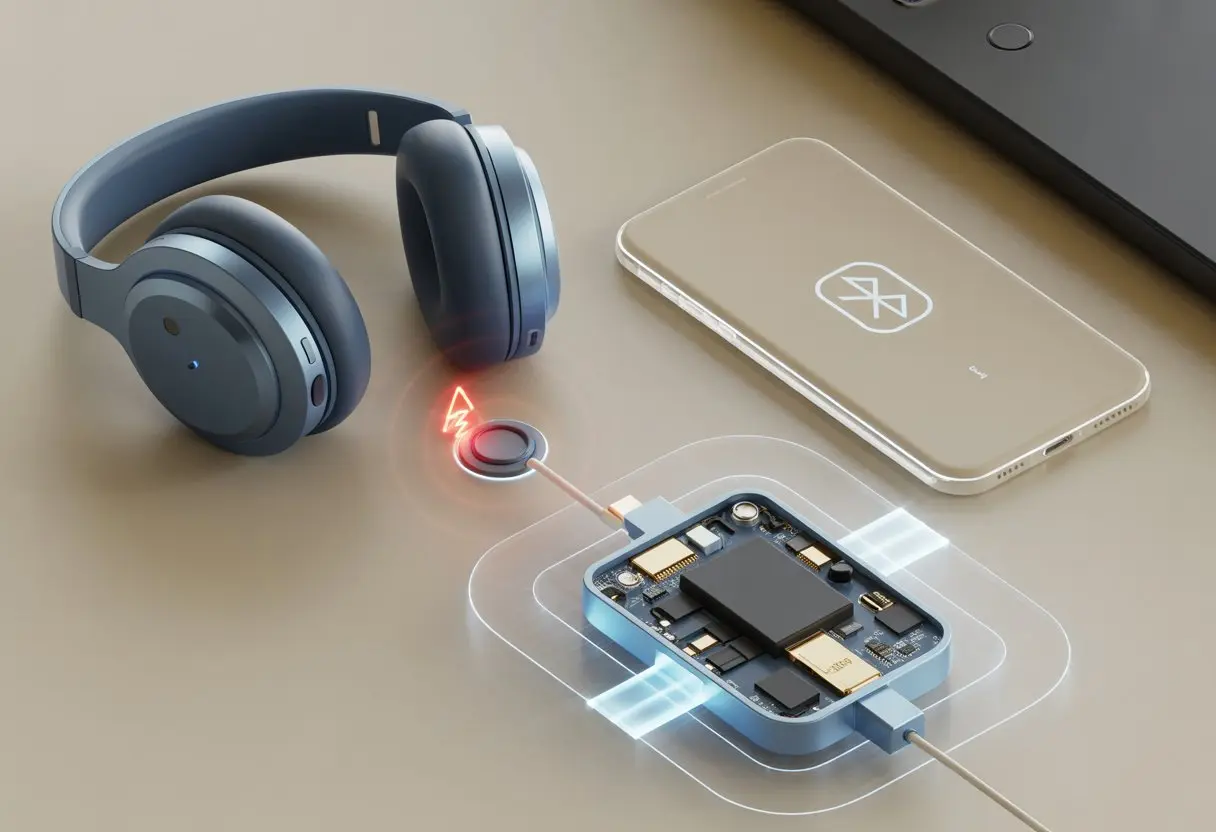
These tiny buttons can get a bit picky about who’s in charge. Sometimes, our phones keep things locked up and won’t let the headphones send any commands until we wake up the screen—this happens a lot with Google Pixel devices.
Other times, sneaky third-party apps or features like PowerToys mess with button mappings behind the scenes, making everything even more confusing.
If our trusty headphones are giving us the silent treatment, we’re definitely not alone. Plenty of things can cause non-responsive buttons, but with a little troubleshooting, we can usually get the music (and control) back.
Understanding The Problem: Why Bluetooth Headphones Ignore You
Sometimes, we press a button on our Bluetooth headphones and nothing happens. It makes us wonder if the headphones quit their job or if our thumbs are broken.
Let’s try to figure out who’s really to blame here.
Common Reasons Headphone Buttons Are Non-Responsive
We all expect magic when we tap our headphone buttons, but reality can be pretty disappointing. Here are a few usual suspects behind the disappearing act:
- Low Battery: Dead batteries mean dead buttons. No power, no response—headphones just turn into earmuffs.
- App or Device Problems: Sometimes, our device just refuses to listen. If the app freezes or the phone lags, the headphones never get the memo.
- Bluetooth Connection Glitches: If the Bluetooth signal skips or drops, button presses vanish into the void. Bluetooth can even stay connected to the wrong device, leading to zero response.
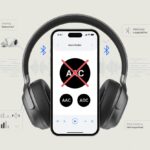
- Driver or Pairing Issues: On computers, outdated drivers or bad pairing can break button functionality. Re-pairing often fixes it, as folks have found with Bluetooth headset buttons not working.
So if our headphones ignore us, they’re probably powered down, confused, or just lost in Bluetooth limbo.
How Bluetooth Communication Works With Headphones
Bluetooth is a bit like a walkie-talkie, but way more stubborn sometimes. Our headphones talk to the phone using tiny radio waves—no magic, just a lot of invisible science.
When we push a button, the headphones send a signal to our device. The device should say, “Oh, you want to pause? Sure!” But if there’s too much wireless noise, a weak signal, or interference from too many gadgets, the message gets lost.
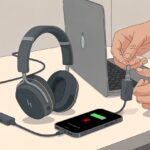
We’ve all watched Bluetooth headphones stay connected, even when we plug them in to recharge. They might keep draining the battery and missing messages, as seen in common Bluetooth headphone problems.
If too many devices link up by Bluetooth, the connection can get shaky, making it tough for audio signals—or our button presses—to get through. So when our headphones ignore us, it’s probably just the invisible wireless gremlins causing trouble.
Diagnosing Button Issues Like A Headphone Whisperer
If our Bluetooth headphones are ignoring us, it’s time to play detective. Sometimes, it’s the buttons themselves that are fussy, or that blinking Bluetooth indicator light is sending a secret message we keep missing.
Testing Button Functionality
Let’s start with the buttons. We should press each one—play, pause, volume up, volume down—while our headphones are connected to a device.
If nothing happens, it’s probably not a conspiracy (though it might feel like it).
Here’s what we can try:
-
Connect to another phone, tablet, or computer.
Sometimes, a single device’s Bluetooth settings or audio driver is the villain, not the headphones. -
Check for dirt or sticky residue.
Weird as it sounds, crumbs or gunk can mess with button contacts. -
Reboot both devices.
Turn off our headphones and the device, wait a few seconds, then restart.
If the buttons still ignore us, uninstalling any headphone-specific software or third-party tools like PowerToys might help. These can interfere with button commands. Some people have found success after deleting old drivers and apps linked to their headphones.
Deciphering The Bluetooth Indicator Light
That tiny, blinking Bluetooth indicator light isn’t just for show. It tells us a lot about what’s going on behind the scenes.
For example, a steady light usually means we’re paired, while a flashing light could spell trouble.
Let’s decode the blinks:
- Fast blinking: Pairing mode.
- Slow blinking: Searching or not connected.
- Solid light: Paired and ready for action.
- Weird colors or patterns: Error or battery warning.
If the indicator light acts strange, check the battery and make sure we’re within Bluetooth range (usually 33 feet or 10 meters). If our headphones use an audio cable, some models will disable button controls in wired mode—so unplug and try again.
Reading these little light signals can save us from a hundred pointless button presses.
Troubleshooting Bluetooth Connection Problems
Let’s be honest—sometimes our Bluetooth headphones just want to drive us nuts. Buttons stop working, nothing connects, and we’re left staring at our silent earbuds, hoping for a miracle.
Here’s how we can try to get everything playing nice again.
How To Properly Pair Your Headphones
First, let’s make sure Bluetooth is actually on. We’ve all had that embarrassing moment where we blame the headphones, but our phone or laptop’s Bluetooth was off.
Open the Bluetooth menu—it’s usually in Settings > Bluetooth, though it looks a bit different on every device.
With our headphones turned off, hold the power button to get them into pairing mode. Usually, a blinking light means they’re trying to say hello.
On our phone, laptop, or computer, we should see the headphones pop up in the list. Tap or click to connect. If the device asks for a code, it’s usually 0000 or 1234.
If things still don’t work, check how far away we are. More than 10 meters (about 33 feet) and we might be out of luck. Also, make sure both the headphones and device are charged. If you want more pairing help, this detailed guide covers more Android pairing weirdness.
Resetting Your Product For A Fresh Start
When pairing feels cursed, it might be time for a reset. Many headphones have a specific reset combo, like holding the volume up and down buttons together while the headphones are off.
A reset wipes out old connections and can clear away bugs, especially if buttons aren’t responding. For exact instructions, check the manual or the company’s website—if you haven’t already lost the manual, which, let’s be real, happens to everyone.
Some brands even recommend unpairing from all devices and starting fresh. Devices like some Bose headphones need us to be within range and make sure features like the multi-function button aren’t being held by accident.
When in doubt, patience and a little humor help—these steps usually get us back to listening without button drama. More tips about resets are in this Bluetooth troubleshooting tip.
When Your Headphones Are Shy: Hardware & Compatibility Glitches
Sometimes our Bluetooth headphone buttons ignore us like a cat who’s decided we don’t exist. This mysterious button silence usually comes down to two things: worn-out hardware or some kind of device compatibility drama.
Button Wear-And-Tear Over Time
Let’s be honest, we’ve all been a bit rough on our headphones. Every skip, pause, and volume change wears out the tiny switches under those plastic buttons.
Over months or years, these parts can get stuck, become unresponsive, or just give up. That’s life with electronics.
Signs of button wear include buttons that feel mushy, don’t click anymore, or only work if we press them just right—like a secret handshake. If our headphones are under warranty, that’s good news. Many companies will repair or replace defective gear, so hang on to that warranty info.
If the warranty’s long gone and the buttons are officially retired, we might have to pull out the one tool every adult dreads: the wallet. Sometimes, a simple cleaning around the button helps, but other times, replacement’s the only fix.
Incompatibilities With Devices
Technology is awesome, but it can be moody—especially with Bluetooth. One day, our headphones work fine; the next, the buttons won’t play nice with our phone or laptop.
It’s not personal. Sometimes, the device’s software doesn’t “support” certain button commands, or a new update introduces a bug, like when Android 8 rolled out and broke what used to work.
We might notice our headphones’ buttons work on one device but not another. Third-party apps or settings—like accessibility features or custom button mappers—can mess with controls too.
Disabling fancy software and double-checking our Bluetooth profiles (“media audio,” “headset”) can solve a lot of these quirks. If we’re still getting ghosted by our buttons, manufacturers often have troubleshooting guides or forums that can help us through the rough patch. For more tips on fixing tricky Bluetooth connections, this guide on headphone troubleshooting covers a lot of common hiccups.
Device Settings That Sabotage Your Button Presses
Our Bluetooth headphones sometimes stop obeying us, all because of sneaky settings hiding in our phones and apps.
Before we blame the headphones, we should check if our devices are the real troublemakers.
Volume & Playback Settings On Smartphones
Let’s be honest, cell phones can be a bit finicky. If you turn your phone volume all the way down, your headphone play and skip buttons might totally ignore you. This especially happens if you’ve set “Do Not Disturb” or silenced notifications.
A locked screen can throw things off too. Some smartphones just stop listening to headphone buttons unless the screen is on or the media app is already running. It’s like your phone is playing hard to get, honestly.
If you pair multiple Bluetooth devices at once, your headphone commands might end up somewhere random. Suddenly, your phone thinks you want to control the TV or that tablet you forgot about. Disconnecting other devices usually brings those buttons back under control.
Here’s a quick tip for reference:
| Problem | Quick Fix |
|---|---|
| No button response | Check phone volume and playback status |
| Buttons work only when screen on | Adjust lock screen/media settings |
| Buttons work on wrong device | Disconnect other Bluetooth devices |
App Settings Hijacking Button Controls
Apps love to grab control whenever they can. If you use music and video apps, sometimes only one app listens for those button presses at a time. If YouTube is open and your music app is paused, your headphones might not work until you close one. It’s a digital turf war, honestly.
Some apps, like custom music players or podcast apps, have their own button control settings. If you’ve tweaked these, your controls might now do something weird—or just ignore you completely. It’s worth digging into the app’s settings if your buttons aren’t behaving.
Third-party apps or features (like PowerToys on Windows, or overzealous security apps on Android) sometimes mess with button mappings. You might find yourself frantically pressing play and getting nowhere. If you suspect an app is the culprit, try disabling or uninstalling it for a bit. Want more real-life stories? Check out how others deal with these app-related Bluetooth button problems.
Environmental Factors: When Nearby Gadgets Get Jealous
Bluetooth headphones can act like moody pets. Sometimes they just won’t listen to your button presses, and often, it’s not even their fault. Outside factors love to mess with the signal.
Interference From Other Bluetooth Devices
Too many Bluetooth devices in one room? It’s like a crowded dinner table—everyone talks, nobody gets heard. Your headphones have to compete with phones, speakers, soundbars, and even home cinema systems for space in the air.
If your neighbor’s Bluetooth soundbar or your own smart speaker is nearby, their signals can crash into yours and confuse your headphones. You might notice laggy buttons, wild track skipping, or just nothing happening at all. According to studies on interference and experts, too many Bluetooth gadgets nearby can block or jumble the signals—a true case of gadget jealousy.
Turning off the Bluetooth services you’re not using can help. Fewer connected devices means less chance of a signal standoff. If soundbar or speaker accessories keep messing things up, try disconnecting a few or moving them out of the room.
Distance And Obstacles
Bluetooth is a bit like us on a bad day: it gets tired if you go too far from your soundbar or phone. Headphones work best when they’re close to the device they’re paired with.
Walls, metal doors, and thick furniture make things even worse. Signals bounce off or get trapped, and your headphone key presses just don’t go through. If you use your headphones behind several closed doors, you might as well try shouting underwater.
Microwaves and Wi-Fi routers are also troublemakers. They can make Bluetooth devices drop signals or ignore button presses altogether. Everyday stuff and even your home cinema setup can mess with headphone performance. Keeping headphones and devices in the same room saves a lot of frustration.
Here’s a quick list of things that mess with Bluetooth distance and signals:
| Obstacle | Effect on Signal |
|---|---|
| Thick walls | Weakens or blocks completely |
| Metal objects | Distorts or reflects signal |
| Long distance | Signal drops/off, buttons unresponsive |
| Other gadgets | Cause interference |
Seeking Help: When Headphones Need A Trip To The Headphone Hospital
Sometimes our headphones hit a wall that we just can’t fix. That’s when it’s time to call in the experts, check if a warranty can save the day, or hunt down support options without losing your mind.
Finding Product Support The Easy Way
We’ve all been there—mashing buttons like we’re trying to launch a rocket, but nothing happens. When reset tricks and Bluetooth toggles don’t help, it’s time to look for product support.
Most brands have a “Support” or “Service Your Product” page ready for you. Search for your exact headphone model and you’ll find guides, driver downloads, or troubleshooting steps. Many sites even offer live chat or email support. If you’ve fiddled with every setting and nothing works, these help pages can walk you through the next steps.
Having your model number ready helps a ton, since “That One Black Headphone” isn’t much to go on. A quick product name search usually gets you to the right support page in a few clicks. If you’re unsure, try pairing and re-pairing your headset—tech support might suggest it too.
Product Search & Warranty Services
If nothing works and you’re convinced your headphones are done for, it’s time for warranty talk. Most major brands offer a product search tool on their site. Just punch in your serial or model number to pull up warranty info.
If your headphones are still under warranty, you might be in luck. The site spells out what’s covered, how long you have, and what counts as accidental damage. Often, you can open a service request or print a return label right from the site.
Don’t toss that receipt—it could be your ticket to free service. Following the warranty steps can save you money (and maybe a few tears). If the warranty expired last week? At least you gave it a shot.
Special Scenarios: Not All Bluetooth Problems Wear Headphones
Bluetooth issues sometimes sneak up in weird ways. Problems show up with tiny earbuds, fancy fitness wearables, or even home cinema gear you only use for movie night.
Troubleshooting Earbuds, Wearables, And The Rest Of The Gang
When earbuds act up, it’s rarely just because they’re in a bad mood. Usually, earbud buttons fail because of battery issues, dirt or gunk blocking sensors, or app glitches. Cleaning them with a microfiber cloth (not your shirt sleeve, though we all do it) keeps button contacts clear.
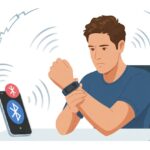
Wearables like smartwatches or fitness trackers love to lose connection at the worst time—right when you need to pause your workout playlist. Sometimes battery optimization settings mess up Bluetooth controls. Double-checking these settings on your phone often solves it.
If there’s companion software, like a fitness app, it can interfere with button responses. Restart both devices or toggle Bluetooth off and on to see if it helps.
Quick tip: If all else fails, unpair and then re-pair the device. It’s basically the Bluetooth version of giving it a friendly pat on the back.
Home Cinema And Bluetooth Woes
Turning the living room into a home cinema sounds fun, right? But then Bluetooth acts up, and suddenly, we’re fumbling with remotes instead of popcorn.
Most soundbars and wireless speakers have button controls, either on remotes or on the speakers themselves. Strangely, those buttons don’t always do what we want.
Here’s a quick troubleshooting list we keep handy:
- Double-check if Bluetooth is actually turned on for the TV or projector.
- Charge up the soundbar or speaker—low battery makes them act weird.
- If you’re too far away, the signal just drops.
- Try updating the firmware; those annoying pop-ups might help for once.
Comparison Table
| Device Type | Common Issue | Quick Fix |
|---|---|---|
| Earbuds | Button unresponsive | Clean and re-pair |
| Wearables | Controls not working | Check power & restart |
| Home Cinema | No button response | Recharge & update firmware |
If all else fails, we just grab the universal remote, mutter a quick apology, and hope nobody notices us sweating over Bluetooth.

From a young age, I have always had a big interest in technology, and this blog is an extension of that interest. Through this blog, I hope to provide others with all of the information they need regarding tech options to consider, and things such as compatibility. Some of the different items I will be discussing include headphones, smartwatches, and how to fix common issues.
- How to Improve WHOOP Recovery Scores Without Giving Up Pizza or Netflix - April 7, 2026
- Why is my fitness tracker not unlocking my computer? Tech tantrums and wearable woes explained - April 7, 2026
- Best Fitness Trackers for Stress Relief: Because Your Anxiety Deserves a Step Counter Too - April 6, 2026
Related Posts: