We’ve all been there—gearing up to smash our fitness goals, only to get hit with the dreaded error code 401. Instead of counting steps, we’re just counting how many times we’ve tried to log in.
The quick answer: error code 401 pops up when our login fails because the app thinks we shouldn’t get in. Most of the time, though, it’s a pretty easy fix.
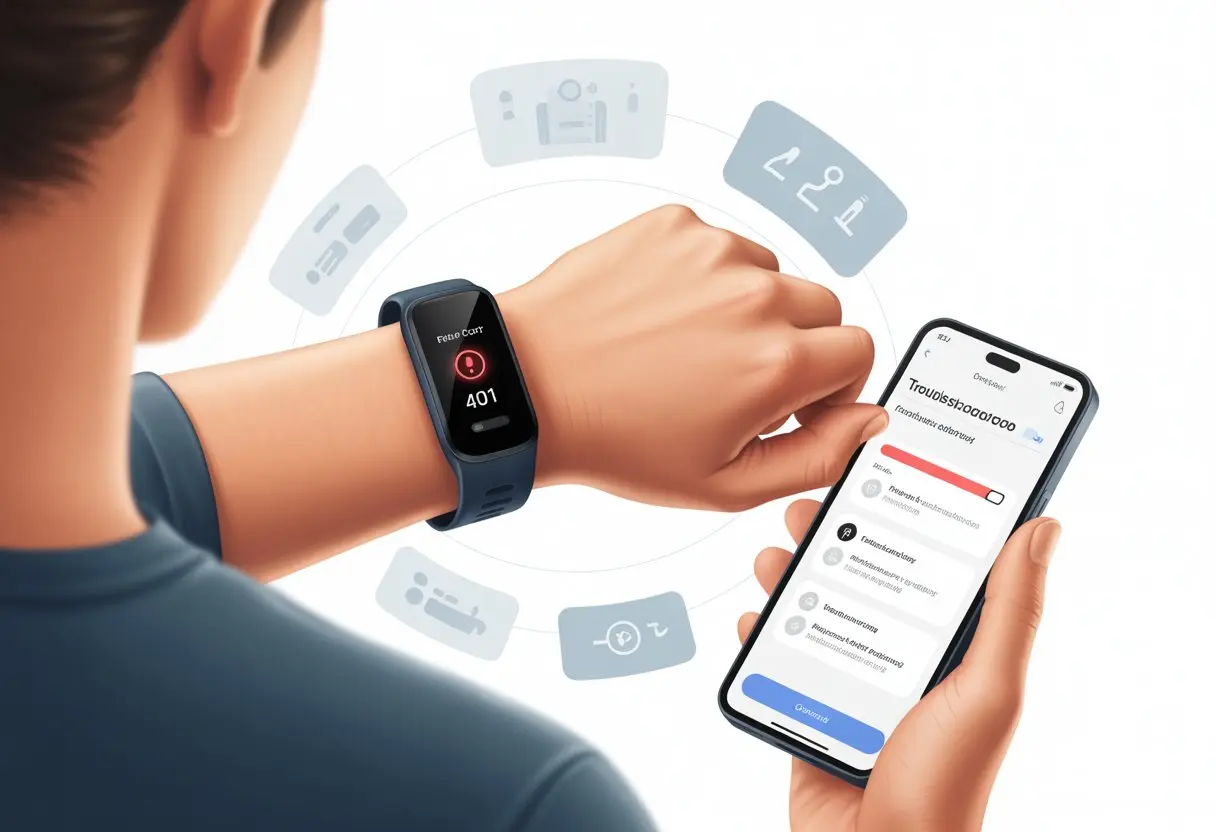
Nothing kills a workout vibe quite like arguing with our fitness tracker while sweating and wearing a headlamp. This error isn’t about our muscles—it just wants proof we’re really us.
Before we toss our gadgets or blame our shoes, let’s try a few simple fixes to get back on track. If you want to know what this error actually means and how to kick it to the curb, you’re in the right place.
If you’re into step counting, syncing, and not screaming at your phone, we’ll walk you through solving error code 401. Then you can get back to focusing on exercise, not weird error messages.
What Is Fitness Tracker Error Code 401?
Seeing a 401 error on our fitness tracker usually means something’s off with logging in or getting permission from a server.
Knowing why this happens helps us avoid staring at a blank screen instead of racking up steps.
The Meaning of HTTP 401
A 401 error shows up when our tracker tries to grab data online, but the system thinks we don’t have the right “secret password.” This is the HTTP status code for “401 Unauthorized.”
It’s like knocking on the gym door and realizing you left your member ID at home. Unlike a 404 error, which means “This page doesn’t exist,” a 401 says we tried to get in but need to prove who we are.
Maybe our login expired, or maybe we typed the password wrong while doing squats. The error blocks our request until we prove our identity.
To fix a 401 error, we usually need to double-check our login info, refresh the connection, or re-authorize the tracker. This problem happens all the time with online devices and apps, not just fitness gadgets.
You can read more about the 401 Unauthorized error here.
Difference Between 401 and 403 Errors
Here’s where things get a bit confusing: 401 and 403 errors love to mess with us. A 401 means we might get in if we prove who we are. Basically, the server says, “Who are you? Show me your ID!”
A 403 Forbidden error is more like a bouncer saying, “You’re not on the list, and you never will be.” No amount of flexing or password entering will help there.
The main difference? 401 is about authentication—we haven’t shown valid credentials. 403 is about authorization—even if we’re authenticated, we still don’t have permission.
For more, see difference between 401 and 403 errors.
If you remember one thing, let it be this: 401 means “maybe,” but 403 means “never.” Yeah, it’s just as personal as it sounds.
Common Causes of Error Code 401 on Fitness Trackers
We all love our fitness trackers—until they hit us with error code 401. This means we can’t access our accounts or sync our steps.
It almost always comes down to login mix-ups, session timeouts, or app permission issues.
Invalid or Missing Authentication Credentials
Incorrect login credentials cause most 401 errors. If we mistype our password or forget our username, the tracker simply refuses to let us in.
Sometimes we rush and hit “login” before noticing we added an extra space. Our trackers check for valid authentication info every time we try to connect.
If those details are wrong, bam—we’re locked out with a 401. It’s the digital version of showing up with mismatched socks and getting denied at the gym.
The fix? Double-check our passwords and usernames. Some trackers now want two-factor authentication, which just adds more ways to trip up if we skip a step or enter the wrong code.
Best advice: keep login info up to date and don’t use “password123,” tempting as it is. For more, see how invalid credentials trigger 401 errors.
Session Timeout and Expiration
Ever get kicked out of an app after a snack break? That’s a session timeout. Fitness trackers use session limits to keep accounts secure.
If we’re gone too long, the device ends our session and we get error code 401 when we try to do anything. Fitness trackers act more like strict gym teachers than lazy couch potatoes—they won’t let us slip by without re-authenticating.
We’ll often see this error after leaving the app open or not using it for a while. To dodge this, just log in again when prompted.
Keeping a strong, memorable password—or using a password manager—can help keep session issues from ruining our fitness streaks. For more, check out how session expiration leads to 401 errors.
Access Permissions Issues
Even if we nail the login, access permissions can trip us up. Our fitness app may try to sync with other platforms—like a smartwatch, music app, or treadmill software.
If permissions aren’t set up right, we’ll see that error 401. It could be a missing approval, a setting we forgot, or an app update that quietly reset permissions.
Failed login attempts or using an older app version can also cause permission conflicts. We need to review and allow access for our fitness tracker to connect with other devices and apps.
Here’s a quick checklist:
- Make sure the app has permissions for Bluetooth, internet, and health info
- Revisit app and device settings after updates
- Confirm third-party platforms are connected correctly
If you want a real-life example, the Fitbit Community discusses permission fixes here.
Let’s keep those permission gremlins away so our steps, heart rate, and sleep stats sync up without attitude.
Troubleshooting 401 Errors: The User’s Stand-Up Comedy Routine
When our fitness tracker flashes a 401 error, it’s not trying to prank us—it just wants us to pay attention.
Fixing it is usually easier than surviving a neighbor’s karaoke night, as long as we don’t skip the basics.
Double-Check Authentication Credentials (Seriously!)
We all think we’re typing the right password, but let’s be honest: typing “password123” for the tenth time isn’t opening any doors. Our first move is to make sure our username and password are exactly right—no accidental spaces, typos, or that sneaky Caps Lock ruining things.
If we changed our password recently, let’s remember to update it everywhere—the app, website, browser, and anywhere else our tracker connects.
Even the fanciest trackers will shut us out if they get the digital cold shoulder. Some trackers ask for two-factor authentication or a code sent by email.
Let’s check for those prompts and not ignore them like “Update Available” notifications. Entering the right credentials really is the start and end of many 401 problems.
Before we do anything drastic, let’s get the basics right. If we’re still stuck, maybe it’s time to dig deeper into 401 errors.
Clear Browser Cookies and Cache Like a Pro
Sometimes our browser holds onto old cookies and fossilized cache, tripping up the login process. Clearing cookies and browser cache is like sending our digital memory to summer camp—it comes back refreshed and forgetful, in a good way.
Open the browser’s settings and find History or Privacy (sometimes it hides like socks in the laundry). Delete cookies, clear cached images and files, and say goodbye to the past.
Clearing cookies won’t erase our entire internet existence. We might have to log in again, but that’s a small price if it fixes the stubborn 401.
For more, see how others clear their cookies to fix 401 errors.
Check for Session Timeouts and Refresh
Sometimes our login session just expires—like milk, but less obvious. If we’ve left the tracker dashboard open too long, the system might log us out.
Seeing a 401? Hit refresh and try again. If the error sticks around, log out completely and log back in with our credentials.
This forces the tracker and browser to start a fresh session. We don’t need to overthink it—just click logout and hop back in.
If things are still weird, close all browser windows and reopen. Session expiration is sneakier than a cat on the counter, but most issues here vanish after a proper reboot.
Try Disabling Password Protection Features
Sometimes our own security settings turn into the bouncer—so tough that even we can’t get in. Password managers or auto-fill tools might fill in the wrong info, or drop in outdated credentials without us noticing.
Try disabling these tools for a minute. If we have password protection on the browser, app, or device, turning it off temporarily can help spot issues.
Type the info manually, with laser focus, to make sure everything matches. Check browser extensions, too—some block cookies or mess with site memory.
Disabling them just for login can reveal if they’re the hidden villain. It’s about cutting out the middleman (and the robot assistant that’s a little too eager).
If the 401 error goes away, well, now we know where to point our next stand-up complaint.
Advanced Fixes for Error 401: Tech Support on Hard Mode
Sometimes, Error 401 just laughs at the basics. We need to dig deeper and roll up our digital sleeves. These fixes are for anyone ready to impress both computers and fellow humans.
Review Access Control Lists (ACLs)
Our fitness tracker servers might just be holding a grudge, and honestly, it could be those Access Control Lists (ACLs) causing the drama. These lists decide who gets to show up on our protected resource and who gets the digital boot.
First, let’s check if our device’s IP or user account is even on the guest list. It’s basically a secret club, and the ACLs are the bouncer at the door.
If our access isn’t on the approved list in the server’s configuration or in files like .htaccess, we’re definitely getting denied. ACLs hide out in all sorts of places—network firewalls, app settings, or those sneaky server config files.
If we can, we should update them to allow legit logins and avoid blocking ourselves by accident. But, if we change anything without knowing what we’re doing, we might lock everyone out, so backing up those config files is just smart.
Investigate the WWW-Authenticate Header
Now, about the WWW-Authenticate header—it’s the unsung hero of HTTP error messages. This header spells out what kind of authentication the server wants before it hands anything over.
If our tracker gets a 401 error, let’s peek at the response headers for the WWW-Authenticate value. Sometimes it’ll say Basic, Digest, or something custom that only tech wizards remember.
If we spot Basic realm="Fitness Tracker", it means the server wants a username and password, probably from a .htpasswd file. Changing our app’s authentication type, or checking with tech support about compatibility, can sometimes fix things.
Sometimes, the device hands over the wrong credentials, and the server just says nope—not today.
Analyze Server Logs and HTTP Headers
We can play detective by digging into the server logs. These logs spill the beans on why our requests get rejected.
Look for entries labeled “401” and check the request details. Sometimes, what we think we sent and what the server got don’t match up.
Checking the request’s HTTP headers can reveal if our tracker is missing required tokens, cookies, or credentials. If we’re on a shared server, it’s smart to look for bursts of 401 errors.
That could mean something big went wrong—maybe the .htaccess rules glitched, or the server had a meltdown. Find more tips on finding and fixing 401 Unauthorized Error logs and headers.
Switch Between HTTP and HTTPS
Sometimes our tracker tries to talk over HTTP, but the server expects HTTPS. It’s like showing up in gym shorts at a board meeting—awkward and not going to work.
We should double-check the URLs and settings on our devices and in the app. If we see “http://” instead of “https://”, time for an upgrade.
Some servers will flat-out refuse HTTP if a resource needs HTTPS. Enabling HTTPS not only boosts security, but also keeps most ACLs and server rules happy.
If we update URLs and still get a 401, we might need to dig through redirects and server settings. Sometimes something sneaky pushes us back to the insecure protocol.
For more advice on switching to HTTPS, check out reliable HTTP/HTTPS solutions.
When Things Get Weird: Uncommon Causes and Solutions
It’s not always a dead battery or a loose strap causing chaos. Some error 401 causes are so sneaky, they’d make our socks run away.
Here’s what’s going on when error codes get weird, and how we can outsmart them together.
Browser Extensions and Third-Party App Shenanigans
Sometimes, our browsers try to help but end up crashing the fitness party instead. Extensions like ad blockers, privacy guards, or password managers can mess with how fitness tracker sites work.
Suddenly, the “sign in” button vanishes or syncing just stops. These browser “helpers” might block scripts or cookies that trackers need for authentication.
If our tracker site refuses to log in, it could be the browser’s fault. If errors only pop up in one browser, that’s a big clue.
We should try the tracker website in incognito mode or disable extensions one at a time to see if things work. Sometimes, just switching browsers fixes everything, like magic—just don’t tell our old browser.
Here’s a quick troubleshooting list:
- Try incognito or private mode.
- Disable all extensions.
- Clear cookies and cache.
- Switch to another browser.
If the error disappears, we’ve found our culprit.
Authentication Logic Bugs
When we talk about “logic bugs,” we mean the app or device just gets confused. Sometimes, the code doesn’t know who we are or if we’re allowed in.
We get locked out, and error 401 pops up. This can happen after an update, especially if the app or tracker changed how it handles login tokens.
Instead of proving we’re us, the tracker just says, “nope, not allowed,” even with the right password. Often, the only fix is logging out everywhere, restarting the device, or reinstalling the app.
Sometimes, we just have to wait for the tracker’s support team to patch things up. It’s like playing hide-and-seek in the dark—except we’re both seeker and hider.
Table of steps:
| Step | What to Do |
|---|---|
| Log out everywhere | All devices, all apps |
| Restart everything | Device + fitness tracker |
| Reinstall the app | Download fresh from app store |
| Check for updates | Sometimes a bug gets patched |
CORS Issues in Fitness APIs
CORS (Cross-Origin Resource Sharing) sounds fancy, but it just means our tracker’s website and its data aren’t getting along. CORS errors usually show up if we’re using web-based trackers and the website tries to fetch info from a different server.
When this happens, the browser might block the data and show a 401 error, even if our login is fine. Our fitness stats never make it to the website, and we’re left sweating for nothing.
Refreshing sometimes helps, but CORS issues often stick around. If we’re developers, we can check the console for red error messages about “CORS policy.”
If we’re just trying to exercise, contacting support is really the best bet. Let the pros handle the data drama—they’re less likely to throw their water bottle at the screen.
CORS trouble isn’t something we can fix from our side, so we might just have to wait for support or updates. It’s a decent excuse for a snack break, at least.
Prevention Tips: Keeping Error 401 Out of Your Fitness Routine
Nobody likes being locked out—especially when we’re just trying to count steps, not break into Fort Knox. Let’s look at some practical ways to stop error 401 from ruining our fitness tracking.
Maintain Strong and Updated Credentials
First things first, we should treat our passwords like gym shoes—regular upgrades, no sharing. Weak, old, or predictable passwords are the fastest way to get invalid credentials.
If we use unique passwords with letters, numbers, and symbols, we’re much less likely to get locked out. When our device or app tells us to update passwords, let’s just do it.
Using the same password for several accounts? Bad idea. A password manager helps us avoid being that person whose “Password123!” gets hacked and blames error 401.
Changing credentials every six months is a solid habit—if not for security, then at least for peace of mind.
Avoid Repeated Login Failures
We want to track our calories, not our failed login attempts. Punching in the wrong password over and over is a great way to get a 401 unauthorized error.
Fitness apps don’t love suspicious login activity, so let’s not push our luck. If we forget our password, the “forgot password” button is smarter than guessing every combo we’ve ever used.
After a few wrong tries, most trackers will lock us out to protect our accounts. This is their version of a timeout.
Staying calm, resetting, or double-checking before clicking “login” keeps us from an accidental lockout.
Regularly Clear Out Browser Junk
Browsers are kind of like gym lockers for the internet—they pick up junk way too fast. Old cookies and cached files end up confusing our apps and messing with our credentials.
Sometimes, when browser junk piles up, our fitness tracker just doesn’t recognize us anymore. That’s when you get hit with the dreaded 401 error.
Honestly, making “clear cache and cookies” a regular thing really helps. Most browsers let you do it with just a few clicks, so it’s not a big hassle.
You can even set a reminder if you’re forgetful like me. Doing a quick cleanout every month keeps things running smoothly and helps avoid those weird login headaches.
If you use the app in more than one browser, remember to clean both. Otherwise, it’s like cleaning only one sneaker before heading out for a run—pointless, right?

From a young age, I have always had a big interest in technology, and this blog is an extension of that interest. Through this blog, I hope to provide others with all of the information they need regarding tech options to consider, and things such as compatibility. Some of the different items I will be discussing include headphones, smartwatches, and how to fix common issues.
- How to Use Bluetooth Headphones with Alexa Without Accidentally Calling Your Ex - March 30, 2026
- How to Use Bluetooth Headphones with a Camera So You Don’t Trip Over Cables (Again) - March 29, 2026
- Best Bluetooth Headphones for Audiobook Lovers: Hear Every Plot Twist Without Tangled Wires - March 28, 2026
Related Posts: