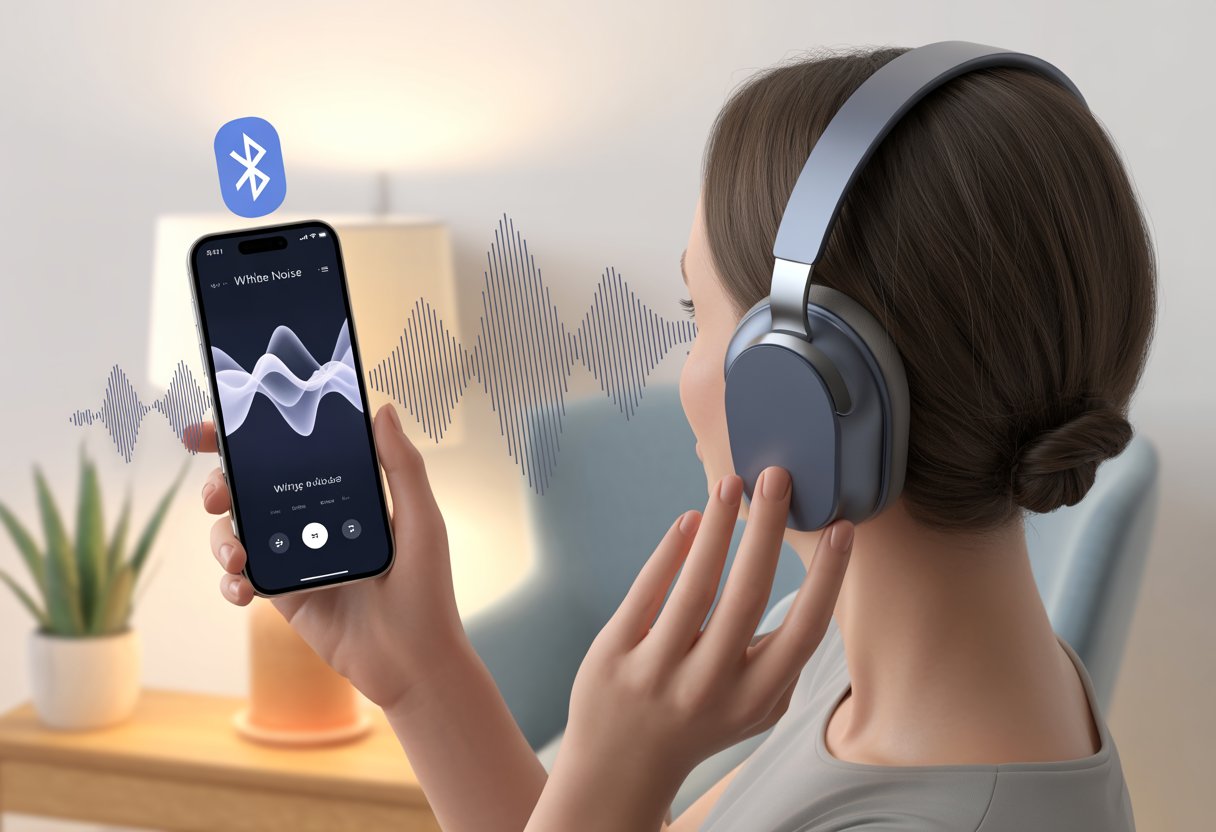
Let’s be real—most of us just want to sleep through the night, but even the tiniest noise can turn our dreams into a staring match with the ceiling. That’s when white noise comes to the rescue, saving us from barking dogs and those neighbors who never seem to sleep. We can grab our Bluetooth headphones and a white noise app on our phone or tablet to block out distractions and finally get some real rest.
It’s not complicated or some puzzle from the dark ages. We just need Bluetooth headphones, a white noise app, and a couple of quick steps before we can relax to the sound of rain or a crackling campfire right in our ears.
With the right setup, we might even start looking forward to bedtime as much as our pets do when they hear the treat bag.
So if we’re tired of missing out on good sleep, let’s make the leap from restless nights to peaceful snoozing with a few simple tips and some tech that actually helps us rest.
Pairing Your Bluetooth Headphones
Pairing Bluetooth headphones with white noise apps isn’t rocket science, but a smooth connection helps us fall asleep faster (or at least keeps us from throwing our headphones across the room). If things get weird, don’t panic—there’s usually a fix.
And if all else fails, there’s always that trusty headphone cable waiting in the drawer.
How To Initiate Bluetooth Connection
Let’s not overthink it. First, we turn on Bluetooth on our phone or tablet—it’s usually in Settings under “Bluetooth.”
Then, we switch on our headphones. Most headsets jump into pairing mode when we hold the power button until the little light blinks like it’s trying to get our attention.
Our headphones should show up in the Bluetooth list on our device. We tap the name, hope for the best, and wait for the “You’re connected” sound.
If it’s been a while, here’s a step-by-step guide to pairing Bluetooth headphones.
Quick Steps Table:
Step
What to Do
Turn on Bluetooth
Go to Settings, switch on Bluetooth
Power on headphones
Hold power/pair button until light blinks
Find device in Bluetooth list
Tap headphone name to connect
Troubleshooting Common Pairing Issues
Sometimes tech just wants to mess with us. If our headphones refuse to connect, we check that Bluetooth is actually on for both the phone and headphones.
If nothing happens, we try turning both off and on again. It’s basic, but it works more than we’d like to admit.
We also make sure our headphones aren’t paired to something else—maybe the neighbor’s tablet is stealing our signal. Old connections can block new ones, so we might need to “forget” the headset in the Bluetooth menu and pair again.
If that still doesn’t work, we hold down the headphone buttons until they reset. Most headphones give in after that.
Some apps need extra permissions for Bluetooth. If our white noise app isn’t working, we check app settings and make sure it has Bluetooth access.
When Bluetooth acts up—or the battery just gives up—we grab the supplied headphone cable. Most wireless headphones have a regular headphone cable that plugs into the device’s audio jack.
We connect one end to our headphones and the other to our phone, tablet, or whatever gadget’s being stubborn.
Sure, we lose the wireless magic for a bit, but at least the sound goes right from the device to our ears. The signal’s more stable, too.
If the cable’s hiding in the couch cushions, now’s the time to dig it out. We might look a little old-school, but at least the white noise won’t cut out.
Choosing and Setting Up White Noise Apps
Picking the right white noise app can turn restless nights into peaceful slumber. The trick is matching good headphones with the right app settings so every hiss and gentle waterfall actually helps us relax.
Top White Noise Apps for Maximum Zen
Let’s be honest—there are a million white noise apps. Only a few make us think, “Yep, I’ll listen to gentle rain for eight hours straight.”
Some favorites include White Noise Lite, Noisli, and Relax Melodies.
White Noise Lite has a big sound library, timer options, and lets us mix sounds. It’s free, so that’s a win for our snack budget.
iPhone users can grab it from the App Store (details here). Noisli lets us get creative with mixing—thunderstorms and coffee shop chatter? No judgment.
Relax Melodies is great for layering sounds, which is perfect if we can’t decide.
We should look for apps with favorites, playlists, and background play. These features help when we’re half asleep and don’t want to fumble around.
Optimizing App Settings for Best Audio
After picking an app, we need to tweak the settings. We don’t want ocean waves to sound like a storm or have birds chirping at full blast at 2 a.m.
Most apps offer volume sliders, timers, fading effects, and sometimes EQ controls.
It’s worth testing app audio on both our phone’s speaker and our Bluetooth headphones. That helps us hear what works best.
We check presets like “Gentle Rain” or “Box Fan” and see if they fit our sleep style. Playing with fade-in and fade-out settings can tell our brains it’s time to sleep, not dance.
We should also check if the app supports background play. Some phones love to shut off sound when the screen locks, and nobody wants to wake up to digital silence halfway through the night.
Usually, it’s just turning on Bluetooth and following a few prompts. If the headphones start blinking random colors, we might need the manual.
We make sure the device is using the headphones and not the phone’s weak little speaker.
We start playback in the app and listen for quality drops or delays. Static means we move the phone closer—walls and microwaves love to mess with Bluetooth.
It’s smart to adjust the volume on both the app and headphones. Some apps hide their own volume settings.
If nothing works, we reset and try again. Sometimes our Bluetooth gear just needs a little encouragement.
Using things like headphone stands or Bluetooth transmitters helps keep things organized, especially if we’re sharing our noise haven with a snoring partner.
White noise has never sounded so easy—or so good.
Maximizing Noise Reduction Benefits
Blocking out noise takes some practice, and getting the most out of our Bluetooth headphones and white noise apps means using the right features, the right way.
We don’t want to just wear fancy earmuffs, right?
Using the Noise Canceling Function Correctly
Let’s not confuse noise canceling with superpowers. For noise cancellation to actually work, we need to turn it on.
Most headphones have a button or switch—if it’s flashing, we’re probably on the right track.
We check for a setting labeled “ANC” (Active Noise Cancellation) or a little icon. If we’re not hearing the sweet silence of nothing (and our partner chewing three rooms away), it might not be on.
Fit matters, too. Our headphones need to fully cover our ears. If there’s a gap, outside noise sneaks in faster than a dog after snacks.
Make sure the cups seal well—comfortably, not like a vise.
When using a white noise app, keep the device’s volume at a comfortable level. Too loud, and it’s a concert. Too quiet, and the neighbor’s sneeze ruins everything.
Here’s a quick checklist for noise canceling:
Turn on ANC: Don’t just assume—check the headphones.
Good fit: Adjust the band and ear cups to block sound.
Pair with white noise: Use noise canceling and white noise. Double the defense!
Active Noise Cancellation Versus Passive Modes
There are two main paths to audio peace: active noise cancellation (ANC) and passive noise isolation.
We don’t have to pick just one—it’s not a competition.
Active noise cancellation uses microphones and some clever tech to create anti-noise. That blocks out things like engines, traffic, or the guy who narrates his phone calls in public.
It’s great for steady, low-frequency noise.
Passive noise isolation is the classic approach. It blocks sound just by design—think thick ear cups and padding.
This works best on sudden, sharp noises, like slamming doors or, honestly, someone with a kazoo.
Here’s a quick comparison:
Feature
Active (ANC)
Passive
How It Works
Mic & speaker tech
Physical material
Best For
Steady, low sounds
Random, sharp noises
Power Needed
Yes, needs battery
No battery required
Most times, we use both at once. Turn on ANC, get a snug fit, and let passive isolation help out.
When we’re using Bluetooth headphones with white noise apps, tweaking the ambient sound settings makes a big difference.
The right controls let us enjoy peaceful noise but still stay aware of what’s happening around us. Nobody wants to miss a coworker calling their name for five minutes.
Enabling Ambient Sound Mode Safely
Let’s be honest—nobody wants to be the person who can’t hear the fire alarm because their white noise was set to “tornado.” Ambient sound mode helps let in outside noises so we stay connected to the real world.
Most modern headphones have an Ambient or NC/AMBIENT button. On many Sony models, pressing this button cycles through modes: Noise Cancelling, Ambient Sound, and off.
A quick look at the official Sony guide reminds us—just press until you hear the beep and don’t try to outsmart the headphones. They always win anyway.
Some headphones also let us control how much ambient noise comes in, using companion apps. This helps if we want to block the vacuum cleaner but still hear the pizza delivery knock.
Adjusting Noise for Different Environments
Our headphones are almost like loyal dogs—they remember our favorite parks or work desks. With just a few taps, we tell ambient sound mode when to hush up or when to let the world in.
In the Sony Headphones Connect app, you’ll find an “Ambient Sound Control” slider. We can slide it to decide how much noise sneaks through, from “silent library” vibes to “city sidewalk at rush hour.”
Labels honestly save us so much hassle. We can set up profiles for places we visit a lot—like “office,” “gym,” or “café.”
Most apps save these settings, so our headphones know when it’s time for peace and when it’s fine to overhear some nearby gossip.
It’s smart to experiment with the ambient settings for each spot. That way, we stay focused but don’t miss out on what’s happening around us.
We avoid those awkward moments—like when a coworker taps our shoulder because we zoned out to a digital thunderstorm.
Action Button Hacks for Quick Access
The action button is basically our shortcut to sanity. With a click—or a long press if we’re feeling fancy—we switch noise modes without digging through menus.
A lot of headphones let us customize this button. Want to hear street traffic while walking? One press does it.
Craving silence the second the boss strolls by? Just hold it down. Some apps let us set this button to launch our favorite ambient sound instantly—like jumping right to “gentle rain” before a meeting.
Here’s a quick look at what we can assign to the action button:
Action
Result
Single press
Cycle noise/ambient modes
Double press
Trigger voice assistant
Long press
Launch favorite white noise sound
With a few action button tricks, we’re ready for any sound emergency. Maybe it’s a sudden dog bark, or the urgent arrival of a chip delivery—either way, we’re set.
Tips for the Ultimate White Noise Headphone Experience
Getting the most out of Bluetooth headphones with white noise isn’t just about pressing play. With the right habits, we block out noisy neighbors, keep our headphones happy, and squeeze more hours from every charge.
Saving Battery While Drowning Out the World
Let’s be real—our batteries sometimes act like they’ve got commitment issues, especially on long days. First thing, lower the volume to a comfy, not concert-level spot.
Louder settings use more juice, and let’s be honest, we don’t actually want to drown out the world and our own eardrums. Turning off extras like LED lights and noise cancellation when we don’t need them saves power too.
Do we really need our headphones glowing like disco balls? Probably not. Some white noise apps drain battery faster than a toddler with an ice pop.
Choosing apps with simple visuals or using our device’s built-in white noise settings can save both phone and headphone battery. We can set auto-off timers so our headphones don’t run marathons while we’re deep in dreamland.
Want to save even more? Play white noise from downloaded files instead of streaming, since streaming tends to eat up extra power.
Maintaining Your Headset Like a Pro
Headphones crave a bit of TLC—almost as much as we crave peace and quiet. I try to make cleaning a regular thing.
Wiping down ear pads, bands, and mesh covers keeps the gunk and weird smells away. Just grab a soft, slightly damp cloth and go for it.
No need for soap operas or fancy sprays—gentle cleaning does the trick. It’s honestly kind of satisfying.
Bluetooth connections? They can act like moody teenagers and drop out for no reason. I’ve found that keeping firmware updated actually helps prevent random disconnects.
Firmware updates sometimes add cool new features, too. Worth the few minutes, right?
I always store my headphones in a case to protect them from accidents and spills. Pets seem to think anything soft is a bed, so it’s just safer.
Twisting the headband is tempting, but as flexible as it looks, it’s not into yoga. I try to resist.
Charging with the right cable—not that old, chewed-up one in the drawer—keeps the battery healthy for the long haul. Little habits like these really add up.
Hi, my name is Garrett Jones, and I am a tech enthusiast. I enjoy researching the new tech that has been released, and have a vast knowledge of the best tech to purchase.
From a young age, I have always had a big interest in technology, and this blog is an extension of that interest. Through this blog, I hope to provide others with all of the information they need regarding tech options to consider, and things such as compatibility. Some of the different items I will be discussing include headphones, smartwatches, and how to fix common issues.